Between-subjects Group Balancing and Variable Setup
How can you set up a portion of participants to see version X while the remaining see version Y?
For between-subject randomization, there are a few ways one can go about implementing this in Labvanced.
There are two general approaches / scenarios and the best one, as always, depends on the details and your particular study design.
SCENARIO 1: Independent Tasks and Groups
Degree of Difference between groups: There is a relatively big difference between the participant groups, i.e. the differences are vast and span multiple frames, objects, or events.
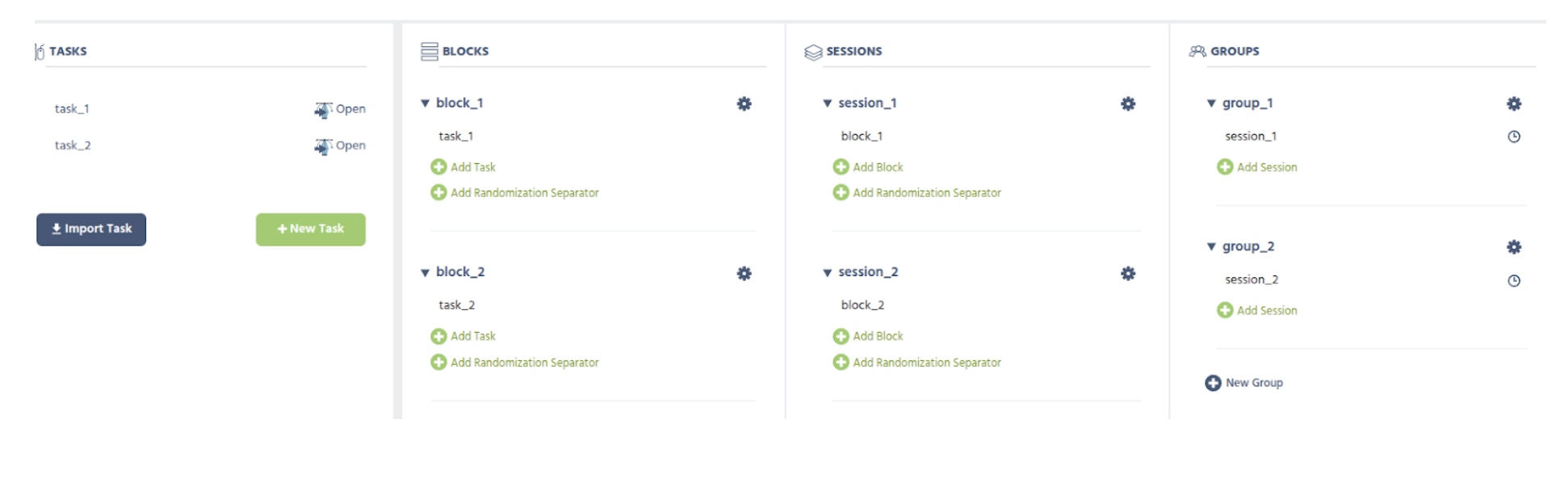
Suggested Setup: Create two (or however many you need) subject groups and assign the different tasks to the different groups. In the image below, a simplified study design representing this idea is shown - where half of the subjects (in Group 1) would do
task_1, the other half (in Group 2) would dotask_2.Tradeoff: Keep in mind that the downside of this approach is that you have truly separate and independent tasks, requiring you to take care of everything twice, i.e a new change that needs to be in both groups needs to be implemented in both tasks separately. This is why this is only a good option if the difference is rather big and thus it’s better to have two+ completely separate implementations.
SCENARIO 2: Factor Variables
Degree of Difference: The difference between the participants' groups is rather small, i.e. some “detail” (e.g. an object is visible or not / which image is shown) within an otherwise similar task structure.
Suggested Setup: Create a random between subject factor variable within the task. The way this works is that each subject will be assigned to only one value of this factor variable, which is balanced across subjects (based on the subject Nr).
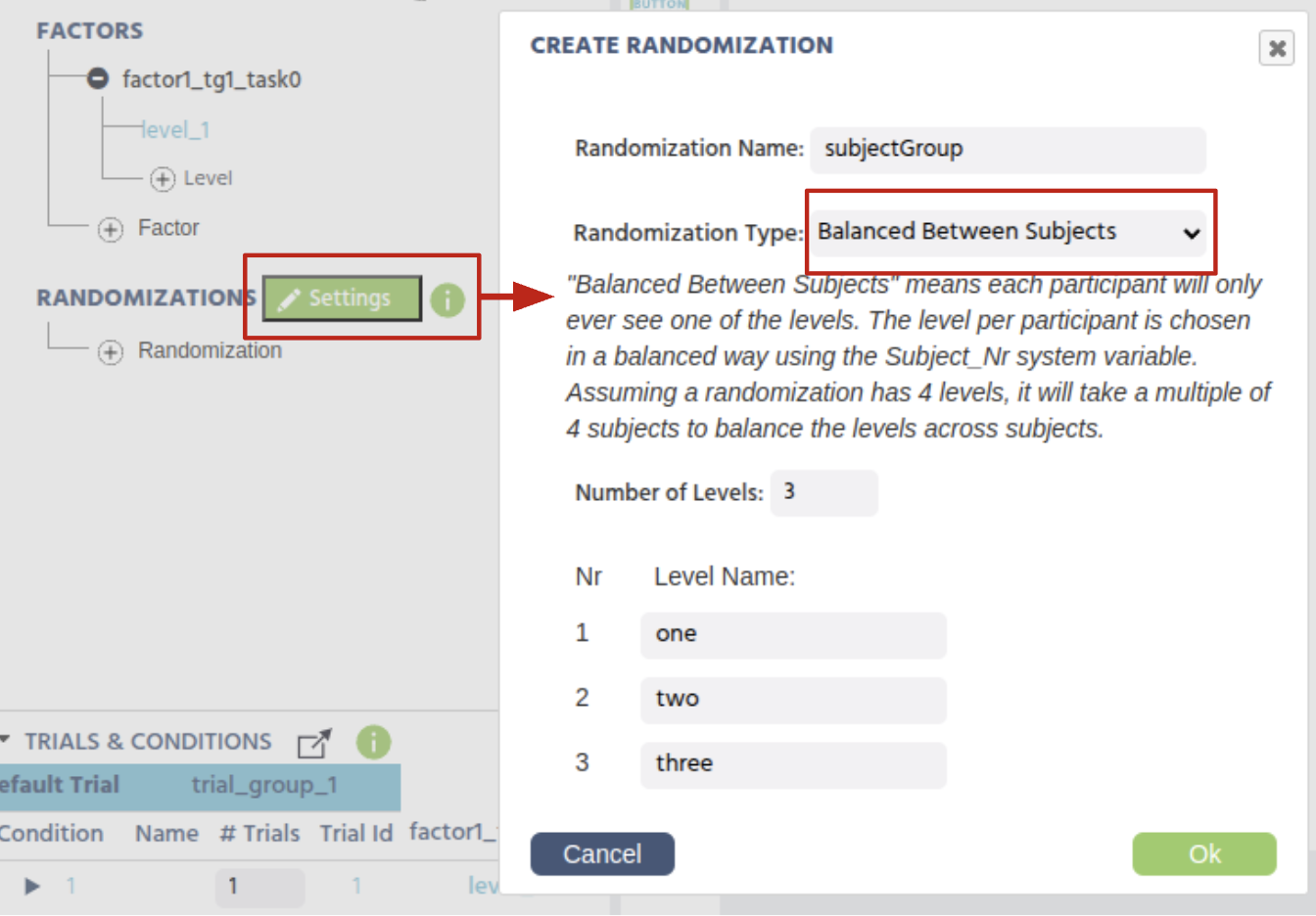
Now you can use this (factor) variable, together with Events, to make any kind of change within a task/frame between subject groups.
Example scenario: One group does not see an image
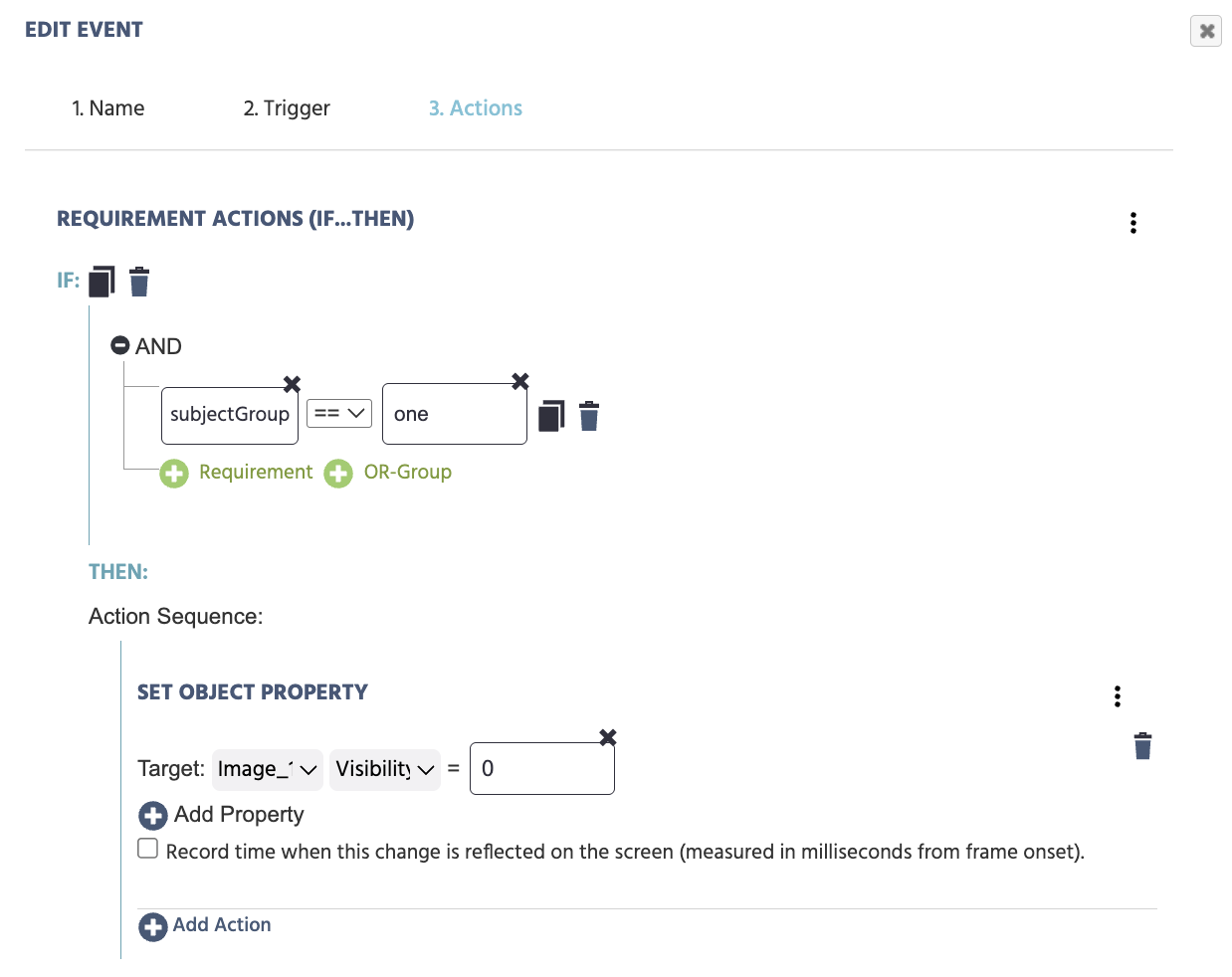
For instance you can make an event with trigger frame start and action to set the visibility property to zero of the image :
- Trigger:
Trial and Frame Trigger→On Frame Start - Action:
Control Actions→Requirement Action (If…Then)- Set the first requirement to call on the
Variable→Select Variablethen pick the factor variable we created (subjectGroup) from the list - On the other side of the equation, call on the specific level by selecting:
Constant Value→Stringand indicating the level:one
- Set the first requirement to call on the
Then, proceed to specifying what should occur for this specific group, such as: Set Object Property: for an object (like an image) and a property (like visibility) to change, such as making the visibility property out to be zero.
As a result if a subject is in Group 1, then the image object will not be shown, while in the other groups it will be visible.
Example scenario: Each group sees a different image
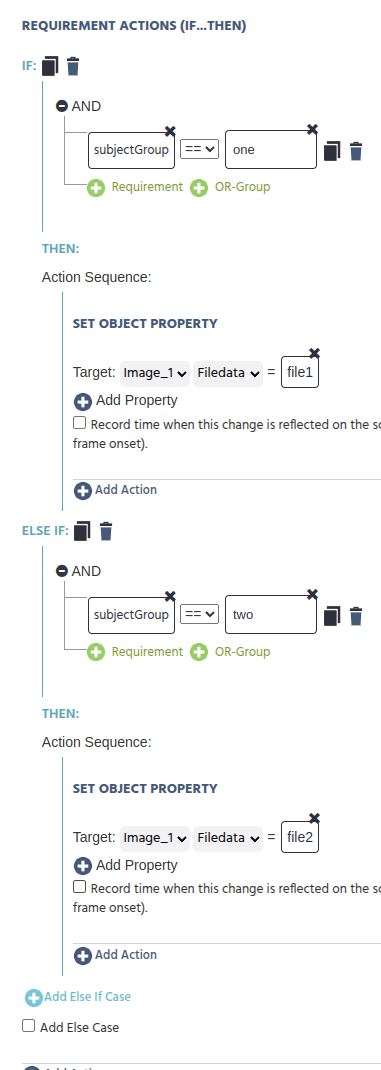
In a similar fashion, if you want to make it slightly more powerful and show a different image per group, then you can do something like:
IF:
subjectGroup== "one"
THEN:
Set Object PropertyAction [image_object] [filedata] = image1 (file or set it to read from a data frame)
ELSE IF:
subjectGroup== "two"
THEN:
Set Object PropertyAction [image_object] [filedata] = image2 (file or set it to read from a data frame)
ELSE IF:
subjectGroup== "three" THEN:Set Object PropertyAction [image_object] [filedata] = image3 (file or set it to read from a data frame)
And so on... This way, each subject group will see a different image.
Example Scenario: Different Events or Actions per Group
You can also extend this use case so that between-subject factor variables make events working differently between subjects.
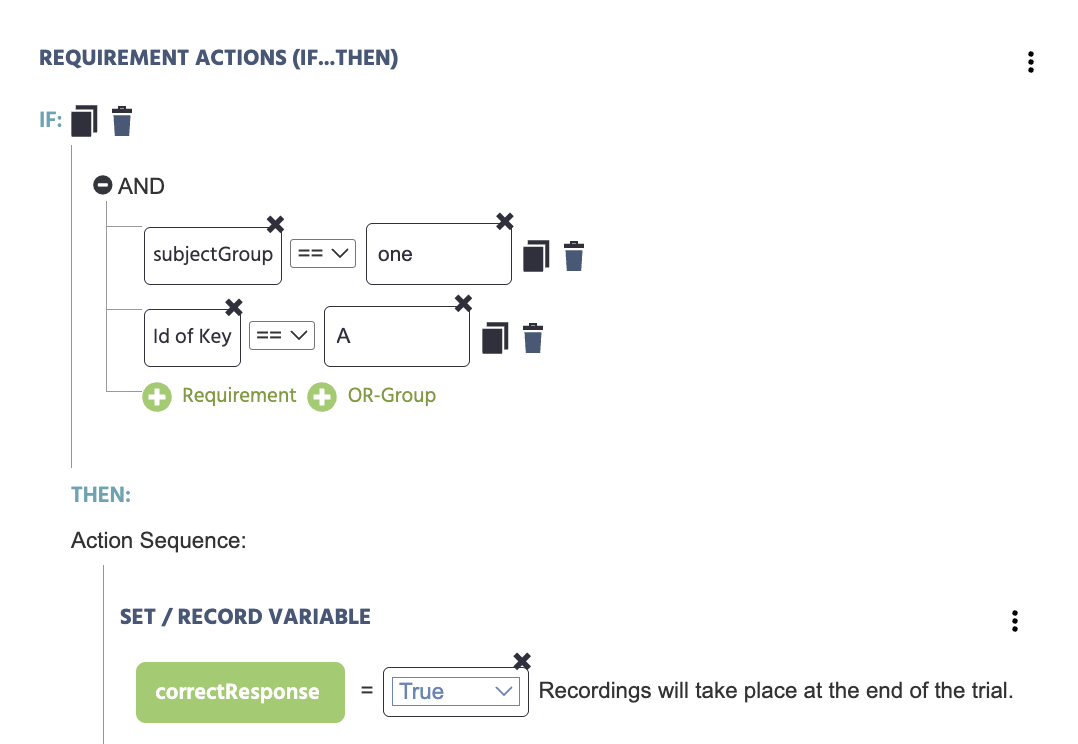
For instance, if you want different subject groups to balance for keypress and correctness of response assignment, then you can make an event with a trigger keyboard-press on letter A or L and an action that records correctness of response:
IF:
- subjectGroup == "one"
- Id of key == "A"
THEN:
- correctResponse = True
ELSE IF:
- subjectGroup == "two"
- Id of key == "L"
THEN:
- correctResponse = True
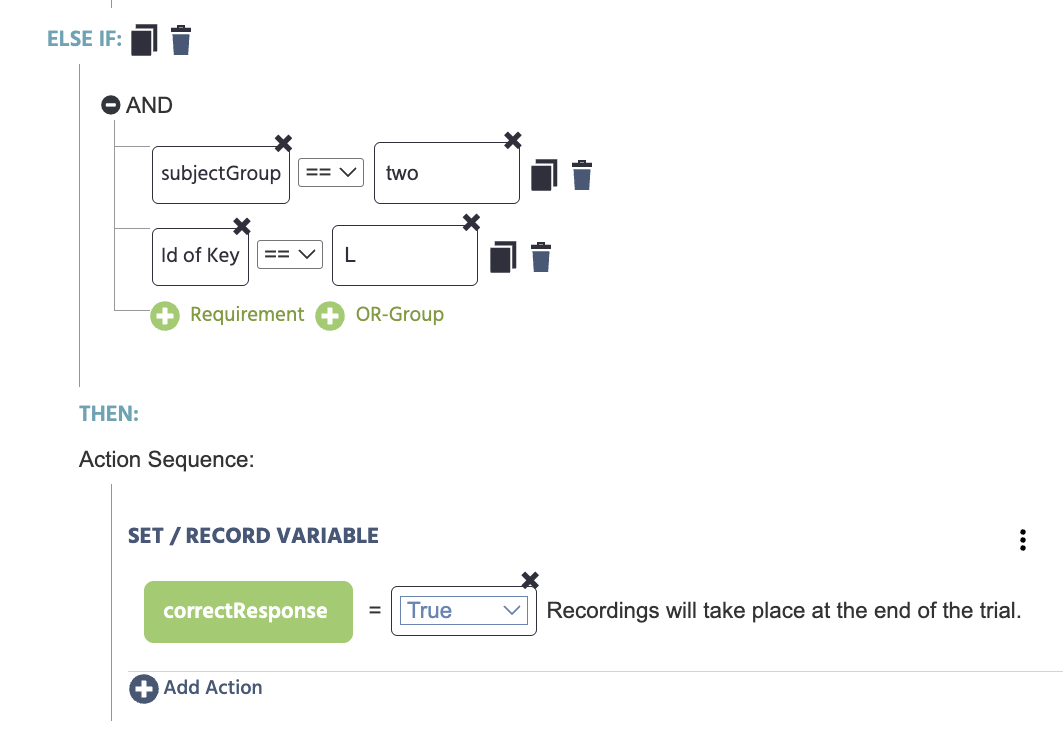
Here we created and set the variable correctResponse to record the Boolean value of True.