labvanced logoLabVanced
Contact
    • Remote Physiological Measurements
    • Eye Tracking
    • Head & Face-Tracking
    • Emotion Detection
    • Heart Rate Detection (rPPG)
    • Generative AI
    • Audio Transcription
    • EEG & Hardware Integrations
    • Decision Making
    • Reaction Times
    • Keyboard Inputs
    • Mouse Tracking
    • Mobile / Touch
    • Questionnaires
    • Gamepad / Joystick Integration
    • Audio Recordings
    • Audio Transcription
    • Video Recordings
    • Screen Recordings
    • Photos / Snapshots
    • Video Conferencing
    • Canvas Drawings
    • Build with AI
    • Build with Spreadsheets
    • Using the Experiment Editor
    • Coding
    • Creating Questionnaires
    • Balancing & Randomization
    • UX & Website Testing
    • Single Session Studies
    • Factorial Designs
    • Longitudinal & Multi-session Studies
    • Individual & Case Studies
    • Real-time Multi-user Studies
    • Interviews & Video Calls
    • Surveys & Questionnaires
    • Experience Sampling & Diaries
    • Classroom & Group Testing
    • Interventions & Clinical Trials
    • In the Browser
    • Mobile App
    • Desktop App
    • WebBridge Chrome Extension
    • Stroop Test
    • Flanker Task
    • N-back Task
    • Implicit Association Test
    • Trail Making Test
    • Digit Span
    • Corsi Block Tapping
    • Tower of London
    • Balloon Analog Risk Task
    • Preferential Looking
    • Browse more →
    • DASS-21
    • GAD-7
    • Rosenberg Self-Esteem Scale
    • PHQ-9
    • Ten-Item Personality Inventory
    • Big Five Personality Test
    • Adult ADHD Self-Report Scale
    • Browse more →
    • Building a Multi-user Study
    • Webcam Eye Tracking with AOIs
    • Website Frame Eye Tracking
    • Conditional Eye Tracking Opt-in
    • ChatGPT Study
    • Desktop App Study with EEG
    • Between-subjects Group Balancing
    • Building a Reading Study
    • Stroop Task
    • Lexical Decision Task
    • Browse more →
    Public Experiment Library
    • Arts Research
    • Clinical Psychology & Neuropsychology Medicine
    • Cognitive Psychology
    • Developmental Psychology
    • Behavioral Economics & Decision Science
    • Educational Research & Psychology
    • HCI & Human Factors
    • Linguistics & Language Sciences
    • Consumer & Marketing Research
    • Social & Personality Psychology
    • Sport & Movement Science
    • UX & Website Testing
    • Executive Functions
    • Language & Reading
    • Decision-Making & Reasoning
    • Attention
    • Overview
    • HCI & Human Factors
    • UX & Website Testing
    • Consumer & Marketing Research
    • White-Label App
    • PageGazer
    • Webcam vs. Lab Eye Tracking in InfantsAnna Banki & Gabriela Markova
    • Eye Tracking for Influencer MarketingDr. Alexander Edeling
    • Eye Tracking Infant Word ComprehensionDr. Giulia Calignano
    • Sentence Reading and Grammar JudgmentsDr. Jonathan Mirault
    • Regulating Emotions with MusicDr. Katrin Starcke
    • Game-Based Grammar Learning in ChildrenDr. Mireia Marimon
    • Gaze Cueing and AutismMax Soares Miehstein
    • Personality and Hearing in NoiseDr. Malte Wöstmann
    • All interviews →
    • Lab Notes
    • How to Cite Labvanced
    • Labvanced Platform Paper (2017)
    • Webcam Eye Tracking Validation (2024)
    • Webcam Eye Tracking Studies
    • Cognitive Psychology Studies
    • Developmental Psychology Studies
    • Linguistics Studies
    • See all publications →
    • Getting Started
    • Guide
    • Video Tutorials
    • Walkthroughs
    • Live Chat
    • Webinars & Onboarding Calls
    • AI Assistant
    • FAQ
    • Importing Templates Guide
    • Test Templates
    • Live Eye Tracking Metrics
    • Mouse Tracking Demo
    • ChatGPT Demo
    • Audio Recording Object Demo
    • Adding Image Stimuli Demo
    • Score & Feedback Demo
    • Browse all technical demos →
    • Timing Precision
    • Stimuli Presentation
    • Headphone Checks
    • Bot Checks
    • Participant Management
    • Comparisons
    • Research Blog
    • Prolific Integration
    • CloudResearch Integration
    • Sona Systems Integration
    • BeSample Integration
    • Panelabs Integration
    • Clickworker Integration
    • Labvanced Webhook API
    • Labvanced REST API
    • About Us
    • Newsletter Archive
    • Terms & Conditions
    • Data Security & Data Privacy
    • Technical & Organisational Measures
    • Accessibility
    • W-8BEN-E Form
    • Data Processing Agreement Template
    LinkedInYouTubeDiscord
    • Individual
    • Lab
    • Department / Consortium
    • Teaching
    • Campus
    • Commercial
    • Browse recording top-ups →
    • Browse AI token top-ups →
    • Overview
    • Study Building
    • Subject Recruitment
    • Dedicated Support
    Checkout
  • Contact
    • EN
      • 中國人
      • Deutsch
      • Français
      • Español
      • English
      • 日本語
    • Logout
    • Loginlogin icon
    Platform
    Labvanced makes it easy to implement the most advanced study design and reliably collect your data.
    Biosignals & AI
    Remote Physiological MeasurementsEye TrackingHead & Face-TrackingEmotion DetectionHeart Rate Detection (rPPG)Generative AIAudio TranscriptionEEG & Hardware Integrations
    Behavioral Recordings
    Decision MakingReaction TimesKeyboard InputsMouse TrackingMobile / TouchQuestionnairesGamepad / Joystick Integration
    Media Recordings
    Audio RecordingsAudio TranscriptionVideo RecordingsScreen RecordingsPhotos / SnapshotsVideo ConferencingCanvas Drawings
    Implementation Techniques
    Build with AIBuild with SpreadsheetsUsing the Experiment EditorCodingCreating QuestionnairesBalancing & RandomizationUX & Website Testing
    Study Formats

    Your study can take whatever format your research needs. Here are a few popular examples.

    Single Session StudiesFactorial DesignsLongitudinal & Multi-session StudiesIndividual & Case StudiesReal-time Multi-user StudiesInterviews & Video CallsSurveys & QuestionnairesExperience Sampling & DiariesClassroom & Group TestingInterventions & Clinical Trials
    Where Studies Run

    Run your study online in the browser, on mobile or tablet with the mobile app, or in-lab with the desktop app.

    In the BrowserMobile AppDesktop AppWebBridge Chrome Extension
    Tests
    Explore cognitive tests, questionnaires, walkthroughs, and our public experiment library: a starting point for your next study.
    Popular Cognitive Tests
    Stroop TestFlanker TaskN-back TaskImplicit Association TestTrail Making TestDigit SpanCorsi Block TappingTower of LondonBalloon Analog Risk TaskPreferential Looking
    Browse more →
    Questionnaires & Scales
    DASS-21GAD-7Rosenberg Self-Esteem ScalePHQ-9Ten-Item Personality InventoryBig Five Personality TestAdult ADHD Self-Report Scale
    Browse more →
    Public Experiment Library

    Take a look at what other researchers in the community are doing through our extensive, open catalog of shared studies.

    Open the public library →
    Walkthroughs

    Step-by-step builds of complete studies, from a blank project to a running experiment, that you can follow along or adapt.

    Building a Multi-user StudyWebcam Eye Tracking with AOIsWebsite Frame Eye TrackingConditional Eye Tracking Opt-inChatGPT StudyDesktop App Study with EEGBetween-subjects Group BalancingBuilding a Reading StudyStroop TaskLexical Decision Task
    Browse more →
    Research
    One platform for students, academics, and industry researchers studying human behavior.
    Harvard UniversityStanford UniversityCambridge UniversityUCLNYUMax Planck InstituteUCLATU Munich

    Trusted by researchers at 1,500+ universities worldwide

    Academic Research
    Arts ResearchClinical Psychology & Neuropsychology MedicineCognitive PsychologyDevelopmental PsychologyBehavioral Economics & Decision ScienceEducational Research & PsychologyHCI & Human FactorsLinguistics & Language SciencesConsumer & Marketing ResearchSocial & Personality PsychologySport & Movement ScienceUX & Website Testing
    Research Areas
    Executive FunctionsLanguage & ReadingDecision-Making & ReasoningAttention
    Industry / Commercial
    OverviewHCI & Human FactorsUX & Website TestingConsumer & Marketing ResearchWhite-Label AppPageGazer
    Researcher Interviews

    Conversations with researchers about the studies they ran with Labvanced, what worked, and what they learned.

    Webcam vs. Lab Eye Tracking in InfantsAnna Banki & Gabriela MarkovaEye Tracking for Influencer MarketingDr. Alexander EdelingEye Tracking Infant Word ComprehensionDr. Giulia CalignanoSentence Reading and Grammar JudgmentsDr. Jonathan MiraultRegulating Emotions with MusicDr. Katrin StarckeGame-Based Grammar Learning in ChildrenDr. Mireia MarimonGaze Cueing and AutismMax Soares MiehsteinPersonality and Hearing in NoiseDr. Malte Wöstmann
    All interviews →
    Our Research
    Lab NotesHow to Cite Labvanced
    Peer Reviewed Studies

    A selection of peer-reviewed work built on Labvanced: our own platform and validation papers, and studies by the research community grouped by area. Hundreds more are listed on the full publications page.

    Labvanced Platform Paper (2017)Webcam Eye Tracking Validation (2024)Webcam Eye Tracking StudiesCognitive Psychology StudiesDevelopmental Psychology StudiesLinguistics Studies
    See all publications →
    Resources
    Valuable resources to help you learn the platform, stay updated, and more.
    Documentation
    Getting StartedGuideVideo TutorialsWalkthroughs
    Support
    Live ChatWebinars & Onboarding CallsAI AssistantFAQ
    Templates & Demos

    These are a few popular examples. Browse our guide and a selection of technical demos to get started with implementation.

    Importing Templates GuideTest TemplatesLive Eye Tracking MetricsMouse Tracking DemoChatGPT DemoAudio Recording Object DemoAdding Image Stimuli DemoScore & Feedback Demo
    Browse all technical demos →
    Methodology
    Timing PrecisionStimuli PresentationHeadphone ChecksBot ChecksParticipant ManagementComparisonsResearch Blog
    Integrations & APIs
    Prolific IntegrationCloudResearch IntegrationSona Systems IntegrationBeSample IntegrationPanelabs IntegrationClickworker IntegrationLabvanced Webhook APILabvanced REST API
    Company & Legal
    About UsNewsletter ArchiveTerms & ConditionsData Security & Data PrivacyTechnical & Organisational MeasuresAccessibilityW-8BEN-E FormData Processing Agreement Template
    LinkedInYouTubeDiscord
    Pricing
    Our licenses and additional services at a glance.
    Licenses
    IndividualLabDepartment / ConsortiumTeachingCampusCommercial
    Top-Ups

    Need more recordings for your lab or your own research? Simply use one of these recording top-up packages.

    Browse recording top-ups →

    Need more AI tokens for the AI assistant and study translations? Simply use one of these AI token top-up packages.

    Browse AI token top-ups →
    Additional Services

    Hire Labvanced’s expert team to quickly bring your project to the level of rigor it needs.

    OverviewStudy BuildingSubject RecruitmentDedicated Support
    Checkout

    Ready to purchase a license or top-up? Head straight to checkout.

    Go to checkout →
    • 中國人
    • Deutsch
    • Français
    • Español
    • English
    • 日本語
    • Getting Started
    • Guide
      • GETTING STARTED

        • Task Editor
        • Frames
          • Canvas Frame
          • Page Frame
          • Website Frame
          • Overlays & Dialogs | Labvanced
        • Trial Timeline
        • Stimulus Presentation
        • Correctness of Response
        • Objects
        • Events
        • Variables
        • Task Wizard
        • AI Assistant
        • Trial System
        • Experiment Design
          • Creating a Study
          • Importing Templates in Labvanced
          • Data Frame Patterns
          • Multi-user Experiment Design
          • Longitudinal Experiment Design
      • FEATURED TOPICS

        • Randomization & Balance
        • Eye Tracking
          • Presenting Stimuli in an Eye Tracking Task
          • How to Choose Eye Tracking Calibration Settings
          • Setting Up Eye Tracking in a Task
          • Recording and Exporting Gaze Data
          • Using Shapes as Areas of Interest (AOI) for Eye Tracking
          • The Participant Calibration Experience
        • Web Bridge
          • Selecting Website AOIs | Anchor, Adjust, and Verify AOI Tracking
          • Tracking Mouse Behavior on a Website AOI | Web Bridge Guide
        • Questionnaires
        • Desktop App
        • Sample Studies
        • Participant Recruitment
        • API Access
          • REST API
          • Webhook API
          • WebSocket API
        • Other Topics

          • Precise Stimulus Timings
          • Multi User Studies
          • Head Tracking in Labvanced | Guide
      • MAIN APP TABS

        • Overview: Main Tabs
        • Dashboard
        • My Studies
        • Shared Studies
        • My Files
        • Experiment Library
        • My Account
        • License & Services
      • STUDY TABS

        • Overview: Study-Specific Tabs
        • Study Design
          • Tasks
          • Blocks
          • Sessions
          • Groups
        • Task Editor
          • Task Controls
          • The Trial System
          • Frame Types
          • Objects
          • Object Property Tables
          • Variables
          • System Variables Table
          • The Event System
          • Text Editor Functions
          • Eye Tracking Options in the Task Editor
          • Head Tracking in a Task
          • Multi-User Studies
        • Settings
        • Variables
        • Media
        • Texts & Translate
        • Launch & Participate
        • Subject Management
        • Dataview and Export
    • Video Tutorials
      • Video Overview
      • Getting Started in Labvanced
      • Creating Tasks
      • Element Videos
      • Events & Variables
      • Advanced Topics
    • Walkthroughs
      • Introduction
      • Stroop Task
      • Lexical Decision Task
      • Posner Gaze Cueing Task
      • Change Blindness Flicker Paradigm
      • Eye-tracking Sample Study
      • Infant Eye-tracking Study
      • Attentional Capture Study with Mouse Tracking
      • Rapid Serial Visual Presentation
      • ChatGPT Study
      • Eye Tracking Demo: SVGs as AOIs
      • Multi-User Demo: Show Subjects' Cursors
      • Gamepad / Joystick Controller- Basic Set Up
      • Desktop App Study with EEG Integration
      • Between-subjects Group Balancing and Variable Setup
      • Building a Multi-user Study
      • Website Frame Eye Tracking Walkthrough
      • Conditional Webcam Eye Tracking
      • Text Segmentation Study Building
      • Building a Study with AI
    • FAQ
      • Features
      • Support Policy & Guidelines
      • Security & Data Privacy
      • Licensing
      • Precision of Labvanced
      • Programmatic Use & API
      • Using Labvanced Offline
      • Troubleshooting
      • Study Creation Questions

    Study Creation Questions

    These questions are related to the implementation of certain objects or the use of events. If you don't see your question here, please refer to the appropriate section of the Guide for more information.

    Objects and Variables

    I would like to use a counter for my experiment. How do I implement this?

    Typically, a counter will be a scalar, numeric variable, and does not reset at trial start. Add it to the frame and create an event with the desired trigger (mouse click, key press, frame start, etc.) The action to increase the counter is usually Set/Record Variable with the logic as (counter variable) = (counter variable) + 1.

    You can use a counter to set how many times a participant can play a video or audio object. To do this, create a numeric variable (the counter) that increases by 1 every time the audio/video finishes playing. Add an If-Then Event such that when the counter reaches a specified number, the media will stop playing (or jump to the next frame, etc.).

    How can I create a variable to record Reaction Time? Can I report average Reaction Time at the end of the study?

    When creating this variable, add a numeric variable to the frame (NOT a Time variable). It should be recorded as "Time from Frame Onset" when the specific trigger is activated. For most cases, the variable should reset at trial start.

    To report average Reaction Time as feedback for a participant, follow the above steps. Then, create a new numeric variable called totalTime. Set up an event with the same trigger as Reaction Time. The action will be Set/Record variable, with this arithmetic sequence of variables: totalTime = totalTime + ReactionTime. On the final frame of the study, create another numeric variable called Average, then set up this action: Average = totalTime / (number of trials in your study). Add the variable "Average" to a text box to report it to the participant. This way, your data will show the reaction time for each trial as well as the average across trials.

    How can I add a variable as text and what can I do with it?

    Add a text box to the frame and use the red "x" button to insert a variable. This can be used to present feedback to a participant or even to troubleshoot a task (see "Tasks and Trials" under Troubleshooting).

    You can change the color and size of a variable presented as text using the Source button in the text editor. Clicking this button will open a window with the HTML source code for the object. Inserting and editing the HTML code will edit the text in the object.

    How can I record an object's properties such that they read out as a variable?

    Creating variables to store object properties can make data interpretation much easier. To do this, you can add an Event that sets a variable's value as one of the properties of an object on the frame:
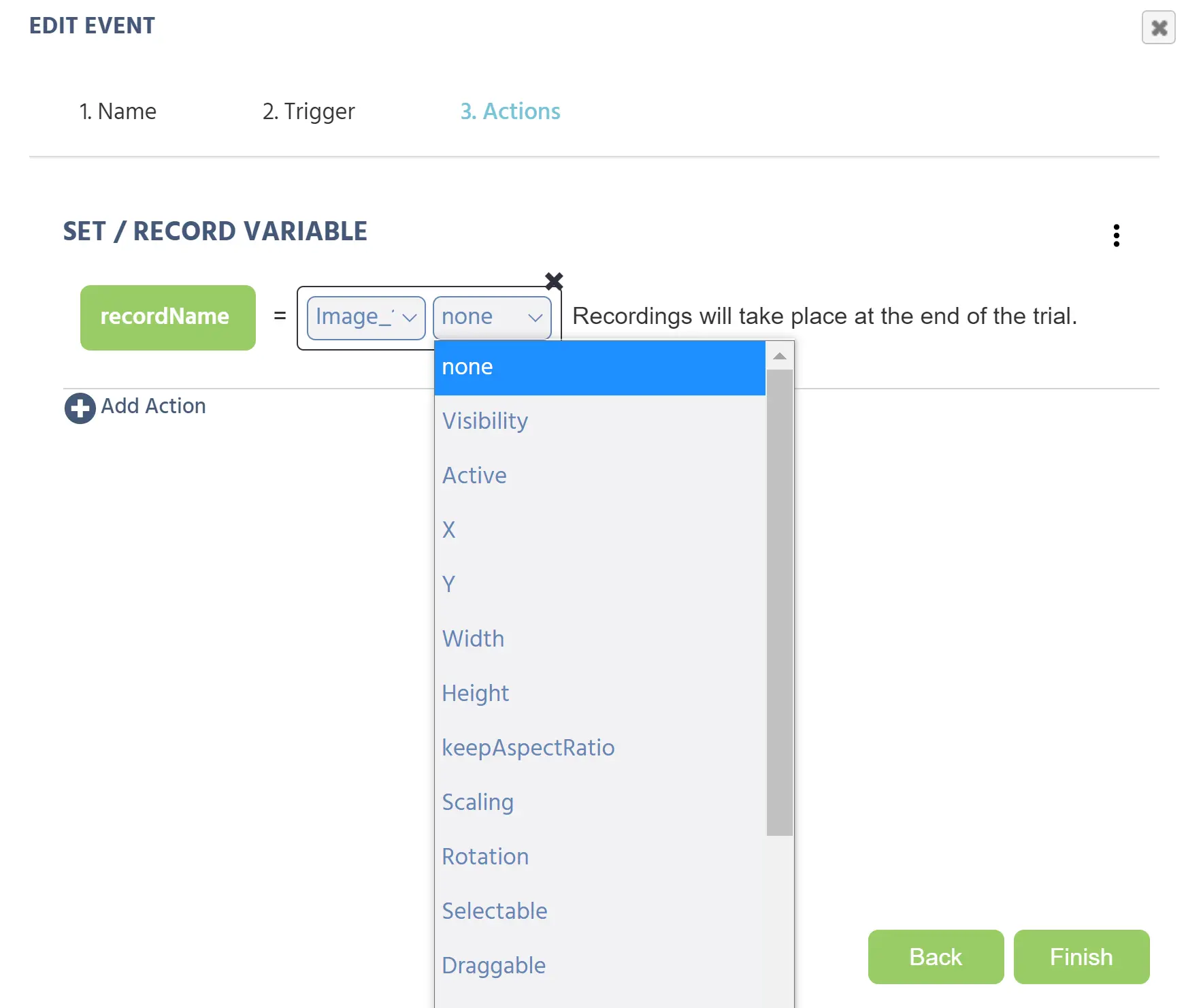
    Object Property

    In this example, a new variable called "recordName" is going to record one of the properties of an image object. This is a Set/Record Variable action. For most of these properties, the variable type should be "string" for a text input. Click the pen icon, scroll down the menu to "Frame/Task/Object," and select "Object Property" from the next pop-up. The event will now have 2 editable boxes. The first box is the object of interest and the second box is the property to be recorded in the variable (shown in green on the left).

    What is UNIX time and why is it used?

    UNIX time is the number of seconds that have passed since January 1st, 1970 at 0:00 UTC. This value is used to count time because it does not change by time zone and it is a very large but simple integer. Labvanced and other computer systems can use it to easily create time stamps and track data.

    To convert a UNIX time stamp to a clock value, you can refer to this website: Epoch Converter

    If you would like to do this conversion within the Labvanced application, it can be done using a Java Script action. Reach out to us via the live chat if you have questions about this process.

    How should I name my factors?

    The most important aspect of factors is that each must have a unique name. No two factors can share the same label and it is better to make the names very distinct to avoid confusion. It is also very important that the level names within factors have unique names. If you add multiple factors and the levels in each factor have the same names, there will be confusion when executing events. For example, factors "position" and "animal" cannot both have "level 1," "level 2," and so on. They should have levels such as "left" and "right," and "dog" and "cat" respectively.

    A note about factors and conditions

    It is very bad practice to create a large number of conditions and levels that only have 1 or 2 trials in each. A better design is to have a few conditions with multiple trials in each. If you find yourself in a situation with hundreds of small conditions, rethink your study design and consider consolidating similar conditions into separate tasks.

    Events

    What is the difference between a Frame Event and a Trial Event?

    Frame Events are the traditional events that only occur on the designated frame. Trial Events occur on every frame of the study. They can replace the need for creating redundant events, such as pressing "Space" to jump to the next frame in a self-paced task. This is helpful for researchers to more quickly build a task.

    Balancing and Randomization

    How can I create a study that is balanced within or between subjects?

    There are several ways to do this. One option is to use multiple blocks for within balancing and multiple groups for between balancing. However, we believe the best way to balance a task is to use the factor tree and trial system. For more information on this, please see the details in the Guide under Task Editor -> Trial Randomization -> Factor Randomization. To further ensure balancing, you can adjust the subject counter settings in Study Settings -> Startup & Main Settings. This information is also available in the Guide under Study Settings.

    Multi-User and Multi-Lingual Studies

    Can I implement a video call/meeting in my study?

    Yes, Labvanced supports Google Meet. The steps to integrate it are listed here:

    1. Create a multi- user study on Labvanced.com
    2. Create a series of Google Calendar events with a Meet link/url (one for each group of people, the time/date doesn't matter)
    3. Put those URLs into a string array and read them out such that people in the same multi-user group see the same link
    4. Render the link as an URL so that participants can just click on the link to start the call.
    5. Have a "host computer" (can be any computer) running, which joins all the meetings, but disable its camera and microphone.
    6. Install a plugin on that "host computer" to auto-accept people to Meet calls. There are several alternatives, here is just one option: [Plugin] (https://chrome.google.com/webstore/detail/google-meet-auto-admit/pabkjoplheapcclldpknfpcepheldbga?hl=en)
    7. Now, when a participant clicks on the meet link in Labvanced and clicks "request to join the meeting," he/she will be automatically admitted to the call (in a separate tab). As a result, the meeting can take place without the researcher's supervision.

    Can I change the language of the static text at the beginning and end of my study?

    Yes, currently Labvanced supports static text in Chinese, English, French, German, Italian, Polish, Portuguese, and Spanish. This can be edited in the Study Settings tab, under Main Settings.

    Publishing & Data Collection

    How do I publish a study?

    Once your study design is complete, publishing makes it available to participants online.

    1. Open your study and select Launch & Participate in the left sidebar.
    2. Under Data Recordings, click Activate. This is required before you can publish, since publishing an unrecorded study is not possible.
    3. Under Online Participation / Study Published, click Publish.

    Once published, an Online Participation Link appears in the same panel. This is the main link you share with participants to start the study.
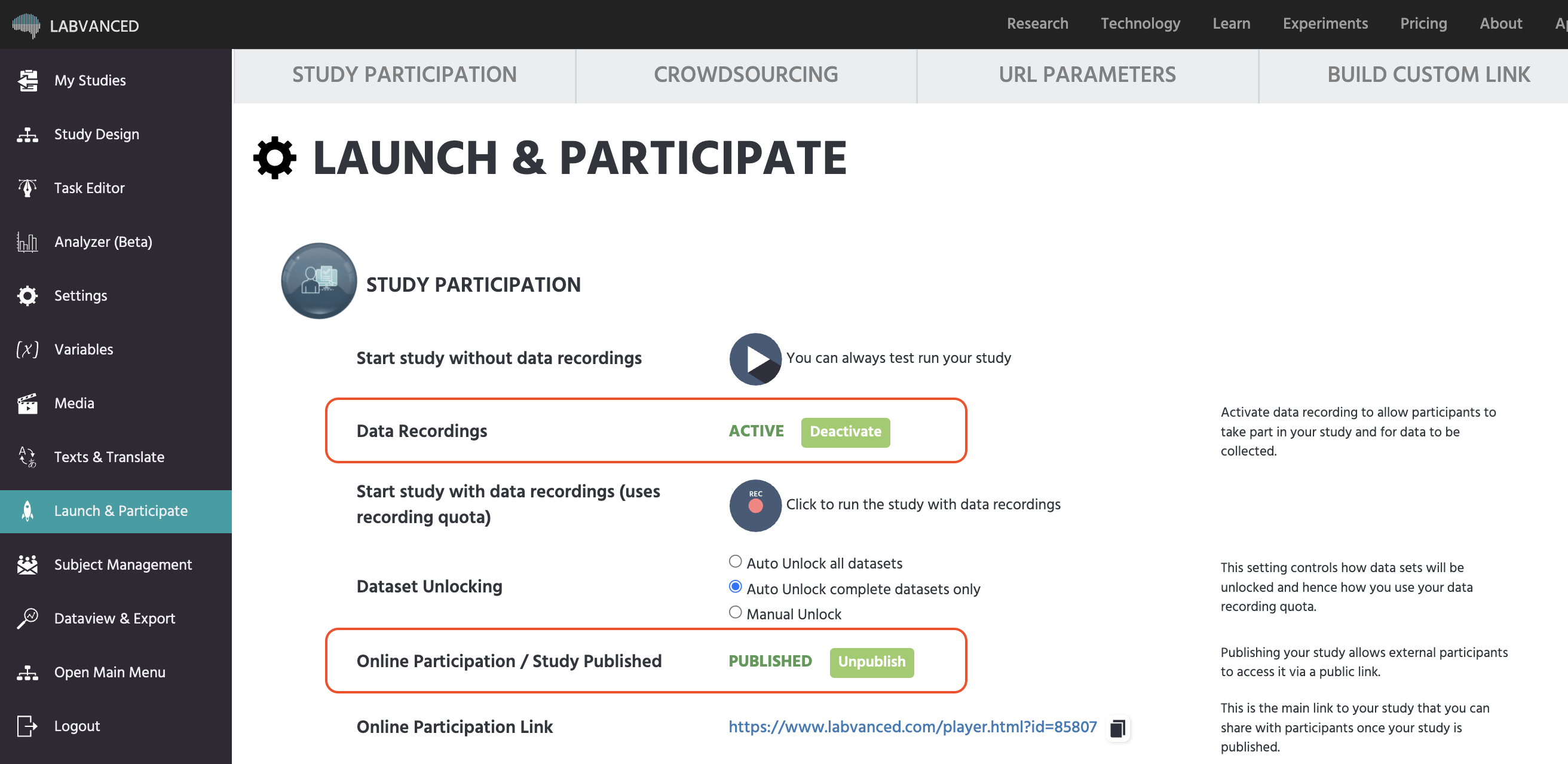
    Launch & Participate tab showing the Data Recordings Activate button and the Online Participation / Study Published section with the Publish button

    If you have reached the maximum number of active recruiting links on your account, the Publish button will be unavailable until you unpublish another study or upgrade your license.

    For distributing links through Crowdsourcing platforms, custom participation links, or URL parameters, see the Participant Recruitment guide.

    Group Licenses

    If a study is shared with multiple lab members, how does it become published?

    Any shared users can edit the study, but the original owner of the study is the only one who can publish it. Remember to save changes often to prevent publishing an unedited verison of the study!

    Other

    How can I connect Labvanced to my external devices (like EEG, force plates, etc.)?

    This will be done via websockets. We recommend a strong knowledge of coding with Python to do this. Linked here is the Labvanced GitHub instructions for this:

    Websockets

    How can I analyze the recorded videos from screen recording or video recording studies?

    This data can be analyzed in Ffmpeg or similar programs. These programs can analyze data frame by frame.

    How can I calculate a participant's screen size?

    In the Study Settings tab, go to the Browsers & Devices column and select the desired settings under Allowed Screen Size & Resolution. To get the physical size, select "Show Screen Calibration Screen." This will enable a screen at the start of the study that asks participants to drag and resize an image of a card. By matching the size of the card image to the size of an actual standard card (like a Metro card or ID) held up to their screen, we can infer the size of their screen based on the standard card size in relation to it.

    Prev
    Troubleshooting