labvanced logoLabVanced
  • Research
    • Publications
    • Researcher Interviews
    • Use Cases
      • Developmental Psychology
      • Linguistics
      • Clinical & Digital Health
      • Educational Psychology
      • Cognitive & Neuro
      • Social & Personality
      • Arts Research
      • Sports & Movement
      • Marketing & Consumer Behavior
      • Economics
      • HCI / UX
      • Commercial / Industry Use
    • Labvanced Blog
    • Services
  • Technology
    • Feature Overview
    • Code-Free Study Building
    • Eye Tracking
    • Mouse Tracking
    • Generative AI Integration
    • Multi User Studies
    • More ...
      • Reaction Time/Precise Timing
      • Text Transcription
      • Heart Rate Detection (rPPG)
      • Questionnaires/Surveys
      • Experimental Control
      • Data Privacy & Security
      • Desktop App
      • Mobile App
  • Learn
    • Guide
    • Videos
    • Walkthroughs
    • FAQ
    • Release Notes
    • Documents
    • Classroom
  • Experiments
    • Cognitive Tests
    • Sample Studies
    • Public Experiment Library
  • Pricing
    • Licenses
    • Top-Up Recordings
    • Subject Recruitment
    • Study Building
    • Dedicated Support
    • Checkout
  • About
    • About Us
    • Contact
    • Downloads
    • Careers
    • Impressum
    • Disclaimer
    • Privacy & Security
    • Terms & Conditions
  • Appgo to app icon
  • Logingo to app icon
Learn
Guide
Videos
Walkthroughs
FAQ
Newsletter Archive
Documents
Classroom
  • 中國人
  • Deutsch
  • Français
  • Español
  • English
  • 日本語
Guide
Videos
Walkthroughs
FAQ
Newsletter Archive
Documents
Classroom
  • 中國人
  • Deutsch
  • Français
  • Español
  • English
  • 日本語
  • Guide
    • GETTING STARTED

      • Task Editor
      • Stimulus Presentation
      • Correctness of Response
      • Objects
      • Events
      • Variables
      • Task Wizard
      • Trial System
      • Study Design
        • Tasks
        • Blocks
        • Sessions
        • Groups
    • FEATURED TOPICS

      • Randomization & Balance
      • Eye Tracking
      • Questionnaires
      • Desktop App
      • Sample Studies
      • Participant Recruitment
      • API Access
        • REST API
        • Webhook API
        • WebSocket API
      • Other Topics

        • Precise Stimulus Timings
        • Multi User Studies
        • Head Tracking in Labvanced | Guide
    • MAIN APP TABS

      • Overview: Main Tabs
      • Dashboard
      • My Studies
      • Shared Studies
      • My Files
      • Experiment Library
      • My Account
      • My License
    • STUDY TABS

      • Overview: Study-Specific Tabs
      • Study Design
        • Tasks
        • Blocks
        • Sessions
        • Groups
      • Task Editor
        • Task Controls
        • The Trial System
        • Canvas and Page Frames
        • Objects
        • Object Property Tables
        • Variables
        • System Variables Tables
        • The Event System
        • Text Editor Functions
        • Eyetracking in a Task
        • Head Tracking in a Task
        • Multi-User Studies
      • Settings
      • Variables
      • Media
      • Texts & Translate
      • Launch & Participate
      • Subject Management
      • Dataview and Export
        • Dataview and Variable & Task Selection (OLD Version)
        • Accessing Recordings (OLD Version)
  • Videos
    • Video Overview
    • Getting Started in Labvanced
    • Creating Tasks
    • Element Videos
    • Events & Variables
    • Advanced Topics
  • Walkthroughs
    • Introduction
    • Stroop Task
    • Lexical Decision Task
    • Posner Gaze Cueing Task
    • Change Blindness Flicker Paradigm
    • Eye-tracking Sample Study
    • Infant Eye-tracking Study
    • Attentional Capture Study with Mouse Tracking
    • Rapid Serial Visual Presentation
    • ChatGPT Study
    • Eye Tracking Demo: SVGs as AOIs
    • Multi-User Demo: Show Subjects' Cursors
    • Gamepad / Joystick Controller- Basic Set Up
    • Desktop App Study with EEG Integration
    • Between-subjects Group Balancing and Variable Setup
  • FAQ
    • Features
    • Security & Data Privacy
    • Licensing
    • Precision of Labvanced
    • Programmatic Use & API
    • Using Labvanced Offline
    • Troubleshooting
    • Study Creation Questions
  • Newsletter Archive
  • Documents
  • Classroom

Task Editor

The Task Editor is the main workspace where you build your experiment in Labvanced. At first glance, it can feel like a lot, but it’s easier to understand if you think of it as a set of connected sections—each helping you design what participants see, how the experiment behaves, and how your data is collected.
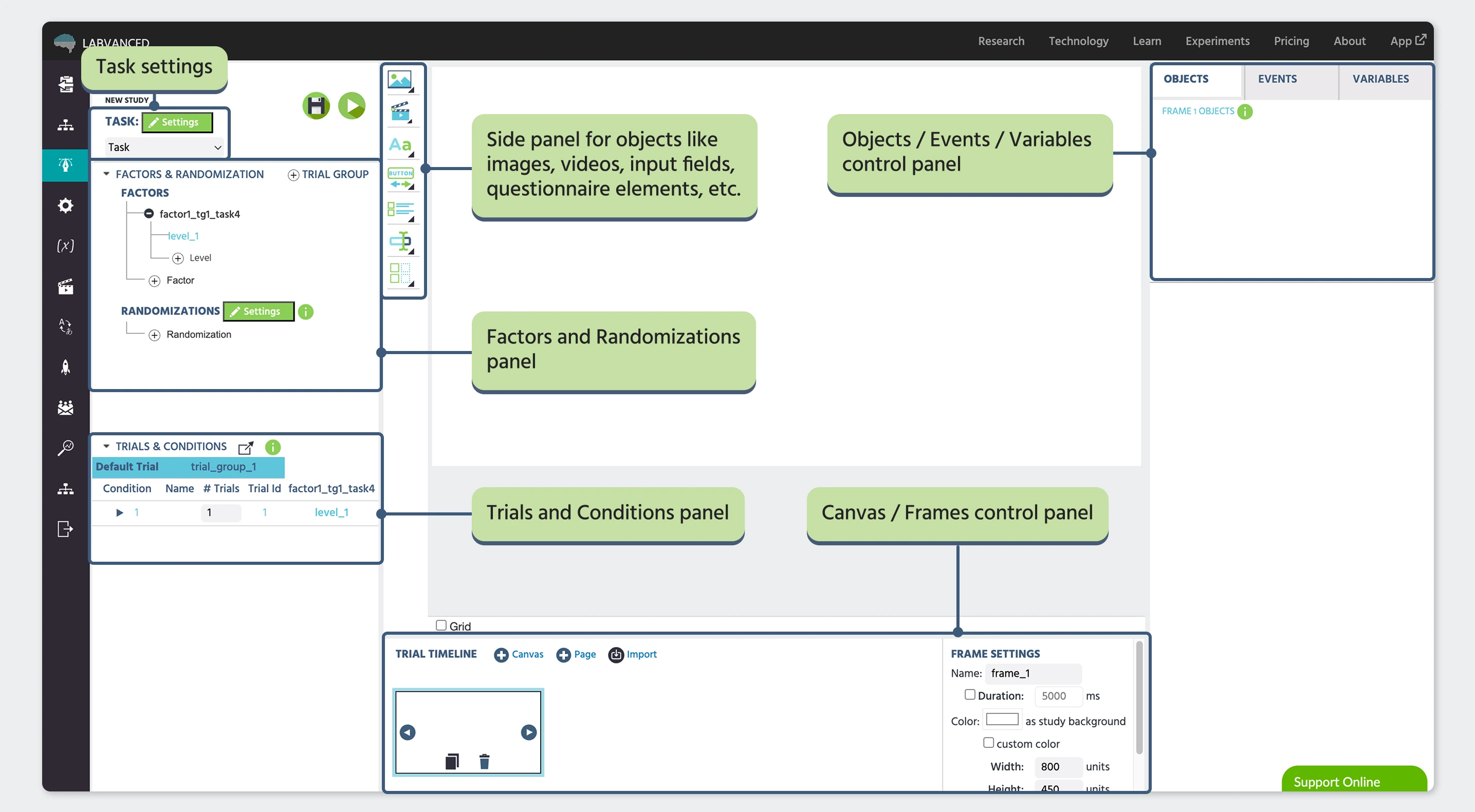
Explanation of the Labvanced Task Editor

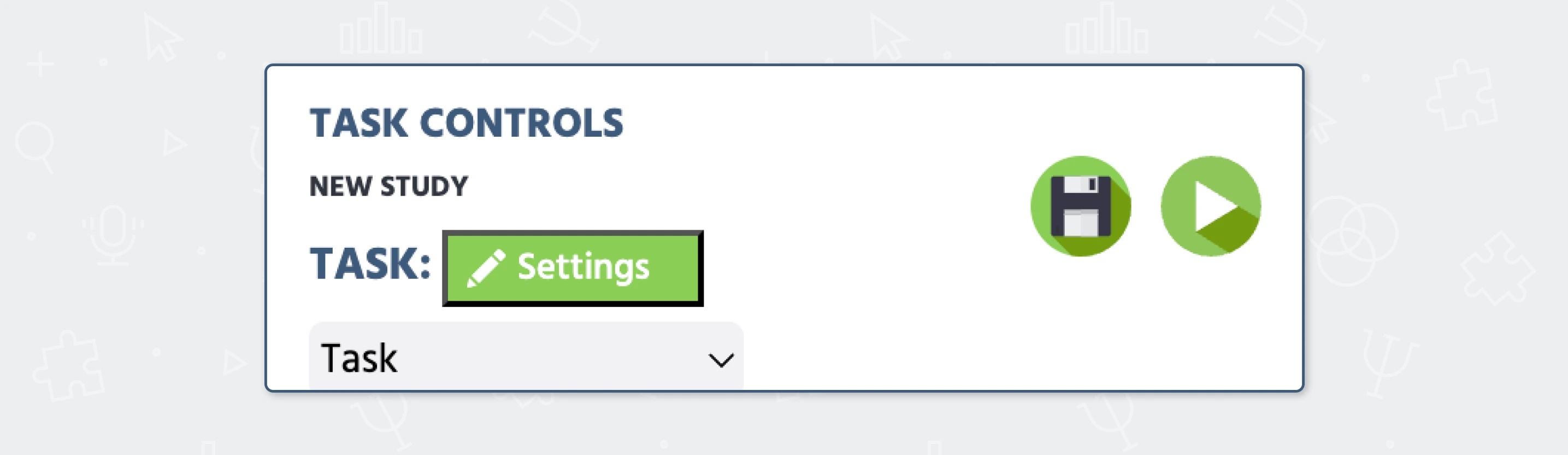
Task Controls

At the top, Task Controls act as your control panel. From here, you can save and test your task, but also access important features like randomization settings and even enable physiological recordings such as webcam eye tracking or remote heart rate detection. It’s not just for navigation—it’s where you manage how your task runs at a higher level.

Learn more.


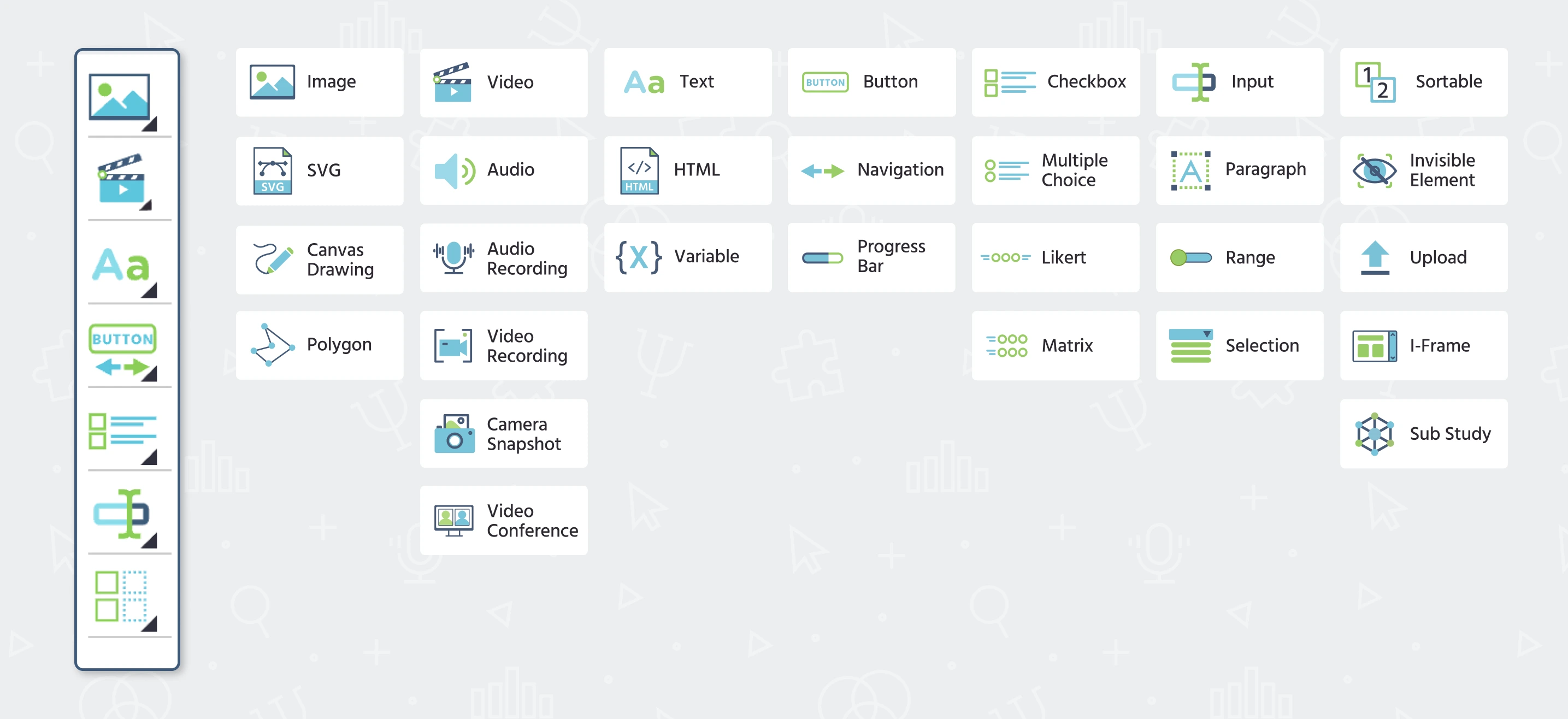
Objects

On the side, the Objects menu lets you choose what to add to your frame, such as text, images, buttons, or input fields. Once added, these objects appear in a side panel, where you can select them and adjust their Object Properties—things like size, position, color, and other presentation details. This is one of the main ways you shape how your stimuli appear on screen.

Learn more.


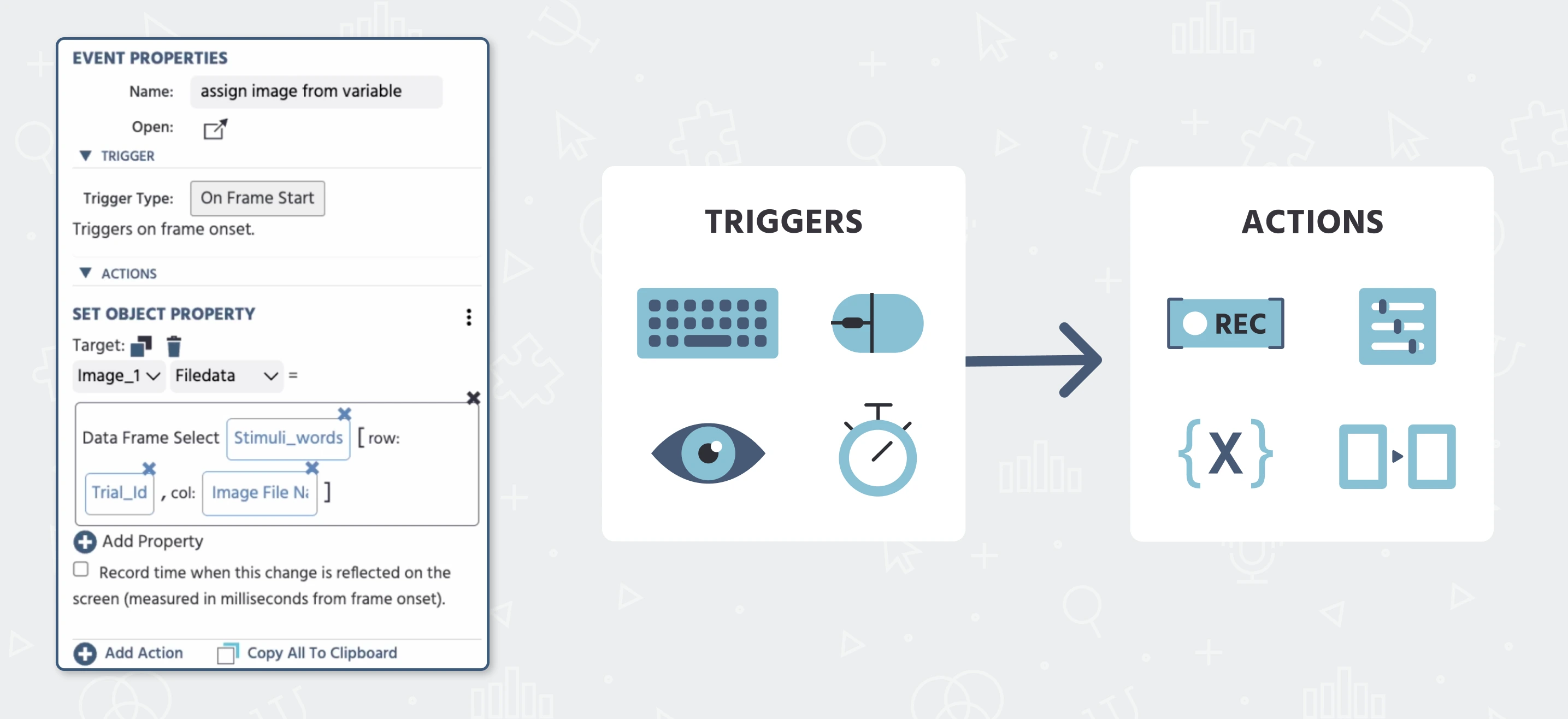
Events

The Events section is where you define how your experiment behaves, functions, and records data. Instead of thinking in technical terms, think of events as simple “if this happens → then do that” rules. For example, when a participant presses a key, you can record their response, move to the next screen, or update a variable.

Learn more.


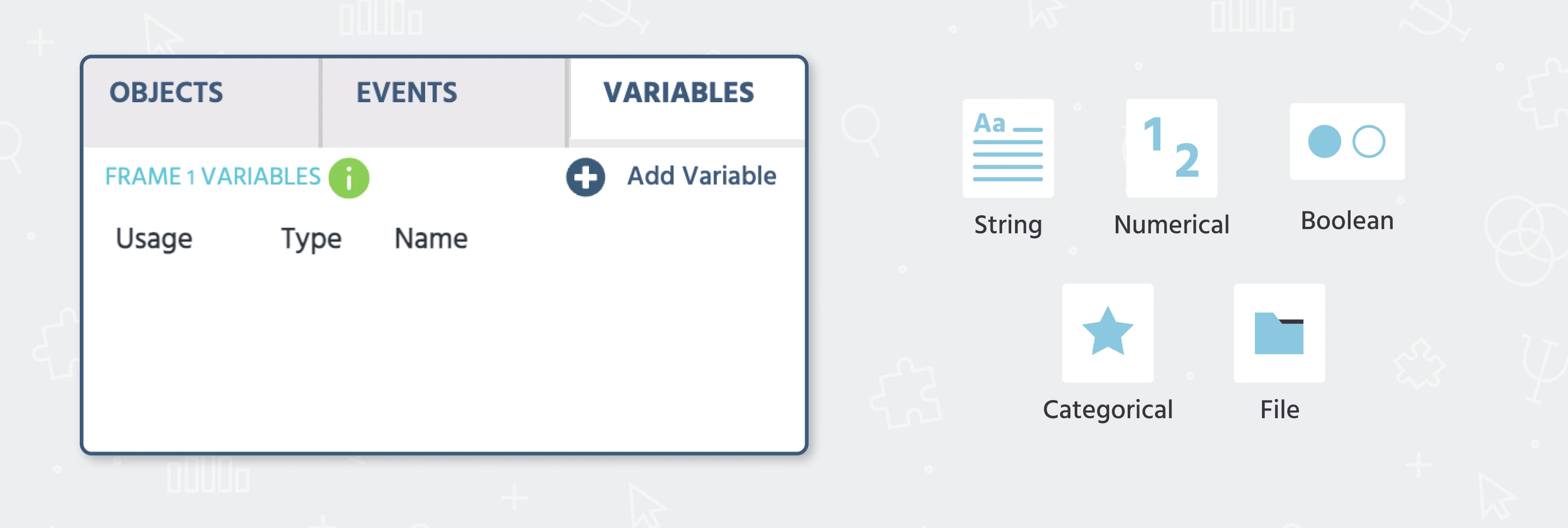
Variables

Closely related are Variables, which store information during the experiment—like responses, reaction times, or condition values—and allow different parts of your task to “communicate” with each other.

Learn more.


Trial Timeline

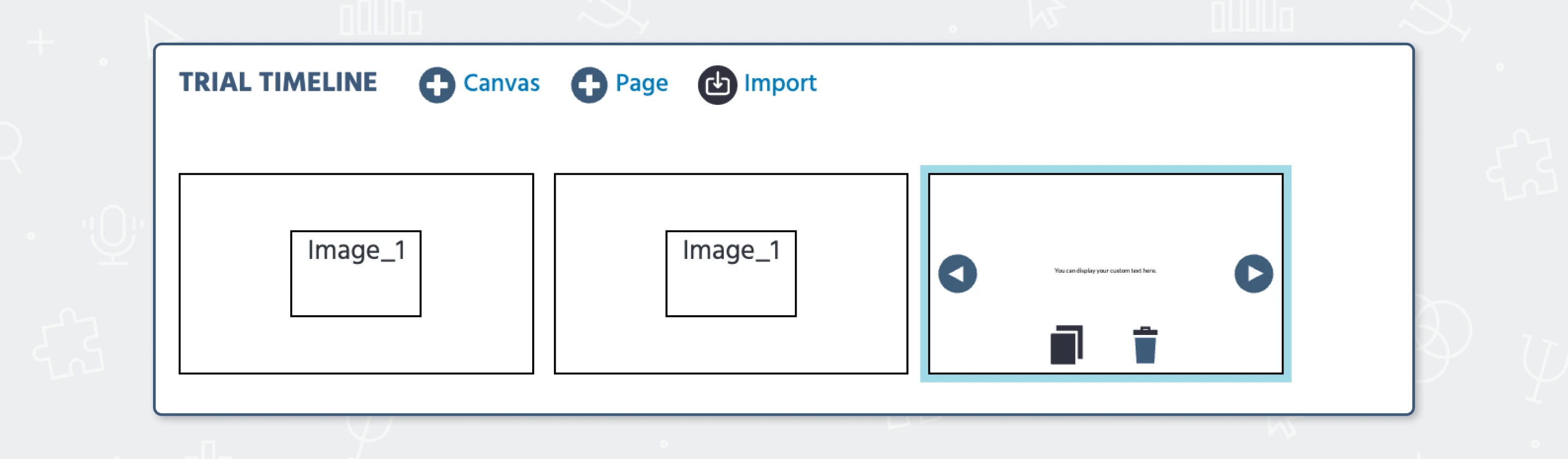
The Trial Timeline is a clear way to visualize and organize to some extent what happens within a single trial. It shows the sequence of screens (frames) that participants go through in a single trial. For example, frame for a fixation cross, then a frame for a stimulus, then a response screen. This helps structure each trial step by step.


Frame Settings
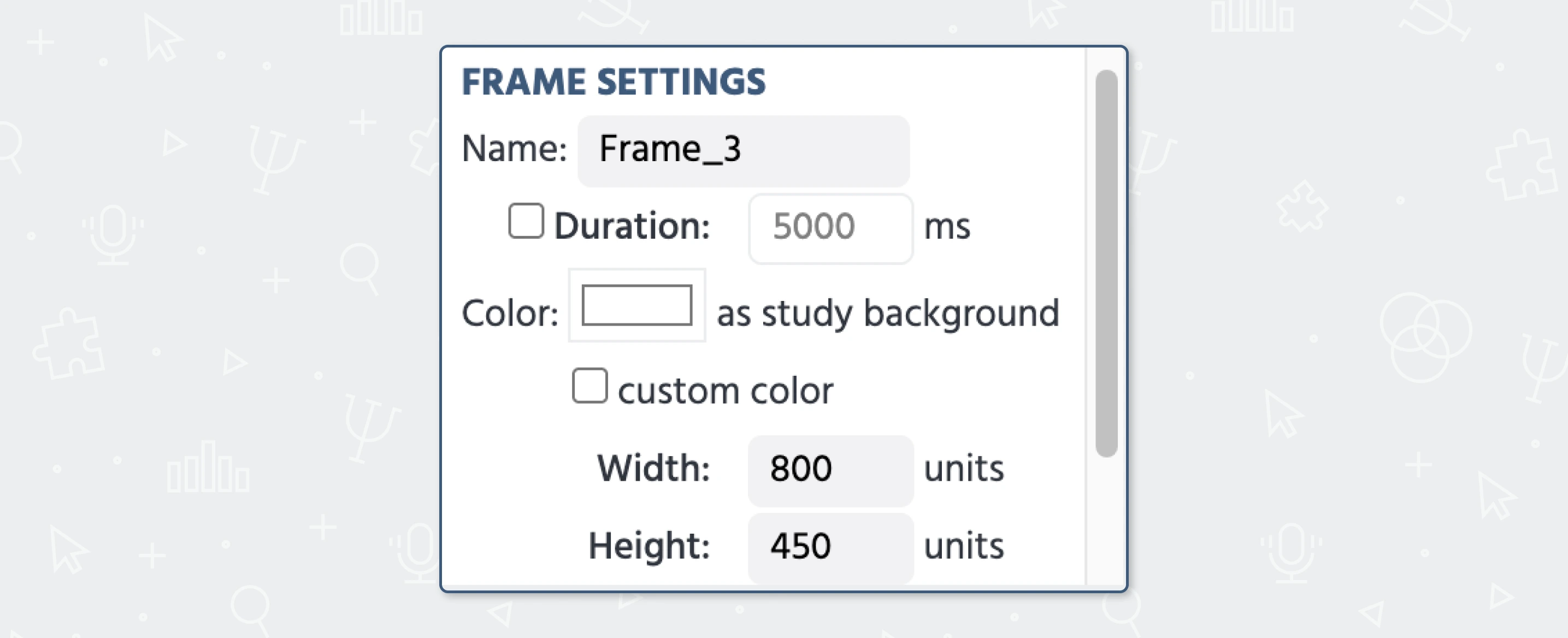
For controlling individual frames, Frame Settings let you adjust properties like duration and other frame-specific elements, like the frame size or even hiding the mouse. This is especially useful when you need precise control over how long something is shown.


Factors & Randomizations / Trials & Conditions
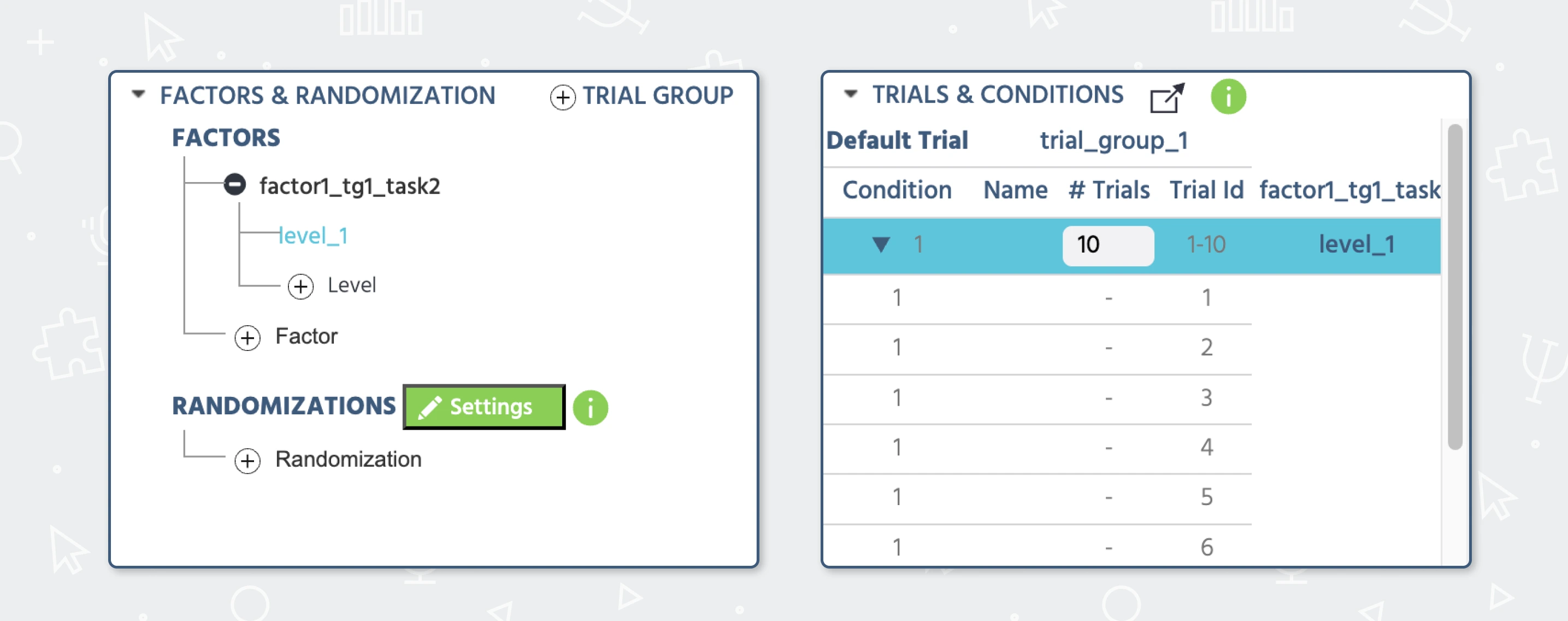
Finally, this is where your experiment really comes to life: Factors & Randomization and Trials & Conditions. These sections define how your trials are built and varied. You can create different conditions (for example, stimulus types), control how they are combined, and decide whether they appear in a fixed or randomized order. This is what allows you to move from a single trial to a fully structured experiment.


As you start working in the Task Editor, these sections will quickly become familiar. Together, they give you full control over your experiment—from what participants see, to how it behaves, to how your data is generated.

Prev
Study Design
Next
Stimulus Presentation