labvanced logoLabVanced
  • Research
    • Publications
    • Researcher Interviews
    • Use Cases
      • Developmental Psychology
      • Linguistics
      • Clinical & Digital Health
      • Educational Psychology
      • Cognitive & Neuro
      • Social & Personality
      • Arts Research
      • Sports & Movement
      • Marketing & Consumer Behavior
      • Economics
      • HCI / UX
      • Commercial / Industry Use
    • Labvanced Blog
    • Services
  • Technology
    • Feature Overview
    • Code-Free Study Building
    • Eye Tracking
    • Mouse Tracking
    • Generative AI Integration
    • Multi User Studies
    • More ...
      • Reaction Time/Precise Timing
      • Text Transcription
      • Heart Rate Detection (rPPG)
      • Emotion Detection
      • Questionnaires/Surveys
      • Experimental Control
      • Data Privacy & Security
      • Desktop App
      • Mobile App
  • Learn
    • Guide
    • Videos
    • Walkthroughs
    • FAQ
    • Release Notes
    • Documents
    • Classroom
  • Experiments
    • Cognitive Tests
    • Sample Studies
    • Public Experiment Library
  • Pricing
    • Licenses
    • Top-Up Recordings
    • Subject Recruitment
    • Study Building
    • Dedicated Support
    • Checkout
  • About
    • About Us
    • Contact
    • Downloads
    • Careers
    • Impressum
    • Disclaimer
    • Privacy & Security
    • Terms & Conditions
    • Third-Party Licenses
  • Appgo to app icon
  • Logingo to app icon
Learn
Guide
Videos
Walkthroughs
FAQ
Newsletter Archive
Documents
Classroom
  • 中國人
  • Deutsch
  • Français
  • Español
  • English
  • 日本語
Guide
Videos
Walkthroughs
FAQ
Newsletter Archive
Documents
Classroom
  • 中國人
  • Deutsch
  • Français
  • Español
  • English
  • 日本語
  • Guide
    • GETTING STARTED

      • Task Editor
      • Stimulus Presentation
      • Correctness of Response
      • Objects
      • Events
      • Variables
      • Task Wizard
      • Trial System
      • Study Design
        • Tasks
        • Blocks
        • Sessions
        • Groups
    • FEATURED TOPICS

      • Experiment Design
        • Creating a Study
        • Data Frame Patterns
      • Randomization & Balance
      • Eye Tracking
      • Questionnaires
      • Desktop App
      • Sample Studies
      • Participant Recruitment
      • API Access
        • REST API
        • Webhook API
        • WebSocket API
      • Other Topics

        • Precise Stimulus Timings
        • Multi User Studies
        • Head Tracking in Labvanced | Guide
    • MAIN APP TABS

      • Overview: Main Tabs
      • Dashboard
      • My Studies
      • Shared Studies
      • My Files
      • Experiment Library
      • My Account
      • License & Services
    • STUDY TABS

      • Overview: Study-Specific Tabs
      • Study Design
        • Tasks
        • Blocks
        • Sessions
        • Groups
      • Task Editor
        • Task Controls
        • The Trial System
        • Canvas and Page Frames
        • Objects
        • Object Property Tables
        • Variables
        • System Variables Tables
        • The Event System
        • Text Editor Functions
        • Eyetracking in a Task
        • Head Tracking in a Task
        • Multi-User Studies
      • Settings
      • Variables
      • Media
      • Texts & Translate
      • Launch & Participate
      • Subject Management
      • Dataview and Export
        • Dataview and Variable & Task Selection (OLD Version)
        • Accessing Recordings (OLD Version)
  • Videos
    • Video Overview
    • Getting Started in Labvanced
    • Creating Tasks
    • Element Videos
    • Events & Variables
    • Advanced Topics
  • Walkthroughs
    • Introduction
    • Stroop Task
    • Lexical Decision Task
    • Posner Gaze Cueing Task
    • Change Blindness Flicker Paradigm
    • Eye-tracking Sample Study
    • Infant Eye-tracking Study
    • Attentional Capture Study with Mouse Tracking
    • Rapid Serial Visual Presentation
    • ChatGPT Study
    • Eye Tracking Demo: SVGs as AOIs
    • Multi-User Demo: Show Subjects' Cursors
    • Gamepad / Joystick Controller- Basic Set Up
    • Desktop App Study with EEG Integration
    • Between-subjects Group Balancing and Variable Setup
  • FAQ
    • Features
    • Support Policy & Guidelines
    • Security & Data Privacy
    • Licensing
    • Precision of Labvanced
    • Programmatic Use & API
    • Using Labvanced Offline
    • Troubleshooting
    • Study Creation Questions
  • Newsletter Archive
  • Documents
  • Classroom
Representation of the dashboard tab in Labvanced.

Texts & Translate

The Texts and Translate tab in Labvanced is a powerful part of the app that can be used for managing and customizing all text-based prompts, system messages (like the instructions for webcam eye tracking calibration) and translations.
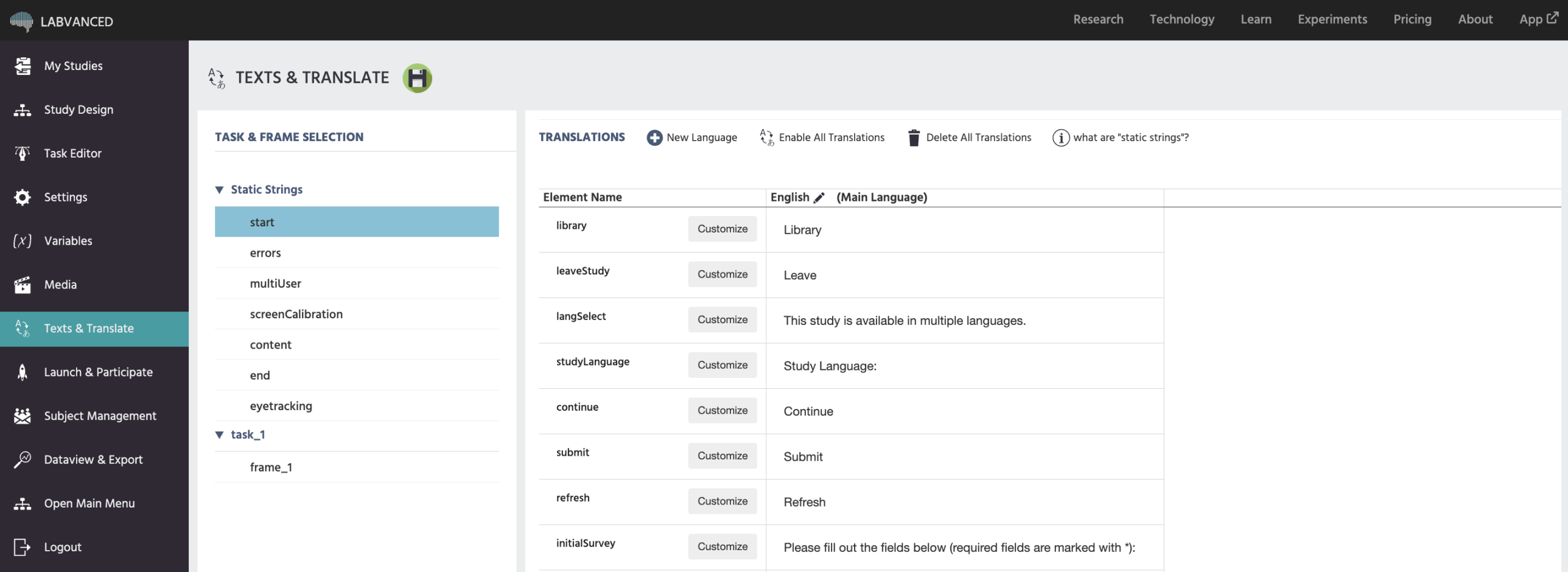
Preview of the Texts & Translate tab in Labvanced.

Static Strings | Controlling System Messages

On the left side, all the system messages that are potentially shown to a participant during the study can be found. For instance initial survey questions, loading messages, eye tracking instructions, error messages, etc. They are grouped into categories.

You can make custom changes to each static string and also separately for each language.

  • Start: Shows all the possible static strings that could appear on the start/loading screen of the study.
  • Errors: Shows all the possible static strings associated with errors during the study.
  • multiUser: Shows all possible static strings associated with multi-user studies.
  • screenCalibration: Shows all the static strings associated with screen calibration.
  • Content: Shows the static strings associated with content elements, such as asking participants to choose a response or input their answer.
  • End: Shows all the possible static strings that could appear on the final screen of the study.
  • Eyetracking: Shows all of the static strings associated with eyetracking, including the calibration instructions.

Editing System Messages using the Static Strings

In the image below, the eyetracking system message category is selected. The element highlighted is called instructionsPreEnvironmentInfant which corresponds to calibration instructions for infant-friendly eye tracking. By clicking customize the text editor will appear, allowing you to change the displayed instructions for that particular step during the calibration process.
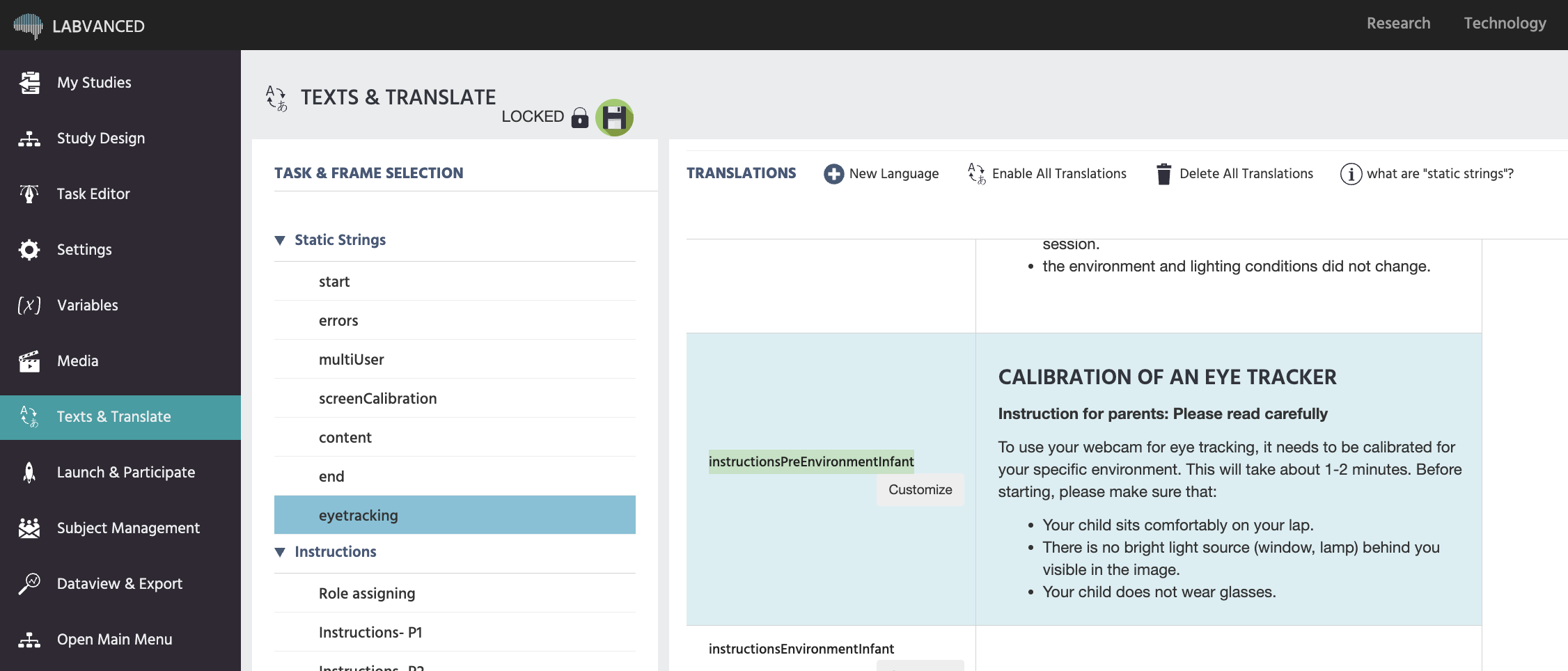
Preview of the static strings that can be edited.

If you are not sure about which particular element to edit, please feel welcome to contact us via chat or email.

Translations for Studies

Setting the Main Language

You can set the main language:

  1. By creating a new study
  2. Via the Settings tab for an existing study under the Main Language option
  3. Here in the Texts & Translate tab by clicking on the black pencil icon in the first column of the displayed texts.

Automatically Translated Languages

If your study is set to one of these languages, or includes them as a part of a multi-lingual study, all system messages (such as the startup of the experiment or webcam eye tracking instructions) will automatically be translated without requiring any additional work:

Arabic, Bulgarian, Chinese, Croatian, Czech, Dutch, French, German, Greek, Hindi, Hungarian, Indonesian, Italian, Japanese, Korean, Persian, Polish, Portuguese, Romanian, Russian, Serbian, Spanish, Swedish, Turkish, Ukrainian, Urdu, Vietnamese

For study-specific content (your own stimuli, instructions, and text fields), you can translate into any language -- either manually or using AI.

AI Translation

To translate your study content using generative AI, click + New Language in the Texts & Translate tab. In the Add Language dialog, select Translate with Generative AI as the translation method, then choose your target language from the dropdown.

You can also check Automatically enable translation of all text fields in study to translate all existing text fields in one step. Once the language is added, individual fields can still be re-translated one at a time if needed.
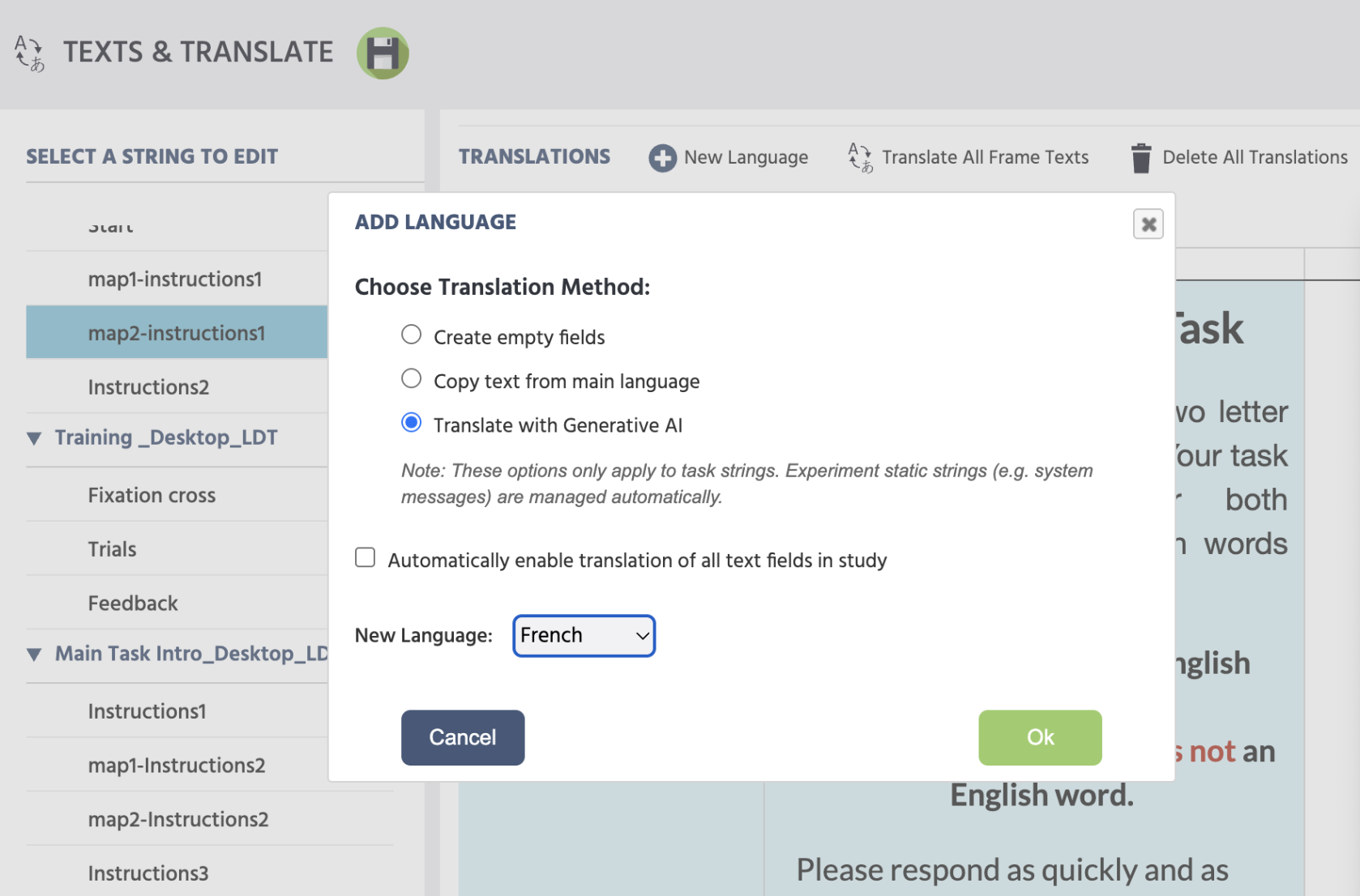
The Add Language dialog in Labvanced showing the Translate with Generative AI option selected.
The Add Language dialog with Translate with Generative AI selected. System messages are managed automatically and are not affected by this option.

Translation uses AI Tokens. Each paid license includes a quantity of AI Tokens provided by Labvanced -- the amount varies by plan and is visible in your account under Licenses & Services. A low-token warning is shown before translation begins if your balance is running low. See Licenses & Services for details.

Manually Translating

To manually translate a field of text, click + New Language, select Create empty fields or Copy text from main language, choose your target language, and edit each text field directly in the Texts & Translate tab on a frame-by-frame basis.

Prev
Media
Next
Launch & Participate