Launch & Participate
Using the Launch & Participate tab, you can run your entire experiment with or without data being recorded, and also use it to connect with crowdsourcing platforms and build custom, online participation links.
Table of Contents
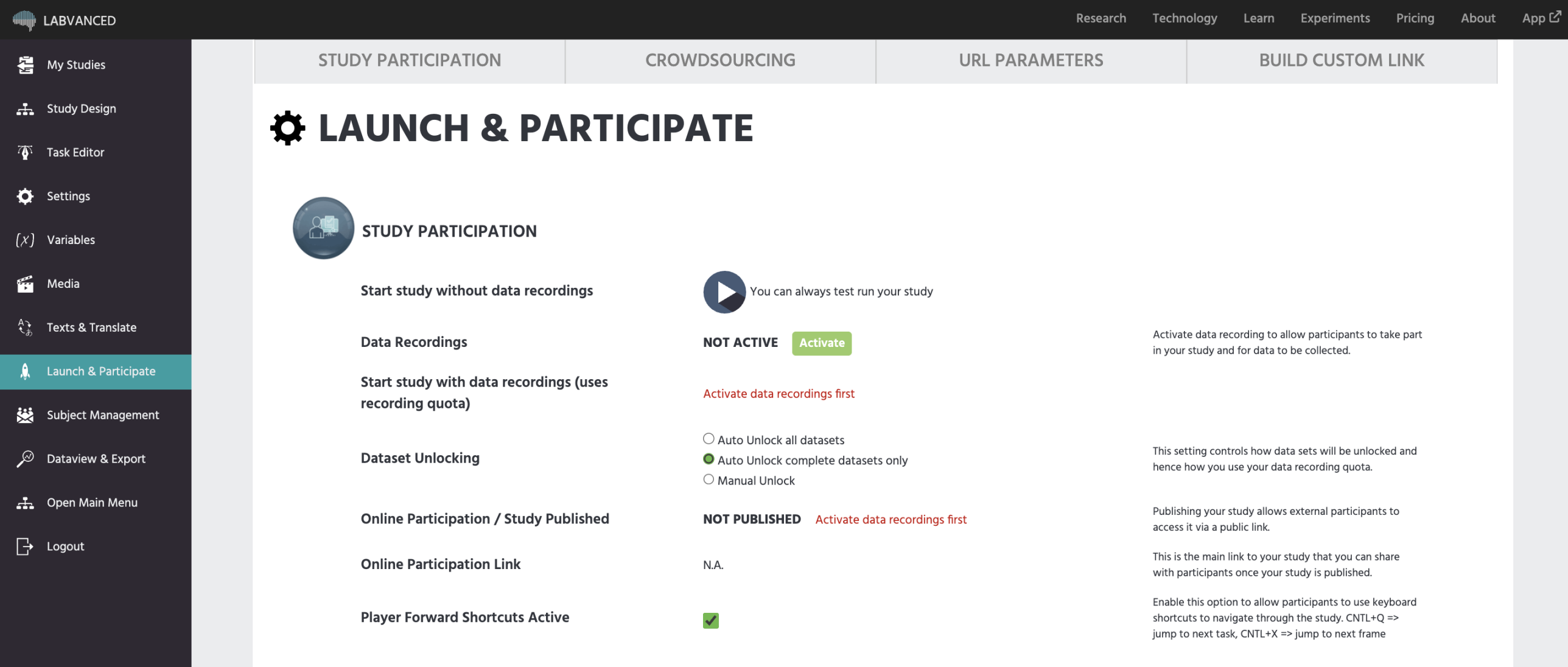
Study Participation
Start study without data recordings
Allows you to test the entire study without recording any data. Remember to add all the relevant tasks to blocks and sessions under the Study Design tab!
Data Recordings
Activate data recording to allow participants to take part in your study and for data to be collected.
Start study with data recordings (uses recording quota)
Click to run the study with data recordings
Dataset Unlocking
This setting controls how data sets will be unlocked and hence how you use your data recording quota.
Online Participation / Study Published
Publishing your study allows external participants to access it via a public link.
Online Participation Link
This is the main link to your study that you can share with participants once your study is published.
To create custom participation links, please refer to the sections below on URL Parameters and utilize the Build Custom Link area of this tab.
Player Forward Shortcuts Active
Enable this option to allow participants to use keyboard shortcuts to navigate through the study. CNTL+Q to jump to the next task, CNTL+X to jump to the next frame. While this option is handy when testing your study while building it (before official data collection begins), it is advisable to disable it once the official data collection process begins.
Crowdsourcing Setup
Your study can easily be connected with leading crowdsourcing platforms and panels:
Labvanced Crowdsourcing
Labvanced offers subject recruiting services using a variety of other platforms and tools. You will benefit from:
- Competitive pricing
- A free experiment check by Labvanced
Contact us with your study requirements for a quote.
Prolific
Integration Guide for Prolific
CloudResearch
Integration guide coming soon
SONA SYSTEMS
Integration Guide for SONA Systems
besample
Amazon Mechanical Turk (mTurk)
Clickworker
Other Panels
If your chosen crowdsourcing platform is not listed here, note that any other platform or panel can still also be integrated with Labvanced. What you normally have to do is read out specific URL parameters to create completion links for the subjects. If you have any questions, please contact us.
URL Parameters
This section of the Launch & Participate tab provides a useful overview of parameters that are read out automatically by Labvanced. You can use these parameters if you need to link Labvanced with another tool or platform or to customize the participation process, such as forcing the subjects into a specific group or session.
&group=XX
Forces the participant to be in a specific group.
- Example:
https://www.labvanced.com/player.html?id=79036&group=1 - Possible values: Group Number (Integer).
&session=XX
Forces the participant to be in a specific session.
- Example:
https://www.labvanced.com/player.html?id=79036&session=1 - Possible values: Session Number (Integer).
&type=XX
Tells Labvanced which crowdsourcing platform is used.
- Example:
https://www.labvanced.com/player.html?id=79036&type=prolific - Possible values:
prolificcloud-researchsonabesamplecode(for mTurk)csv(for clickworker)
&subject_code=XX
Experimenter generated ID for a subject.
- Example:
https://www.labvanced.com/player.html?id=79036&subject_code=181L2Fbde - Possible values: Possible Values: Alphanumeric code (String).
- Note: This is also used to save Subject Ids for Sona.
&token=XX
Labvanced generated ID for a subject.
- Example:
https://www.labvanced.com/player.html?id=79036&token=1a23ssdh45aswcde - Possible values:: Alphanumeric code (String).
&PROLIFIC_PID=XX
Prolific ID for a participant.
- Example:
https://www.labvanced.com/player.html?id=79036&PROLIFIC_PID=6fh73dasfg3e - Possible values: Alphanumeric code (String).
&participantId=XX
CloudResearch participant ID for a participant.
- Example:
https://www.labvanced.com/player.html?id=79036&participantId=7bd235512f - Possible values: Alphanumeric code (String).
&response_id=XX
Besample response id for a participant.
- Example:
https://www.labvanced.com/player.html?id=79036&response_id=62138 - Possible values: Numeric code (Integer).
&user_id=XX
Clickworker id for a participant.
- Example:
https://www.labvanced.com/player.html?id=79036&user_id=j2301 - Possible values: Alphanumeric code (String).
&crowdworker_id=XX
Amazon Mechanical Turk id for a worker.
- Example:
https://www.labvanced.com/player.html?id=79036&crowdworker_id=12345abcde - Possible values: Alphanumeric code (String).
&role_id=XX
Forces a subject into a specific "role_id" in a multi user study.
- Example:
https://www.labvanced.com/player.html?id=79036&role_id=1 - Possible values: Role Id (Integer).
&multiuser_group_id=XX
Forces a subject into a specific "multi_user_group" in a multi user study.
- Example:
https://www.labvanced.com/player.html?id=79036&multiuser_group_id=329 - Possible values: Alphanumeric (String).
&study_language=XX
Forces the study to be displayed in a specific language (if available).
- Example:
https://www.labvanced.com/player.html?id=79036&study_language=English - Possible values: Language Name (e.g. English, French, Spanish, German).
Custom URL Parameters
You can insert and read out any other URL parameters as well.
- Example:
https://www.labvanced.com/player.html?id=79036&custom=xyz - Functionality: You can combine this custom URL Parameter with an event to read out the value during the expriment. Learn More.
Build Custom Link
This part of the Launch & Participate tab is helpful for building usable and custom links for your study.
For information about what these fields refer to, please visit the section above on URL Parameters.
For each of the fields, you can input the particular value. It is not mandatory to fill out all fields, just the ones you need. When the relevant fields are completed, click the Generate Link button and the link will be created for you.