labvanced logoLabVanced
  • Research
    • Publications
    • Researcher Interviews
    • Use Cases
      • Developmental Psychology
      • Linguistics
      • Clinical & Digital Health
      • Educational Psychology
      • Cognitive & Neuro
      • Social & Personality
      • Arts Research
      • Sports & Movement
      • Marketing & Consumer Behavior
      • Economics
      • HCI / UX
      • Commercial / Industry Use
    • Labvanced Blog
  • Technology
    • Feature Overview
    • Desktop App
    • Phone App
    • Precise Timing
    • Experimental Control
    • Eye Tracking
    • Multi User Studies
    • More ...
      • Questionnaires
      • Artificial Intelligence (AI) Integration
      • Mouse Tracking
      • Data Privacy & Security
      • Text Transcription
  • Learn
    • Guide
    • Videos
    • Walkthroughs
    • FAQ
    • Release Notes
    • Documents
    • Classroom
  • Experiments
    • Cognitive Tests
    • Sample Studies
    • Public Experiment Library
  • Pricing
    • Pricing Overview
    • License Configurator
    • Single License
    • Research Group
    • Departments & Consortia
  • About
    • About Us
    • Contact
    • Downloads
    • Careers
    • Impressum
    • Disclaimer
    • Privacy & Security
    • Terms & Conditions
  • Appgo to app icon
  • Logingo to app icon
Learn
Guide
Videos
Walkthroughs
FAQ
Release Notes
Release Notes
Documents
Classroom
  • 中國人
  • Deutsch
  • Français
  • Español
  • English
  • 日本語
Guide
Videos
Walkthroughs
FAQ
Release Notes
Release Notes
Documents
Classroom
  • 中國人
  • Deutsch
  • Français
  • Español
  • English
  • 日本語
  • Guide
    • GETTING STARTED

      • Objects
      • Events
      • Variables
      • Task Wizard
      • Trial System
      • Study Design
        • Tasks
        • Blocks
        • Sessions
        • Groups
    • FEATURED TOPICS

      • Randomization & Balance
      • Eye Tracking
      • Questionnaires
      • Desktop App
      • Sample Studies
      • Participant Recruitment
      • API Access
        • REST API
        • Webhook API
        • WebSocket API
      • Other Topics

        • Precise Stimulus Timings
        • Multi User Studies
        • Head Tracking in Labvanced | Guide
    • MAIN APP TABS

      • Overview: Main Tabs
      • Dashboard
      • My Studies
      • Shared Studies
      • My Files
      • Experiment Library
      • My Account
      • My License
    • STUDY TABS

      • Overview: Study-Specific Tabs
      • Study Design
        • Tasks
        • Blocks
        • Sessions
        • Groups
      • Task Editor
        • Main Functions and Settings
        • The Trial System
        • Canvas and Page Frames
        • Objects
        • Object Property Tables
        • Variables
        • System Variables Tables
        • The Event System
        • Trial Randomization
        • Text Editor Functions
        • Eyetracking in a Task
        • Head Tracking in a Task
        • Multi-User Studies
      • Settings
      • Variables
      • Media
      • Texts & Translate
      • Launch & Participate
      • Subject Management
      • Dataview and Export
        • Dataview and Variable & Task Selection (OLD Version)
        • Accessing Recordings (OLD Version)
  • Videos
    • Video Overview
    • Getting Started in Labvanced
    • Creating Tasks
    • Element Videos
    • Events & Variables
    • Advanced Topics
  • Walkthroughs
    • Introduction
    • Stroop Task
    • Lexical Decision Task
    • Posner Gaze Cueing Task
    • Change Blindness Flicker Paradigm
    • Eye-tracking Sample Study
    • Infant Eye-tracking Study
    • Attentional Capture Study with Mouse Tracking
    • Rapid Serial Visual Presentation
    • ChatGPT Study
    • Eye Tracking Demo: SVGs as AOIs
    • Multi-User Demo: Show Subjects' Cursors
    • Gamepad / Joystick Controller- Basic Set Up
    • Desktop App Study with EEG Integration
    • Between-subjects Group Balancing and Variable Setup
  • FAQ
    • Features
    • Security & Data Privacy
    • Licensing
    • Precision of Labvanced
    • Programmatic Use & API
    • Using Labvanced Offline
    • Troubleshooting
    • Study Creation Questions
  • Release Notes
  • Documents
  • Classroom

OpenAI Trigger

Overview

The OpenAI Trigger (listed under API Triggers in the main menu) can be used to initiate an action based on incoming information from OpenAI. Using this trigger, you can specify what kind of incoming information is to be used as a trigger, such as text-based, image or audio-based, via selection of one of the different Model Types listed.

NOTE: For this option to be available, you have to first list your API Key under in the Settings tab.
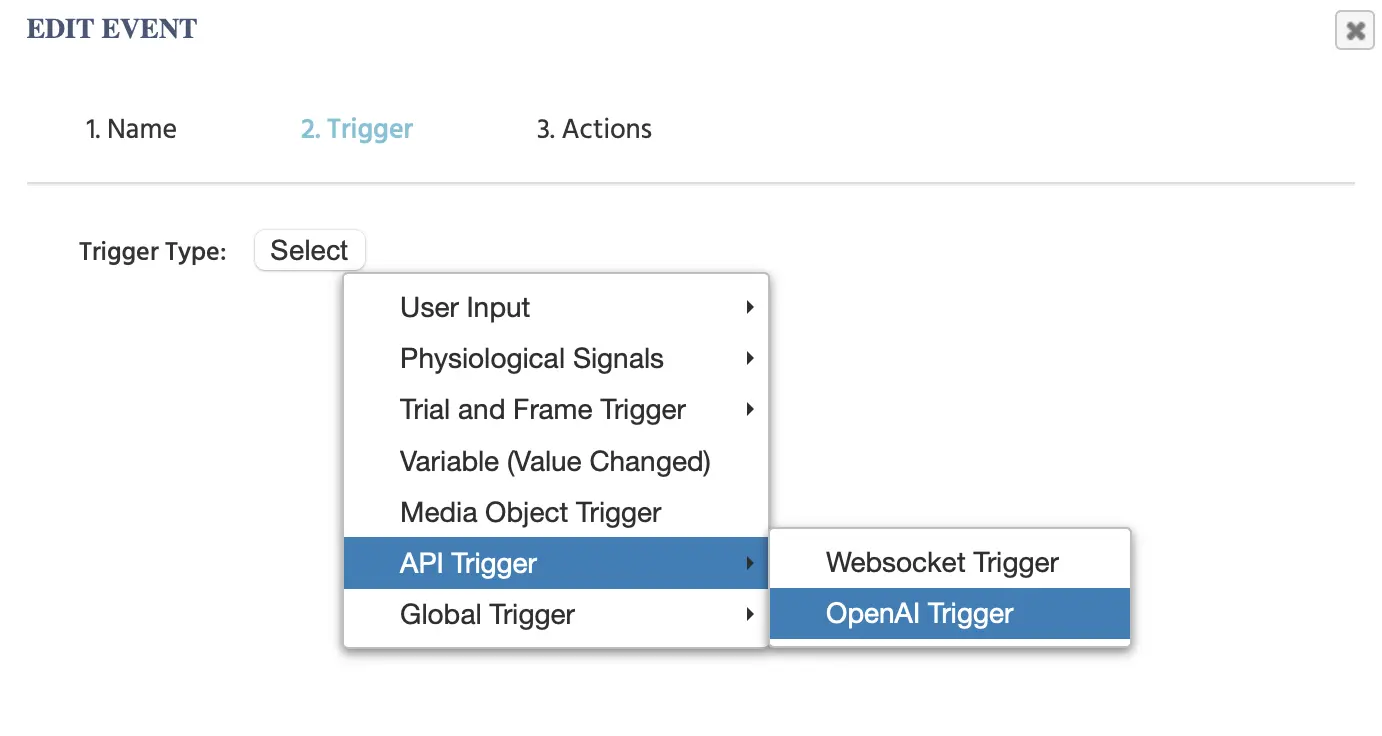

The OpenAI Trigger menu in Labvanced.

Selecting this option will lead to the following parameters being displayed:
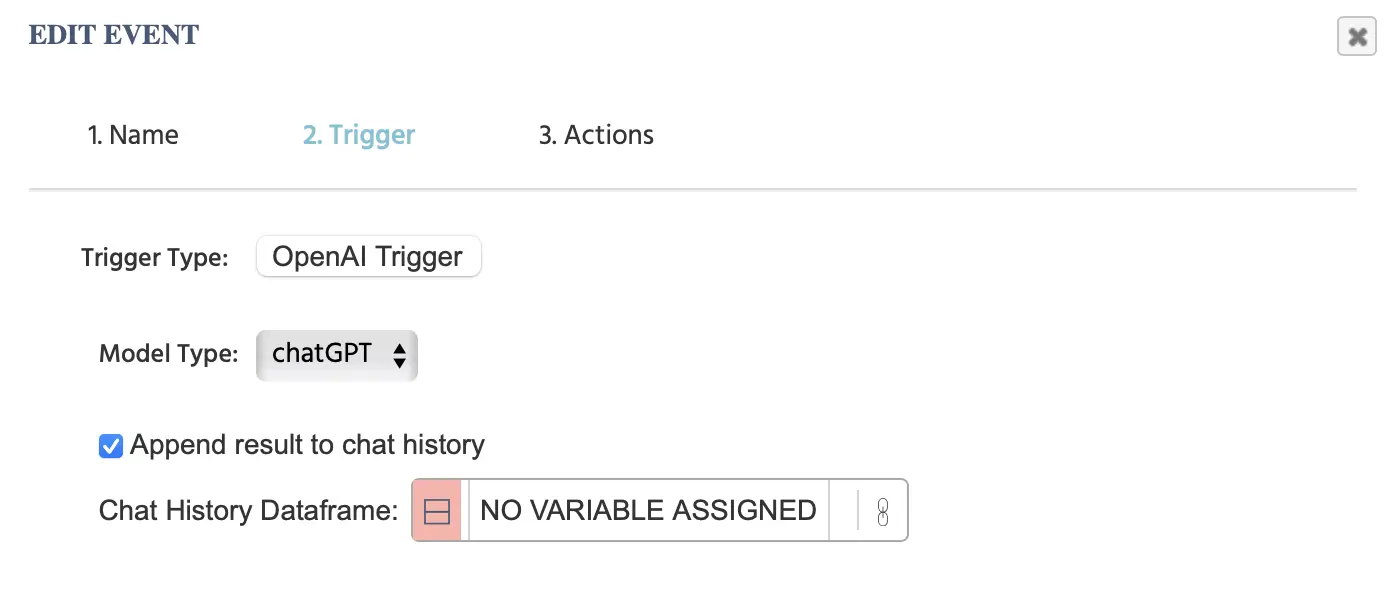
The OpenAI trigger menu options.

Model Types Available

Using the Model Type drop-down, the following options are available:

Model TypeDescription
ChatGPTIncoming text-based responses from OpenAI
Image GenerationIncoming image-based responses
Generate AudioIncoming audio-based responses

ChatGPT Model Type

In the example below, the data frame that was assigned is called ‘df’ and the result from the ‘OpenAI Trigger’ will be appended to this data frame. This data frame needs to have two columns. The first column will denote the ‘role’ and the second column the ‘chat message.’ The values from the action will be automatically appended to the data frame that is linked here.
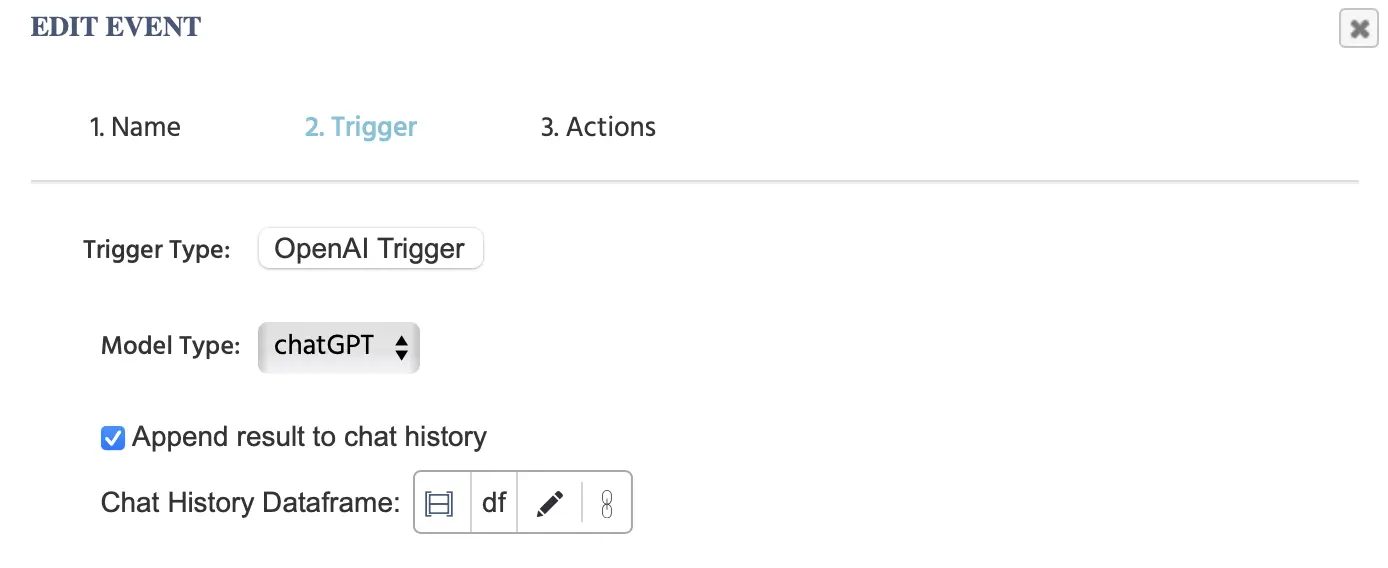
An example of the OpenAI trigger in Labvanced.

NOTE 1: If you are also using the ‘Send to OpenAI’ action, then you need to utilize the same data frame there as you have indicated here.

NOTE 2: Also refer to this walkthrough where we build a study step-by-step, integrating ChatGPT for a text-to-text-based study with a chat and utilizing these trigger options.


Image Generation - Model Type

With this option, you can indicate a generated image to be saved and also specify in which Variable it should be saved in.
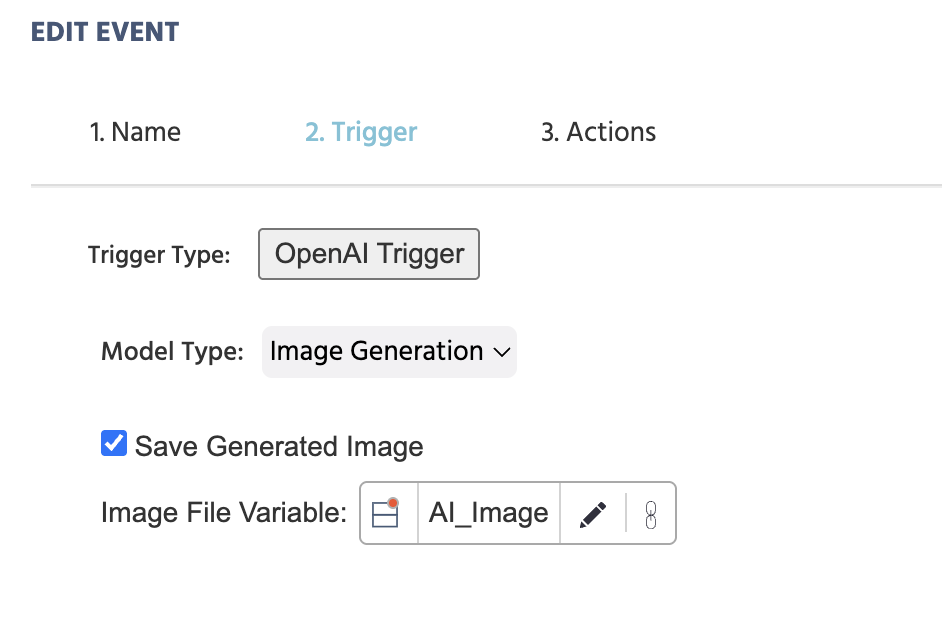
An example of the OpenAI trigger in Labvanced used for image generation.

NOTE: When assigning and creating the particular variable here, remember to indicate the variable type as File, in order for the image file to be stored in there.
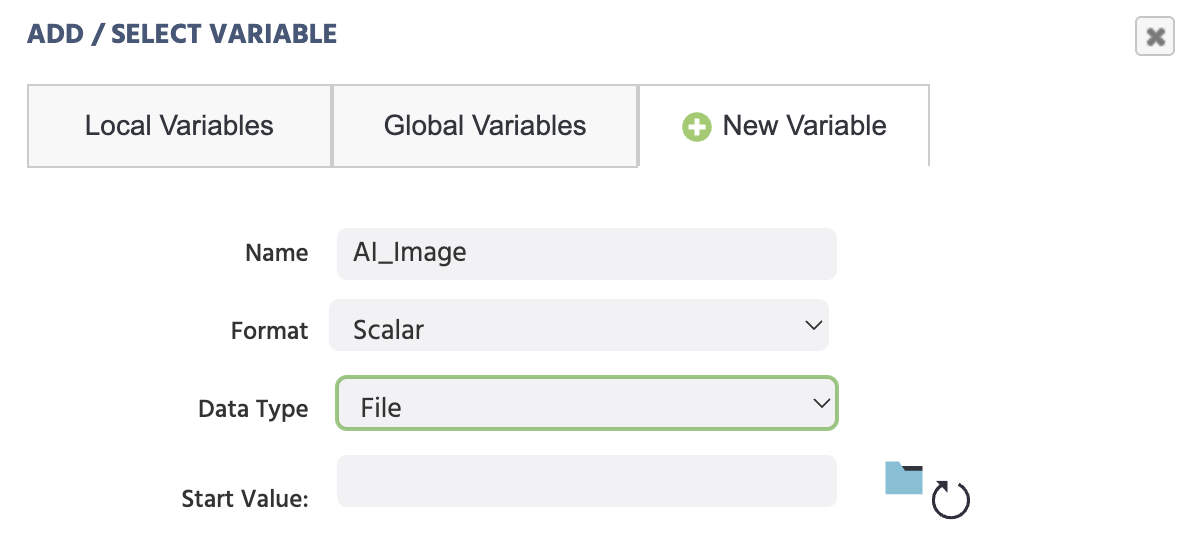
Creating a file to store generated images with AI in Labvanced.

Useful Demo: Check out this demo that makes use of image generation via the OpenAI Trigger and action. The participant is asked to input a prompt and this prompt is then used to generate an image.


Generate Audio - Model Type

With this option, you can indicate a generated audio file to be saved and also specify in which Variable it should be saved in.
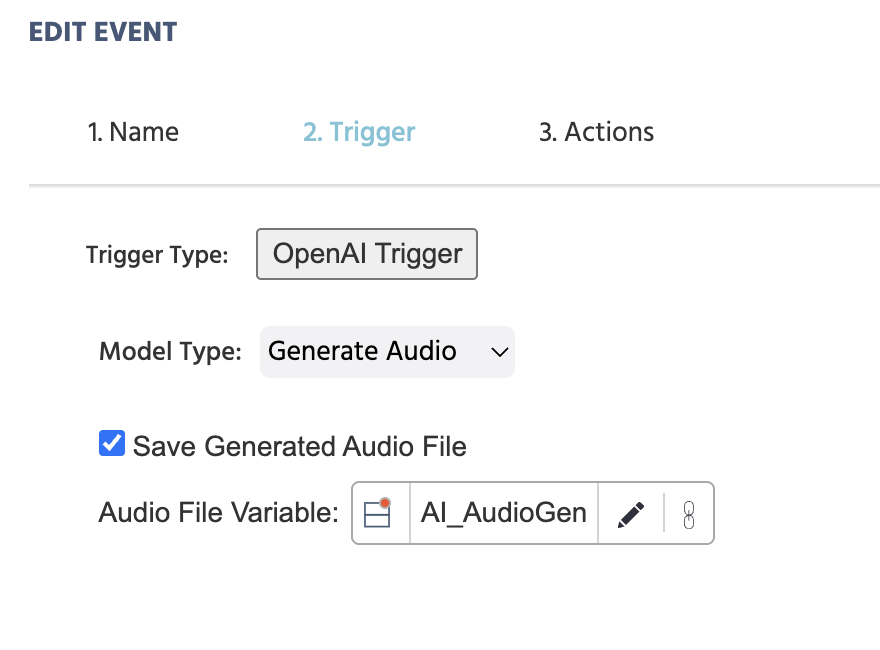
An example of the OpenAI trigger in Labvanced for AI generated audio.

NOTE: When assigning and creating the particular variable here, remember to choose the variable type as File, in order for the audio file to be stored in there.
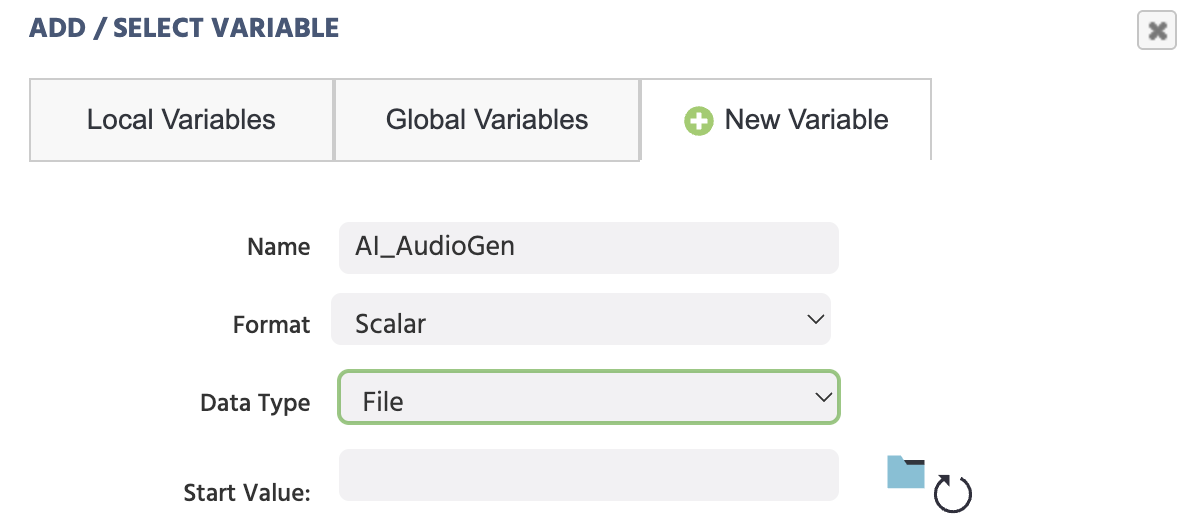
An example of creating a file to store AI generated audio in Labvanced.


Useful Actions

  • ‘Send to OpenAI’ action,

  • Note: After selecting the OpenAI trigger in the event system, you have the option of utilizing and referencing trigger-specific OpenAI values across various actions with the value-select menu.