Send to OpenAI Action
Overview
The Send to OpenAI action allows you to send information, such as a string input value, to OpenAI. You can specify a certain Model Type to receive the prompt in the context of text-, image-, or audio-generation.
NOTE: For this option to be available, you have to first list your API Key under in the Settings tab.
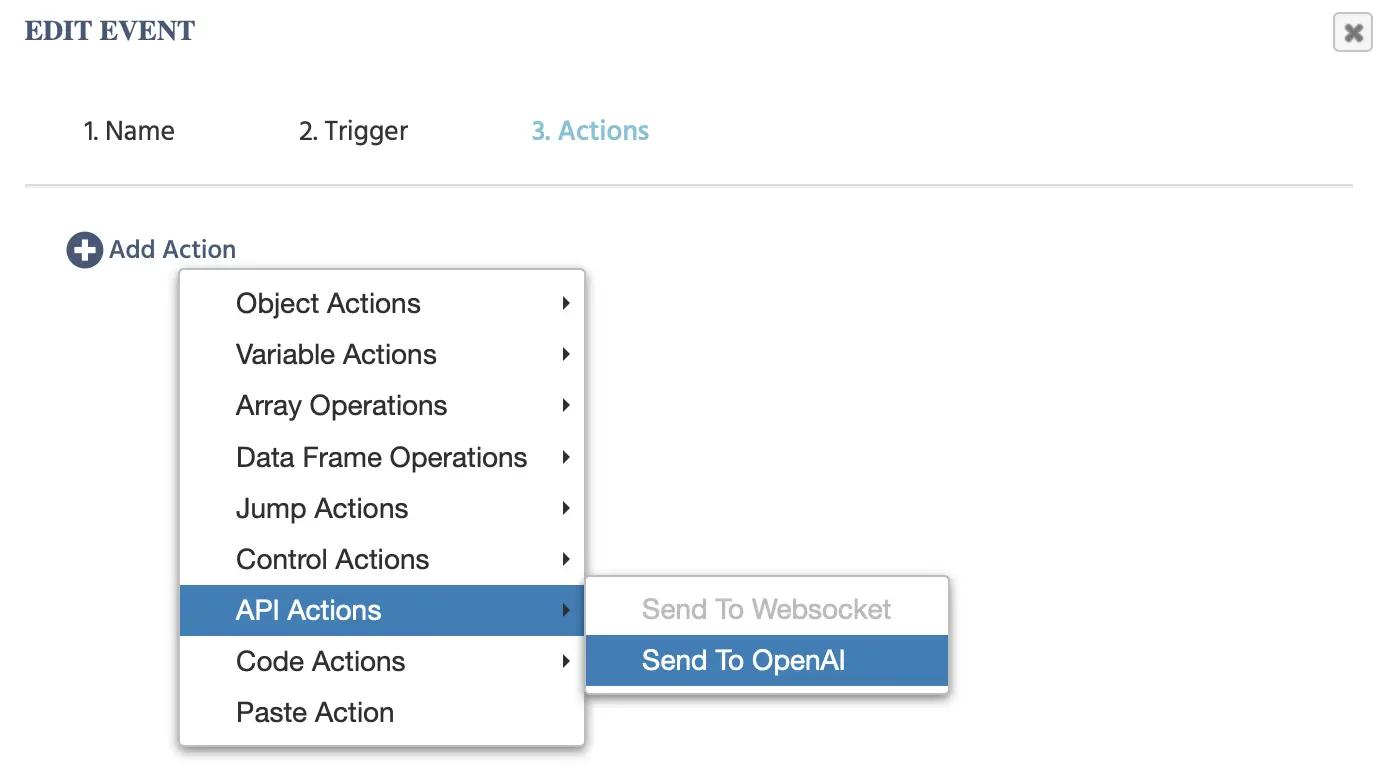
The following options will appear upon clicking this event:
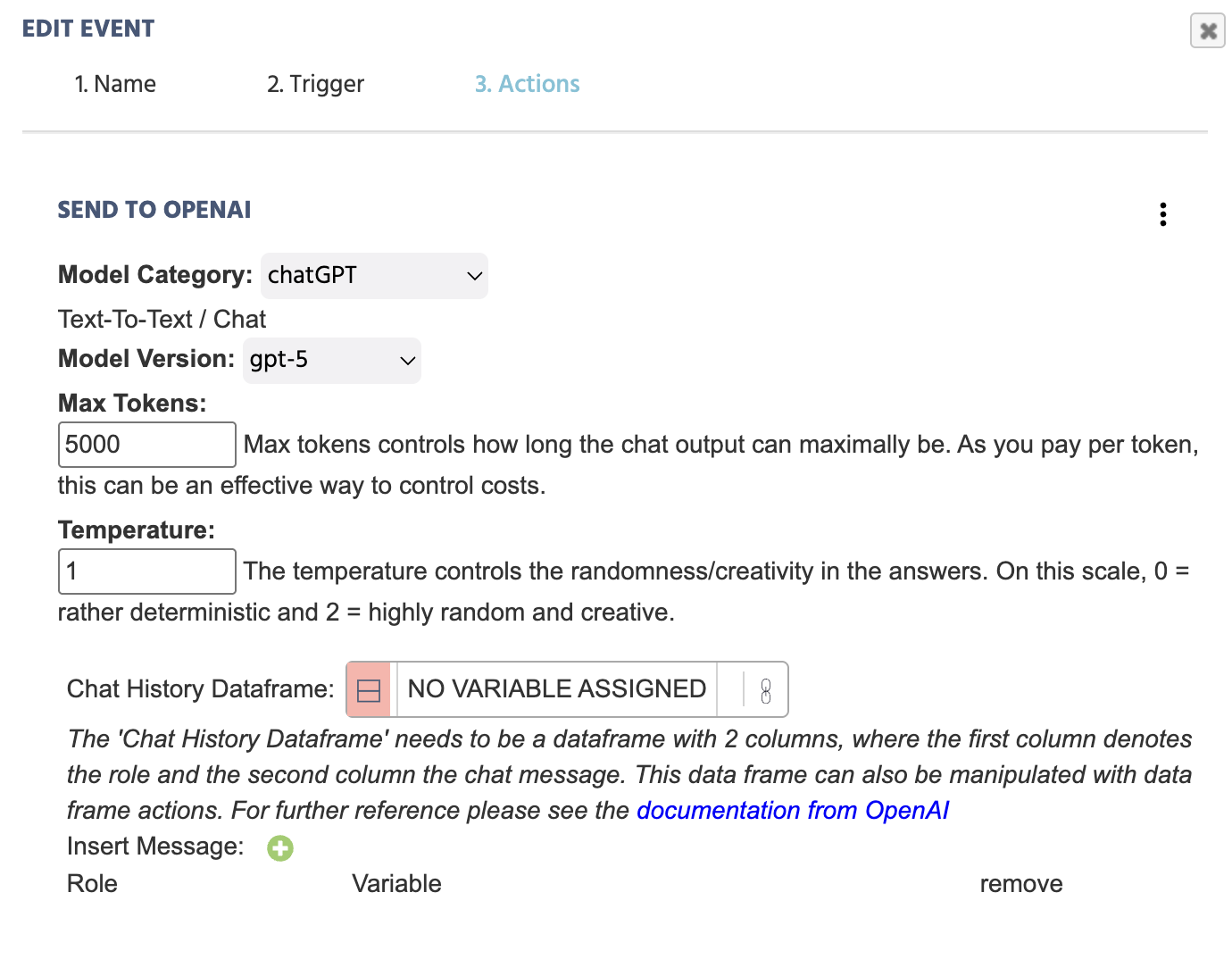
Based on the Model Category chosen,
Model Category
| Model Category | Description |
|---|---|
ChatGPT | Send text input to OpenAI for the purpose of generating a text-based response. |
Image Generation | Send text input to OpenAI for the scope of generating an image. |
Generate Audio | Send text input to OpenAI for the scope of generating audio. |
ChatGPT - Model Category
Here is a functional example of how this event looks like when all the necessary information is provided:
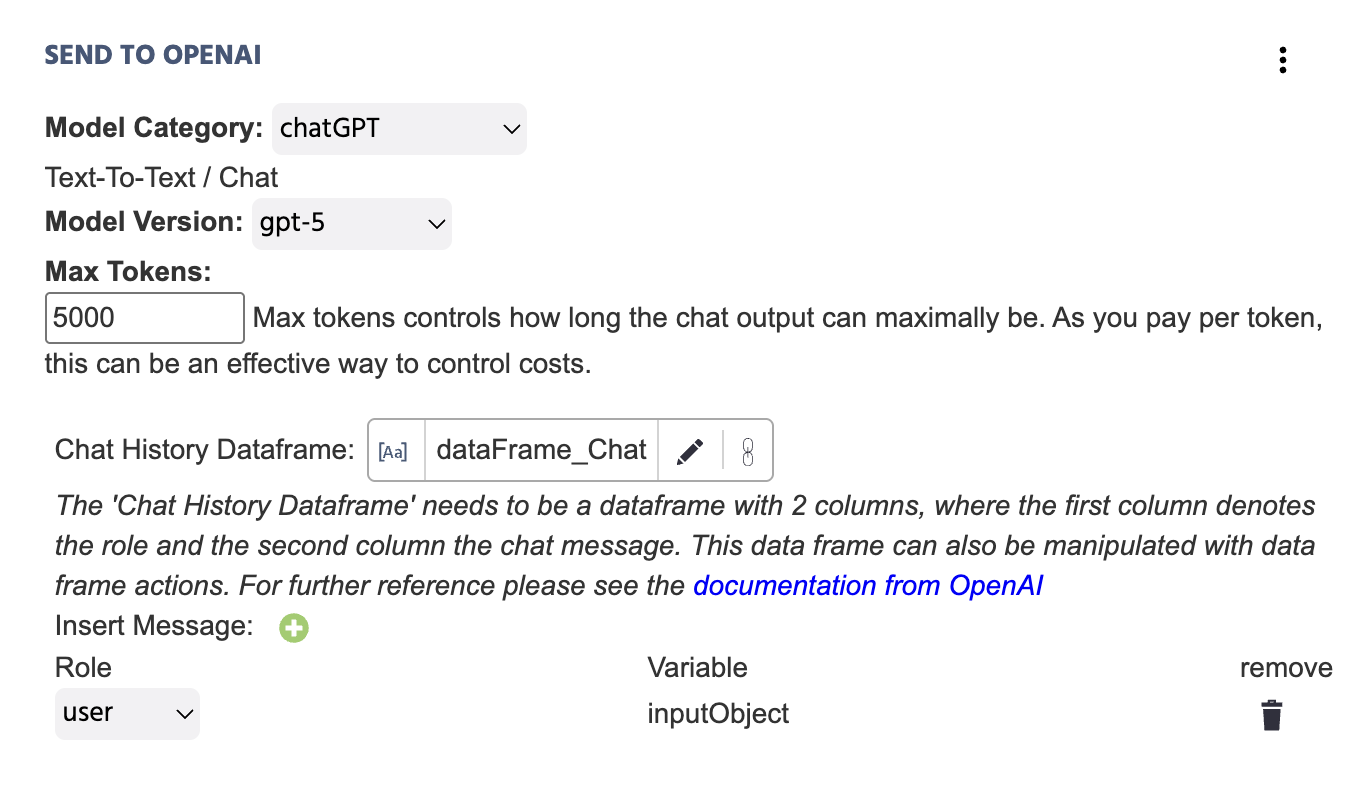
Here is a deeper explanation of the fields included under the Send to OpenAI action with ChatGPT selected as the Model Category:
| Menu Item | 'Send to OpenAI' Action Options - ChatGPT |
|---|---|
Model Category | Specifies the AI model category that is relevant for the particular action. In this case, ChatGPT is selected for text-to-text scenarios. For the other options, like image or audio generation, refer to the sections below. |
Model Version | Specifies the ChatGPT version that should be called on during the experiment. Available options range from:
|
Max Tokens | Max tokens controls how long the chat output can maximally be. As you pay per token, this can be an effective way to control costs. |
Temperature | The temperature controls the randomness/creativity in the answers. On this scale, 0 = rather deterministic and 2 = highly random and creative. |
Chat History Dataframe | Link to a data frame variable with two columns. The first column will denote the ‘role’ and the second column the ‘chat message.’ The values from the action will be automatically appended to the data frame that is linked here. The data frame can also be manipulated with data frame actions. For further reference, please check the docs from OpenAI. |
Insert Message ‘+’ | By clicking on this, the variable dialog box will appear. You will need to indicate which ‘Variable’ value is being sent out to OpenAI as well as the ‘role’ of the associated message:
|
NOTE 1: Also refer to this walkthrough where we build a study step-by-step, integrating ChatGPT in a study and utilizing this action.
Image Generation - Model Category
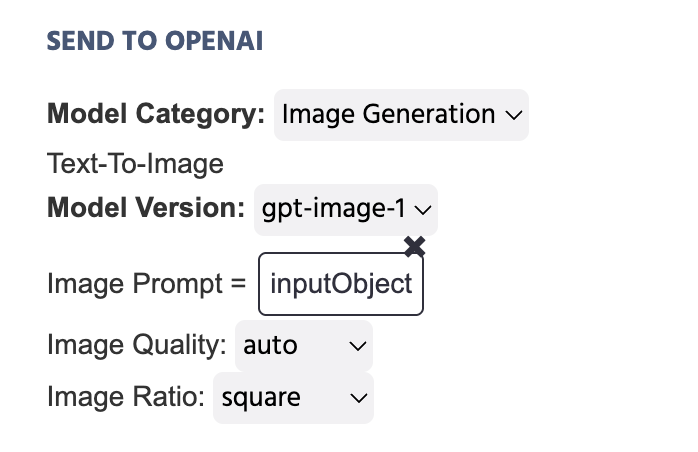
In the example below, the variable that stores the text written in an Input Object is set to be as the Image Prompt that will be sent to OpenAI as a result of this action:
Useful Demo: Check out this demo that makes use of image generation via the OpenAI Trigger and Action. The participant is asked to input a prompt and this prompt is then used to generate an image.
Here is a deeper explanation of the fields included under the Send to OpenAI action with Image Generation selected as the Model Category:
| Menu Item | 'Send to OpenAI' Action Options - Image Generation |
|---|---|
Model Category | Specifies the AI model category that is relevant for the particular action. In this case, Image Generation is selected for text-to-image scenarios. For the other options, like image or audio generation, refer to the sections below. |
Model Version | Specifies the ChatGPT version that should be called on during the experiment. Available options include:
|
Image Prompt | Gives you the option to set the prompt for the image that should be generated. Popular approaches include setting a Constant Value like a string of written text or to use something like an Input Object variable and link it here. |
Image Quality | Prompts you to indicate the quality of the image that will be generated as a result of the text-based prompt linked above. Options include: |
Image Ratio | Prompts you to indicate the ratio of the image that will be generated. |
Image Style | In the case where DALL-E-3 is selected as the Model Version, this option appears to specify the image style. Options include: natural and vivid. |
Generate Audio - Model Category
In the example below, the variable that stores the text written in an Input Object is set to be as the Prompt that will be sent to OpenAI as a result of this action:
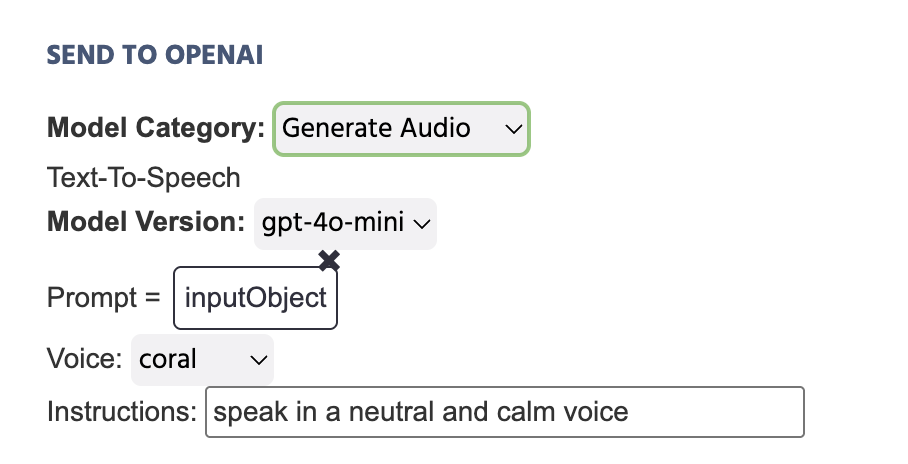
Here is a deeper explanation of the fields included under the Send to OpenAI action with Generate Audio selected as the Model Category:
| Menu Item | 'Send to OpenAI' Action Options - Generate Audio |
|---|---|
Model Category | Specifies the AI model category that is relevant for the particular action. In this case, Generate Audio is selected for text-to-audio scenarios. For the other options, like image or audio generation, refer to the sections below. |
Model Version | Specifies the ChatGPT version that should be called on during the experiment. Available options include:
|
Prompt | Gives you the option to set the prompt for the audio that should be generated. Popular approaches include setting a Constant Value like a string of written text or to use something like an Input Object variable and link it here. |
Voice | Set the voice tone that should be adopted for the generated audio. Available options include:
|
Instructions | Type in further instructions for the generated audio to take shape, such as 'Speaking in a neutral and calm voice...' |
Useful Demo: Check out this demo that makes use of audio generation via the OpenAI Trigger and Action. The spoken text is generated via OpenAI and is it used in the context of reading a paragraph outloud to the participants for which they must answer multiple choice answers about.
Important Notes
- As OpenAI is evolving on a daily basis, please check the docs from OpenAI for further clarifications with regards to chat and consider browsing through the documentation for other categories of models, such as text-to-audio.