labvanced logoLabVanced
  • Research
    • Publications
    • Researcher Interviews
    • Use Cases
      • Developmental Psychology
      • Linguistics
      • Clinical & Digital Health
      • Educational Psychology
      • Cognitive & Neuro
      • Social & Personality
      • Arts Research
      • Sports & Movement
      • Marketing & Consumer Behavior
      • Economics
      • HCI / UX
      • Commercial / Industry Use
    • Labvanced Blog
  • Technology
    • Feature Overview
    • Desktop App
    • Phone App
    • Precise Timing
    • Experimental Control
    • Eye Tracking
    • Multi User Studies
    • More ...
      • Questionnaires
      • Artificial Intelligence (AI) Integration
      • Mouse Tracking
      • Data Privacy & Security
      • Text Transcription
      • Heart Rate Detection (rPPG)
  • Learn
    • Guide
    • Videos
    • Walkthroughs
    • FAQ
    • Release Notes
    • Documents
    • Classroom
  • Experiments
    • Cognitive Tests
    • Sample Studies
    • Public Experiment Library
  • Pricing
    • Pricing Overview
    • License Configurator
    • Single License
    • Research Group
    • Departments & Consortia
  • About
    • About Us
    • Contact
    • Downloads
    • Careers
    • Impressum
    • Disclaimer
    • Privacy & Security
    • Terms & Conditions
  • Appgo to app icon
  • Logingo to app icon
Learn
Guide
Videos
Walkthroughs
FAQ
Release Notes
Release Notes
Documents
Classroom
  • 中國人
  • Deutsch
  • Français
  • Español
  • English
  • 日本語
Guide
Videos
Walkthroughs
FAQ
Release Notes
Release Notes
Documents
Classroom
  • 中國人
  • Deutsch
  • Français
  • Español
  • English
  • 日本語
  • Guide
    • GETTING STARTED

      • Task Editor
      • Objects
      • Events
      • Variables
      • Task Wizard
      • Trial System
      • Study Design
        • Tasks
        • Blocks
        • Sessions
        • Groups
    • FEATURED TOPICS

      • Randomization & Balance
      • Eye Tracking
      • Questionnaires
      • Desktop App
      • Sample Studies
      • Participant Recruitment
      • API Access
        • REST API
        • Webhook API
        • WebSocket API
      • Other Topics

        • Precise Stimulus Timings
        • Multi User Studies
        • Head Tracking in Labvanced | Guide
    • MAIN APP TABS

      • Overview: Main Tabs
      • Dashboard
      • My Studies
      • Shared Studies
      • My Files
      • Experiment Library
      • My Account
      • My License
    • STUDY TABS

      • Overview: Study-Specific Tabs
      • Study Design
        • Tasks
        • Blocks
        • Sessions
        • Groups
      • Task Editor
        • Task Controls
        • The Trial System
        • Canvas and Page Frames
        • Objects
        • Object Property Tables
        • Variables
        • System Variables Tables
        • The Event System
        • Text Editor Functions
        • Eyetracking in a Task
        • Head Tracking in a Task
        • Multi-User Studies
      • Settings
      • Variables
      • Media
      • Texts & Translate
      • Launch & Participate
      • Subject Management
      • Dataview and Export
        • Dataview and Variable & Task Selection (OLD Version)
        • Accessing Recordings (OLD Version)
  • Videos
    • Video Overview
    • Getting Started in Labvanced
    • Creating Tasks
    • Element Videos
    • Events & Variables
    • Advanced Topics
  • Walkthroughs
    • Introduction
    • Stroop Task
    • Lexical Decision Task
    • Posner Gaze Cueing Task
    • Change Blindness Flicker Paradigm
    • Eye-tracking Sample Study
    • Infant Eye-tracking Study
    • Attentional Capture Study with Mouse Tracking
    • Rapid Serial Visual Presentation
    • ChatGPT Study
    • Eye Tracking Demo: SVGs as AOIs
    • Multi-User Demo: Show Subjects' Cursors
    • Gamepad / Joystick Controller- Basic Set Up
    • Desktop App Study with EEG Integration
    • Between-subjects Group Balancing and Variable Setup
  • FAQ
    • Features
    • Security & Data Privacy
    • Licensing
    • Precision of Labvanced
    • Programmatic Use & API
    • Using Labvanced Offline
    • Troubleshooting
    • Study Creation Questions
  • Release Notes
  • Documents
  • Classroom

Texts & Translate

The Texts and Translate tab in Labvanced is a powerful part of the app that can be used for managing and customizing all text-based prompts, system messages (like the instructions for webcam eye tracking calibration) and translations.
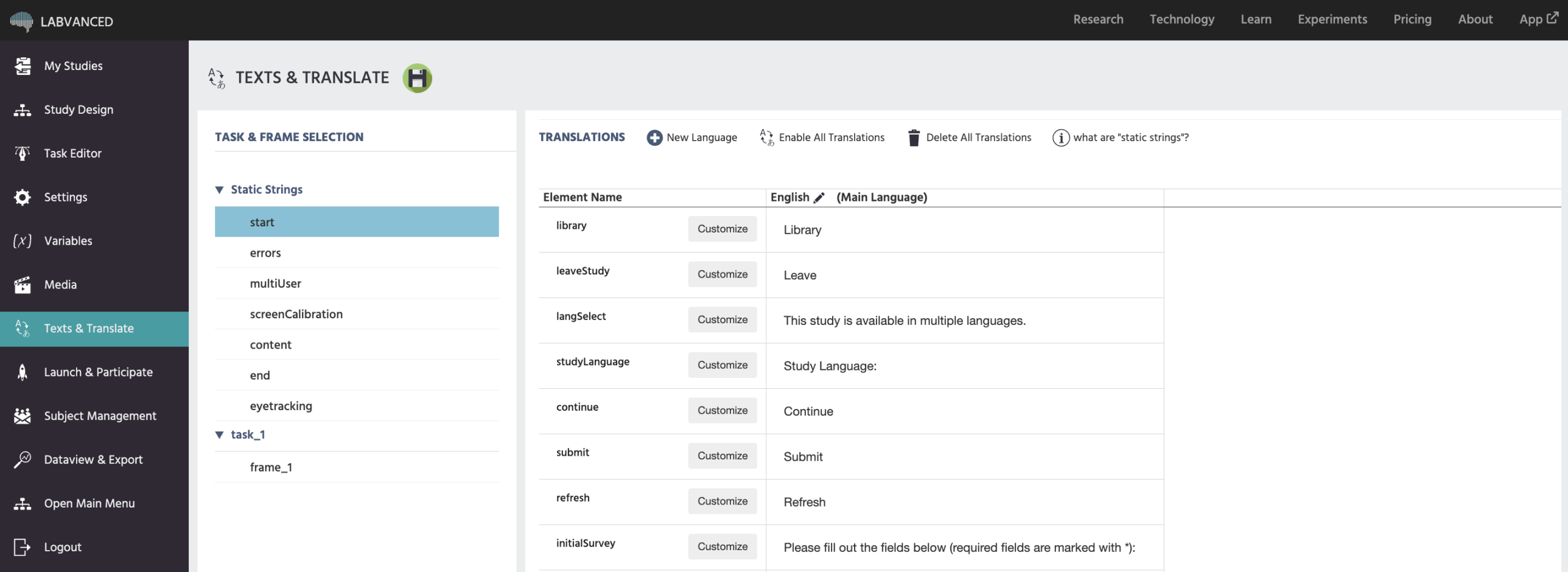
Preview of the Texts & Translate tab in Labvanced.

Static Strings | Controlling System Messages

On the left side, all the system text messages that are potentially shown to a participant during the study can be found. For instance initial survey questions, loading messages, eye tracking instructions, error messages, etc. They are grouped into categories.

You can make custom changes to each static string and also separately for each language.

  • Start: Shows all the possible static strings that could appear on the start/loading screen of the study.
  • Errors: Shows all the possible static strings associated with errors during the study.
  • multiUser: Shows all possible static strings associated with multi-user studies.
  • screenCalibration: Shows all the static strings associated with screen calibration.
  • Content: Shows the static strings associated with content elements, such as asking participants to choose a response or input their answer.
  • End: Shows all the possible static strings that could appear on the final screen of the study.
  • Eyetracking: Shows all of the static strings associated with eyetracking, including the calibration instructions.

Editing System Messages using the Static Strings

In the image below, the eyetracking system message category is selected. The element highlighted is called instructionsPreEnvironmentInfant which corresponds to calibration instructions for infant-friendly eye tracking. By clicking customize the text editor will appear, allowing you to change the displayed instructions for that particular step during the calibration process.
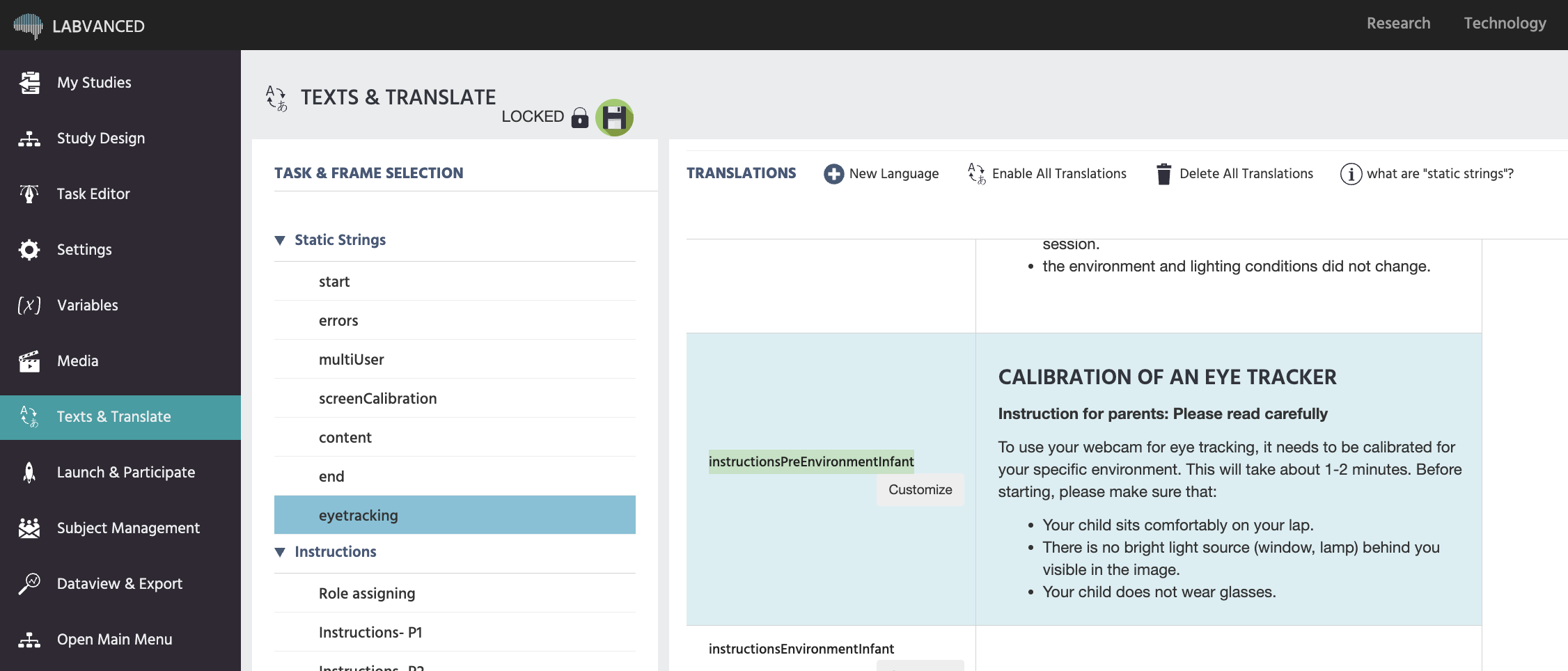
Preview of the static strings that can be edited.

If you are not sure about which particular element to edit, please feel welcome to contact us via chat or email.

Translations for Studies

Setting the Main Language

You can set the main language:

  1. By creating a new study
  2. Via the Settings tab for an existing study under the Main Language option
  3. Here in the Texts & Translate tab by clicking on the black pencil icon in the first column of the displayed texts.

Automatically Translated Languages

If your study is set to one of these languages, or includes them as a part of a multi-lingual study, all system messages (such as the startup of the experiment or webcam eye tracking instructions) will automatically be translated without requiring any additional work:

  • Chinese
  • English
  • French
  • German
  • Italian
  • Polish
  • Portuguese
  • Spanish

Then, for study-specific tasks, if needed, you can proceed to translating the necessary text fields on a frame-by-frame basis.

Manually Translating

To manually translate a field of text, simply add the second language by clicking + New Language and under the specific task, edit the corresponding element to feature the text you wish to be displayed for that particular frame.

Prev
Media
Next
Launch & Participate