labvanced logoLabVanced
  • Research
    • Publications
    • Researcher Interviews
    • Use Cases
      • Developmental Psychology
      • Linguistics
      • Clinical & Digital Health
      • Educational Psychology
      • Cognitive & Neuro
      • Social & Personality
      • Arts Research
      • Sports & Movement
      • Marketing & Consumer Behavior
      • Economics
      • HCI / UX
      • Commercial / Industry Use
    • Labvanced Blog
  • Technology
    • Feature Overview
    • Desktop App
    • Phone App
    • Precise Timing
    • Experimental Control
    • Eye Tracking
    • Multi User Studies
    • More ...
      • Questionnaires
      • Artificial Intelligence (AI) Integration
      • Mouse Tracking
      • Data Privacy & Security
      • Text Transcription
  • Learn
    • Guide
    • Videos
    • Walkthroughs
    • FAQ
    • Release Notes
    • Documents
    • Classroom
  • Experiments
    • Cognitive Tests
    • Sample Studies
    • Public Experiment Library
  • Pricing
    • Pricing Overview
    • License Configurator
    • Single License
    • Research Group
    • Departments & Consortia
  • About
    • About Us
    • Contact
    • Downloads
    • Careers
    • Impressum
    • Disclaimer
    • Privacy & Security
    • Terms & Conditions
  • Appgo to app icon
  • Logingo to app icon
Learn
Guide
Videos
Walkthroughs
FAQ
Release Notes
Release Notes
Documents
Classroom
  • 中國人
  • Deutsch
  • Français
  • Español
  • English
  • 日本語
Guide
Videos
Walkthroughs
FAQ
Release Notes
Release Notes
Documents
Classroom
  • 中國人
  • Deutsch
  • Français
  • Español
  • English
  • 日本語
  • Guide
    • GETTING STARTED

      • Objects
      • Events
      • Variables
      • Task Wizard
      • Trial System
      • Study Design
        • Tasks
        • Blocks
        • Sessions
        • Groups
    • FEATURED TOPICS

      • Randomization & Balance
      • Eye Tracking
      • Questionnaires
      • Desktop App
      • Sample Studies
      • Participant Recruitment
      • API Access
        • REST API
        • Webhook API
        • WebSocket API
      • Other Topics

        • Precise Stimulus Timings
        • Multi User Studies
        • Head Tracking in Labvanced | Guide
    • MAIN APP TABS

      • Overview: Main Tabs
      • Dashboard
      • My Studies
      • Shared Studies
      • My Files
      • Experiment Library
      • My Account
      • My License
    • STUDY TABS

      • Overview: Study-Specific Tabs
      • Study Design
        • Tasks
        • Blocks
        • Sessions
        • Groups
      • Task Editor
        • Main Functions and Settings
        • The Trial System
        • Canvas and Page Frames
        • Objects
        • Object Property Tables
        • Variables
        • System Variables Tables
        • The Event System
        • Trial Randomization
        • Text Editor Functions
        • Eyetracking in a Task
        • Head Tracking in a Task
        • Multi-User Studies
      • Study Settings
        • Start Up and Main Settings
        • Browsers & Devices Settings
        • Experiment Features Settings
      • Description
        • More Details about Description Information
        • Images, Links, and References in Descriptions
      • Variables
      • Media
      • Translate
      • Run
      • Publish and Record
        • Requirements for Publishing a Study in Labvanced
        • Recruiting Participants and Crowdsourcing
        • License Selection and Confirmation
        • After Publishing Your Labvanced Study
      • Sharing
      • Participants
      • Dataview and Export
        • Dataview and Variable & Task Selection (OLD Version)
        • Accessing Recordings (OLD Version)
  • Videos
    • Video Overview
    • Getting Started in Labvanced
    • Creating Tasks
    • Element Videos
    • Events & Variables
    • Advanced Topics
  • Walkthroughs
    • Introduction
    • Stroop Task
    • Lexical Decision Task
    • Posner Gaze Cueing Task
    • Change Blindness Flicker Paradigm
    • Eye-tracking Sample Study
    • Infant Eye-tracking Study
    • Attentional Capture Study with Mouse Tracking
    • Rapid Serial Visual Presentation
    • ChatGPT Study
    • Eye Tracking Demo: SVGs as AOIs
    • Multi-User Demo: Show Subjects' Cursors
    • Gamepad / Joystick Controller- Basic Set Up
    • Desktop App Study with EEG Integration
    • Between-subjects Group Balancing and Variable Setup
  • FAQ
    • Features
    • Security & Data Privacy
    • Licensing
    • Precision of Labvanced
    • Programmatic Use & API
    • Using Labvanced Offline
    • Troubleshooting
    • Study Creation Questions
  • Release Notes
  • Documents
  • Classroom

Run JavaScript Action

Overview

The Run JavaScript action allows you to program specific events and to read/set Labvanced variables, but also control objects, in your study by inputting custom JavaScript that will run as an action when triggered to occur.
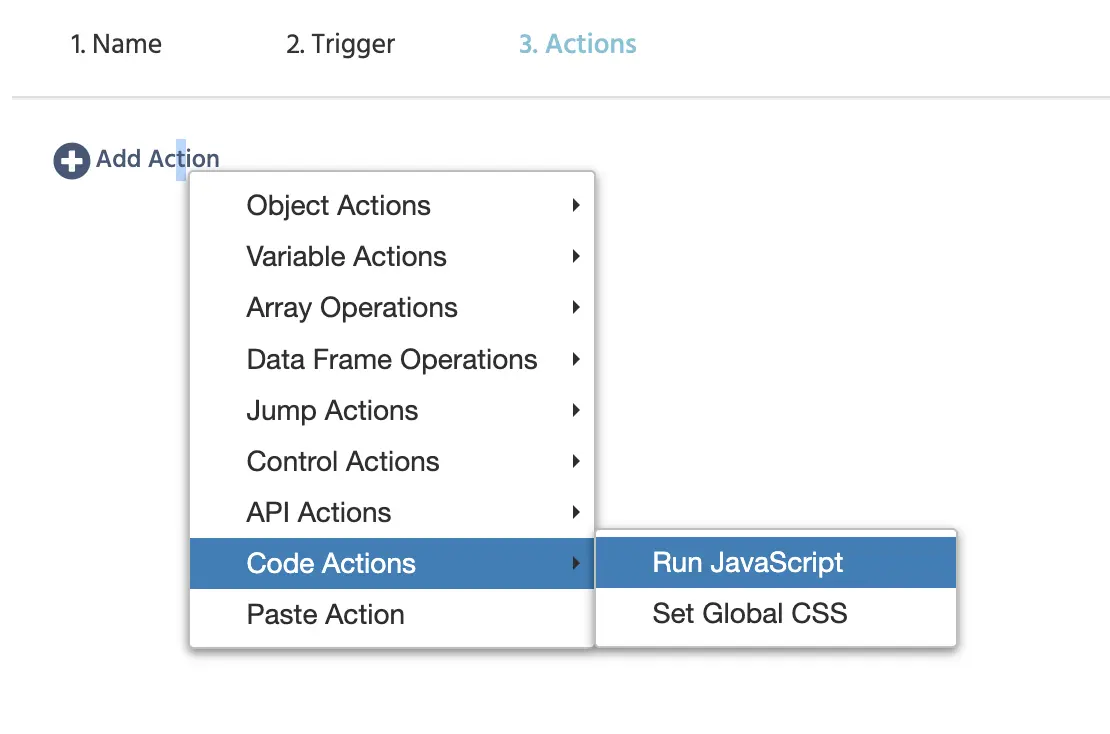
The Run JavaScript Action in the Labvanced action menu.

When the above Run JavaScript action is selected, you will see an option for Execution Environment as well the code editor where the JavaScript code should be written (wherein some helpful instructions are located):
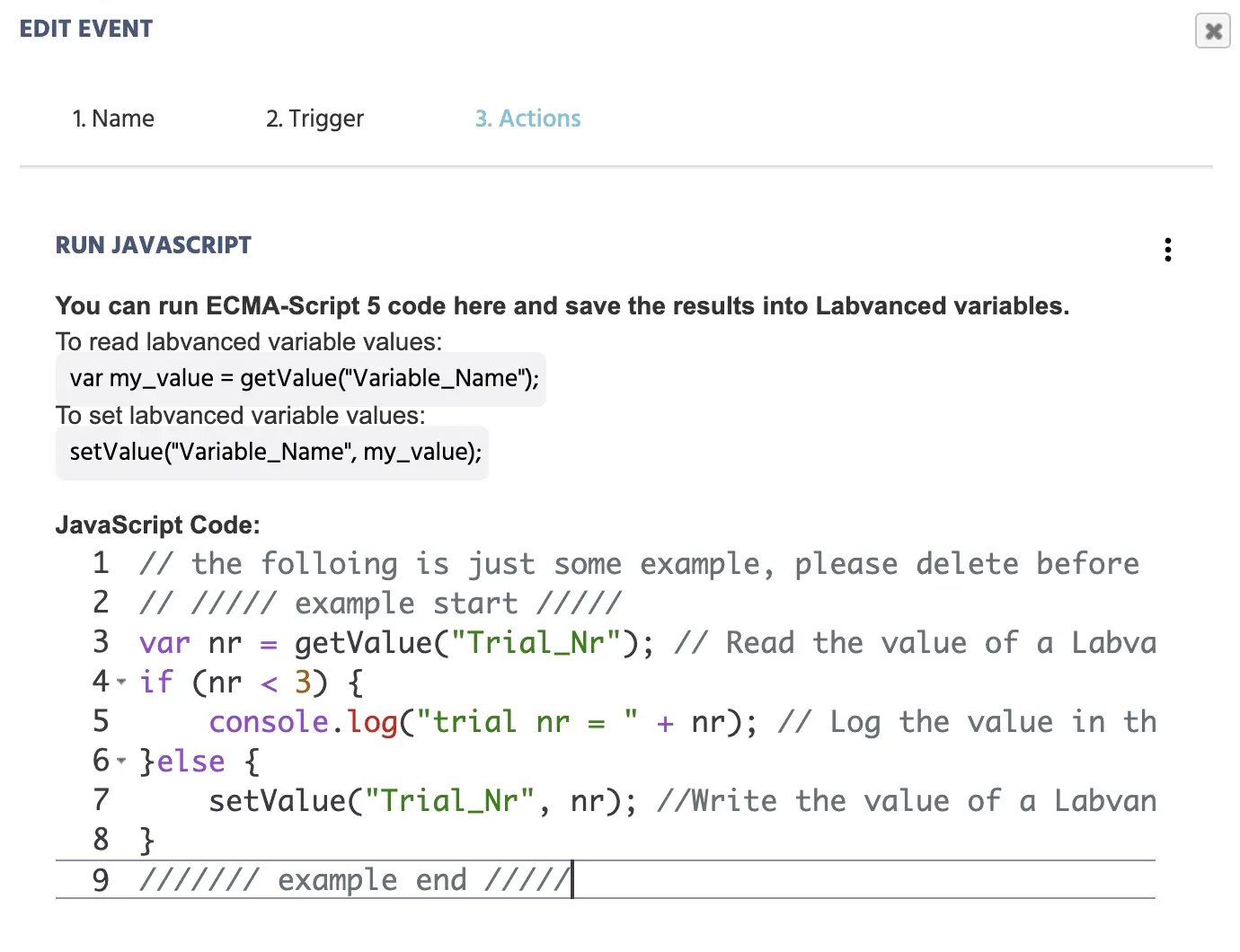
The JavaScript code editor in Labvanced.

Execution Environment Options

Here you can specify the nature of the JavaScript you are running, the options include:

  • Acorn Interpreter: Ideal for scenarios where only variable reading/writing is occurring.
  • Native JavaScript: Enables the execution of custom JavaScript for direct manipulation of the Document Object Model (DOM) within experiments, allowing for the editing of on-screen elements which is useful for integrating interactive JavaScript-based games and creating more dynamic content via JavaScript.

Utilizing Native JavaScript

When utilizing the Native JavaScript to control elements within the Document Object Model (DOM), one important factor for consideration is knowing what HTML node to attach, as well as to consider some style guides.

One easy ID to consider using is the background identifier and it makes it possible so that other Labvanced objects can still be on the frame as well, such as in the example below:

const container = document.getElementById('background');
container.appendChild(gameContainer);

In the examples outlined here, gameContainer is then the main container / div of the custom content and should take on an absolute position for which you need to then set the width and height:

const gameContainer = document.createElement('div');
gameContainer.style.position = 'absolute';
gameContainer.style.width = window.innerWidth +"px";
gameContainer.style.height = window.innerHeight +"px";

The results of such an approach can be seen here in this demo wherein we used the Native JavaScript option to implement the Pong Game in Labvanced: https://www.labvanced.com/page/library/75148

For any questions about general usability of the Run JavaScript action, please feel free to contact us via email or chat.