Data Frame Variables
A data frame variable holds tabular data in a spreadsheet-like structure: rows are entries and columns are variables, each of which can hold string, numeric, boolean, or file values. Data frames are not populated through participant responses. You upload a .csv file to load data into them, and the experiment reads from them at runtime using the event system.
Data frames are the standard tool in Labvanced for managing structured input: lists of stimuli, counterbalancing schedules, file-to-image mappings, and any other scenario where you need to feed rows of prepared data into your experiment one trial at a time.
When to use a data frame
Use a data frame any time your experiment needs to load pre-prepared, structured data rather than collecting values from participants.
- You have a list of stimulus words, sentences, images, or audio files that should appear trial by trial
- You need to counterbalance conditions across participants
- You want to shuffle trial order at the start of an experiment and then read entries sequentially
- You are loading OpenAI prompts, custom messages, or other string data from a prepared file
Setting up a data frame
Creating a data frame takes three steps: prepare your CSV, create the variable, and import the file.
Formatting your CSV
Each column in your CSV becomes one variable (column) in the data frame. Each row is one entry. If your first row contains column names, enable Use first row as header on import.
For file-based stimuli (images, audio), put the filenames in the relevant column. You can then use Map strings to files on import to link those names to uploaded files in your study.
Creating the data frame variable
- Open your study and go to the Variables tab in the left panel, or open the
Variablespanel tab in the task editor. - Click
+ New Variableand set theData TypetoData Frame. - Click
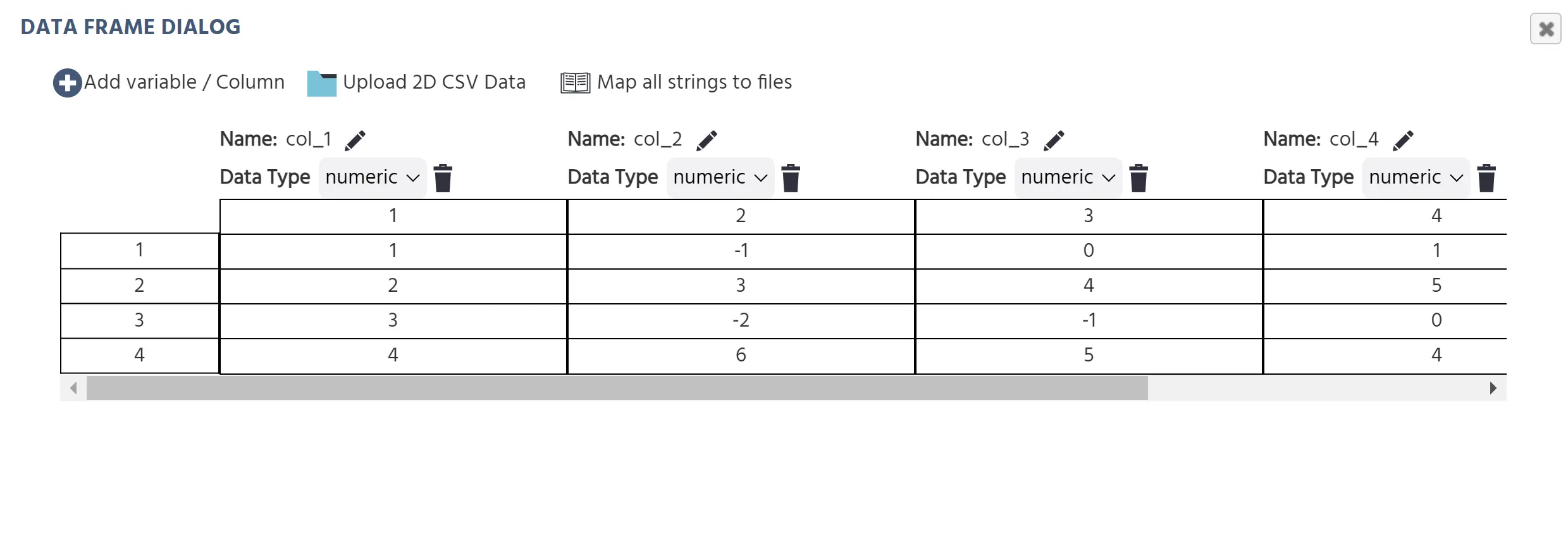
Save. The Data Frame Dialog opens.
Uploading your CSV
In the Data Frame Dialog, click Upload 2D CSV Data. A file picker opens. After you select your file, the Import Options dialog appears.
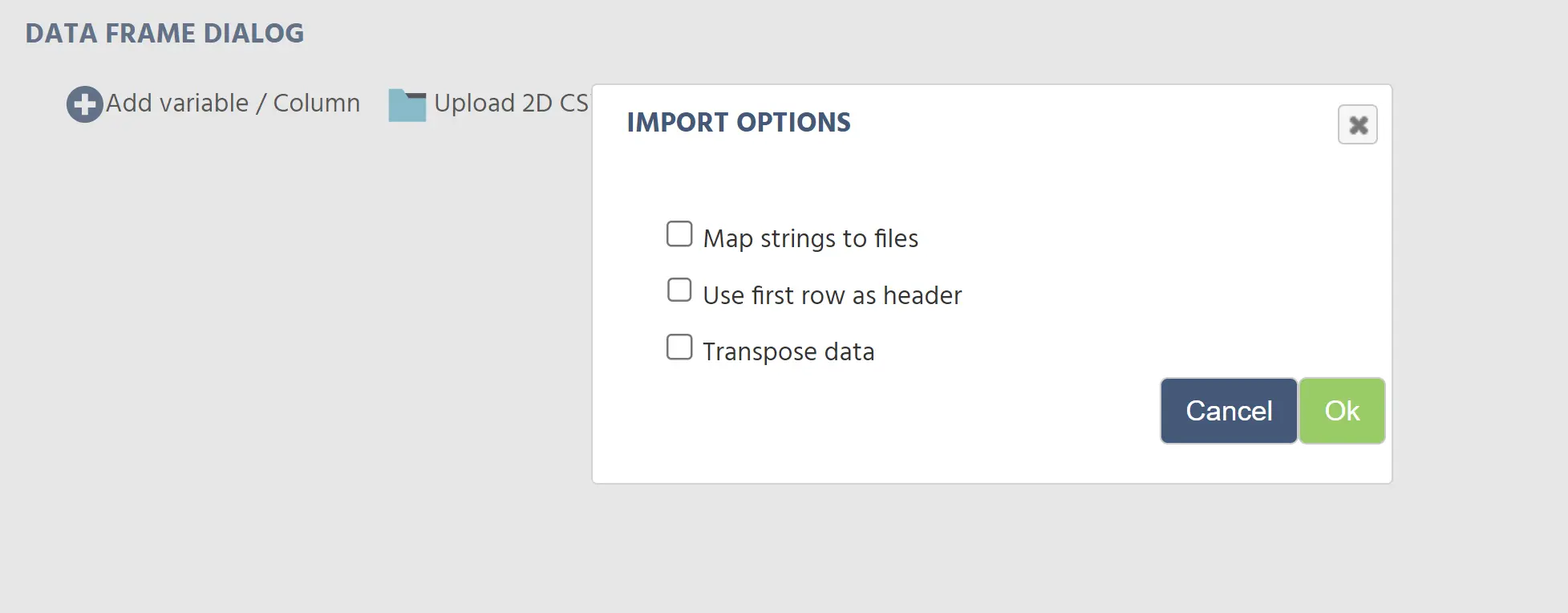
| Option | What it does |
|---|---|
Map strings to files | Treats string values in the CSV as filenames and links them to files uploaded to your study |
Use first row as header | Uses the first row of your CSV as column names rather than data |
Transpose data | Uploads the data without transposing rows and columns |
Click Ok to import. The data frame is populated with your CSV contents.
Editing a data frame
Once a data frame is created, you can extend it with new columns, edit individual cell values directly, or replace all contents with a fresh CSV upload.
Adding columns
To add a new column after the initial import, click Add variable / Column at the top of the Data Frame Dialog. This adds an empty column that you can name and configure. If the new column contains filenames, click Map all strings to files in the dialog afterward to link them to the uploaded files in your study.
Editing cell values
To edit individual cell values directly, enable the Edit Values checkbox in the Data Frame Dialog. Cells become editable in place. Disable the checkbox to return to the read-only view.
Using data frames in the event system
Data frames are read and written through the event system. Two actions in the Data Frame Operations category handle this.
Read from / Write to Data Frame Action
Use this action to read a row or column from the data frame into an array variable, or to write values back in.
Key parameters:
| Parameter | Description |
|---|---|
| Data frame variable | The data frame to read from or write to |
| Read or Write | Direction of the operation |
| By row or column | Whether to read a full row or a full column |
| Index type | How the row or column is selected: fixed value, variable, or last row |
| Index variable | The variable used as the index when Index type is set to variable |
| Output variable | The array variable where the result is stored |
The most common pattern is: maintain a numeric counter variable that increments each trial, use it as the Index variable, and read the corresponding row into an array. Each element of the array then maps to one column of that row.
Shuffle Data Frame Entries Action
Use this action to randomize the order of rows or columns in the data frame. Run it once at the start of the experiment (triggered by a session-start event) before any trials begin.
Parameters:
| Parameter | Description |
|---|---|
| Data frame | The data frame to shuffle |
| By rows or columns | Whether to shuffle the order of rows or columns |
A common workflow: stimulus list per trial
A typical setup for reading one row of stimuli per trial:
- Upload a CSV with one row per trial and columns for each stimulus attribute (e.g.,
word,condition,correct_response). - Create a numeric variable
trial_indexwith a start value of1andReset at Trial Startdisabled. - At experiment start, add a
Shuffle Data Frame Entriesaction on your data frame (by rows). - On each trial start, add a
Read from / Write to Data Frameaction: read by row, Index variable =trial_index, Output variable = an array variable (e.g.,current_trial_data). - After reading, increment
trial_indexby1using aSet / Record Variablearithmetic action. - Use the array variable elements to set object properties or drive event logic for that trial.
Further reading
Data Frame Operations
The event system actions for reading from, writing to, and shuffling data frames at runtime.
Variable Types
A reference for all six variable types and when to use each one.
Variable Properties
A full reference for every variable setting: data type, scale, format, start value, reset behavior, and recording options.
Data Frame Patterns
How to apply data frames to common research designs: sequential stimulus presentation, counterbalancing, and file-based stimuli.
Randomization and Counterbalancing
How to use data frames, the trial system, and events to counterbalance and randomize your study.
Working with Variables
The hub page for the working-with-variables section: types, properties, recording options, and data frames.