Variable Types
Labvanced organizes variables into six types. Understanding which type a variable belongs to tells you how it was created, what it can hold, and how it behaves during the experiment.
System Variables
System variables are created automatically by Labvanced and cannot be modified or deleted. They track experiment-level information such as trial number, subject counter, browser type, screen size, and session start and end times. They are particularly useful in event requirements, for example to execute an action only on a specific trial number. For a full list, see System Variables.
Factor Variables
Factor variables are linked to a factor in the trial system. Each factor has one linked variable with a categorical data type, and the factor levels are the possible values of that variable. When creating a factor, Labvanced can create the linked variable automatically, or you can link an existing variable. Factor variables appear in the data export for every trial, making it easy to identify the condition each trial belonged to.
Note: changing the levels of a factor variable also changes the trial structure in all linked tasks and trial groups.
Object Variables
Object variables are created automatically when you add a questionnaire or response-capturing object to a frame, such as a checkbox, slider, Likert scale, or dropdown. Labvanced prompts you to name the variable at the time of adding the object. The participant's response is stored in this variable during the experiment. Object variables are recorded by default and most of their properties cannot be changed to preserve their functionality.
Custom Variables
Custom variables are created by the researcher for any purpose not covered by the automatic types. Common uses include recording participant responses (mouse clicks, key presses), tracking reaction times, counting correct answers, storing indices for loops, or holding file data (images, audio, video). When a custom variable has no active usage in objects or events, it is listed as unused in the Variables tab.
Array Variables
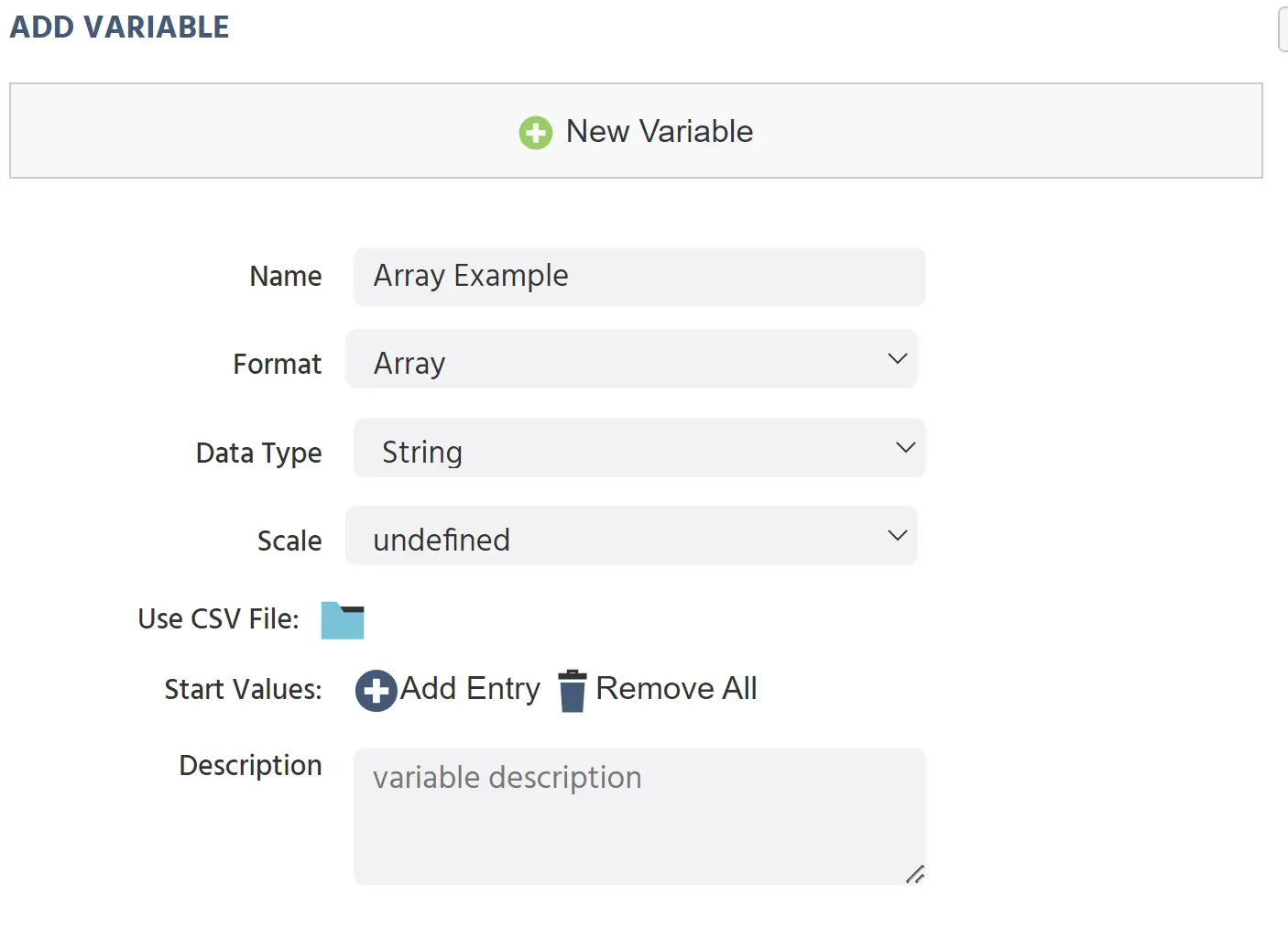
An array variable holds an ordered list of values, like one column in a spreadsheet. Arrays are useful for storing stimulus sets, randomization lists, or any sequence of values that needs to be accessed one entry at a time during the experiment.
To populate an array, upload a .csv file or add entries manually using the plus icon in the variable properties panel.
For actions that work with arrays, see Array Actions.
Data Frame Variables
A data frame holds multiple variables in a tabular structure, like a spreadsheet with multiple columns. Each column is a variable that can hold string, numeric, boolean, or file values. By default, data frame cells are read-only. To edit values directly, enable the Edit Values checkbox in the Data Frame Dialog. You can also add or replace all data by uploading a new .csv file.
To add a data frame, click Upload 2D CSV Data in the variable properties panel. When importing, you can choose:
Map Strings to Files: treats string values as filenames and maps them to files in a folder.Use First Row as Header: uses the first row as column (variable) names.Transpose Data: uploads the data as-is without transposing rows and columns.
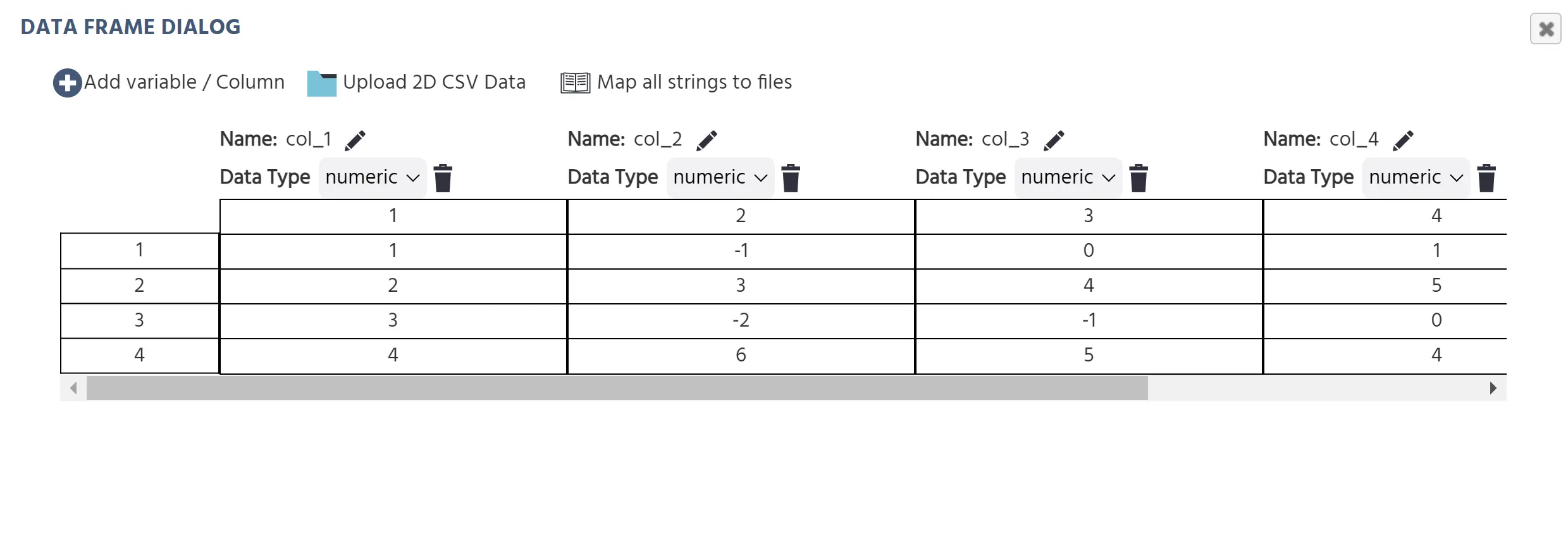
To add columns to an existing data frame, use Add variable/column at the top of the Data Frame dialog.
For a full guide to setting up and using data frames, see Data Frame Variables. For the event system actions, see Data Frame Operations.
Further reading
Creating Variables
The four ways to create a variable in Labvanced, with step-by-step instructions for each method.
Variable Properties
A full reference for every variable setting: data type, scale, format, start value, reset behavior, and recording options.

Working with Variables
The hub page for the working-with-variables section: types, properties, recording options, and data frames.