labvanced logoLabVanced
  • Research
    • Publications
    • Researcher Interviews
    • Use Cases
      • Developmental Psychology
      • Linguistics
      • Clinical & Digital Health
      • Educational Psychology
      • Cognitive & Neuro
      • Social & Personality
      • Arts Research
      • Sports & Movement
      • Marketing & Consumer Behavior
      • Economics
      • HCI / UX
      • Commercial / Industry Use
    • Labvanced Blog
    • Services
  • Technology
    • Feature Overview
    • Code-Free Study Building
    • Eye Tracking
    • Mouse Tracking
    • Generative AI Integration
    • Multi User Studies
    • More ...
      • Reaction Time/Precise Timing
      • Text Transcription
      • Heart Rate Detection (rPPG)
      • Questionnaires/Surveys
      • Experimental Control
      • Data Privacy & Security
      • Desktop App
      • Mobile App
  • Learn
    • Guide
    • Videos
    • Walkthroughs
    • FAQ
    • Release Notes
    • Documents
    • Classroom
  • Experiments
    • Cognitive Tests
    • Sample Studies
    • Public Experiment Library
  • Pricing
    • Licenses
    • Top-Up Recordings
    • Subject Recruitment
    • Study Building
    • Dedicated Support
    • Checkout
  • About
    • About Us
    • Contact
    • Downloads
    • Careers
    • Impressum
    • Disclaimer
    • Privacy & Security
    • Terms & Conditions
  • Appgo to app icon
  • Logingo to app icon
Learn
Guide
Videos
Walkthroughs
FAQ
Newsletter Archive
Documents
Classroom
  • 中國人
  • Deutsch
  • Français
  • Español
  • English
  • 日本語
Guide
Videos
Walkthroughs
FAQ
Newsletter Archive
Documents
Classroom
  • 中國人
  • Deutsch
  • Français
  • Español
  • English
  • 日本語
  • Guide
    • GETTING STARTED

      • Task Editor
      • Stimulus Presentation
      • Correctness of Response
      • Objects
      • Events
      • Variables
      • Task Wizard
      • Trial System
      • Study Design
        • Tasks
        • Blocks
        • Sessions
        • Groups
    • FEATURED TOPICS

      • Randomization & Balance
      • Eye Tracking
      • Questionnaires
      • Desktop App
      • Sample Studies
      • Participant Recruitment
      • API Access
        • REST API
        • Webhook API
        • WebSocket API
      • Other Topics

        • Precise Stimulus Timings
        • Multi User Studies
        • Head Tracking in Labvanced | Guide
    • MAIN APP TABS

      • Overview: Main Tabs
      • Dashboard
      • My Studies
      • Shared Studies
      • My Files
      • Experiment Library
      • My Account
      • License & Services
    • STUDY TABS

      • Overview: Study-Specific Tabs
      • Study Design
        • Tasks
        • Blocks
        • Sessions
        • Groups
      • Task Editor
        • Task Controls
        • The Trial System
        • Canvas and Page Frames
        • Objects
        • Object Property Tables
        • Variables
        • System Variables Tables
        • The Event System
        • Text Editor Functions
        • Eyetracking in a Task
        • Head Tracking in a Task
        • Multi-User Studies
      • Settings
      • Variables
      • Media
      • Texts & Translate
      • Launch & Participate
      • Subject Management
      • Dataview and Export
        • Dataview and Variable & Task Selection (OLD Version)
        • Accessing Recordings (OLD Version)
  • Videos
    • Video Overview
    • Getting Started in Labvanced
    • Creating Tasks
    • Element Videos
    • Events & Variables
    • Advanced Topics
  • Walkthroughs
    • Introduction
    • Stroop Task
    • Lexical Decision Task
    • Posner Gaze Cueing Task
    • Change Blindness Flicker Paradigm
    • Eye-tracking Sample Study
    • Infant Eye-tracking Study
    • Attentional Capture Study with Mouse Tracking
    • Rapid Serial Visual Presentation
    • ChatGPT Study
    • Eye Tracking Demo: SVGs as AOIs
    • Multi-User Demo: Show Subjects' Cursors
    • Gamepad / Joystick Controller- Basic Set Up
    • Desktop App Study with EEG Integration
    • Between-subjects Group Balancing and Variable Setup
  • FAQ
    • Features
    • Security & Data Privacy
    • Licensing
    • Precision of Labvanced
    • Programmatic Use & API
    • Using Labvanced Offline
    • Troubleshooting
    • Study Creation Questions
  • Newsletter Archive
  • Documents
  • Classroom

Emotion Detection Trigger

Table of Contents

  • Overview
  • Recording Emotion Detection Data
  • Enabling Emotion Detection
  • Trigger-specific Values
  • Practical Examples

Overview

The emotion detection trigger in Labvanced is used to automatically initiate events or record responses when a participant’s emotional state is detected. This is a key component of Labvanced's emotion detection which allows researchers to link stimuli presentation or task changes directly to real-time emotional reactions, making experiments more dynamic and enabling more precise measurement of how emotions influence behavior, attention, or decision-making.

Note: All processing occurs client-side, ensuring GDPR compliance and guaranteeing that no facial data is ever transmitted or stored externally.
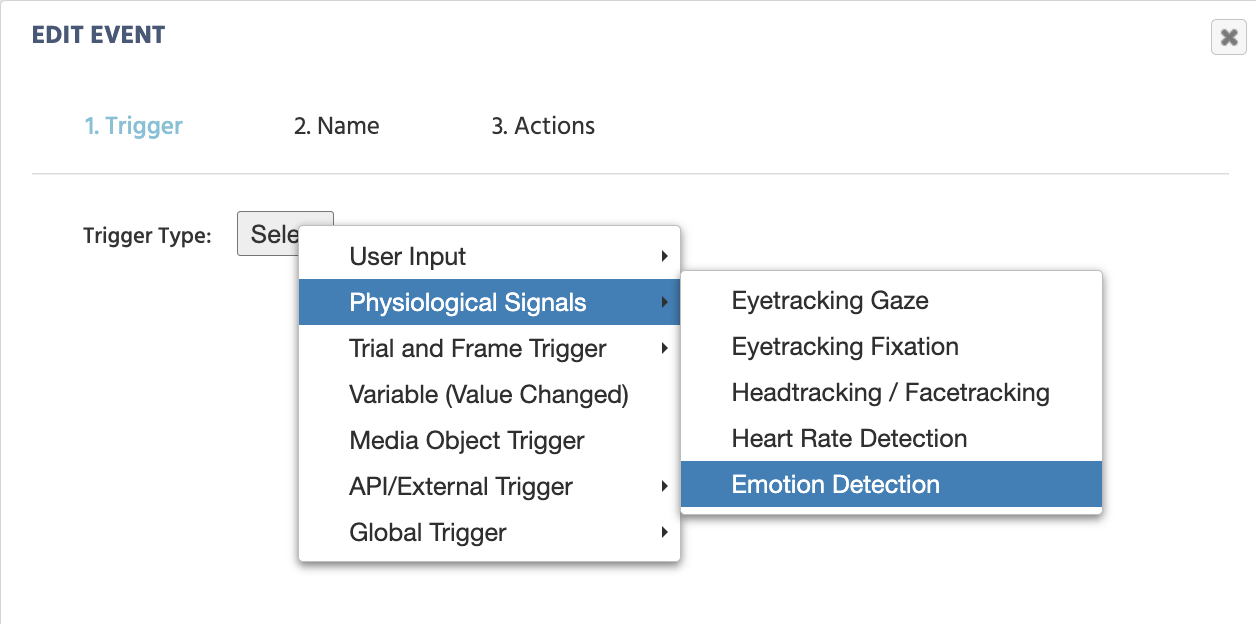
The Emotion Detection Trigger menu in Labvanced.

Locating the Emotion Detection Trigger from the Event's trigger menu.

Recording Emotion Detection Data

Upon selecting the trigger and giving the action a name, a dialog box will appear prompting you to set up the relevant events for recording data for emotion detection:
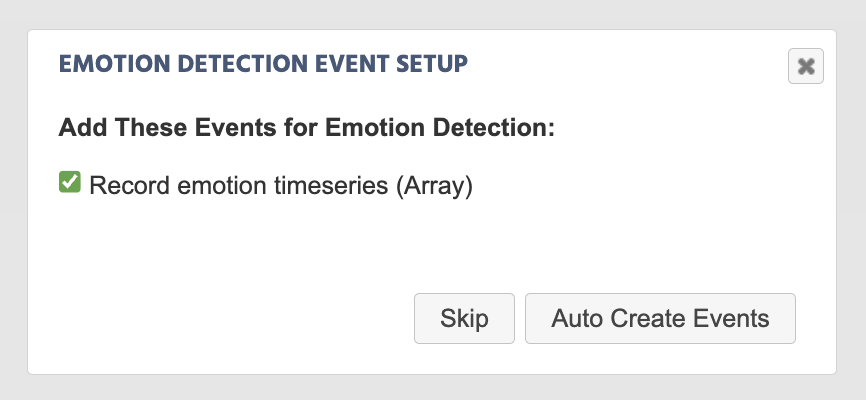
Automated events creating for recording emotion detection in Labvanced.

Upon selecting the Emotion Detection Trigger, a prompt will appear which sets up the event to record emotion-related scores and timestamps. Note: See the data table image further below for a preview of the data that this event records.

As a result of auto-creating this event, the following action will be created (as shown in the picture below). The variable name emotion_Emotion Detection is assigned and the trigger-specific value of [All Emotions, Valence, Arousal, T] Array is indicated as the values to be recorded during data collection.

From here, the variable name can be further edited via the Variables panel, and the trigger values can also be reassigned to be different values. See below for more options via the Value-select Menu.
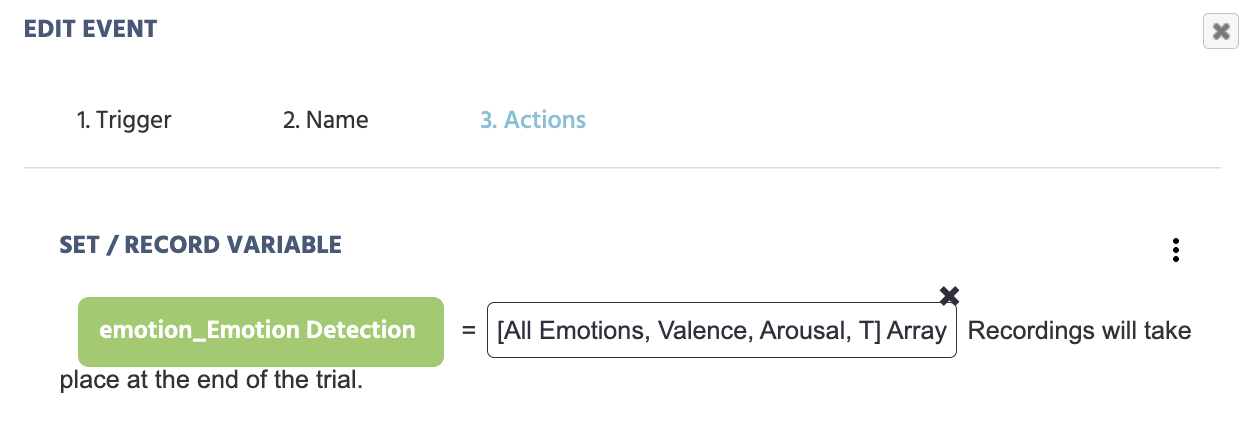
Automated event for the trigger for emotion detection in Labvanced.

The event generated automatically for recording emotion detection result of creating the event prompted, in the step from the image above.

Preview of Emotion Detection Data Collected in Labvanced

Below is an example of data recorded as a result of having the above event active in your task in Labvanced:

Infographic showing emotion labels, confidence scores, and timestamps collected during facial expression analysis in Labvanced.

Preview of the data collected with the [All Emotions, Valence, Arousal, T] trigger-specific value.

Enabling / Activating Emotion Detection

In order for the emotion detection trigger to function, the relevant settings must be activated and enabled under both the Task Controls and Settings, as explained below.

Study Settings - Enable Emotion Detection

In the Settings tab, navigate to Physiology → Emotion Detection and check the checkbox in order to activate emotion detection in your study.

Task Settings - Enable Emotion Detection

Under the Task Controls section in the Task Editor, navigate to the Physiological Signals tab and click the checkbox in order for emotion detection to be active in the particular task.

Upon activating the emotion detection by clicking the checkbox, a dialog box will appear prompting you to indicate whether an event for recording emotion detection data values should be created, along with what frame should the recording occur on:
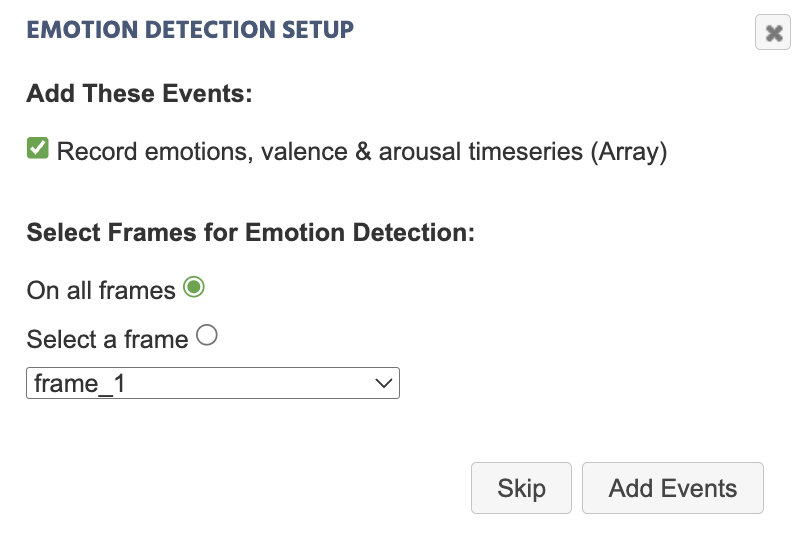
Creating an event to record emotion detection data via the task controls

Via the Task Controls under Physiological Signals, it is also possible to auto-generate data recordings for Emotion Detection, as well as specify on which frame data recording should specifically occur.

Trigger-specific Values for Emotion Detection

Upon selecting the Emotion Detection Trigger, the following options are available in the Value-Select Menu.
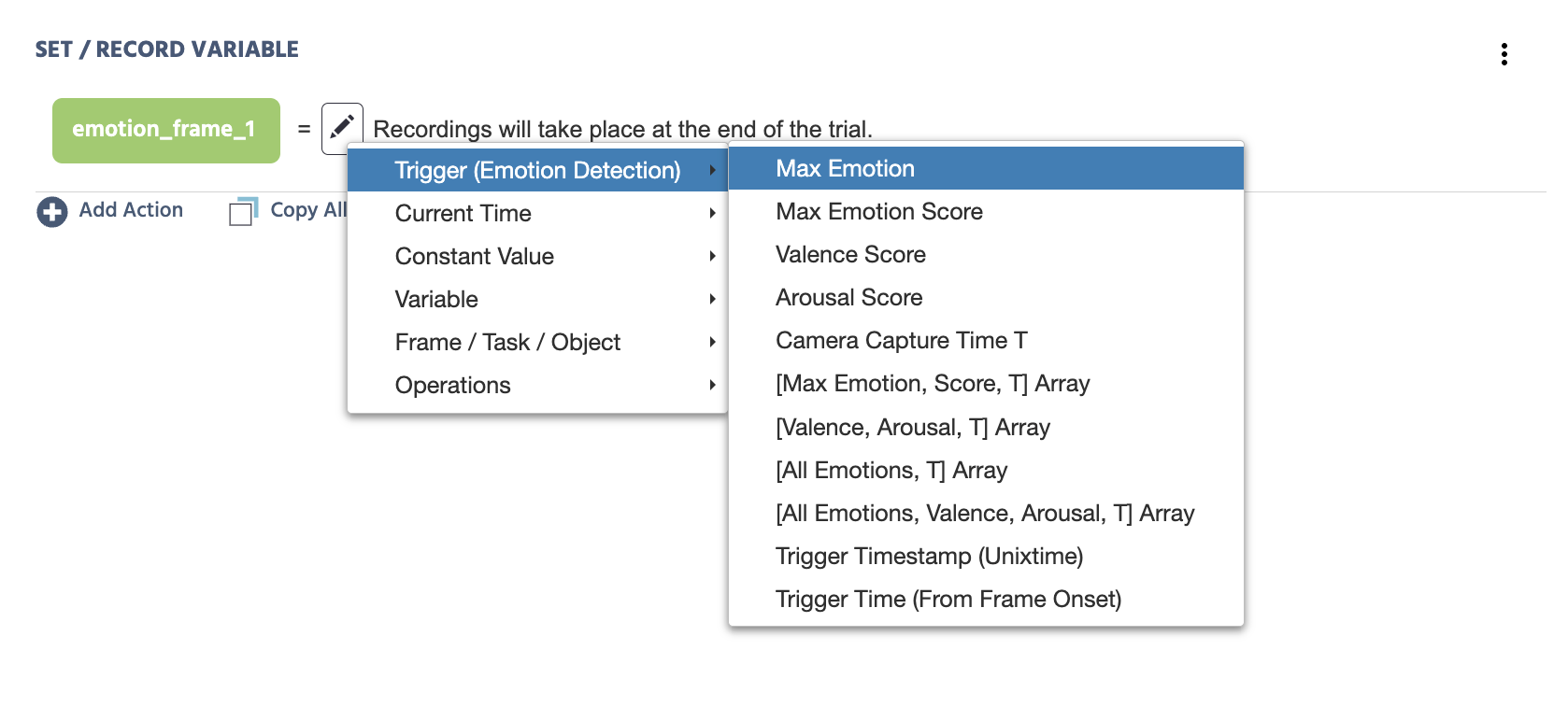
Accessing the trigger specific menu in Labvanced via the variable select menu

Accessing the trigger-specific values of the Emotion Detection Trigger via the Value-select Menu.

ValueDescription
Max EmotionThe maximum emotion detected. String value with the following parameters available: angry, contempt, disgust, fear, happy, neutral, sad, surprise.
Max Emotion ScoreThe score of the Max Emotion detected.
Valence ScoreThe numeric score for valence detection.
Arousal ScoreThe numeric score for arousal detected.
Camera Capture Time TThe adjusted timestamp value based on when the image snapshot (ie the camera capture) occurred which is required in order to perform emotion detection calculations.

Note: While the Trigger Timestamp is a value of when the trigger initiated, it takes a few milliseconds for the algorithm to then capture the image frame locally and then process the emotional score. Thus, the Camera Capture Time T value is a more accurate timestamp to use.
[Max Emotion, Score, T] ArrayAn array that holds the following values: Max Emotion (string label) score (numeric), Camera Capture T (Unixtime).
[Valence, Arousal, T] ArrayAn array that holds the following values: Valence (numeric), Arousal (numeric), Camera Capture T (Unixtime).
[All Emotions, T] ArrayRecords the scores for all 8 emotions and the Camera Capture T (Unixtime).

Refer to the first 8 columns and the last column of the image preview in the data recording section above for a sense of the data collected with this trigger-specific value selected.

Note: The values from the 8 emotions under All Emotions are relative to each other as the scores for all 8 emotions sum up to 1.
[All Emotions, Valence, Arousal, T] ArrayRecords the numeric scores for all 8 emotions, valence, arousal, and the Camera Capture T (Unixtime).

Refer to the image preview in the data recording section above for a sense of the data collected with this trigger-specific value selected.

Note: The values from the 8 emotions under All Emotions are relative to each other as the scores for all 8 emotions sum up to 1.
Trigger Timestamp (Unixtime)The trigger timestamp in UNIXTIME.

Note: Refer to the Camera Capture T value as this is a more accurate value for when the emotion detection occurred, as explained above.
Trigger Time (From Frame Onset)Time (in milliseconds) that the trigger occurred from the frame onset / start.

Practical Examples Featuring the Emotion Detection Trigger

Controlling Experiment Progress Based on Emotional State

In this example, a Delayed Action contains a Requirement Action (If...Then) to specify that after a delay of 2000 milliseconds, if the Max Emotion is equal to sad to progress to Jump To a specific task.
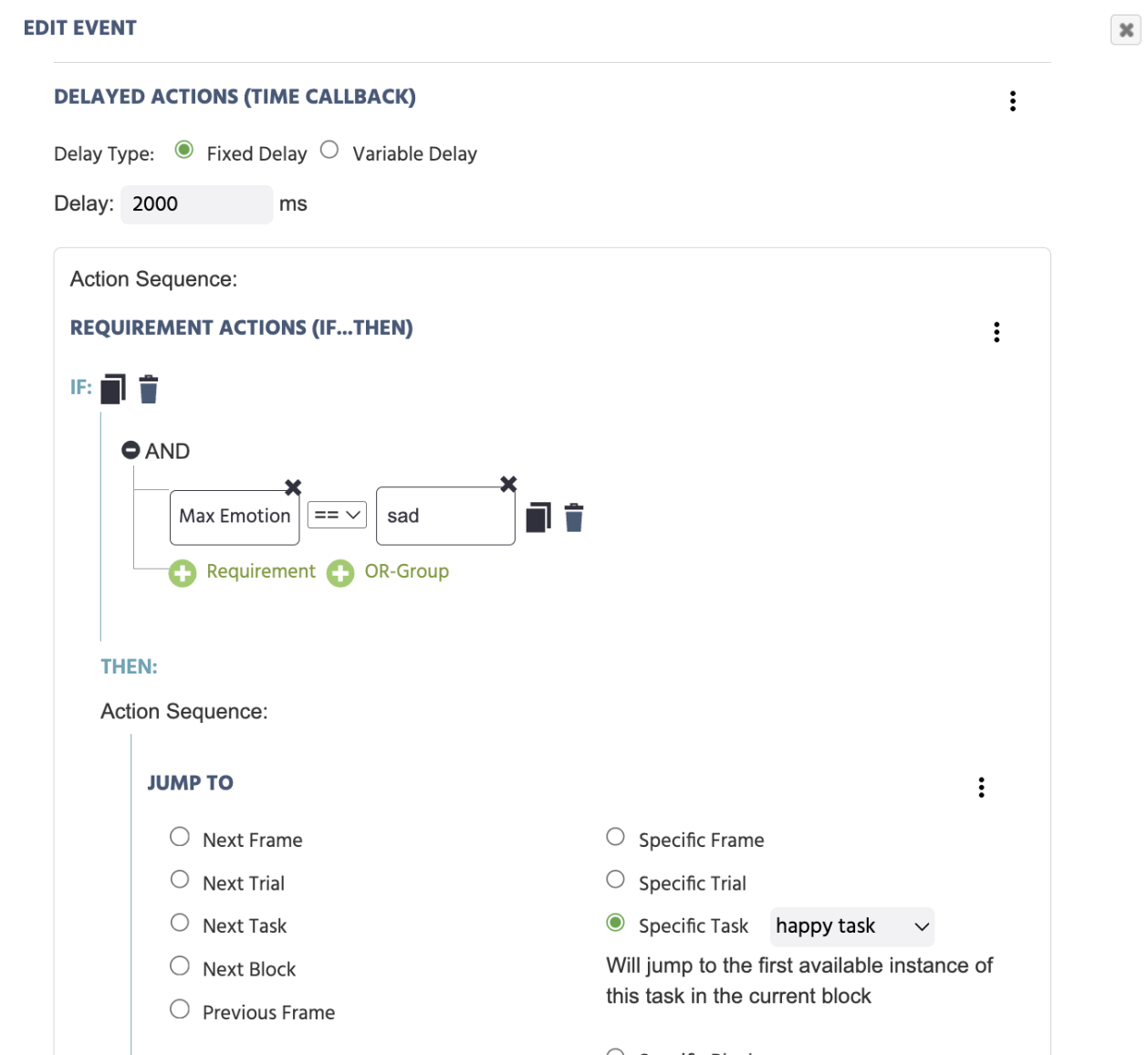
The Emotion Detection Trigger used in Labvanced.

Example of emotion detection parameter Max Emotion being used in an event to control task progression.

Emotion Detection in Real Time

Emotion Detection Demo

A series of images are presented, the participant is asked to mimic the expression. The highest emotion detected of the participant's expression is reported, along with valence and arousal values.