Set Object Property Action
The Set Object Property action in Labvanced is a core tool for dynamically controlling what participants see and experience during an experiment. It allows you to change the properties of any object on the screen in real time, based on logic, user input, or external data.
Table of Contents
Overview
At its simplest, this action lets you modify an object’s attribute while the experiment is running. Instead of creating multiple static versions of the same element, you can reuse one object and update it on the fly.
Common use cases
- Changing images or media (swap stimuli between trials)
- Controlling visibility (show/hide elements based on conditions)
- Adjusting styles (color, size, position, opacity)
How it works
The action typically involves three key components:
- Target Object – the element you want to modify (text, image, button, etc.)
- Property – the specific attribute to change (e.g., text, color, visibility)
- New Value – the value assigned to that property (can be static or variable-based)
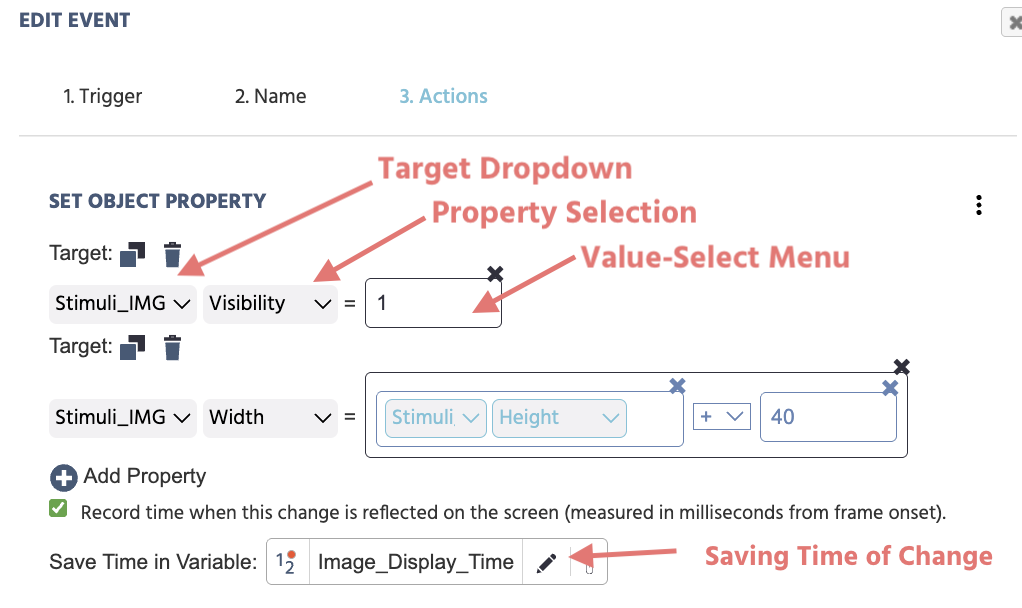
The Target Dropdown section allows you to select and specify from a list of available objects what the specific target should be.
The Property Selection section indicates which object property is to be changed. For example, visibility, scale, x- and/or y-coordinate position. For a full explanation of the available options and their parameters, please see the Object Properties Table.
The Same Time in Variable option allows you to quantify the time when the changed property is really visible on the next diplay refresh. When a property is changed, it will take a short amount of time (approx. ~10milliseconds) for these changes to be visible. Quantifying this change can be useful for reaction time-based tasks.
Possible values for the Value-Select Menu can be:
- Constant value (eg. fixed string/text or numeric values)
- Experiment variables (dynamic values)
- Based on participant responses and behavior (eg. mouse movements / clicks / gaze). For example, if a participant's favorite color is blue, set the image border as blue.
- Operational values (eg. referencing on the object's property and then adding/subtracting a value to change its appearance) such as that shown in the second entry in the image below where the image width is increasing by
+40.
Below is a full overview of the fields you encounter when working with the ‘Set Object Property’ action:
| Menu Item | Menu Area | Set Object Property Trigger Options |
|---|---|---|
Target object selection drop-down list: | 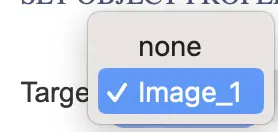 | |
Target property selection drop-down list: | 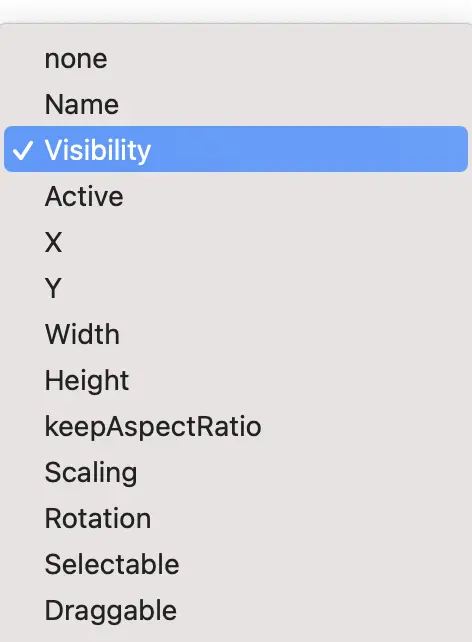 | The second drop-down menu indicates which object property is to be changed. For a full explanation of the available options and their parameters, please see the Object Properties Table. |
Value Select Menu |  | Define the new value, ie. what the value of the new object property should be as a result of the action utilizing the Value Select Menu. |
‘+ Add Property’ |  | Multiple properties can be added and changed under the action by clicking this icon. |
| Checkbox - Record time when this change is reflected on the screen (measured in milliseconds from frame onset). |  | When a property is changed, it will take a short amount of time (approx ~10ms for the changes to be visible. With this option you can record more precisely the time when the changed property is really visible on the next display refresh. Note: Upon selecting this option, a dialog box will appear prompting you to indicate (or create a new variable) where this captured value should be stored. The variable should be numeric as the ‘data type.' |
Workflow Tips
Use the duplicate icon and simply change the property for related property changes.
Studies Featuring the Set Object Property Action & Example Scenarios
Creating the Impression of Movement
In the Balloon Analog Risk Task (BART), the Set Object Property Action is used to give the impression that the balloon is inflating by increasing the image's width with each button click . Once the probability value reaches a certain point of the balloon popping, the Set Object Property Action is then used again to show a popped balloon in place of the stimuli image. For an example, refer to the BART - Random task under the Pump - Draw Number + Increase Earnings event.
Controlling the Visibility of an Object
In this one-minute video, an event is created to make an image visible upon a button press.
In the editor, the image object is given the Visibility value of zero. An event is created specifying that when a button is pressed (trigger) --> Set Object Property action and specify the image object's Visibility should be equal to 1.
Why it’s important
The Set Object Property action is essential for building interactive and adaptive experiments. It enables:
- Real-time feedback loops
- Personalized participant experiences
- Efficient experiment design (fewer duplicated elements)
- Integration with dynamic systems like AI or sensors