Text Object
The Text Object is a versatile tool in Labvanced, enabling researchers to present textual stimuli to participants without any coding. It is widely used in cognitive, social, and behavioral research for displaying words, sentences, instructions, or any textual content.
Table of Contents
The Text Object can be fully customized to fit the needs of your experiment. Researchers can control font type, size, color, alignment, position, and even dynamic updates through events, making it ideal for interactive and adaptive experiments.
Adding a Text Object
To include a Text Object in your experiment, open the Text & Code group in the task editor toolbar and select Text.
Editing the Text Object - Text Editor
When working with theText Object, a ‘Text Editor’ will appear where you can further make text-related edits.
The text editor can be used to modify / edit text similarly to a standard word processor. For instance, one can change the font size, the text alignment, the font color, and many other style adjustments. Images and tables can also be included within the text box. For a full list of Text Editor Functions, refer to this page.
Object Properties Panel for Text Objects
The Object Properties panel (right side during editing mode) allows you to fully customize your Text Object. This includes position, text box size, visibility, and other options, such as draggability.
Learn more about Object Properties.
Controlling the Text Object
The Text Object can be dynamically controlled within your experiment to determine when, how, and under what conditions it appears or changes. This is typically managed through the timeline (frames) and the event system in Labvanced.
Visibility and Timing
One of the most common ways to control a Text Object is by placing it within specific frames:
- A Text Object will only be visible during the frame(s) in which it is placed.
- You can control how long it appears by adjusting the duration of the frame.
- To create sequences (e.g., instructions followed by stimuli), place different Text Objects in consecutive frames.
Additionally, visibility can be controlled via the Object Properties Panel:
- Toggle visibility on/off
- Set objects to appear only after certain conditions are met
Using Events to Control Text
Labvanced’s event system allows you to dynamically modify the Text Object during runtime.
Common use cases include:
Show / Hide Text
Trigger text to appear or disappear after a participant response or a timer.Update Text Content
Change the displayed text based on variables (e.g., showing feedback like “Correct” or “Incorrect”).Conditional Display
Present different text depending on logic (e.g., if a participant’s answer is correct).
Example:
- If
accuracy == 1→ display “Correct!” - If
accuracy == 0→ display “Incorrect”
Linking Text to Variables
As described previously, Text Objects can reflect real-time data by linking them to variables:
- Use linked variables inside the Text Editor to display values dynamically.
- Combine this with events to update variables during the experiment.
This is especially useful for:
- Trial-by-trial feedback
- Displaying scores or counters
- Personalized instructions
Dynamic Text
Most importantly, the text editor can also be used to insert and consequently render variables (e.g. to provide feedback). From these options, the [x] Linked Variable option is very popular, displayed in the upper left corner. This option essentially allows you to highlight text, link a variable to it, so that it displays the value.
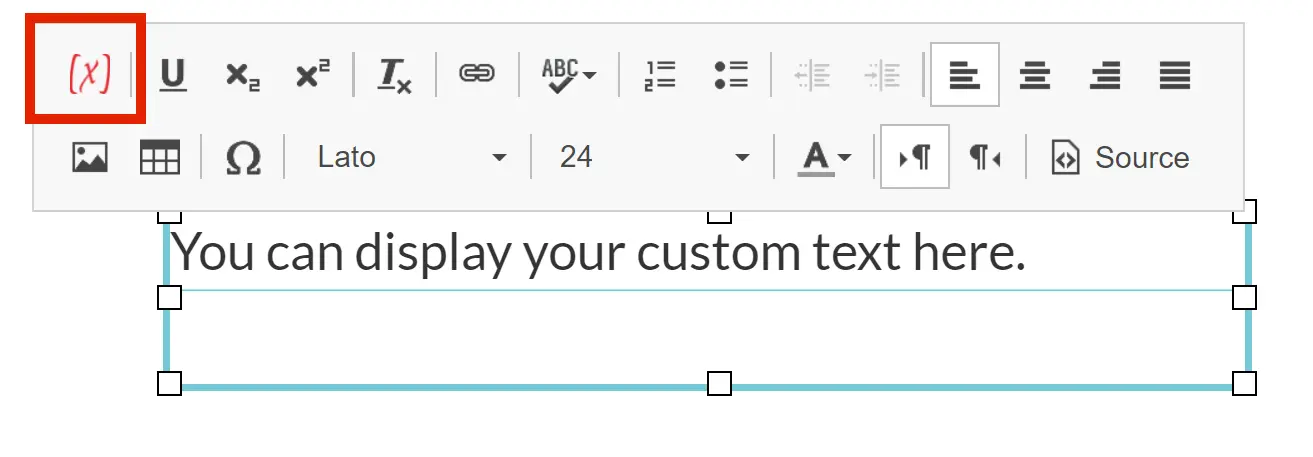
This is useful for showing scores, feedback or other dynamic content.
Combining with Other Objects
The Text Object is often used together with other elements:
- Buttons: Display instructions alongside response options
- Images/Videos: Provide captions or context
- Input Fields: Label questions or prompts
By coordinating multiple objects within frames and events, you can create fully interactive screens.
Practical Example
A simple feedback flow:
- Participant responds to a question
- An event evaluates the response
- A Text Object updates to display:
- “Correct!” (green text)
- or “Incorrect” (red text)
- After a short delay, the next frame begins
Summary
Controlling the Text Object involves a combination of the following options:
- Frames → determine when text appears
- Events → determine how text behaves
- Variables → determine what text displays
Together, these tools allow you to create dynamic, responsive, and interactive textual elements in your experiment.
Open Materials and Study Examples
Video Overview about the Text Object
Studies Utilizing the Text Object
Dual Lexical Decision Task
This study investigates word recognition and decision-making in language processing. Participants will view pairs of letter strings and decide whether they are real words or non-words. The task measures accuracy and reaction times in lexical processing.
Bouba-Kiki Task
In this experiment, two shapes are presented and a word. The participant must select one of the two shapes as being the best match to the presented word.