Build with AI
The Labvanced AI Assistant builds parts of your study directly in the editor from a written description. You describe a frame, a questionnaire, or an event, and the assistant creates the objects, variables, and events in your study while you review and refine the result.
This is a new way to build in Labvanced: frames take seconds and a complete task takes a few minutes. The AI Assistant is in beta, so you review each change it makes before you rely on it.
Table of Contents
The Assistant Makes the Changes
Most generative AI tools work next to the software you are using. You ask a question, receive instructions, and then click through them yourself, so the answer is a piece of documentation you still have to carry out. The Labvanced AI Assistant works inside the editor and makes the change itself. You describe the frame, the elements, or the logic you want, allow AI changes for the chat, and the objects, variables, and events appear in your study, ready for you to refine.
The assistant is also a Labvanced specialist. It searches the Labvanced documentation and inspects your actual experiment (frames, elements, variables, event chains, trial structure) before it answers or builds, so its replies refer to the names in your study. On questions about Labvanced it is considerably more accurate than a general-purpose AI from the web that has not been trained on the platform. It still makes mistakes like any AI, which is why every change is reported back and can be reverted.
Example: From a Consent Form to a Profile Analyzer
The demo study starts with this prompt, typed into the AI Assistant panel of the task editor:
Please add a text box object with the title Consent Form and general information about taking part in a study. It should be on a page frame and include a 'Next' button at the bottom to navigate to the next frame.
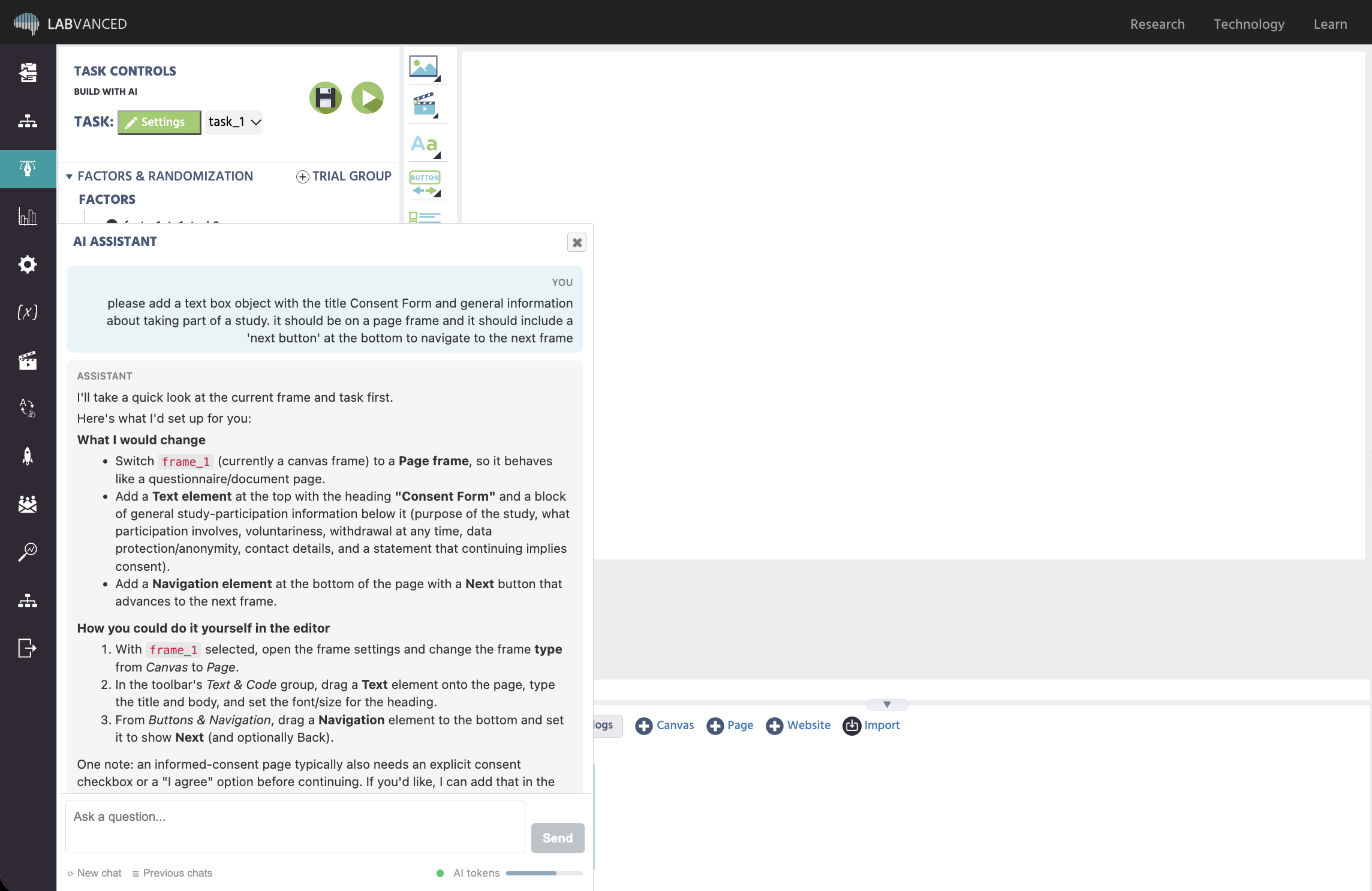
The assistant first looked at the current frame and described its plan: switch the frame to a page frame, add a text element titled Consent Form with general study-participation information, and add a navigation element with a Next button. It also listed how you could do the same by hand in the editor, and noted that an informed-consent page usually needs an explicit consent checkbox, which it offered to add.
After the permission step, the consent page was in the editor: a text element named consent_text, a navigation element named consent_nav, and the event that moves participants to the next frame, created automatically with the navigation element. The assistant reported what it built, what it had verified, and what you may want to adjust, such as styling the title line as a heading.
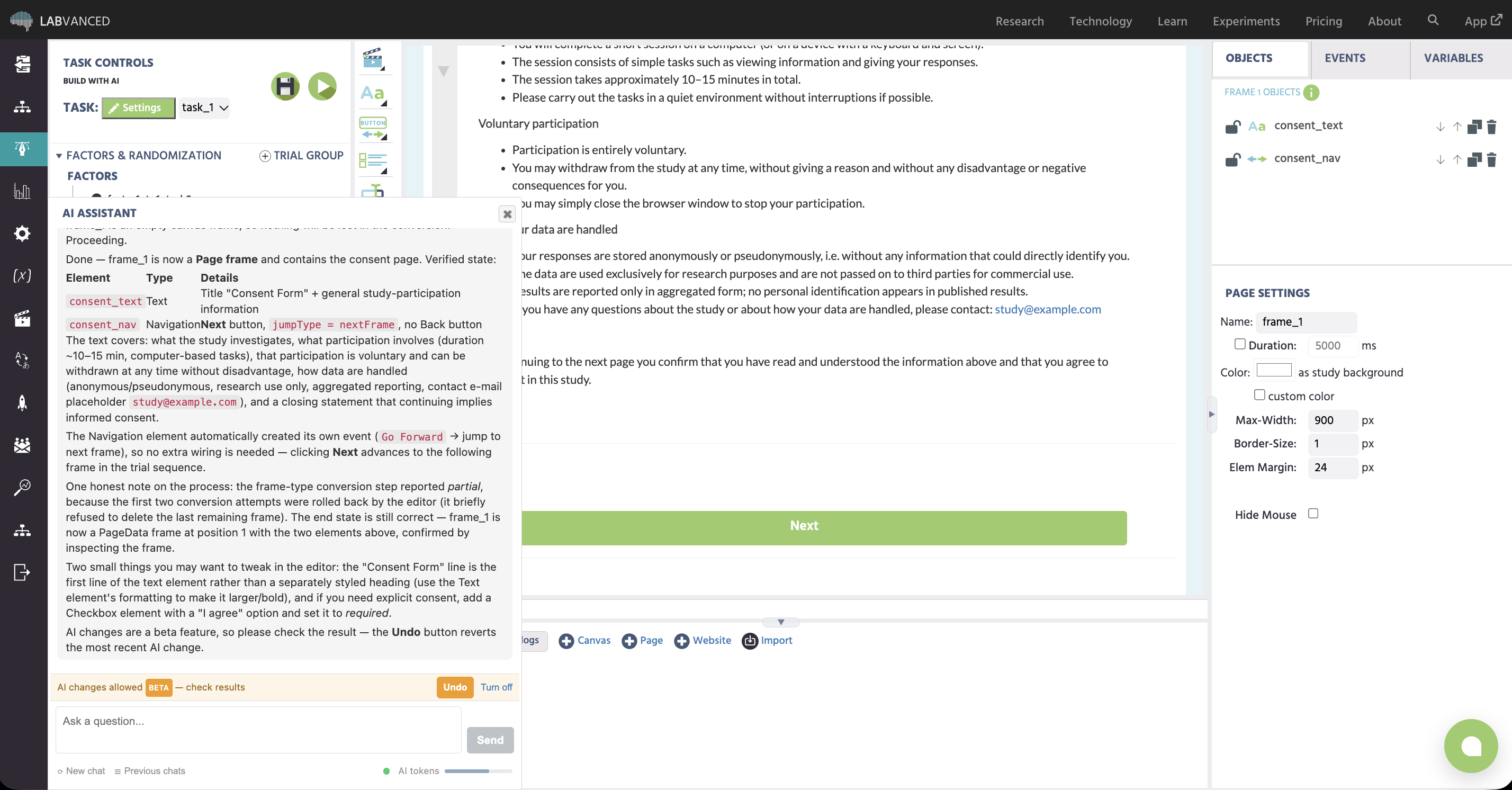
The report also stated that the first two attempts to convert the frame type had been rolled back by the editor, and that the final state had been confirmed by inspecting the frame. Reports like this tell you which parts of a change were checked and which were not.
The same study goes well beyond a consent page. Later prompts added questionnaire frames with linked variables, then a frame-level event that runs JavaScript on On Frame Start: it reads the participant's earlier answers, computes a weighted composite score, and stores a Novice, Intermediate, or Experienced classification in a variable that a result frame displays. The assistant explained the formula and the thresholds in its own report, so the logic is readable before you open the event.
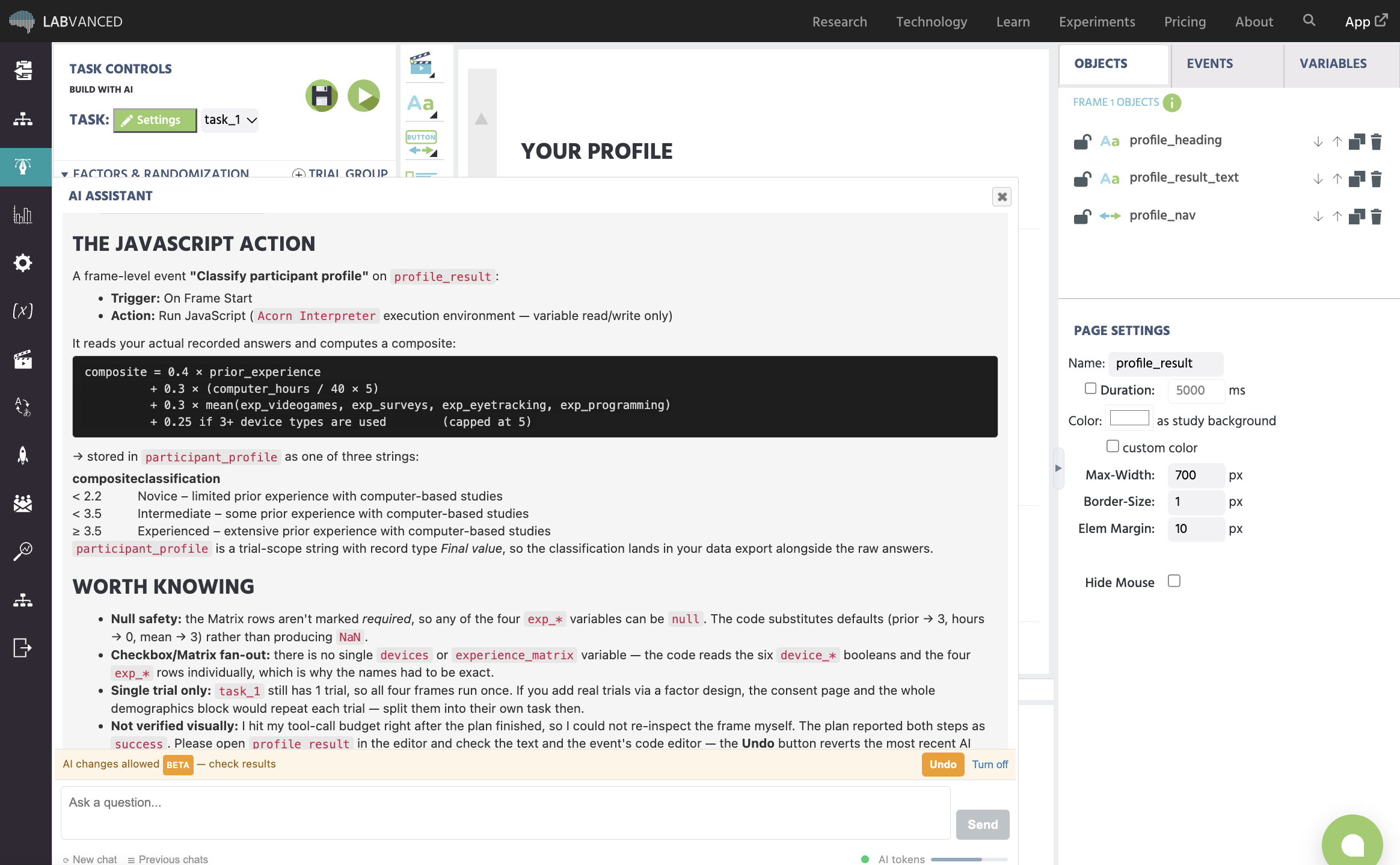
The step-by-step walkthrough continues from here and builds the complete four-frame study.
The demo study is in the Labvanced library:

Examples of What the Assistant Builds
These are examples of what the assistant builds, taken from the demo study, using the same building blocks you use in the editor.
| Building block | What the assistant does |
|---|---|
| Frames | Converts a canvas frame into a page frame, adds further page frames, and rebuilds a result frame as a canvas frame to hold shapes. |
| Elements | Text, input, selection, Likert, matrix, checkbox, and navigation elements, plus rectangles and ellipses on a canvas frame. |
| Variables | Creates a recording variable for each question and the variables the result page needs, and links them to the elements. |
| Events | Creates the event that moves to the next frame, and a frame-level event that runs JavaScript on Frame Start. |
| Page content | Writes the consent text, question wording, and answer options from a short description of the purpose. |
Platform-specific terms make prompts more precise. Naming the frame type (canvas, page, or website frame), the element, or the variable you mean tells the assistant which mechanism to use. The AI Assistant guide lists the prompting habits that work best.
Writing, Ideas, and a Sparring Partner
The assistant also helps before anything is built. It drafts text such as consent wording, instructions, and question sets, and it suggests what a study could contain next.
Prompts you can try:
What could I add after the consent page?Draft instructions for a task where participants rate images from 1 to 7.How would I check that participants read the instructions?What is the difference between a modification and an event?Which question types suit a short screening page?
Questions only produce answers. The assistant changes your study only after an explicit request and your permission for that chat, so you can use it as a sparring partner for design decisions without touching the experiment.
Checking Variable Linkage and Confirmations
When a study reads values from earlier frames, a single misspelled variable name breaks the analysis silently. After building the JavaScript classification in the demo study, the assistant checked the wiring: all 13 variable names the script reads resolved to existing variables with matching types, and it listed the cases to watch, such as matrix rows that were not marked as required and could arrive empty.
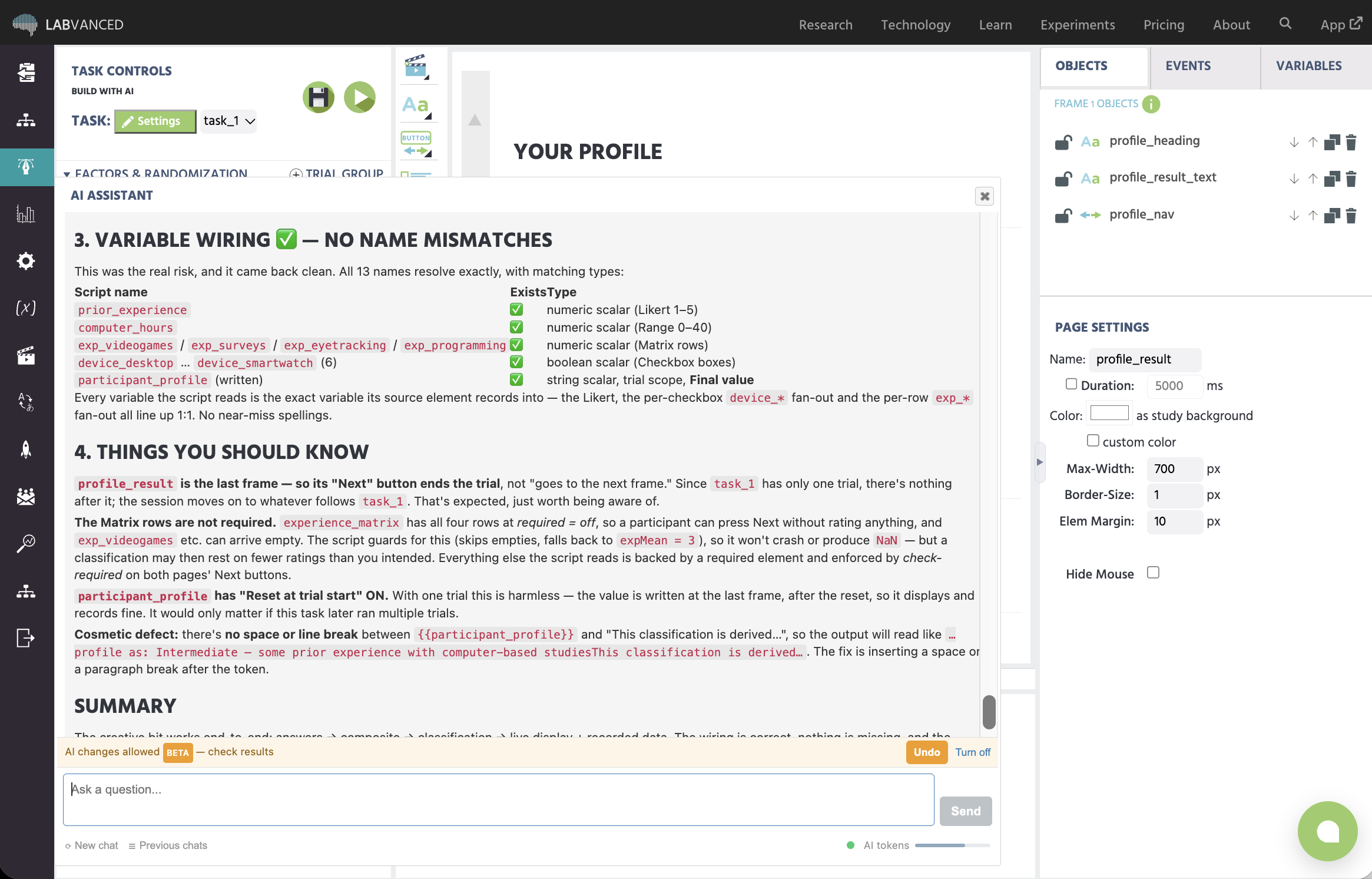
You can ask for this kind of check in a separate turn, for example now verify frame 4, and the assistant returns a read-only report of what is actually in the frame.
Beta Status and Researcher Control
AI changes to an experiment are a beta feature, and the controls keep you in charge of the study.
- Permission per chat: the assistant answers questions and inspects your study without any permission. When you ask it to change something, a
Allow AI changes?card appears and the changes begin after you clickAllow AI changes (beta). - Undo: the
Undobutton reverts the most recent AI change. - Turn off:
Turn offends write access for the chat. - Honest reporting: the assistant states which steps it verified and which it could not check.
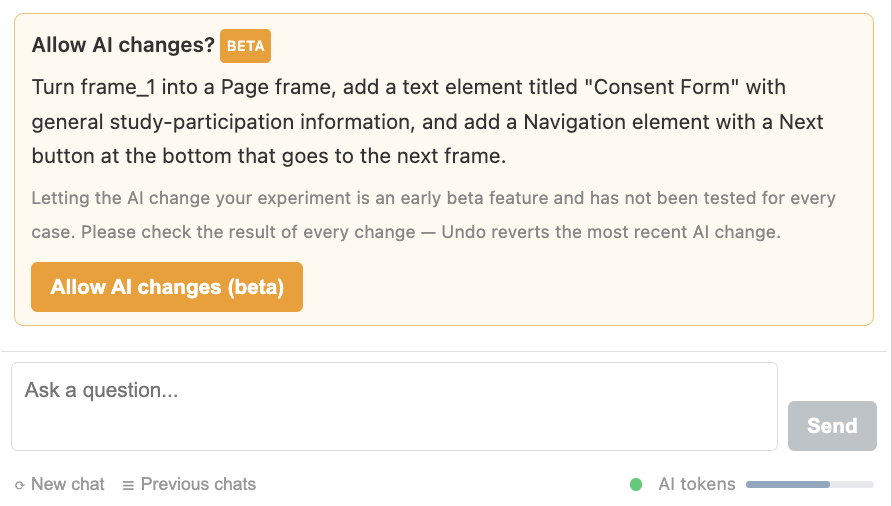
Allow AI changes? card with the beta badge, shown once per chat.As with any study, you pilot and check the build before collecting data, whether it was built by hand or with the assistant. The assistant shortens the building, and the pilot run and the sign-off stay the same. Its report points to the items worth a look, and the parts that carry the scientific weight, such as a scoring formula, a randomization setting, or a recorded variable, are quick to open in the editor during your pilot.
| What the assistant builds | What your pilot run confirms |
|---|---|
| Frames, layouts, and navigation | Anything the assistant's report marks as not verified |
| Questionnaire elements and their recording variables | Required flags and answer ranges that affect your data |
| Draft wording for consent, instructions, and questions | Final wording approved by your ethics board |
| Routine events such as moving between frames | Scoring formulas, randomization, and recorded variables |
Questions about your study design or platform fit?
Frequently Asked Questions
Can the AI Assistant change my study without asking?
Undo button reverts the most recent AI change.