Labvanced Web Bridge — Extension Support & Guide
New to Web Bridge? Follow the Website Frame Eye Tracking Walkthrough for a start-to-finish task flow, then come back here for full reference detail.
Need help? Contact us at [email protected]
Table of Contents
1. What is Labvanced Web Bridge?
Labvanced Web Bridge is a browser extension for Google Chrome that connects the Labvanced experiment platform (labvanced.com) to real websites. It enables researchers to run controlled UX studies and behavioral research in which participants interact with live, third-party websites, while Labvanced records eye movements (via webcam), mouse clicks, hover events, and scroll behavior.
Without this extension, browsers prevent websites from being embedded inside research studies due to standard security restrictions. The extension lifts those restrictions only within controlled Labvanced research sessions and adds the behavioral tracking capabilities needed to measure participant interaction on the embedded site.
For why that distinction matters, real recorded clicks and gaze versus an AI-predicted estimate of where attention might go, see AI Can Predict Where You'll Look. It Still Doesn't Know What You'll Do.
Within the Labvanced editor, embedding is done using the Website Frame, a third frame type alongside Canvas Frame and Page Frame, purpose-built for this rather than being a variant of the other two. See Website Frame for how it fits alongside the other frame types.
2. Installation
Step-by-step
Researchers
- Navigate to Google Chrome.
- Go to the Chrome Web Store page for Labvanced Web Bridge.
- Click "Add to Chrome".
- In the confirmation dialog, click "Add extension".
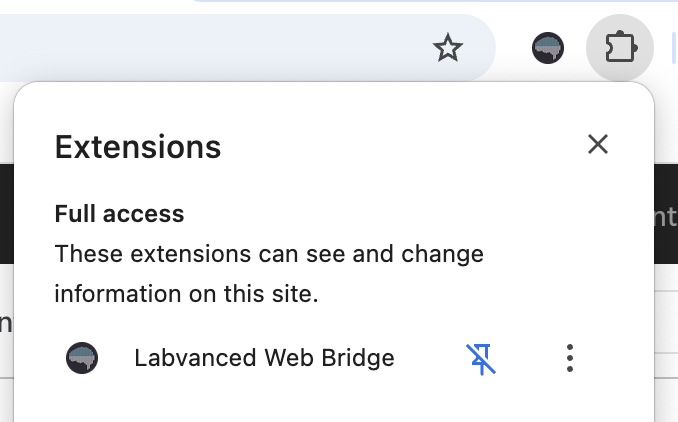
- You will see the Labvanced Web Bridge icon appear in your Chrome toolbar.
Participants
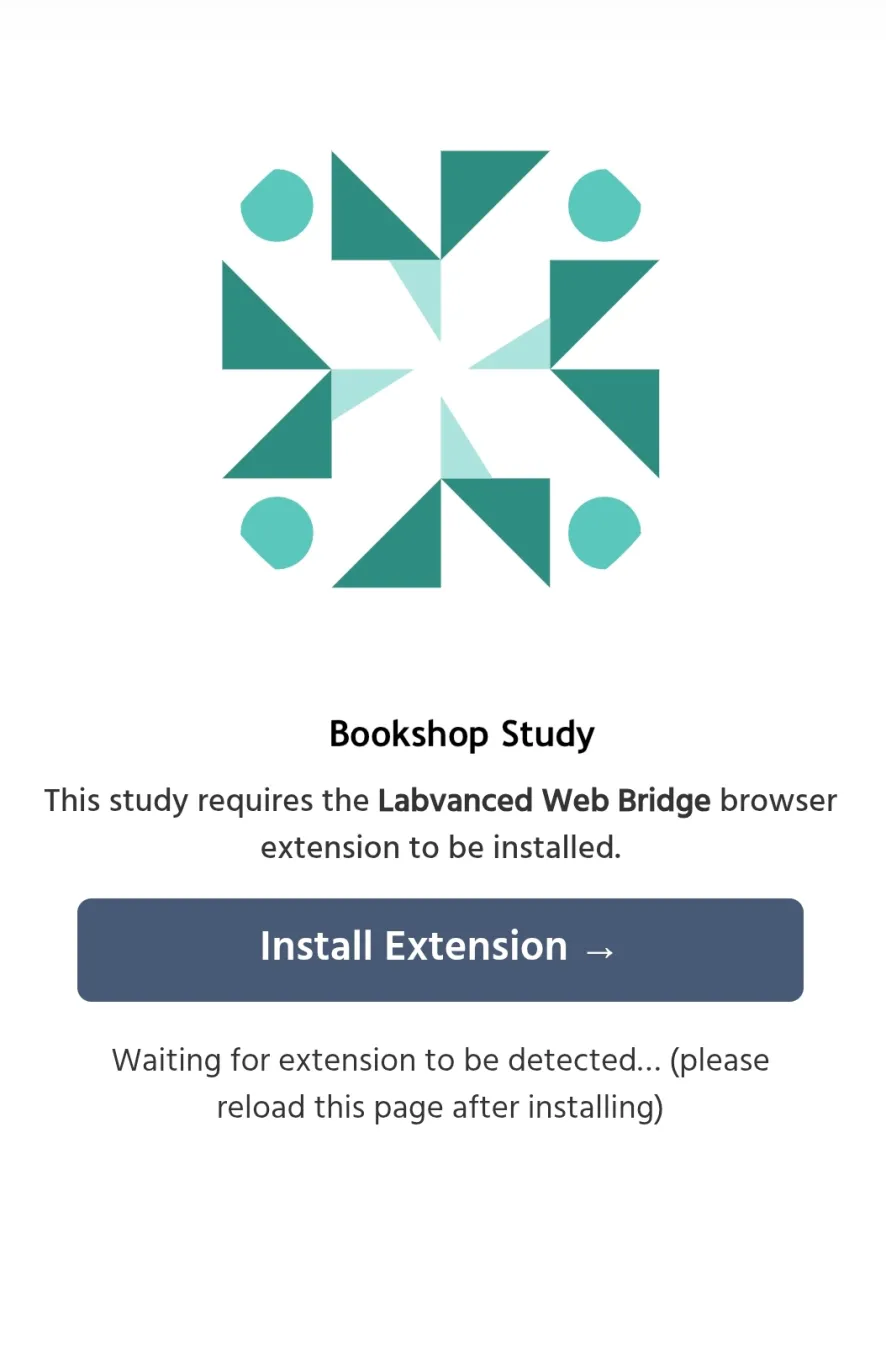
- Click Install
- Click "Add to Chrome".
- In the confirmation dialog, click "Add extension".
- Return to the experiment and refresh the page to begin the study.
Confirming the Extension is Active
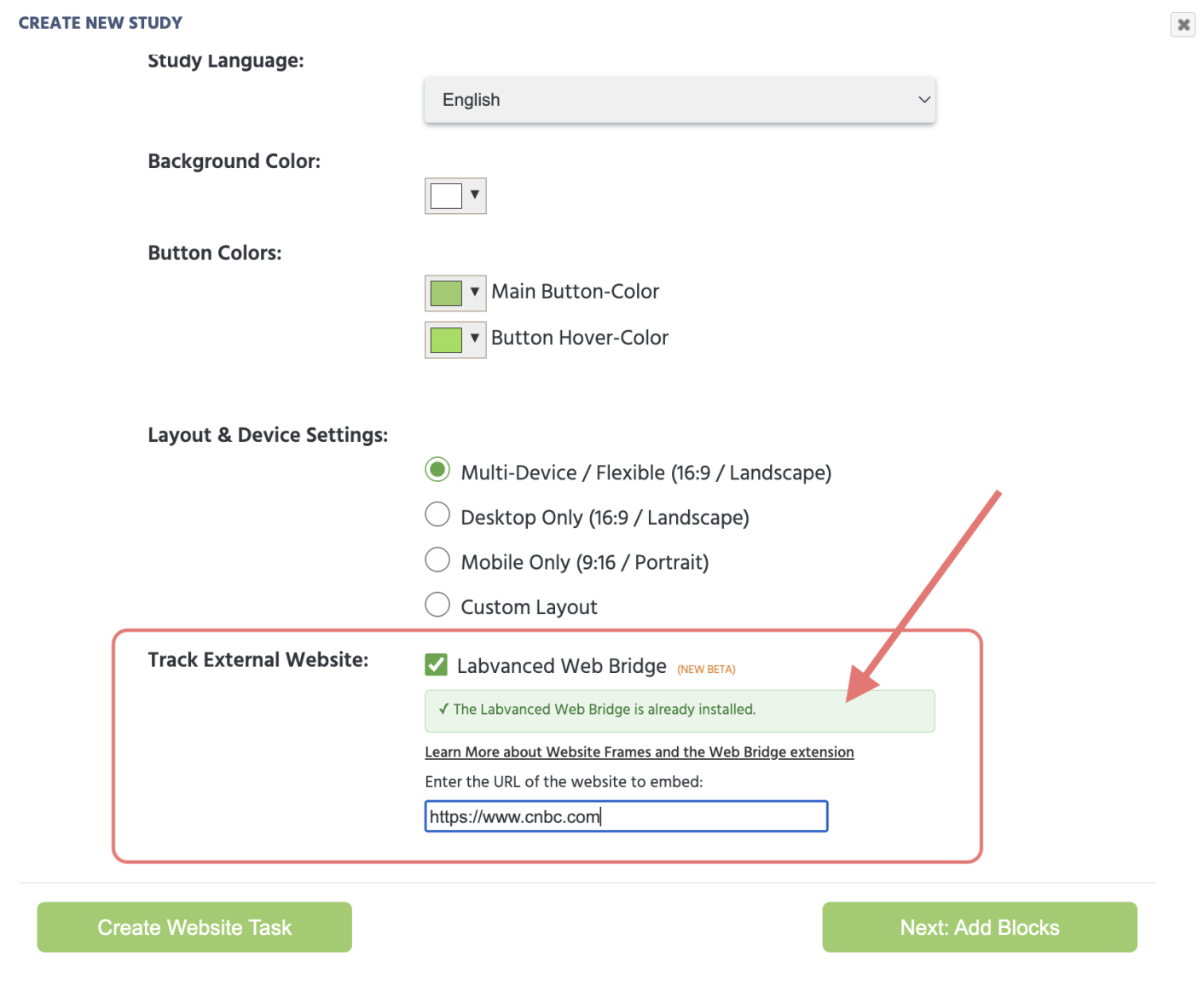
Researchers After installation, navigate to the Dashboard tab and Create a New Study. Scroll down and activate Track External Website: by checking the box and enter the target website URL. If the extension is correctly installed, the Labvanced editor will display a green checkmark and confirmation message.
Participants
Upon refreshing the experiment page, the experiment will proceed.
3. Who Should Install This?
Researchers
Install the extension if you are:
- Designing a study that includes a real website as a stimulus (e.g., testing a product page, a news article, a kiosk interface).
- Using the
Website Frameelement in the Labvanced editor. - Previewing or piloting a study that includes external websites.
You do not need this extension for studies that only use standard Labvanced stimuli (images, videos, text, forms, etc.) or are the website owner that can directly edit and control your own HTTP headers for your website.
Study Participants
Install the extension if:
- You have received a study link and were instructed to install it before starting.
- The study's onboarding page asks you to confirm the extension is installed.
If you are unsure whether you need it, your study link page will tell you before the study begins.
4. How to Use It — Researcher Guide
4.1 Adding a Website Frame to Your Study
- Open your experiment in the Labvanced editor.
- Under the
Trial Timeline, click the+ Websiteframe option. - Select "Website Frame" from the element types, then the
External Websiteoption. If the extension is active, the green confirmation message will appear. Otherwise, please refer to the section above on the installation procedure. - The website you indicated upon creating the task in the previous step will now automatically appear.
4.2 Selecting Areas of Interest (AOIs)
Areas of Interest (AOIs) are the specific elements on the embedded website that you want to track. For example, a product image, a headline, or an "Add to Cart" button.
There is no auto-detection: Labvanced never reads the embedded website's own HTML or container markup to guess which elements matter to your study. Every AOI is a manual click-and-anchor action in the editor. An AOI by itself also doesn't record any data, gaze capture requires an explicit Eyetracking Gaze event built on top of it, see Record the Gaze Data: Add Events in the Website Frame walkthrough for how to set it up.
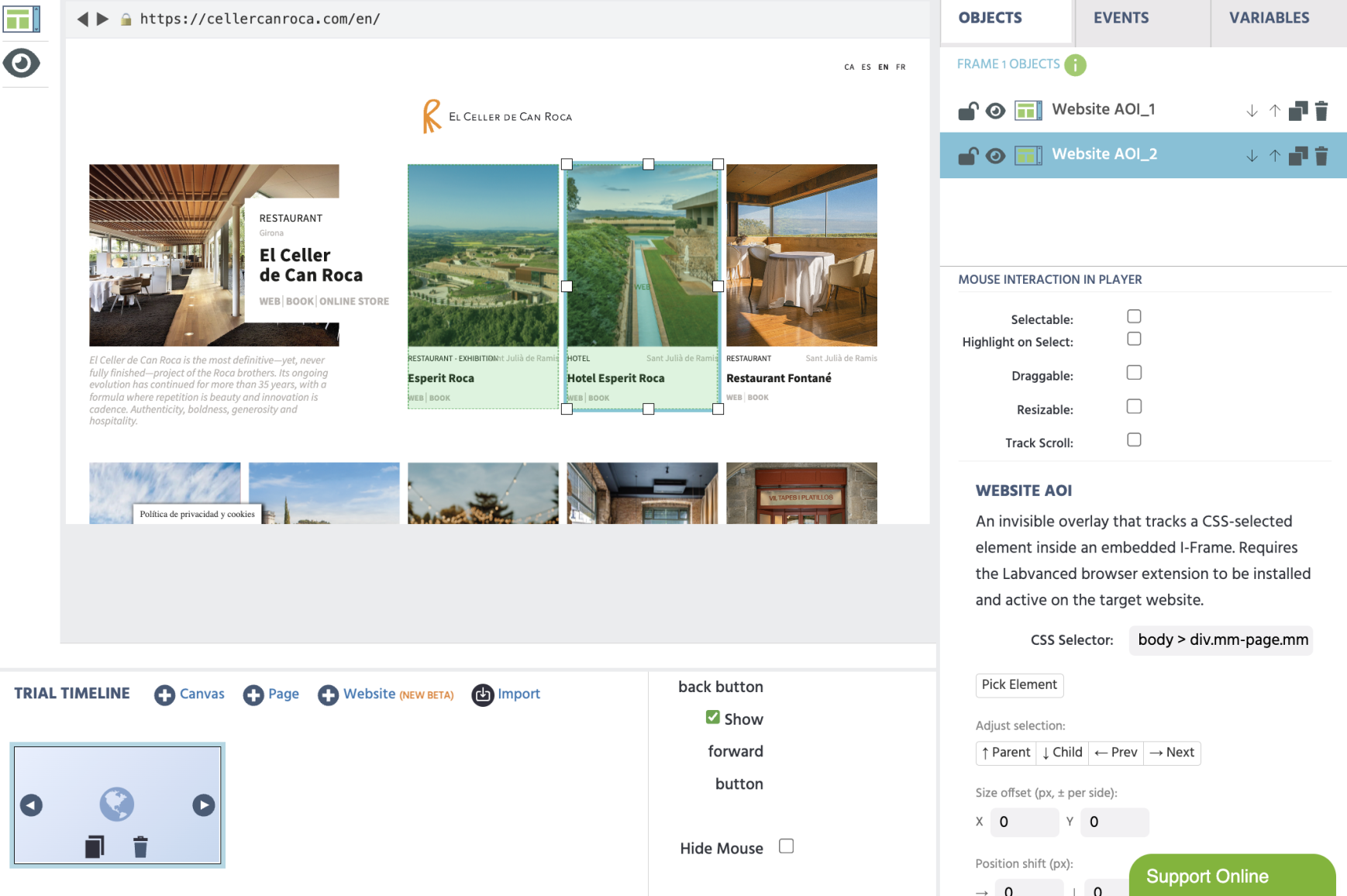
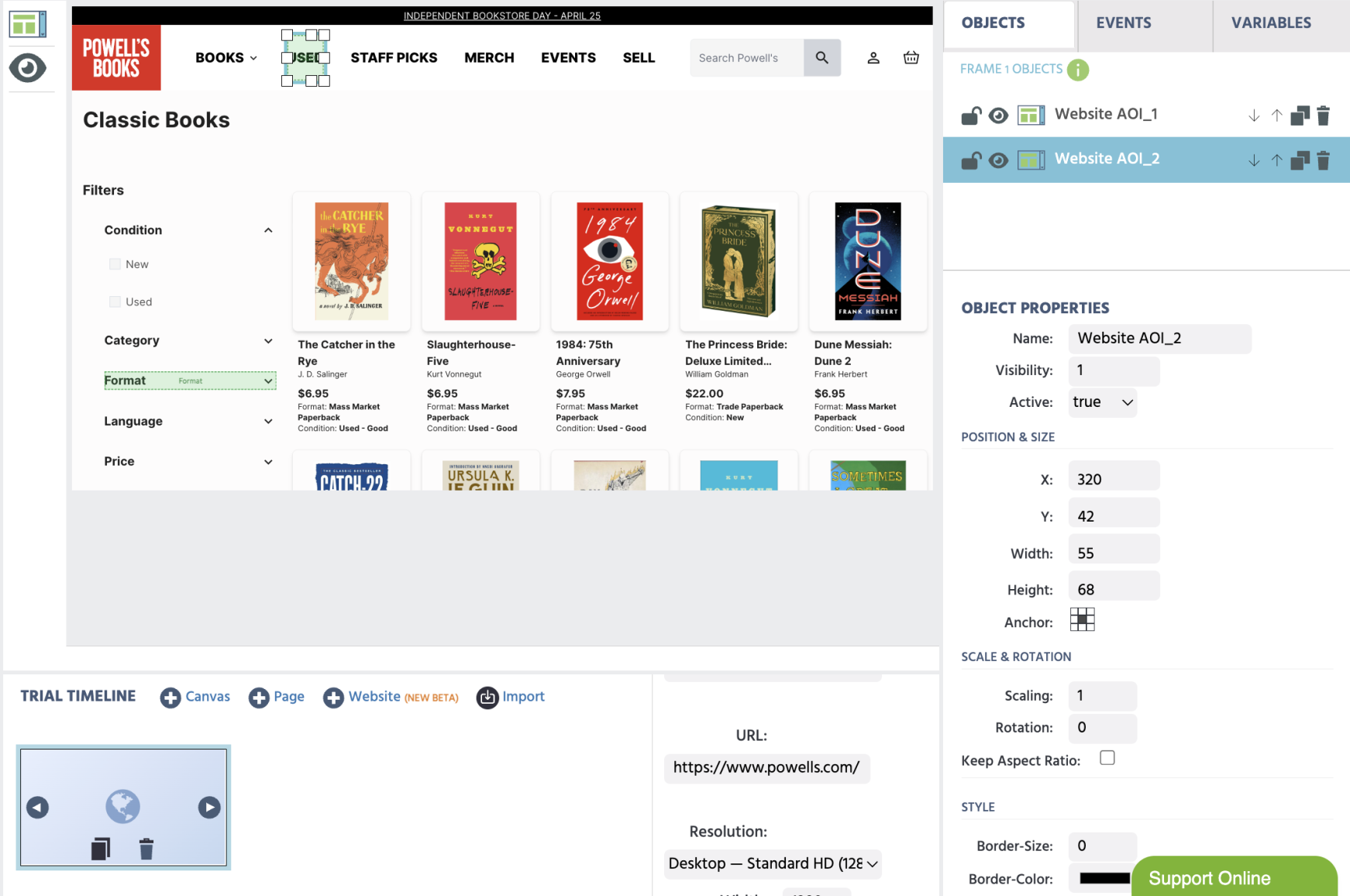
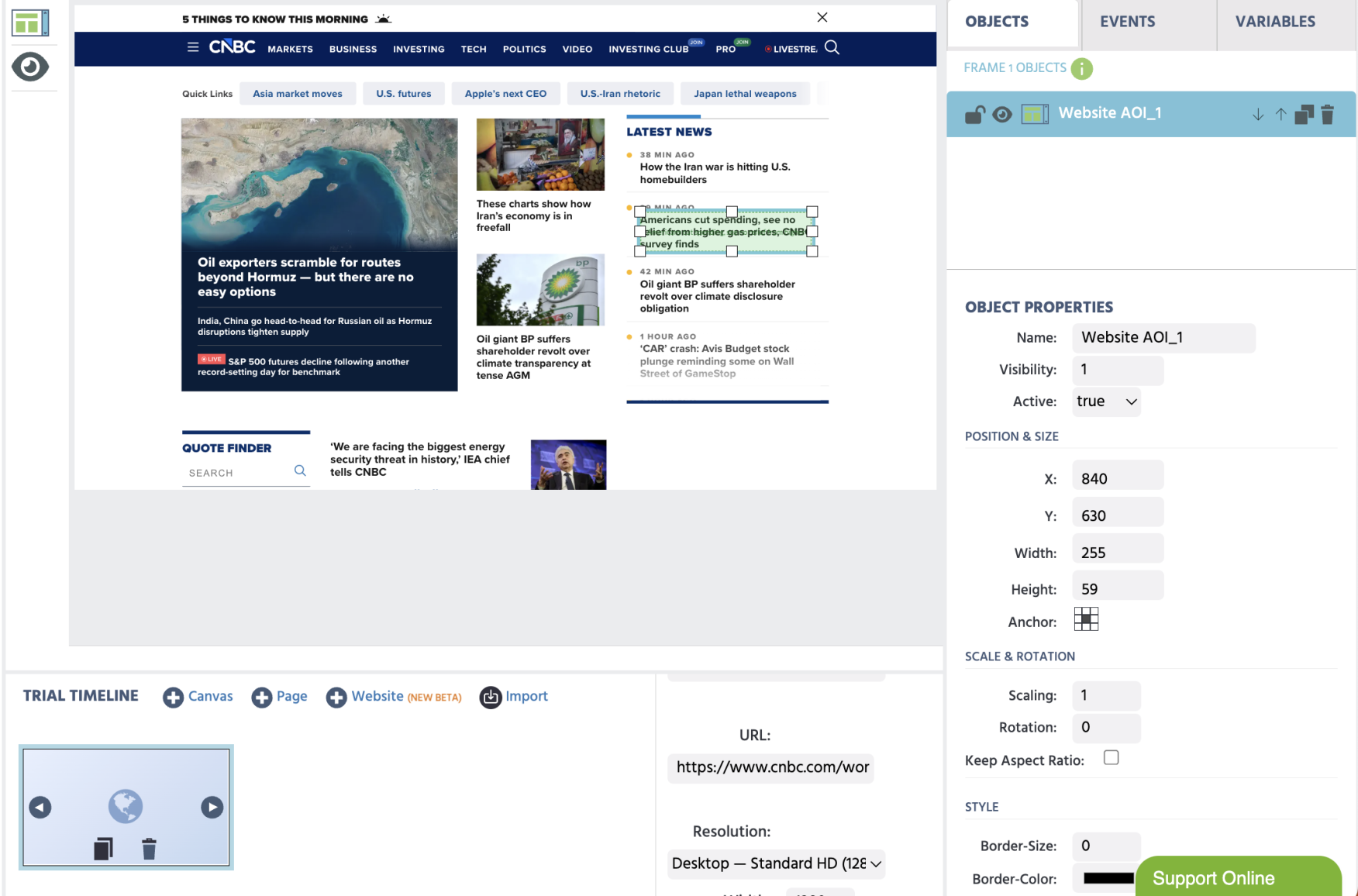
- With the Website Frame active in the editor and the website displaying in an interactive manner, click the
Add Website AOIobject from the side menu. - The AOI object will be added and appear in red. Click on your target AOI. The selection will now turn green.
- If
Pick Elementdoesn't anchor to the exact element you meant, or you want to adjust an existing AOI's target, size, or position, see Selecting and Adjusting Website AOIs for the full reference on theParent/Child/Prev/Nextnavigation controls, size and position offsets,Text Filter,Scrollable container, and verifying an AOI is actually anchored before you publish. - You can also use the
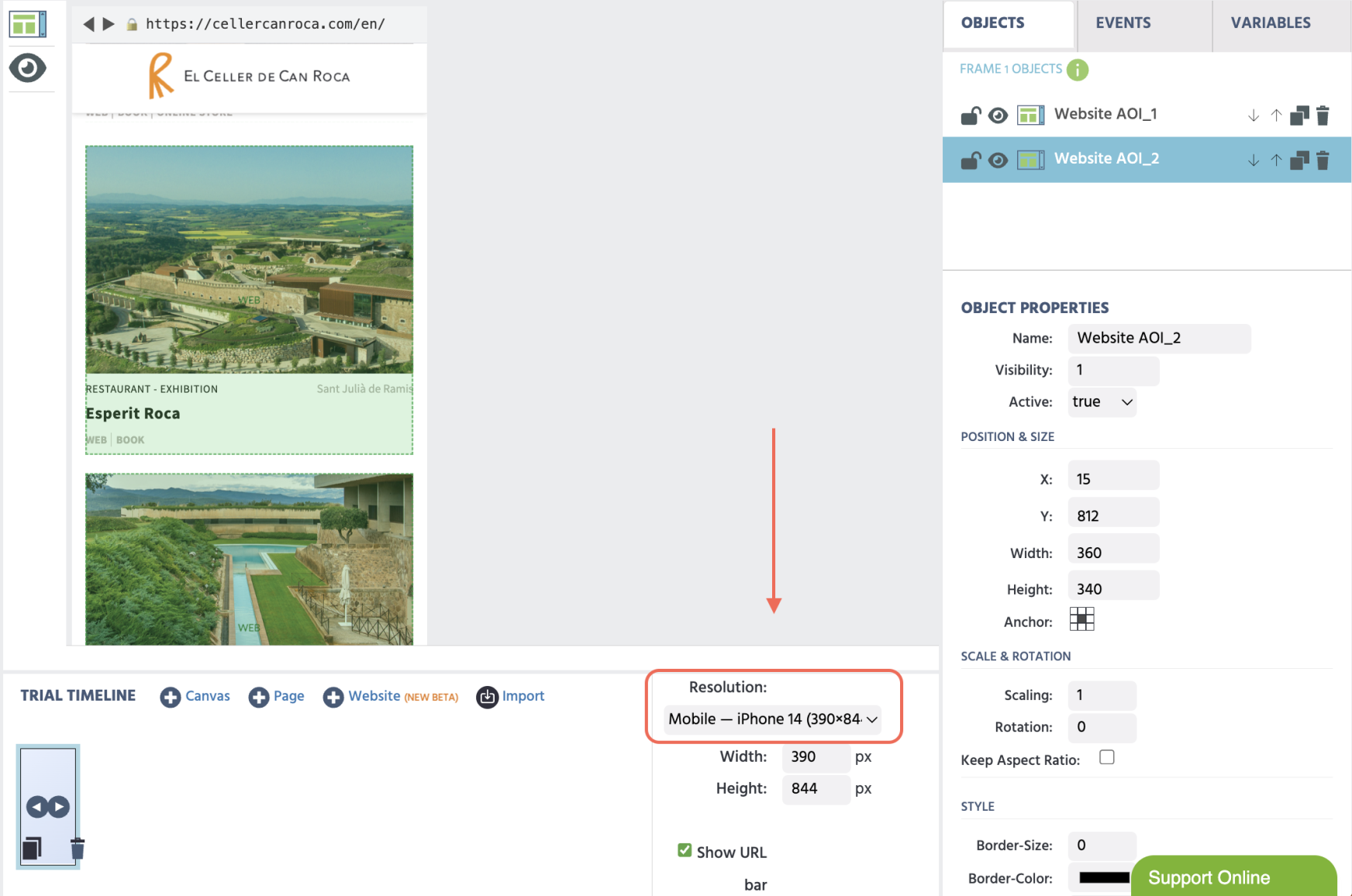
Resolutionoption to indicate whether the study should be for desktop or mobile. In the image below, mobile was selected and the AOIs automatically updated.
- Repeat for additional elements.
- Each AOI will appear in the AOI list. On its own it won't record any data, add an
Eyetracking Gazeevent as described above to start capturing it.
4.3 What Gets Tracked
For each AOI during a study session, Labvanced provides researcher with the following possibilities for recording behavioral data:
| Data type | Description |
|---|---|
| Element position | The bounding box (x, y, width, height) of the element on screen, updated in real time as the participant scrolls |
| Gaze data | Webcam-based eye-tracking mapped to element positions (requires eye-tracking to be enabled in study settings) |
| Click events | Whether and where the participant clicked within the element |
| Hover events | When the participant's mouse entered and left the element |
| Mouse movement | Mouse coordinates as the participant moves across the page |
| Scroll position | The page scroll offset at each moment |
4.4 Previewing Your Study
Before publishing, always preview your study with the extension installed to confirm:
- The website loads correctly in the frame.
- AOIs are working as expected.
First save the task, then click the "Preview" play button in the editor toolbar under Task Controls to open a participant-view preview of the specific task.
4.5 Publishing and Sharing
Once your study is ready:
- Go to
Launch & Participatetab. - Click the
Activatebutton to enable data recordings for your study. - Under
Online Participation / Study Published, clickPublish. - Copy the
Online Participation Linkand share it with your participants.
5. How to Use It — Participant Guide
Before the Study
- You will receive a direct link to a Labvanced research study from the researcher.
- If the extension is not yet installed, the study page will show an installation prompt with a direct link to the Chrome Web Store.
- Install the extension, then return to the study link and refresh the page.
- Once the study confirms the extension is installed, click
Startto begin.
During the Study
- Use and interact the website shown to you as you normally would: browse, click, and scroll as instructed.
- The extension works silently in the background. You do not need to interact with it.
- Do not click the extension icon during the study. It is not necessary.
After the Study
- Complete any post-study questions if prompted.
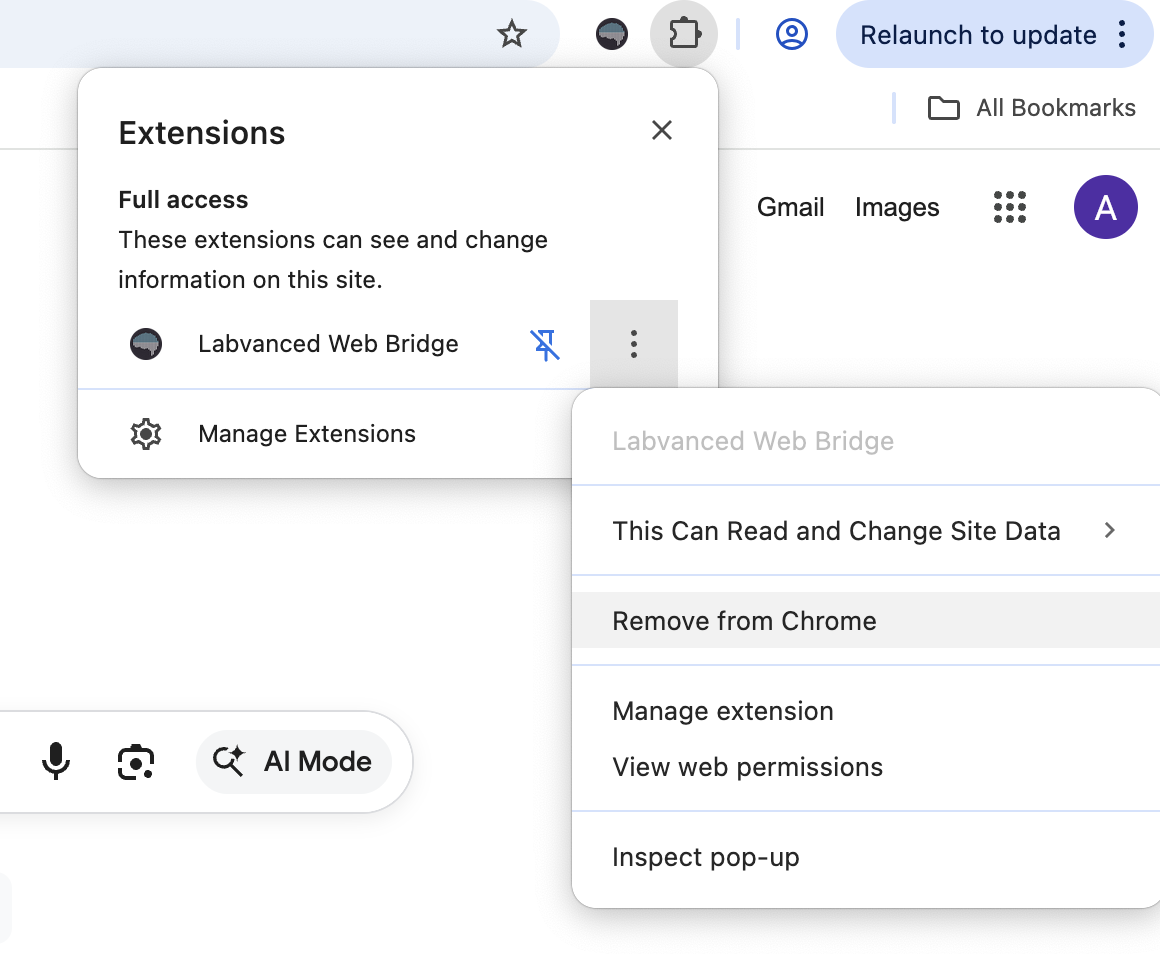
- Once the study ends, you may uninstall the extension if you no longer need it:
- Right-click the extension icon in the toolbar → "Remove from Chrome".
6. Use Cases
6.1 E-commerce UX Research
Embed a product listing or checkout page. Track which product images participants fixate on, which "Add to Cart" buttons they click, and how far they scroll before making a decision.
6.2 News & Media Attention Studies
Embed a news article or homepage. Measure which headlines attract the most attention, how reading patterns vary by article length, and which images draw the eye first.
6.3 Navigation & Information Architecture Testing
Embed a website's navigation menu or multi-page flow. Record clicks and hover dwell times to evaluate menu label clarity and findability.
6.4 Comparison Studies (A/B)
Create two trials with different website versions embedded. Randomize participants across conditions using Labvanced's built-in counterbalancing. Compare AOI metrics across groups.
7. Data & Privacy
What data does the extension collect?
The extension collects the following only when you are inside an active Labvanced research session:
- Bounding-box positions (x, y, width, height) of researcher-selected page elements
- Mouse coordinates, click positions, hover events, and mouse movement paths
- The current page scroll position and page URL
- Visible text snippets from hovered/clicked elements (truncated to 50 characters)
Password fields and sensitive form inputs are never read. The extension explicitly excludes <input type="password"> and inputs with sensitive autocomplete attributes (autocomplete="password", cc-*). These return empty values in all cases.
Where does the data go?
All data is transmitted exclusively to the embedding labvanced.com page via the browser's postMessage API. The extension does not send any data to external servers, does not store anything locally, and does not collect any data during normal browsing outside of a Labvanced study.
Does the extension track me on other websites?
No. The extension's content scripts are injected into all iframes (because the target website domain can't be known in advance), but they exit immediately unless location.ancestorOrigins confirms that labvanced.com is an ancestor frame. On any website not embedded by Labvanced, no listeners are installed, no DOM is read, and no data flows.
Does the extension modify anything outside Labvanced?
No. The extension removes iframe embedding restrictions (X-Frame-Options / Content-Security-Policy headers) only in browser tabs whose top-level URL is labvanced.com. All other tabs are completely unaffected. These rules are stored in memory only and are removed when the tab closes or navigates away.
Full Privacy Policy
See the full privacy policy at: https://www.labvanced.com/extension-privacy-policy.html
8. Troubleshooting
The website won't load in my study
Possible causes and fixes:
| Symptom | Likely cause | Fix |
|---|---|---|
| Blank white frame | Extension not installed or disabled | Check that the extension is enabled in chrome://extensions |
| Website is not interactive or responsive | The site detects iframe embedding at the JS level | Some sites cannot be embedded, contact [email protected] |
The extension icon shows a warning or is greyed out
- Click the icon to open the popup and read the status message.
- Make sure you are on a labvanced.com page or have a Labvanced study open.
- Try disabling and re-enabling the extension from
chrome://extensions.
The element picker doesn't highlight elements
- Make sure the extension is enabled and you are in the editor (not preview mode).
- Some websites use Shadow DOM or iframe-within-iframe structures that limit element picking. Try selecting a
Parentelement via theObject Propertiespanel. - Refresh the editor and try again.
9. Frequently Asked Questions
Q: Is the extension free? A: Yes. The extension is free to install and use. A Labvanced account is required to design studies.
Q: Does it work in other browsers (Firefox, Safari, Edge)? A: Currently only Google Chrome is supported. Microsoft Edge (Chromium-based) may work but is not officially supported or tested.
Q: Do I need to leave the extension installed after the study? A: No. Participants can uninstall it immediately after completing the study. Right-click the extension icon → "Remove from Chrome".
Q: Will the extension slow down my browser? A: The extension is inactive outside Labvanced sessions. It adds no overhead to normal browsing.
Q: Can it see my passwords or banking information? A: No. Password fields (<input type="password">) and credit card inputs are explicitly excluded and return empty values in all cases. The extension never reads or transmits sensitive form data.
Q: As a researcher, can I use this to track a website the participant is visiting on their own? A: No. The extension only activates inside iframes embedded by labvanced.com. It cannot track websites that participants visit independently in other tabs.
Q: My institution's IT policy requires a review of the extension before employees can install it. Who can I contact? A: Contact us at [email protected] with your request.
10. Contact & Support
Email: [email protected]
Documentation: https://www.labvanced.com/content/learn/en/guide/
Community forum on Discord: https://discord.com/invite/SBpFJnVZah
Bug reports: Please include:
- Your Chrome version (
chrome://settings/help) - The URL of the website you are trying to embed
- A screenshot of any error messages
- Steps to reproduce the issue
Labvanced Web Bridge is developed and maintained by Scicovery GmbH. For the full privacy policy, visit https://www.labvanced.com/extension-privacy-policy.html