AI Assistant
The AI Assistant is a chat in the task editor that answers questions about Labvanced and about your own study. It is a Labvanced specialist: it searches the documentation and inspects your study before it answers, so its answers reflect your actual frames, variables, and events. It is a beta feature and can make mistakes, so check what it tells you.
The assistant can also make changes in the editor, such as building frames and setting up events. It does this only when you ask for a change and allow it. See Making Changes with the AI Assistant at the end of this page.
For an overview of the feature, see Build with AI. For a worked example, see the Building a Study with the AI Assistant walkthrough.
Table of Contents
Opening the AI Assistant
The assistant sits in the bottom left of the task editor, in the AI Assistant section.
- Open your study in the task editor.
- Expand the
AI Assistantsection in the bottom left of the task editor. - Type your message in the
Ask a question...field and clickSend. PressEnterto send, orShift+Enterfor a new line.
Other controls in the panel:
Open in separate window: the icon in the section header moves the chat into its own window. Close the window with thexin its top corner to return the chat to the panel.Stop: appears in place ofSendwhile the assistant is replying and cancels the reply.New chat: leaves the current chat and starts with a fresh context. The old chat stays stored underPrevious chats.Previous chats: opens a list of your earlier chats in this study, with the date and message count of each. Click a chat to continue it, or click the×on a chat to delete it. Chats are saved per study, so a reload or reconnect continues the chat you were in.AI tokens: a meter at the bottom of the panel shows how much of your AI token allowance is used. Hover over it to seeThis chat,Used,Left, andContext. TheContextrow shows how much of the assistant's working memory the chat fills.- Status dot: green when the panel is connected to the assistant.
Continue here: if you open the same chat in another window, the first panel showsThis chat is open in another window.ClickContinue hereto take the chat back.
Note: when a long chat fills the assistant's working memory, the earlier messages are condensed into a single line, Earlier messages were summarised for the assistant. Click it to see what the assistant remembers. See the prompting tips below for how to keep a chat from reaching that point.
Asking Questions
By default the assistant only reads. It answers from two sources and changes nothing in your study.
- The Labvanced documentation: how features work, which frame, element, or event to use, and how to set something up.
- Your own study: it can list the elements on a frame, list variables, media files, and event chains, summarize the factors, levels, and trials of a task, and open another frame or task to look at it.
Note: questions never trigger edits. Only an explicit request for a change makes the assistant ask for permission.
Questions About Labvanced
Ask in plain language, the way you would ask a colleague who knows the platform. For example:
How do I randomize the order of trials?What is the difference between a canvas frame and a page frame?Which event trigger should I use to react to a keypress?
Questions About Your Study
Name the frame, element, or variable you mean, and the assistant looks at it. For example:
Which variables does this task record?What does the event on frame 3 do?List the elements on demographics_2.How many trials does this task have, and which factors does it use?
Because the assistant reads your study directly, these questions work well for orienting yourself in a study you inherited, checking a setup before you launch, and finding out why something behaves the way it does.
Tips for Prompting the AI Assistant
The most useful habit is to give the assistant the vocabulary of your study. The assistant does not know your names in advance, and every name it has to look up costs it a step.
What Matters in Practice
- Context is the limit: a single long prompt is usually fine. The problem is a long prompt on top of a long conversation. When the context fills up, earlier content gets summarized or dropped, and the assistant can lose track of names and details from the start of the chat.
- Short and exact beats long and loose: a 300-word prompt with exact names is faster and more reliable than a 3,000-word prompt in prose, because the assistant has to read prose carefully and often re-inspect your study to work out what you want.
- Structure beats length: use numbered parts, one request per number, and exact element, variable, and frame names.
- Break at natural boundaries: sending "frame 5 content" and "the event for frame 5" as separate turns is often cheaper than one giant message.
- Start a new chat for a new project: a fresh conversation resets the context, so long prompts have full room again.
- Summarize long documents: if the assistant needs to work from a long text such as a questionnaire or an instruction block, the gist plus the key wording is usually enough. If the full text has to be in the study, put it in the frame's content instead of the chat.
Give the Assistant the Study's Vocabulary
Name things exactly as they appear in your study:
- Frames: write
on demographics_2rather thanon the second page. - Variables: write
use exp_videogames, exp_surveys, exp_eyetracking, exp_programmingrather thanthe experience questions. You can read the names in theVariablestab. - Elements: write
the element agerather thanthe age question.
If you do not know a name, say so, and the assistant looks it up.
Two Things to Know About Its Behavior
- The assistant changes nothing unless you ask. Questions get answers, only explicit requests lead to edits, and the beta permission card appears once per chat.
- Uncertainty is reported. If a step failed or could not be verified, the assistant says so. If you want to know what a sub-agent did, ask.
Tips for Handling Tool-Call Budgets
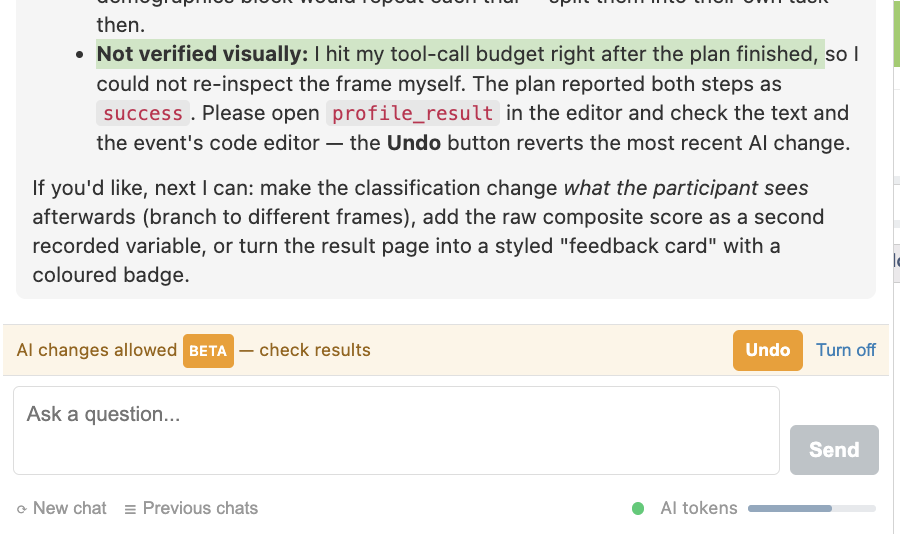
Each reply of the assistant can use a fixed number of tool calls, such as inspecting a frame, editing an event, or running a plan. The main chat has 10 per reply, and the sub-agents that make the edits have between 6 and 16. When a reply is nearly out of calls, the assistant is told to stop and write its summary instead of being cut off mid-sentence. The limit is separate from the AI tokens meter. In the demo study, the assistant made its edits but had no calls left to re-check the frame, so it reported the result as not verified visually.
What Uses Up Calls
Most of the budget goes into finding things out, not into making changes:
- Inspection calls: listing frame elements, variables, media files, and event chains. On a frame the assistant has not seen, this takes several calls before any work starts.
- Name lookups: every element, variable, and frame name it needs usually costs a lookup.
- Long multi-part requests handled step by step instead of as one plan.
What You Can Do
- Give the names you already know. This is the biggest saving. Write
use the variables exp_videogames, exp_surveys, exp_eyetracking, exp_programminginstead ofuse the experience questions. - Bundle related things into one request. Requests with three or more parts run as a single plan in which each step gets its own full budget.
Add frame 5, put a matrix on it, and add a keypress eventis more efficient as one request than as three turns. - Say what does not need checking.
Don't bother inspecting, the frame is emptyorjust replace itlets the assistant skip to the change. - Split build and verify across turns. Ask for
Build Xin one turn andcheck X and tell me what's actually therein the next. Verification uses its own calls, and a new turn resets the budget.
If the Assistant Runs Out
Continue in a new prompt, because the budget resets every turn. Useful follow-ups:
continue where you left off: the assistant picks up the remaining parts.now verify frame 4: a clean, read-only check.you said step 2 was skipped, do it now: the assistant completes the missing step.
Nothing is lost when the assistant runs out. Whatever already succeeded is saved in your study, and the only risk is that the last part of a multi-part request did not happen, which the assistant flags when it does. Do not over-bundle either: a request with a dozen unrelated items can still run long, and a partial result is reported if the last steps fail.
Making Changes with the AI Assistant
When you ask for a change and allow it, the assistant builds directly in the editor. This is a side capability next to the question-and-answer role described above, and it is in beta.
What the Assistant Can Build
- Create tasks and set up the frame sequence
- Build canvas frames, page frames, and custom website frames
- Add and edit elements, such as text, questions, shapes, and navigation
- Create variables and events, including events that run JavaScript
- Set up factors, trial counts, and randomization
Allowing AI Changes
- Ask for a change, for example
add a text element with the study instructions and a Next button. - Read the assistant's plan.
- Review the
Allow AI changes?card, which repeats the change in one sentence and carries thebetabadge. - Click
Allow AI changes (beta).
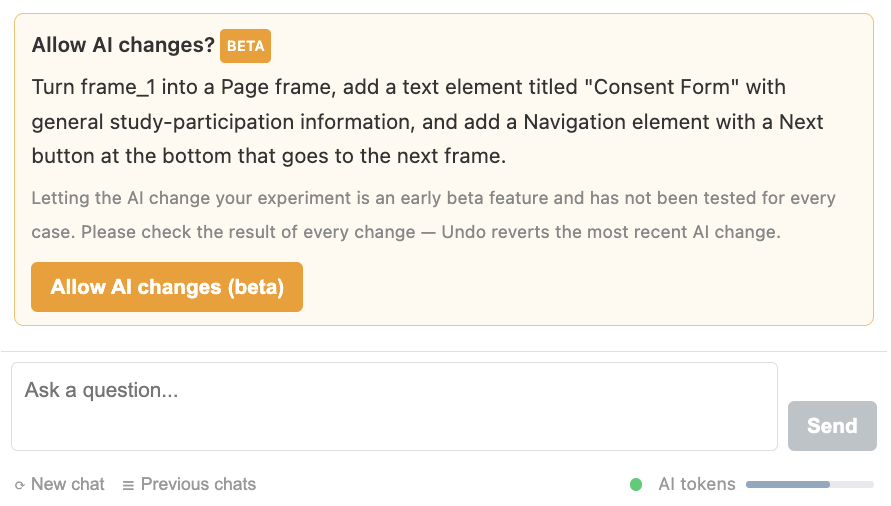
The permission applies to the current chat. After you allow changes, the card shows AI changes allowed in this chat. and a bar above the input reads AI changes allowed.
Note: questions never trigger edits. Only an explicit request for a change makes the assistant ask for permission.
Undo and Turn Off
Undo: reverts the most recent AI change. Every change the assistant makes goes through the editor's own snapshot system.Turn off: ends write access for the chat. The assistant returns to read-only mode.
After Turn off, the bar still shows The last AI change can be undone and the Undo button while an AI change can be reverted.
Locked Studies
If the study is locked, the editor normally asks for confirmation on every save, which would repeat many times during an AI build. For a locked study, the permission card offers two buttons:
Allow AI changes and save anyway (beta): allows changes and saves each one without asking again.Copy study and edit the copy: leaves the locked study untouched and lets the assistant edit a copy.
Edit with AI in the Website Code Editor
The Website Code Editor has an Edit with AI button. It opens the same AI Assistant chat beside the code editor, and clicking it counts as your request to change the website code, so it grants write access for that chat. See the Website Frame guide for the editor itself.
Tips for Building
These tips apply when you ask the assistant to make changes. The general prompting tips above apply here as well.
Say What Kind of Thing It Is
Labvanced has a few distinctions that decide how something is built, and getting them wrong produces the wrong mechanism:
- Fixed per trial or known at run time:
show a red stimulus in the red conditionis a modification.show the participant their scoreis an event. If you are not sure, describe the goal and the assistant picks. - Frame type: a
Canvas Frameallows free positioning, aPage Frameis a questionnaire-style stack, and aWebsite Frameholds your own HTML, CSS, and JavaScript. If you want a document-like page, saypage frame, otherwise the assistant may build a canvas frame. - Recording type:
I want every gaze sampleandI want the final answerlead to different variable types.
Describe the Purpose, Not Just the Parts
Add a text box is ambiguous. Add a text element with the study instructions and a Next button so participants can proceed gives the layout, the content, and the navigation in one request. A stated goal also lets the assistant fill sensible gaps such as labels, required flags, and minimum and maximum values, instead of asking.
Number Multi-Part Requests
A request with three or more distinct parts is handled as one plan, and each step gets its own full allowance. Numbered lists map onto that. Three to six related parts per turn is a comfortable size, and a dozen unrelated items risks a partial result at the end.
Say What Not to Do
Waive checks you do not need: don't inspect first, the frame is empty, replace whatever is there, I don't care, or just the event, don't touch the layout. This saves steps and gets you to the change faster.
Check the Result Yourself When It Matters
When the assistant reports a verified state, it re-read the frame. When it says a step is unverified, it ran out of steps before checking. For anything scientifically load-bearing, such as a scoring formula, a randomization setting, or a recorded variable, open it in the editor, or ask the assistant to verify it in a fresh turn.