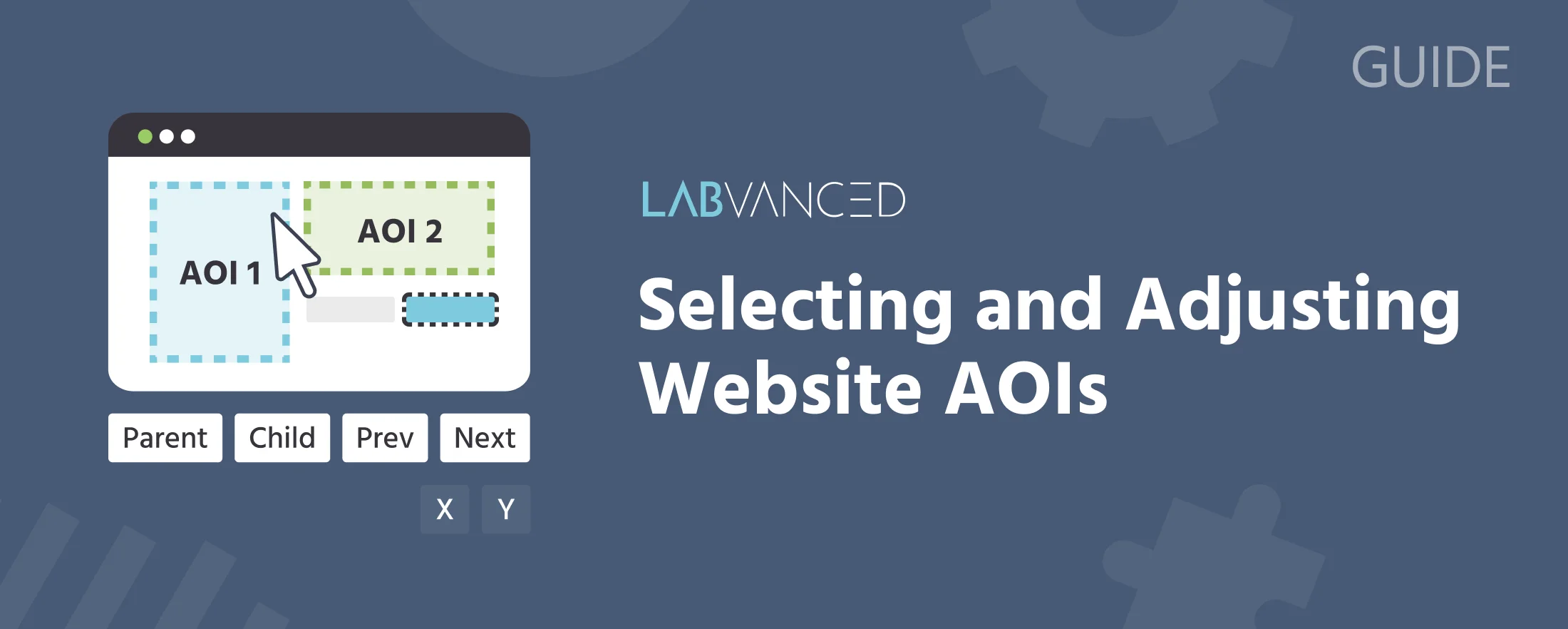
Selecting and Adjusting Website AOIs
A Website AOI does not track a fixed screen position. It tracks one specific element inside the embedded page, called its anchor, identified by a CSS selector. Getting an AOI to land on the right element is mostly about choosing and adjusting that anchor, not about resizing it. This page covers the full set of controls in the Website AOI Object Properties panel: picking an element, correcting the selection with Parent, Child, Prev, and Next, fine-tuning size and position, naming an AOI for your exported data, filtering by text, tracking scroll inside an element, and verifying an AOI actually works before you publish.
For the basics of adding a Website Frame and your first AOI, see Selecting Areas of Interest (AOIs) in the full Web Bridge guide, or the Website Frame walkthrough for a start-to-finish task flow.
Note: selecting a Website AOI shows two separate panels: a generic Object Properties block (Name, Visibility, Active, Position & Size, and an Anchor grid control) shared by every object type in Labvanced, and the Website AOI-specific controls this page covers. The generic panel's Anchor grid is a position/scale reference point, unrelated to the CSS-selector anchor described below, and its Position & Size fields aren't what determines what a Website AOI tracks. Use the CSS-selector controls below instead.
The Anchor: Why an AOI Survives Scrolling
Every Website AOI stores a CSS selector, shown in the CSS Selector field of its Object Properties panel. That selector is the AOI's anchor: the one element in the embedded page's DOM that the AOI is bound to. As long as the anchor element exists on the page, the Labvanced Web Bridge extension keeps reporting its live position back to Labvanced, including while the participant scrolls, since the anchor element itself moves with the page. This is why a correctly anchored AOI keeps tracking correctly through scrolling without you doing anything extra: the anchor, not a screen coordinate, is what's being tracked.
The practical implication: if an AOI seems to lose track of its target, the anchor itself is usually the problem (it points at the wrong element, or that element no longer exists on the page), not its size or position.
A selector only ever tracks one element. If it matches more than one element on the page, for example a class name shared across a set of repeated cards, the AOI tracks whichever one comes first in the page's structure, not all of them. This mostly comes up with a hand-typed selector based on a shared class; a selector produced by Pick Element or the navigation controls below is anchored to the exact element you landed on and doesn't have this problem.
Why Pick Element Doesn't Always Land on the Exact Element
Before you've picked or typed a selector, the panel only shows CSS Selector, Pick Element, Stimulus Info, Text Filter, Scrollable container, and Show AOI overlay in player. Adjust selection (Parent/Child/Prev/Next) and the size/position offset fields only appear once a selector actually exists.
Pick Element does not always anchor to the exact element you click. It looks for a good container to select, favoring an element with its own ID or a naturally interactive element like a link, button, or input, and if it doesn't find one close by, it falls back to a nearby container instead. In practice this means clicking a headline or a piece of text inside a card often selects the whole card, not just that headline. When that happens, use the navigation controls below to move down to the exact element you meant.
Press Esc at any point while picking to cancel without changing the AOI's current selector. You can also skip the picker entirely and type or paste a CSS selector directly into the CSS Selector field, useful if you already know the selector you want or the picker keeps missing it.
Correcting the Selection: Parent, Child, Prev, Next
Once a CSS selector is set, four buttons appear under Adjust selection: in the Object Properties panel:
| Button | Moves to |
|---|---|
↑ Parent | The current element's containing element |
↓ Child | The current element's first child element |
← Prev | The previous sibling at the current level |
→ Next | The next sibling at the current level |
These are the primary way to fix a selection, more so than resizing it. The typical workflow when Pick Element lands on the wrong element: click Child to move down into the container's first inner element, then Next (or Prev) to step sideways across that element's siblings until you reach the one you actually want. If that's still too high up, click Child again to descend another level, then step sideways again. Each click regenerates the selector for wherever you land, so the AOI always anchors to that exact element, not a compound path back through its ancestors.
If a button has nothing to move to (Prev with no earlier sibling, Child on an element with no children, or Parent when the only element above is the page's outer html/body), nothing happens: the selection stays where it was, with no error message. If a navigation button seems unresponsive, you've likely reached the edge of the page's structure in that direction, try a different button instead.
Fine-Tuning Size and Position
Once an element is anchored, two additional controls appear for small pixel-level corrections, distinct from the navigation above:
Size offset (px, ± per side): expands or shrinks the tracked area by a set number of pixels on the X and Y axes, applied symmetrically to each side.Position shift (px): moves the tracked area by a set number of pixels without changing its size.
Use these only after the anchor itself is correct. They nudge the boundary of an already-correctly-anchored element; they don't change which element is being tracked.
A Website AOI is always a rectangle, the bounding box of whatever element it's anchored to. There's no polygon or custom-shape option here, unlike AOIs on stimuli built directly in Labvanced. If the element you need to track isn't itself rectangular, anchor to the smallest rectangular element that contains it, then use Size offset to trim the box down.
Naming an AOI for Your Exported Data
The Stimulus Info field is a short text label for the AOI. It's filled in automatically from the text of whichever element you pick or navigate to (or the element's tag name if it has no text), and you can edit it to something clearer. This label is what appears as the Stimulus Info value in event triggers and exported data, so it's how you tell which AOI a given gaze, click, or hover row actually belongs to once a frame has more than one AOI on it.
Give each AOI a distinct Stimulus Info label before you start collecting real data. An auto-filled label copied from an element's text, like "Add to Cart", is fine on its own, but gets confusing once the same text shows up on more than one AOI.
Text Filter
The Text Filter field restricts the AOI to only being active when its anchored element's visible text contains a specific string (matching is case-insensitive). This is useful when your anchor selector could plausibly match an element whose text changes, for example a status label that cycles through several states, and you only want the AOI counted as active for one specific state.
Tracking a Scrollable Sub-Region
If the element you've anchored to has its own internal scrolling, for example a chat panel or a scrollable product list nested inside the page, check Scrollable container. This tells Labvanced to also track that element's own scroll position and content dimensions, separately from the page's overall scroll.
This data is only exposed through the Eyetracking Gaze/Eyetracking Fixation trigger, not Mouse Trigger. When gaze lands inside a scroll-container AOI, its value select menu offers Container Relative X/Container Relative Y (position within the container's full scrollable content, not just what's currently visible) alongside Container Scroll X/Container Scroll Y (how far the container itself has scrolled). See Tracking Mouse Behavior on a Website AOI for what Mouse Trigger records instead on the same AOI.
Verifying an AOI Actually Works
An AOI that fails to anchor, because its selector doesn't match anything on the current page, the target element hasn't loaded yet, or the Web Bridge extension isn't active, does not show any error to the participant or the researcher by default. It simply stays inactive: no gaze, click, or hover data gets recorded against it, and nothing in the study visibly indicates that.
While you're building a study, every AOI already renders as a colored overlay directly in the editor, green means its selector currently matches an element on the page, red means it doesn't, with no toggle needed to see this while you're working. Show AOI overlay in player extends that same overlay to Preview and the live study itself, which is what actually confirms an AOI end-to-end rather than just while editing. Always preview your study with this on at least once, confirm every AOI is green, then turn it off again before publishing if you don't want participants to see the overlay.
Elements That Appear or Disappear (Dialogs, Modals)
A Website AOI's anchor doesn't have to be present on the page the whole time. Because the extension continuously checks whether the CSS selector currently matches anything, an AOI anchored to an element inside a dialog, modal, or other content that only appears at certain points, activates when that element appears and deactivates when it's removed, without any extra setup. This lets you track interactions with elements that only exist temporarily, for example a confirmation dialog that opens after a specific action, using the same anchor mechanism described above.
Frequently Asked Questions
Should I use Size offset to make an AOI smaller, or is that the wrong tool?
Parent, Child, Prev, or Next, not to shrink or expand the existing one. Reserve Size offset and Position shift for small corrections once the anchor itself is already right. Why did Pick Element select a bigger container than what I clicked?
Child and then Next/Prev to drill down to the exact element. I clicked Next or Child and nothing happened. Is that a bug?
How do I know if an AOI is actually tracking anything?
Show AOI overlay in player in its Object Properties panel and preview the study. Green means the selector currently matches an element on the page; red means it doesn't. There's no participant-facing error if an AOI fails to anchor, so check this before publishing. Can a Website AOI track an element inside a popup or dialog that isn't always on the page?
Further Reading
Labvanced Web Bridge | Support & Guide
The full reference: installation, use cases, data and privacy, troubleshooting, and FAQ.
Website Frame Eye Tracking Walkthrough
A start-to-finish task flow, from installing the extension to reading your exported gaze data.
Tracking Mouse Behavior on a Website AOI
Build a Mouse Trigger event once your AOI is anchored, and the coordinate-space difference between interaction types.