Using Shapes as Areas of Interest (AOI)
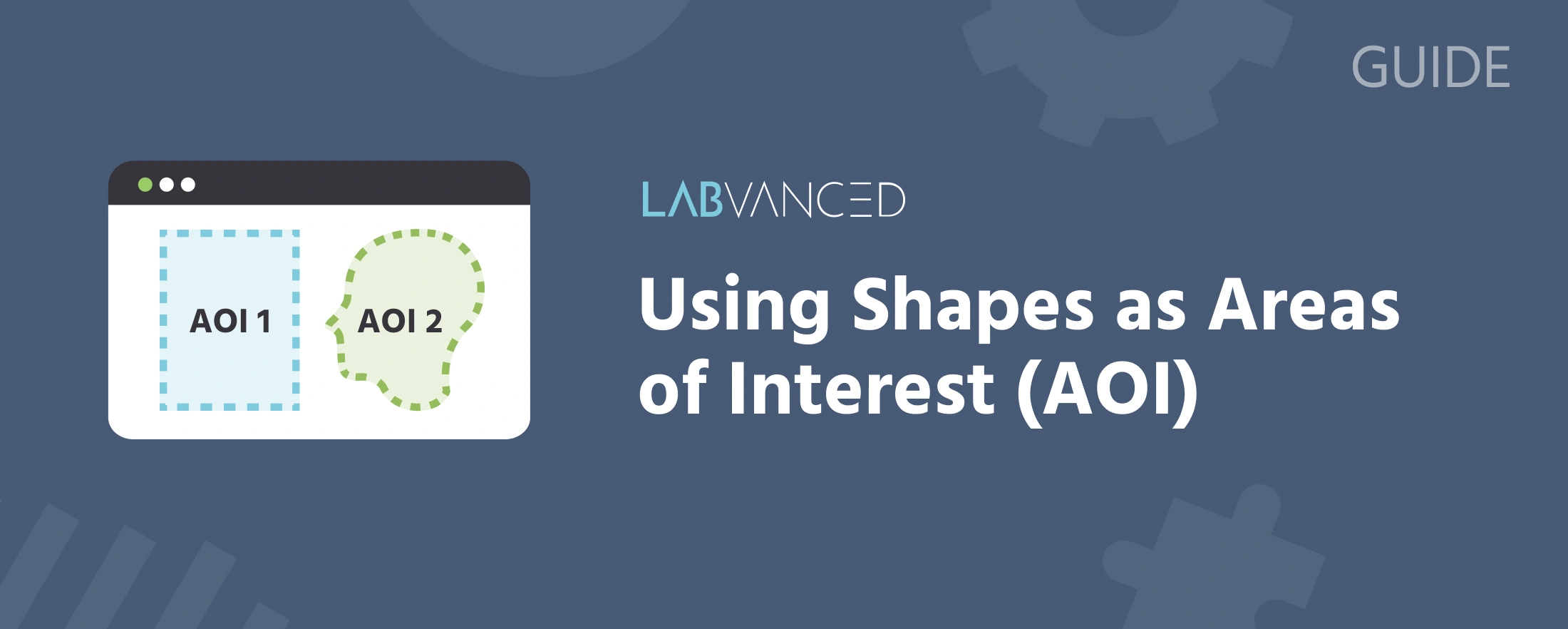
An area of interest (AOI) is a defined region of a frame that Labvanced checks a participant's gaze or fixations against, independent of what is actually drawn there. Labvanced does not have a dedicated "AOI object": instead, you use a Polygon or SVG Object as an invisible mask.
Polygon as an AOI Mask
To use a Polygon object as an AOI:
- Draw the polygon tracing the outline of the region you want to track, using as many vertices as needed to follow an irregular shape.
- Leave the polygon completely unstyled: no fill, no stroke. It stays invisible to participants, but its vertex boundary is still used for gaze and fixation hit-testing.
- Give the polygon a clear
Stimulus Infolabel, so it is easy to identify later when configuring AOI-related metrics or reviewing exported data.
Gaze and fixation samples are tested against the polygon's exact vertex set, not against a bounding rectangle. This matters when your stimulus is not a simple rectangle: a bounding-rectangle AOI around a circular or irregular object would register gaze that falls inside the rectangle but outside the actual object. Metrics such as dwell time and percentage of time in the AOI are computed using the full polygon boundary, not the rectangle.
Use a Polygon AOI when a rectangular area is too coarse for your stimulus shape and an SVG of that shape is not available.
SVG Object as an AOI Mask
If you already have an SVG of the shape you want to track, an SVG Object can serve the same purpose as a Polygon: uploaded to the canvas, styled invisibly, and used as a mask to trigger eye-tracking-related events over that specific area. For the general mechanics of adding an SVG Object, see Working with Objects.
Using an AOI in an Event
Once you have a Polygon or SVG Object defined as an AOI, restrict an Eyetracking Gaze or Eyetracking Fixation trigger to it by selecting the option to only trigger on specific elements and adding that shape as a target. For example, you can use a Polygon as a trigger so that every time a participant fixates on it, a counter variable increases by one. Recording the Stimulus Name or Stimulus Info trigger value alongside your gaze data lets you identify which AOI a given gaze sample belongs to during analysis. The full event-setup steps are covered in Recording and Exporting Gaze Data.
For a complete worked example of using SVGs as AOIs, see the Webcam Eye Tracking Demo: SVGs as AOIs walkthrough. For a Polygon-based example, the Face Perception demo places AOIs over the eyes and mouth and shows dwell time and fixation metrics for each region as the participant looks at a face:
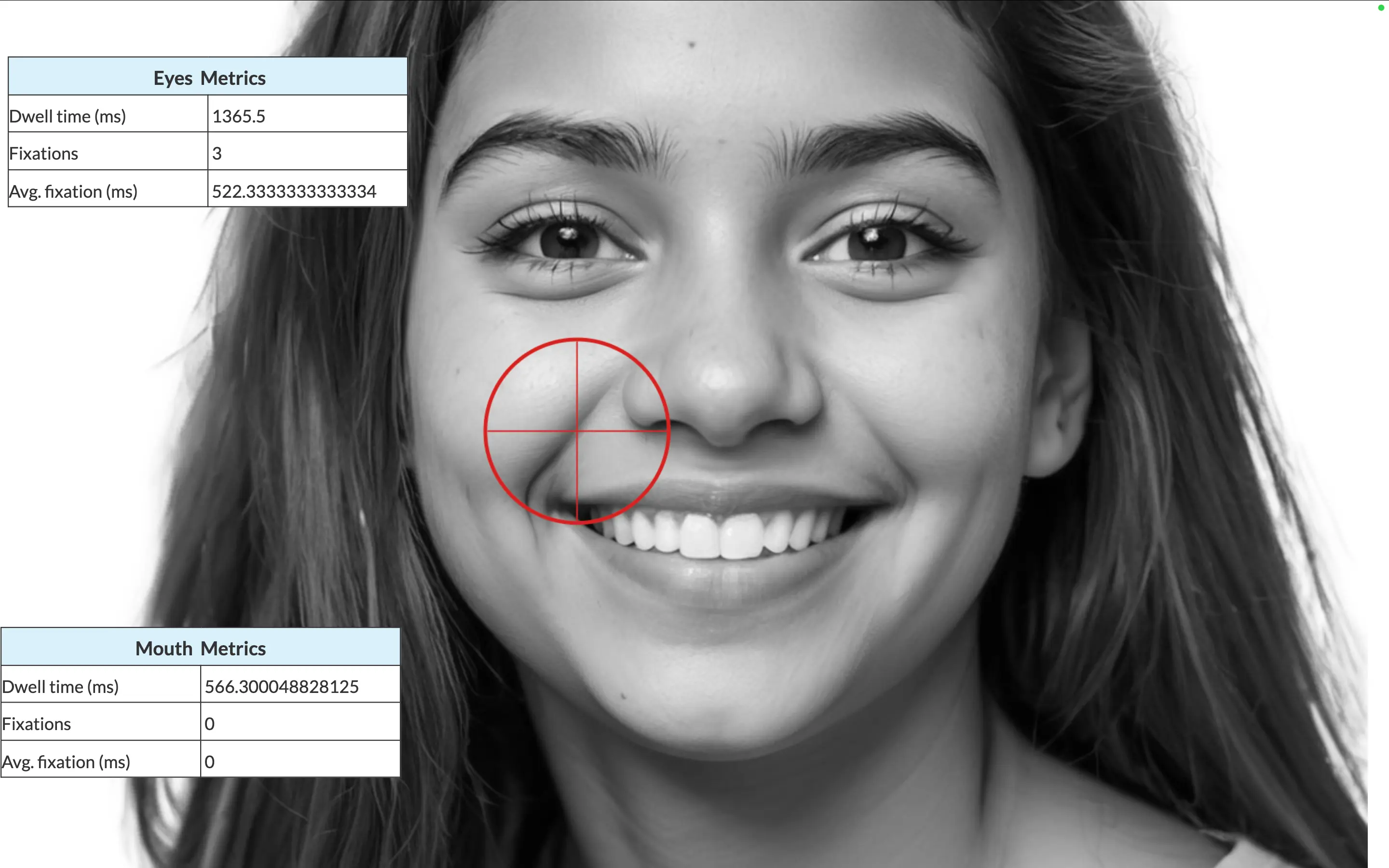
The full task setup, recorded variables, and research applications of this study are described on the Face Perception Task page.
Frequently Asked Questions
Further Reading

Recording and Exporting Gaze Data
Build the event that restricts gaze or fixation triggers to a specific AOI.
Setting Up Eye Tracking in a Task
AOIs are set up within a task that already has eye tracking enabled.
Presenting Stimuli in an Eye Tracking Task
How stimuli and objects relate to eye tracking generally.