labvanced logoLabVanced
  • Research
    • Publications
    • Researcher Interviews
    • Use Cases
      • Developmental Psychology
      • Linguistics
      • Clinical & Digital Health
      • Educational Psychology
      • Cognitive & Neuro
      • Social & Personality
      • Arts Research
      • Sports & Movement
      • Marketing & Consumer Behavior
      • Economics
      • HCI / UX
      • Commercial / Industry Use
    • Labvanced Blog
    • Services
  • Technology
    • Feature Overview
    • Code-Free Study Building
    • Eye Tracking
    • Mouse Tracking
    • Generative AI Integration
    • Multi User Studies
    • More ...
      • Reaction Time/Precise Timing
      • Text Transcription
      • Heart Rate Detection (rPPG)
      • Emotion Detection
      • Questionnaires/Surveys
      • Experimental Control
      • Data Privacy & Security
      • Desktop App
      • Mobile App
  • Learn
    • Guide
    • Videos
    • Walkthroughs
    • FAQ
    • Release Notes
    • Documents
    • Classroom
  • Experiments
    • Cognitive Tests
    • Sample Studies
    • Public Experiment Library
  • Pricing
    • Licenses
    • Top-Up Recordings
    • Subject Recruitment
    • Study Building
    • Dedicated Support
    • Checkout
  • About
    • About Us
    • Contact
    • Downloads
    • Careers
    • Impressum
    • Disclaimer
    • Privacy & Security
    • Terms & Conditions
    • Third-Party Licenses
  • Appgo to app icon
  • Logingo to app icon
Learn
Guide
Videos
Walkthroughs
FAQ
Newsletter Archive
Documents
Classroom
  • 中國人
  • Deutsch
  • Français
  • Español
  • English
  • 日本語
Guide
Videos
Walkthroughs
FAQ
Newsletter Archive
Documents
Classroom
  • 中國人
  • Deutsch
  • Français
  • Español
  • English
  • 日本語
  • Guide
    • GETTING STARTED

      • Task Editor
      • Frames
        • Canvas Frame
        • Page Frame
        • Website Frame
      • Trial Timeline
      • Stimulus Presentation
      • Correctness of Response
      • Objects
      • Events
      • Variables
      • Task Wizard
      • Trial System
      • Experiment Design
        • Creating a Study
        • Data Frame Patterns
        • Multi-user Experiment Design
    • FEATURED TOPICS

      • Randomization & Balance
      • Eye Tracking
        • Presenting Stimuli in an Eye Tracking Task
        • How to Choose Eye Tracking Calibration Settings
        • Setting Up Eye Tracking in a Task
        • Recording and Exporting Gaze Data
        • Using Shapes as Areas of Interest (AOI) for Eye Tracking
        • The Participant Calibration Experience
      • Web Bridge
        • Selecting Website AOIs | Anchor, Adjust, and Verify AOI Tracking
        • Tracking Mouse Behavior on a Website AOI | Web Bridge Guide
      • Questionnaires
      • Desktop App
      • Sample Studies
      • Participant Recruitment
      • API Access
        • REST API
        • Webhook API
        • WebSocket API
      • Other Topics

        • Precise Stimulus Timings
        • Multi User Studies
        • Head Tracking in Labvanced | Guide
    • MAIN APP TABS

      • Overview: Main Tabs
      • Dashboard
      • My Studies
      • Shared Studies
      • My Files
      • Experiment Library
      • My Account
      • License & Services
    • STUDY TABS

      • Overview: Study-Specific Tabs
      • Study Design
        • Tasks
        • Blocks
        • Sessions
        • Groups
      • Task Editor
        • Task Controls
        • The Trial System
        • Frame Types
        • Objects
        • Object Property Tables
        • Variables
        • System Variables Tables
        • The Event System
        • Text Editor Functions
        • Eye Tracking Options in the Task Editor
        • Head Tracking in a Task
        • Multi-User Studies
      • Settings
      • Variables
      • Media
      • Texts & Translate
      • Launch & Participate
      • Subject Management
      • Dataview and Export
        • Dataview and Variable & Task Selection (OLD Version)
        • Accessing Recordings (OLD Version)
  • Videos
    • Video Overview
    • Getting Started in Labvanced
    • Creating Tasks
    • Element Videos
    • Events & Variables
    • Advanced Topics
  • Walkthroughs
    • Introduction
    • Stroop Task
    • Lexical Decision Task
    • Posner Gaze Cueing Task
    • Change Blindness Flicker Paradigm
    • Eye-tracking Sample Study
    • Infant Eye-tracking Study
    • Attentional Capture Study with Mouse Tracking
    • Rapid Serial Visual Presentation
    • ChatGPT Study
    • Eye Tracking Demo: SVGs as AOIs
    • Multi-User Demo: Show Subjects' Cursors
    • Gamepad / Joystick Controller- Basic Set Up
    • Desktop App Study with EEG Integration
    • Between-subjects Group Balancing and Variable Setup
    • Building a Multi-user Study
    • Website Frame Eye Tracking Walkthrough
    • Conditional Webcam Eye Tracking
  • FAQ
    • Features
    • Support Policy & Guidelines
    • Security & Data Privacy
    • Licensing
    • Precision of Labvanced
    • Programmatic Use & API
    • Using Labvanced Offline
    • Troubleshooting
    • Study Creation Questions
  • Newsletter Archive
  • Documents
  • Classroom

Frames

A frame is a single screen or step a participant sees, the fundamental building block of a Labvanced study. A trial is built from a sequence of frames shown one after another: a fixation cross might be one frame, a stimulus the next, a response screen the one after that. For how frames are sequenced and repeated across a trial, see Trial Timeline; this page covers what a frame is and the types available.

Frames are created within a trial group, so different trial groups have completely independent frame sequences. Once created, a frame's objects and events can be edited individually, and frames can be reordered by drag and drop, copied, deleted, or imported from another task or study.
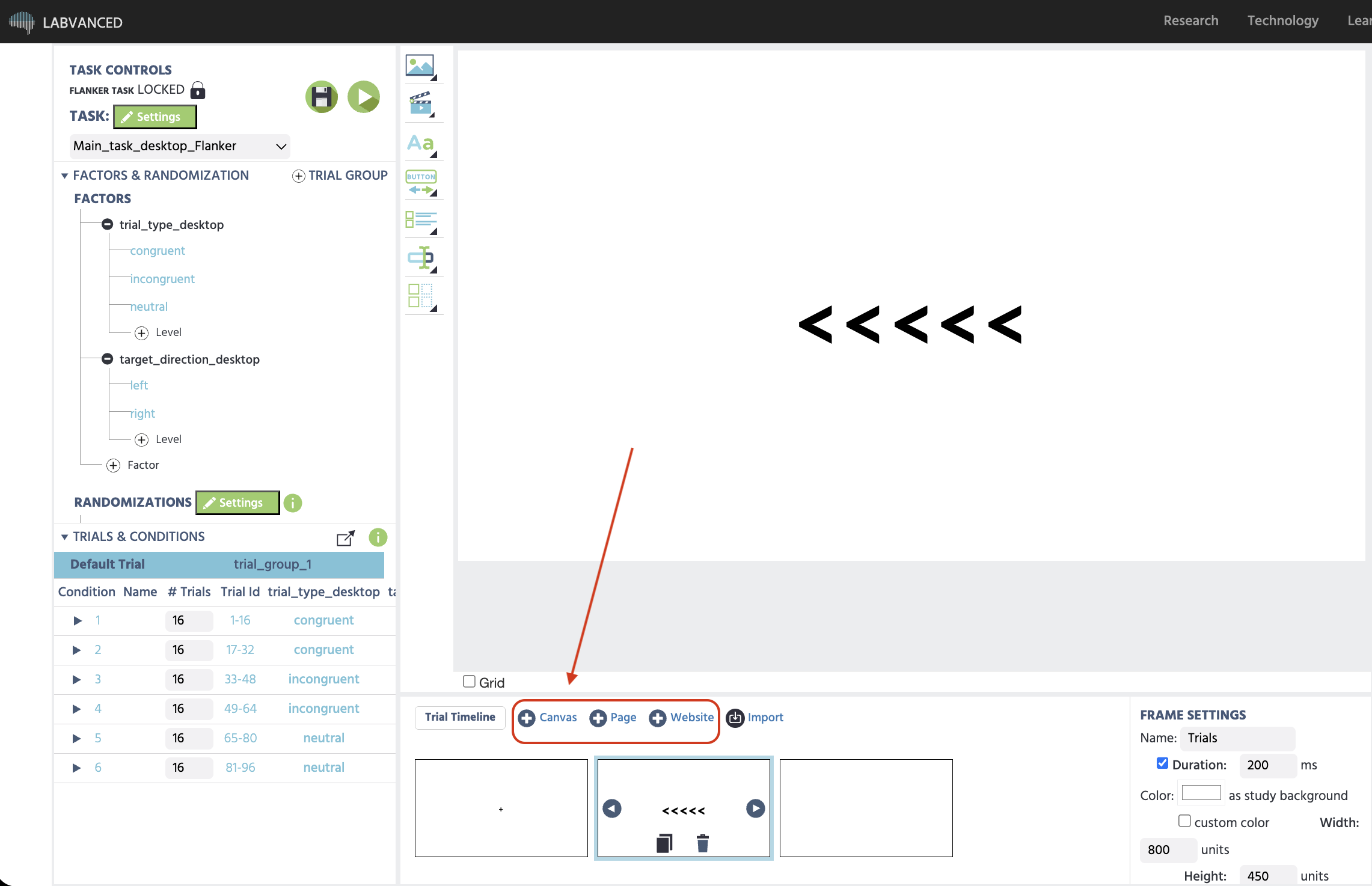
All frames, regardless of type, share a few common properties, set in the Frame Settings panel:

  • Name: a label to identify the frame within your task (participants never see it)
  • Duration: an optional fixed display time in milliseconds; if left unset, the frame stays on screen until an event or action advances the trial
  • Background color: a custom color or the study's default
  • Hide Mouse: hides the participant's cursor while the frame is active

The three frame types
Canvas Frame

Free positioning: place, resize, and drag objects anywhere on the frame. Use this when exact placement or timing matters, such as perception or reaction-time tasks.
Page Frame

Automatic top-to-bottom layout, like a web page. Use this for questionnaires, consent forms, and instructions, where flow matters more than exact placement.

Website Frame

Embeds a real external website in the study instead of Labvanced-built stimuli. Use this for testing or tracking gaze on an actual live site.

Canvas and Page frames can be intermixed within the same trial group, though it often makes sense to keep a trial group consistently one type. Both are added the same way: a click on the respective icon in the Trial Timeline. Website Frame is added the same way too, via its own icon, but is a distinct third type rather than a variant of the other two, see Website Frame for why that distinction matters.

Side-by-side comparison of a canvas frame with freely positioned elements and a page frame with elements stacked top to bottom

Prev
Task Editor
Next
Trial Timeline