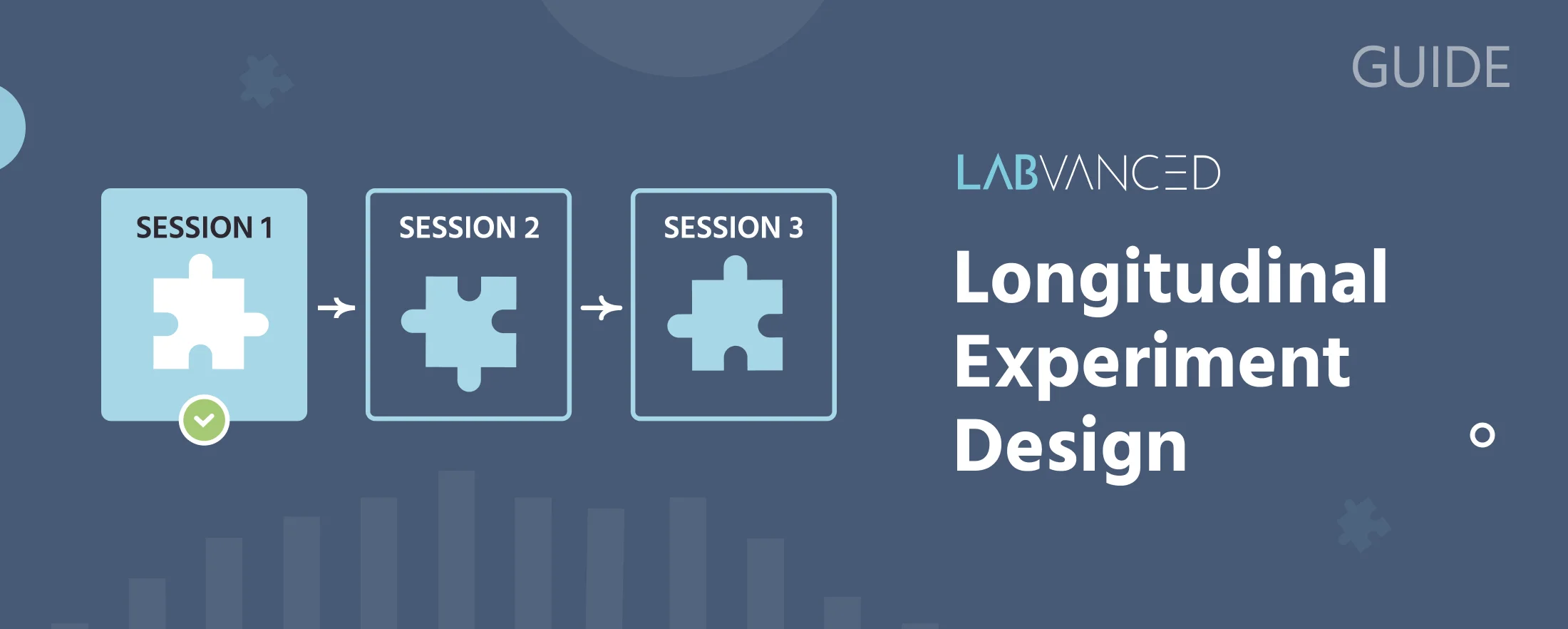
Longitudinal Experiment Design
Longitudinal experiment design is about following the same participant across multiple sessions over time, rather than the single-session default every Labvanced study starts as. Understanding the underlying mechanics, not just the individual settings, helps you determine how best to schedule and manage a multi-session study before you start building. Related reading is linked throughout this page, so once the concepts make sense, moving into the more technical setup is straightforward.
By default, a Labvanced study runs as a single session: a participant starts, finishes, and is done. Longitudinal mode changes that by allowing a Group to contain more than one Session, each with its own tasks and its own schedule, so the same participant returns to continue the study later rather than a new participant starting fresh each time.
When you need a longitudinal design
If your study only needs one sitting per participant, for example a between-subjects comparison or a single experimental block, longitudinal mode adds complexity you don't need. You need it specifically when the same participant must return for a later measurement: a pre/post intervention design, a training-then-retention test, or a test-retest reliability check.
Prerequisite Knowledge
Fundamental knowledge of Labvanced is advised, such as how the study structure is organized and how variables are used, in order to follow the terminology used below.
Groups
How Groups and Sessions organize a study's structure, the foundation every longitudinal study is built on.
Variables
What a variable is and how it stores values, including the built-in subject-level variables referenced below.
Setting up a longitudinal study
Multi-session studies are off by default. To enable them, open Settings, then under Subjects click through to Repeated Participation and turn on Longitudinal Design. This requires at least one Group to contain more than one Session; a Group with only one Session stays single-session regardless of this setting.
Example: For a two-session training study, create one Group with two Sessions, named
BaselineandFollow-Up, each holding its own tasks. Define session timing, as described in the next section.
Structuring and scheduling sessions
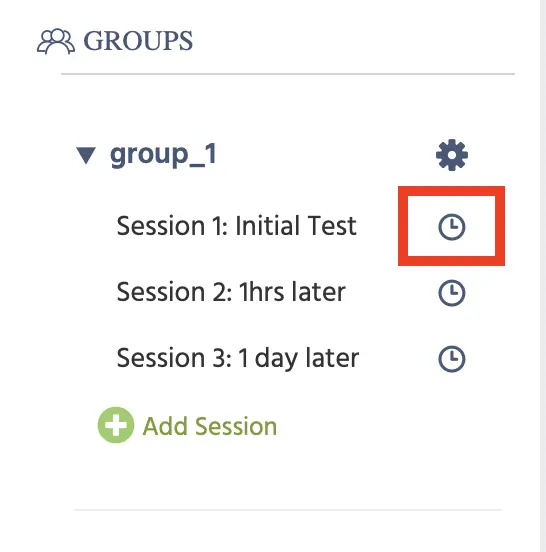
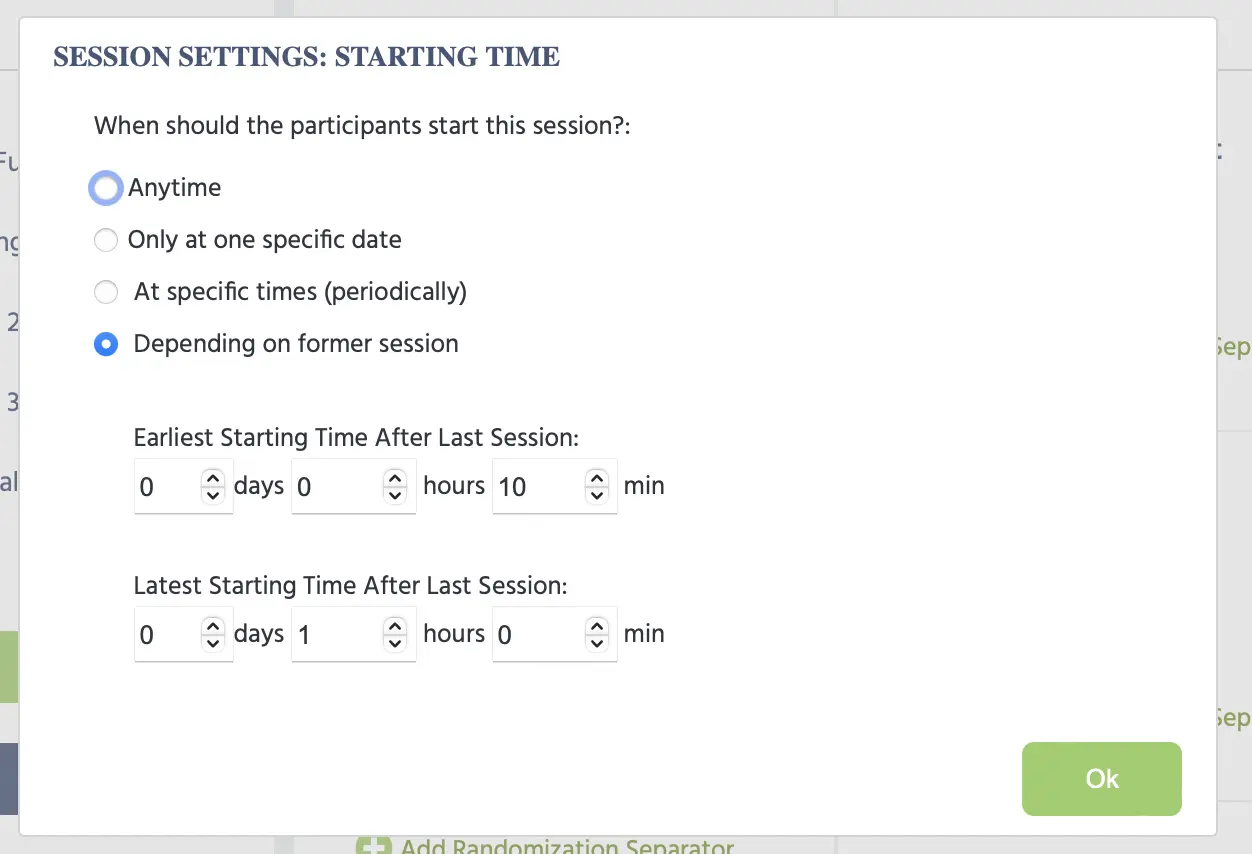
Each Session inside a Group has its own name and its own list of tasks. Its schedule is set independently of the others, under four options: Anytime, Only at one specific date, At specific times (periodically), or Depending on former session, which unlocks a Session only after a minimum delay following the prior one and closes it after a maximum, set as Earliest Starting Time After Last Session and Latest Starting Time After Last Session. See Participation Time Settings for the full reference.
Example: A test-retest design needs Session 2 to open no earlier than 7 days after Session 1, and to expire if not taken within 14 days. Set Session 2's schedule to
Depending on former session, with an earliest starting time of 7 days and a latest starting time of 14 days.
This setting is reached from the clock icon next to a Group on the Study Design tab, shown below alongside the resulting dialog.
Bringing participants back
Reactivating a participant for their next session is handled by a built-in, four-stage email sequence rather than something you build yourself: 1. Invitation (sent manually to start a participant off), 2. Session Complete (sent automatically once a session finishes), 3. Session Ready (sent automatically once the next session becomes available), and 4. Final Reminder (sent before that session's window expires). Turning on Send Reminder Emails under Repeated Participation activates this sequence and makes email a required participant field. Each template can be edited from the Subject Management Tab.
A participant does not need to track their own way back in: finishing a session shows a link straight to their own next session, and setting Session Selection is Done to Automatic (Server Based) assigns each returning participant to whichever of their sessions isn't completed yet, without you needing to distribute per-session links manually.
The Subject Management Tab is also where the whole study is monitored, not just where templates live. Its subject grid shows each participant's current status (including whether they've dropped out), their last completed session, and when their next session becomes due or expires, so following up on a stalled longitudinal study doesn't mean cross-referencing a spreadsheet by hand. For anything the four automated templates don't cover, selecting one or more participants and sending a Custom Email reaches them directly from the same view.
Controlling re-entry
Two independent settings under Repeated Participation control what happens if a participant tries to start again: Prevent When Completed blocks a participant who already finished the study from starting over, and Prevent When Not Completed limits a participant to a single attempt at their current session, closing the door on retries. Turn on whichever matches your design, both, one, or neither. Either option requires a unique subject identifier in the URL to work, such as subject_code, token, or a crowdsourcing platform's own participant ID.
Carrying variables across sessions
A plain Set / Record Variable only lives within the session that set it; it does not carry forward on its own. To carry a value from one session into a later one for the same participant, use the Read from / Write to Shared Variable action instead: it selects a Sync. Variable to persist server-side, under an optional Storage Key (defaults to the variable's name) found under Show Advanced Options, with a Read or Write Method of Read, modify, then write shared variable, Only read shared value from server, or Only write variable to server.
By default, this persists the value across that same participant's own sessions only. Checking Share values between different participants (not only between sessions) extends it further, so every participant reads and writes the same stored value rather than each participant getting their own.
Example: Record a score to a shared variable at the end of
BaselinewithOnly write variable to server. InFollow-Up, read the same variable back withOnly read shared value from serverto compare the participant's new performance against their own baseline.
Subject_Code, Subject_Nr, Group_Name, and Exp_Subject_Id are the only variables that persist at the subject level automatically without using this action.
Best Practices
- Decide your session scheduling option,
Anytime,Only at one specific date,At specific times (periodically), orDepending on former sessionwith its day-gap settings, before you start building tasks, since it shapes when each Session becomes reachable. - Turn on
Send Reminder Emailsand read through all four templates before publishing; a longitudinal study with reminders left off relies entirely on participants remembering to come back on their own. - Use the
Subject ManagementTab's dashboard to track each participant's last completed session and next session due date, rather than guessing at drop-off between sessions. - Turn on
Prevent When Completedfor any study where a repeat completion would corrupt your data, particularly on paid participant panels.
A concrete pattern: Baseline and Follow-Up
This is a classic two-session pre/post design: participants complete a baseline session, then return after a set delay to repeat a comparable measurement.
- Create one Group with two Sessions, named
BaselineandFollow-Up. - Enable
Longitudinal DesignunderSettings → Subjects → Repeated Participation, and turn onSend Reminder Emails. - Set
Follow-Up's schedule toDepending on former session, with the earliest and latest starting times set to your study's required gap, for example 7 and 14 days. - Build the baseline measurement in
Baselineand the repeated measurement inFollow-Up. If a value fromBaselineneeds to informFollow-Up, carry it across using aRead from / Write to Shared Variableaction, see "Carrying variables across sessions" above. - Set
Session Selection is DonetoAutomatic (Server Based)so each returning participant is placed intoFollow-Upwithout needing a separate link.
This structure holds for any two-timepoint design, training-then-retention, intervention pre/post, or a simple test-retest reliability check, only the tasks inside each Session and the day-gap window change.
Further Reading
Experiment Design
The hub for experimental design patterns in Labvanced, including this page's sibling multi-user guide.
Groups
The technical reference for Groups and Sessions, the structure every longitudinal study is built on.
Read from / Write to Shared Variable
The action that carries a variable across a participant's own sessions, and optionally between different participants.
Feature Overview
The capability overview, including Longitudinal Designs and Participant Management, independent of implementation detail.
Subject Management Tab
The full reference for the Subject Management Tab: the subjects grid, email templates, and SMTP setup.
Multi-user Experiment Design
The sibling design pattern for connecting different participants in real time, rather than the same participant across sessions.