labvanced logoLabVanced
  • Research
    • Publications
    • Researcher Interviews
    • Use Cases
      • Developmental Psychology
      • Linguistics
      • Clinical & Digital Health
      • Educational Psychology
      • Cognitive & Neuro
      • Social & Personality
      • Arts Research
      • Sports & Movement
      • Marketing & Consumer Behavior
      • Economics
      • HCI / UX
      • Commercial / Industry Use
    • Labvanced Blog
    • Services
  • Technology
    • Feature Overview
    • Code-Free Study Building
    • Eye Tracking
    • Mouse Tracking
    • Generative AI Integration
    • Multi User Studies
    • More ...
      • Reaction Time/Precise Timing
      • Text Transcription
      • Heart Rate Detection (rPPG)
      • Emotion Detection
      • Questionnaires/Surveys
      • Experimental Control
      • Data Privacy & Security
      • Desktop App
      • Mobile App
  • Learn
    • Guide
    • Videos
    • Walkthroughs
    • FAQ
    • Release Notes
    • Documents
    • Classroom
  • Experiments
    • Cognitive Tests
    • Sample Studies
    • Public Experiment Library
  • Pricing
    • Licenses
    • Top-Up Recordings
    • Subject Recruitment
    • Study Building
    • Dedicated Support
    • Checkout
  • About
    • About Us
    • Contact
    • Downloads
    • Careers
    • Impressum
    • Disclaimer
    • Privacy & Security
    • Terms & Conditions
    • Third-Party Licenses
  • Appgo to app icon
  • Logingo to app icon
Learn
Guide
Videos
Walkthroughs
FAQ
Newsletter Archive
Documents
Classroom
  • 中國人
  • Deutsch
  • Français
  • Español
  • English
  • 日本語
Guide
Videos
Walkthroughs
FAQ
Newsletter Archive
Documents
Classroom
  • 中國人
  • Deutsch
  • Français
  • Español
  • English
  • 日本語
  • Guide
    • GETTING STARTED

      • Task Editor
      • Frames
        • Canvas Frame
        • Page Frame
        • Website Frame
      • Trial Timeline
      • Stimulus Presentation
      • Correctness of Response
      • Objects
      • Events
      • Variables
      • Task Wizard
      • Trial System
      • Experiment Design
        • Creating a Study
        • Data Frame Patterns
        • Multi-user Experiment Design
        • Longitudinal Experiment Design
    • FEATURED TOPICS

      • Randomization & Balance
      • Eye Tracking
        • Presenting Stimuli in an Eye Tracking Task
        • How to Choose Eye Tracking Calibration Settings
        • Setting Up Eye Tracking in a Task
        • Recording and Exporting Gaze Data
        • Using Shapes as Areas of Interest (AOI) for Eye Tracking
        • The Participant Calibration Experience
      • Web Bridge
        • Selecting Website AOIs | Anchor, Adjust, and Verify AOI Tracking
        • Tracking Mouse Behavior on a Website AOI | Web Bridge Guide
      • Questionnaires
      • Desktop App
      • Sample Studies
      • Participant Recruitment
      • API Access
        • REST API
        • Webhook API
        • WebSocket API
      • Other Topics

        • Precise Stimulus Timings
        • Multi User Studies
        • Head Tracking in Labvanced | Guide
    • MAIN APP TABS

      • Overview: Main Tabs
      • Dashboard
      • My Studies
      • Shared Studies
      • My Files
      • Experiment Library
      • My Account
      • License & Services
    • STUDY TABS

      • Overview: Study-Specific Tabs
      • Study Design
        • Tasks
        • Blocks
        • Sessions
        • Groups
      • Task Editor
        • Task Controls
        • The Trial System
        • Frame Types
        • Objects
        • Object Property Tables
        • Variables
        • System Variables Table
        • The Event System
        • Text Editor Functions
        • Eye Tracking Options in the Task Editor
        • Head Tracking in a Task
        • Multi-User Studies
      • Settings
      • Variables
      • Media
      • Texts & Translate
      • Launch & Participate
      • Subject Management
      • Dataview and Export
        • Dataview and Variable & Task Selection (OLD Version)
        • Accessing Recordings (OLD Version)
  • Videos
    • Video Overview
    • Getting Started in Labvanced
    • Creating Tasks
    • Element Videos
    • Events & Variables
    • Advanced Topics
  • Walkthroughs
    • Introduction
    • Stroop Task
    • Lexical Decision Task
    • Posner Gaze Cueing Task
    • Change Blindness Flicker Paradigm
    • Eye-tracking Sample Study
    • Infant Eye-tracking Study
    • Attentional Capture Study with Mouse Tracking
    • Rapid Serial Visual Presentation
    • ChatGPT Study
    • Eye Tracking Demo: SVGs as AOIs
    • Multi-User Demo: Show Subjects' Cursors
    • Gamepad / Joystick Controller- Basic Set Up
    • Desktop App Study with EEG Integration
    • Between-subjects Group Balancing and Variable Setup
    • Building a Multi-user Study
    • Website Frame Eye Tracking Walkthrough
    • Conditional Webcam Eye Tracking
    • Text Segmentation Study Building
  • FAQ
    • Features
    • Support Policy & Guidelines
    • Security & Data Privacy
    • Licensing
    • Precision of Labvanced
    • Programmatic Use & API
    • Using Labvanced Offline
    • Troubleshooting
    • Study Creation Questions
  • Newsletter Archive
  • Documents
  • Classroom
Header illustration of the participant calibration experience for webcam eye tracking in Labvanced

The Participant Calibration Experience

The settings covered in How to Choose Eye Tracking Calibration Settings determine what calibration actually looks and feels like from a participant's side. This page walks through that experience.
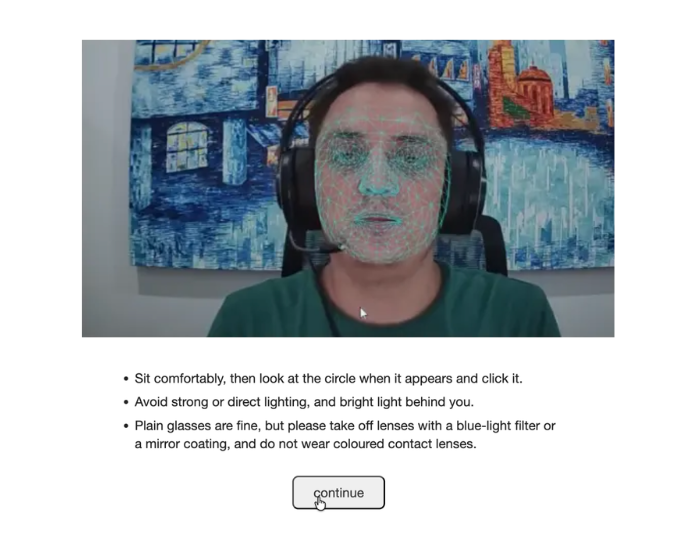
Eye Tracking 2.0 facemesh check screen showing the participant's video feed with a tracking mesh overlay, lighting and glasses guidance, and a Continue button

The Eye Tracking 2.0 facemesh check: the participant's face is verified automatically, with guidance on lighting and eyewear shown alongside.

Device Requirements

Participants need a webcam capable of at least 1280 by 720 resolution. This is checked automatically before the study starts: a camera that doesn't meet it blocks the participant from starting the study at all, rather than producing lower-quality data, so if you're recruiting participants online, it's worth mentioning this requirement in advance to avoid drop-off at the first step.

Initial Video Feed Calibration

After granting camera access, Labvanced checks that it can see the participant's face clearly before calibration begins. What this looks like depends on the Physiology Toolbox Version:

  • Eye Tracking 2.0: this check runs automatically during a short countdown, no action needed from the participant. If their camera or device isn't supported, Labvanced tells them before anything else happens.
  • Eye Tracking 1.3 and earlier: the participant sees their own video feed with a tracking overlay and has to manually confirm it looks correct before continuing, or flag it if it doesn't.

The wording participants see on these screens is controlled by Labvanced's Static Strings, which can be edited, and translated if your study needs other languages.

Calibrating the Eye Tracker

What happens next depends on the Physiology Toolbox Version and, for Eye Tracking 2.0, the Calibration Instruction Mode:

  • Eye Tracking 2.0, Fast (the default): calibration starts right from the precheck screen shown above, fixate and click the red dot, and the fixation-point sequence below begins immediately, no separate instructions or center-pose screens.
  • Eye Tracking 2.0, Detailed, and Eye Tracking 1.3 and earlier: a fuller set of translatable on-screen instructions appears first, covering lighting (constant, from the front, since backlighting washes out the face) and, for this path, asking participants not to wear glasses. The participant then sets a center pose, the reference position used throughout the study (see Virtual Chinrest in How to Choose Eye Tracking Calibration Settings), by aligning a live tracking mesh to a saved target mesh and holding briefly.

From here, both paths continue the same way: the live video feed disappears and a series of fixation points appears instead, one at a time, each marked by a shrinking circle:
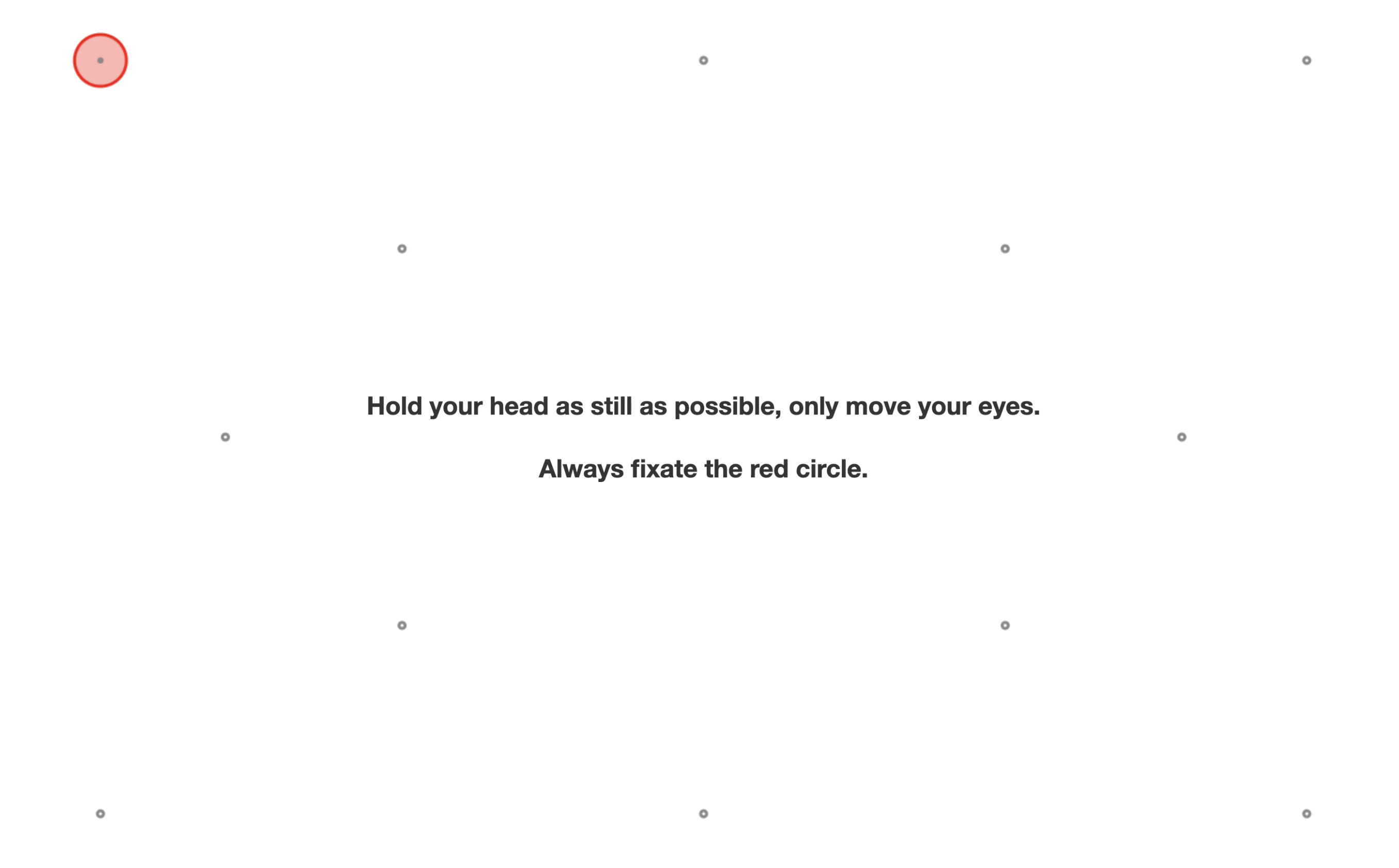
Calibration dot screen showing one fixation target highlighted with a shrinking red circle among several other calibration points, with on-screen instructions to hold the head still and fixate the red circle

The participant looks at each point until it finishes shrinking, then the next point appears. The exact number of points varies by calibration tier, see How to Choose Eye Tracking Calibration Settings. Only the longest tier also asks the participant to slowly tilt and turn their head partway through, as a continuous sweep rather than a held pose, so the system can account for those head positions too; shorter tiers skip this step entirely.
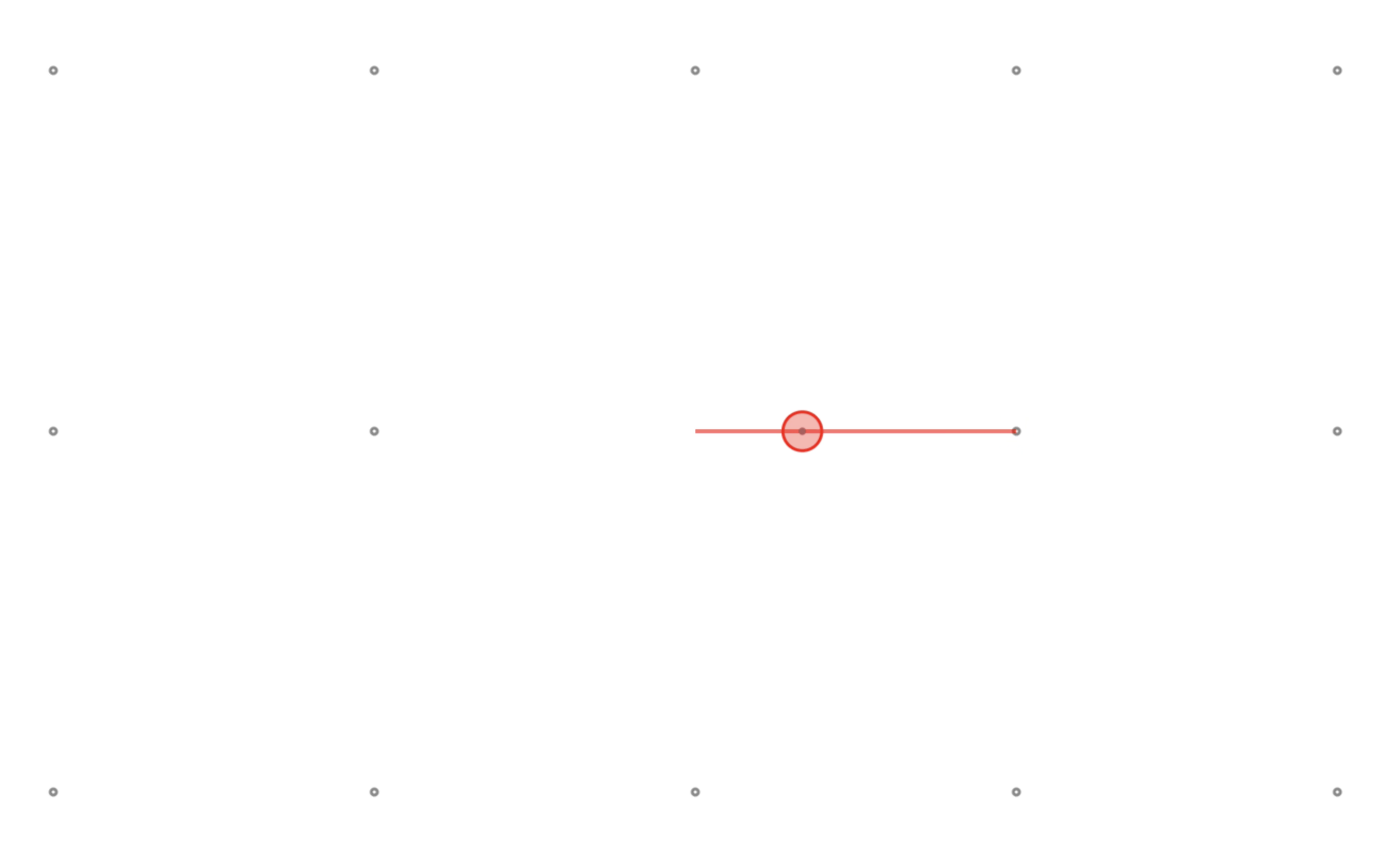
Calibration dot screen showing a fixation target mid-movement, tracked by a trailing line connecting its previous and current position among the other calibration points

If a participant drifts out of position, Labvanced pauses with an on-screen prompt to realign:
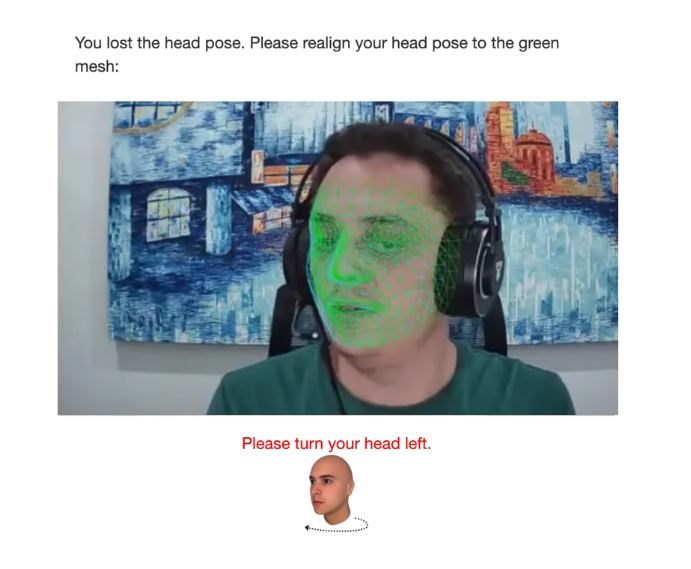
Realignment screen asking the participant to match their current head pose, shown in orange, to the green target mesh, with a directional prompt to turn their head

This isn't limited to calibration: the same prompt can appear mid-task, triggered by the Virtual Chinrest settings configured for that task (see Setting Up Eye Tracking in a Task).

Before each subsequent task with eye tracking enabled, a brief recalibration runs again, using whatever recalibration settings were configured for that task (see Setting Up Eye Tracking in a Task).

If the Same Device Calibrated Recently

The setting controlling this is named differently depending on version. Eye Tracking 1.3 and earlier use Allow Calibration Reuse, a single on/off checkbox. Eye Tracking 2.0 replaces it with Calibration Reuse, three options: Never, Test runs only, or Always, and defaults to Test runs only, so real participants in a published study will not see this prompt unless you explicitly set it to Always.

When reuse is allowed and a participant returns on the same device within 8 hours of a previous calibration, at the same window size, Labvanced offers to skip calibration and reuse the saved data instead:
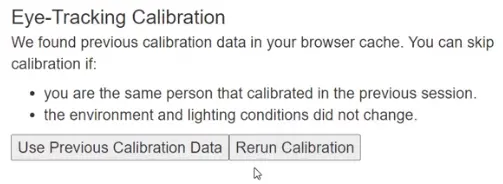
Prompt asking the participant whether to use previous calibration data or rerun calibration

Participants are asked to confirm that their position, lighting, and setup have not changed since the last calibration before this is accepted.

Getting a Good Calibration

Beyond the settings covered elsewhere, a few practical factors affect how well calibration goes for a given participant:

  • Position the webcam as close to the monitor as possible (built-in laptop webcams are usually fine). This helps the center pose get set accurately and keeps the whole face in frame.
  • Ask participants to remove glasses or face coverings where possible, and make sure their eyes are clearly visible to the camera.
  • If a study is loading slowly or eye tracking is not starting, background CPU load is often the cause. Closing other applications and browser tabs, plugging a laptop into power, and setting the computer to a performance power mode all help. A dedicated graphics card, Chrome, and Windows tend to perform most reliably.

Before running a real study, test the calibration process yourself or with a colleague to confirm the settings you have chosen collect the data you expect.

Frequently Asked Questions

What camera specs does a participant need for eye tracking?
A webcam capable of at least 1280 by 720 resolution. This is checked automatically before the study starts: a camera that doesn't meet it blocks the participant from starting the study at all, so if you're recruiting online, mention this requirement in advance.
Will every participant see the same number of calibration points?
No. The exact number of points and poses varies by which Calibration Length tier was configured for the study, described in How to Choose Eye Tracking Calibration Settings.
Why would a participant be asked to tilt their head during calibration?
Only the longest calibration tier includes this step. Partway through, the participant is asked to slowly tilt and turn their head, a continuous sweep rather than a held pose, so the system can account for those head positions too. Shorter tiers skip it entirely.
What should I tell participants about wearing glasses before a study?
This currently depends on the calibration path. Eye Tracking 2.0's `Fast` precheck screen tells participants plain glasses are fine, only a blue-light filter, a mirror coating, or colored contact lenses can interfere. Eye Tracking 2.0's `Detailed` mode and Eye Tracking 1.3 and earlier instead ask participants not to wear glasses at all. Check which path your study uses before briefing participants.
What happens if a participant returns on the same device shortly after a previous session?
It depends on the `Calibration Reuse` setting (Eye Tracking 2.0) or `Allow Calibration Reuse` (Eye Tracking 1.3 and earlier). If it's enabled, and they return within 8 hours at the same window size, Labvanced offers to skip calibration and reuse the saved data, after the participant confirms their position, lighting, and setup have not changed. Note that 2.0 defaults `Calibration Reuse` to `Test runs only`, so real participants will not see this unless the setting is changed to `Always`.
A participant's eye tracking study is loading slowly. What should I check?
Background CPU load is often the cause. Closing other applications and browser tabs, plugging a laptop into power, and setting the computer to a performance power mode all help. A dedicated graphics card, Chrome, and Windows tend to perform most reliably.

Further Reading

Choosing eye tracking calibration settings in Labvanced

How to Choose Eye Tracking Calibration Settings

The settings that shape the experience described on this page.
Setting up eye tracking in a Labvanced task

Setting Up Eye Tracking in a Task

Configure recalibration for individual tasks within a study.
Design considerations that affect webcam eye tracking accuracy

Webcam Eye Tracking Accuracy and Study Design

The evidence behind webcam eye tracking's validated accuracy.

Prev
Using Shapes as Areas of Interest (AOI) for Eye Tracking