labvanced logoLabVanced
  • Research
    • Publications
    • Researcher Interviews
    • Use Cases
      • Developmental Psychology
      • Linguistics
      • Clinical & Digital Health
      • Educational Psychology
      • Cognitive & Neuro
      • Social & Personality
      • Arts Research
      • Sports & Movement
      • Marketing & Consumer Behavior
      • Economics
      • HCI / UX
      • Commercial / Industry Use
    • Labvanced Blog
    • Services
  • Technology
    • Feature Overview
    • Code-Free Study Building
    • Eye Tracking
    • Mouse Tracking
    • Generative AI Integration
    • Multi User Studies
    • More ...
      • Reaction Time/Precise Timing
      • Text Transcription
      • Heart Rate Detection (rPPG)
      • Emotion Detection
      • Questionnaires/Surveys
      • Experimental Control
      • Data Privacy & Security
      • Desktop App
      • Mobile App
  • Learn
    • Guide
    • Videos
    • Walkthroughs
    • FAQ
    • Release Notes
    • Documents
    • Classroom
  • Experiments
    • Cognitive Tests
    • Sample Studies
    • Public Experiment Library
  • Pricing
    • Licenses
    • Top-Up Recordings
    • Subject Recruitment
    • Study Building
    • Dedicated Support
    • Checkout
  • About
    • About Us
    • Contact
    • Downloads
    • Careers
    • Impressum
    • Disclaimer
    • Privacy & Security
    • Terms & Conditions
    • Third-Party Licenses
  • Appgo to app icon
  • Logingo to app icon
Learn
Guide
Videos
Walkthroughs
FAQ
Newsletter Archive
Documents
Classroom
  • 中國人
  • Deutsch
  • Français
  • Español
  • English
  • 日本語
Guide
Videos
Walkthroughs
FAQ
Newsletter Archive
Documents
Classroom
  • 中國人
  • Deutsch
  • Français
  • Español
  • English
  • 日本語
  • Guide
    • GETTING STARTED

      • Task Editor
      • Stimulus Presentation
      • Correctness of Response
      • Objects
      • Events
      • Variables
      • Task Wizard
      • Trial System
      • Study Design
        • Tasks
        • Blocks
        • Sessions
        • Groups
    • FEATURED TOPICS

      • Experiment Design
        • Creating a Study
        • Data Frame Patterns
      • Randomization & Balance
      • Eye Tracking
        • Presenting Stimuli in an Eye Tracking Task
        • How to Choose Eye Tracking Calibration Settings
        • Setting Up Eye Tracking in a Task
        • Recording and Exporting Gaze Data
        • Using Shapes as Areas of Interest (AOI) for Eye Tracking
        • The Participant Calibration Experience
      • Web Bridge
      • Questionnaires
      • Desktop App
      • Sample Studies
      • Participant Recruitment
      • API Access
        • REST API
        • Webhook API
        • WebSocket API
      • Other Topics

        • Precise Stimulus Timings
        • Multi User Studies
        • Head Tracking in Labvanced | Guide
    • MAIN APP TABS

      • Overview: Main Tabs
      • Dashboard
      • My Studies
      • Shared Studies
      • My Files
      • Experiment Library
      • My Account
      • License & Services
    • STUDY TABS

      • Overview: Study-Specific Tabs
      • Study Design
        • Tasks
        • Blocks
        • Sessions
        • Groups
      • Task Editor
        • Task Controls
        • The Trial System
        • Canvas and Page Frames
        • Objects
        • Object Property Tables
        • Variables
        • System Variables Tables
        • The Event System
        • Text Editor Functions
        • Eye Tracking Options in the Task Editor
        • Head Tracking in a Task
        • Multi-User Studies
      • Settings
      • Variables
      • Media
      • Texts & Translate
      • Launch & Participate
      • Subject Management
      • Dataview and Export
        • Dataview and Variable & Task Selection (OLD Version)
        • Accessing Recordings (OLD Version)
  • Videos
    • Video Overview
    • Getting Started in Labvanced
    • Creating Tasks
    • Element Videos
    • Events & Variables
    • Advanced Topics
  • Walkthroughs
    • Introduction
    • Stroop Task
    • Lexical Decision Task
    • Posner Gaze Cueing Task
    • Change Blindness Flicker Paradigm
    • Eye-tracking Sample Study
    • Infant Eye-tracking Study
    • Attentional Capture Study with Mouse Tracking
    • Rapid Serial Visual Presentation
    • ChatGPT Study
    • Eye Tracking Demo: SVGs as AOIs
    • Multi-User Demo: Show Subjects' Cursors
    • Gamepad / Joystick Controller- Basic Set Up
    • Desktop App Study with EEG Integration
    • Between-subjects Group Balancing and Variable Setup
    • Website Frame Eye Tracking Walkthrough
    • Conditional Webcam Eye Tracking
  • FAQ
    • Features
    • Support Policy & Guidelines
    • Security & Data Privacy
    • Licensing
    • Precision of Labvanced
    • Programmatic Use & API
    • Using Labvanced Offline
    • Troubleshooting
    • Study Creation Questions
  • Newsletter Archive
  • Documents
  • Classroom

Physiology Toolbox Version

The Physiology Toolbox gives researchers access to three physiological signals, webcam eye tracking, heart rate detection (rPPG), and emotion detection, through a single setting: Physiology Toolbox Version. That one setting determines which version of the underlying engine your study runs, so upgrading or maintaining any of the three signals happens in one place.

Table of Contents

  • What Is the Physiology Toolbox?
  • Where to Find and Change It
  • Version History
  • How the Versioning System Works
  • End of Life and Migration
  • Why This Matters for Your Study

What Is the Physiology Toolbox?

The Physiology Toolbox is the single engine that enables eye tracking, heart rate detection, and emotion detection. Selecting the version your study needs determines which of these signals are available, whether that is just one, a combination of two, or all three, depending on your research design.

Why Do Different Versions Exist?

Each signal, eye tracking, heart rate detection, and emotion detection, was added to the Physiology Toolbox at a different point, which is why different versions exist and why the setting that used to be called eye-tracking version now governs all three together under its current name.

A study keeps the version it was originally designed against, so its data stays comparable across every session, even as newer versions become available for new studies.
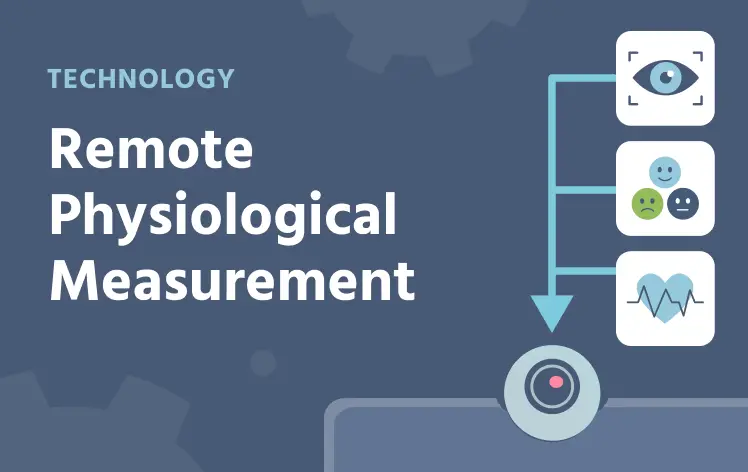
Remote physiological measurement in Labvanced

Remote Physiological Measurement

How eye tracking, emotion detection, and heart rate detection work together as a research capability, and why researchers don't need to own separate hardware for each signal.

Where to Find and Change It

Path: Settings tab → Physiology → Common Settings → Physiology Toolbox Version

The dropdown shows every version still within its support window, along with a (recommended) tag on the current default and a "supported until" date for each option, so you can see a version's remaining lifetime while choosing it.

Selecting a version here only makes its signals available at the study level. From there, head to the Task Editor and activate the Physiological Signals task settings for whichever signals a particular task actually needs.

Version History

VersionReleasedAdds
v0.2 (legacy)—Past end of life, retired
v1.013 Jan 2025Baseline webcam eye tracking
v1.18 Oct 2025Sound Volume control for calibration audio
v1.226 Nov 2025Fixation Detection mode (Fixation Algorithm, Conclude Ongoing Fixations) and Heart Rate Detection (rPPG)
v1.3 (current default)1 Apr 2026Emotion Detection

How the Versioning System Works

Two rules determine how long a version stays available:

  • Each version (v1.0, v1.1, v1.2, v1.3) is available for 2 years from its own release date.
  • The version line as a whole (the "1.x" line, currently v1.0 through v1.3) is available for 4 years from when v1.0 was first released. When the next major version ships, the last version in the previous line becomes maintenance-only (bug fixes only, no new features) and its availability extends to cover that full 4-year window.

Labvanced warns researchers 9 months before their study's version reaches end of life, so there's time to plan ahead of a forced migration rather than being surprised by one.

What Happens When a Version Reaches End of Life

Once a version passes its end-of-life date, any study still using it is automatically migrated to a specific newer version the next time the study is opened, not simply "the next version up." The confirmed migration targets:

  • v0.2 (legacy) and v1.0 both migrate to v1.2, skipping v1.1
  • v1.1 migrates to v1.2
  • v1.2 migrates to v1.3

If your study's version is approaching or past end of life, an Eyetracking Version is Outdated notice appears in Settings tab → Physiology → Common Settings, showing the end-of-life date and an Update Now button to migrate immediately rather than waiting for the automatic migration.

Why This Matters for Your Study

New studies default to the current recommended version, v1.3, which includes all three physiological signals. For a study already running, particularly a longitudinal or multi-session study, switching versions mid-study can change detection behavior and break comparability between earlier and later sessions. Stick with the version your study was designed against unless you are specifically adopting a new feature, for example, adding Heart Rate Detection to a study originally built before v1.2, or responding to an end-of-life notice.

Frequently Asked Questions


Why was "eye-tracking version" renamed to "Physiology Toolbox Version"?
Because the engine expanded beyond eye tracking: v1.2 added Heart Rate Detection and v1.3 added Emotion Detection. The setting kept its old name for a while even after it started controlling all three, so it was renamed to reflect what it actually governs today.

Which version should I use for a new study?
Use the current default, `v1.3`, unless you have a specific reason not to. It is the only version that supports all three physiological signals: eye tracking, heart rate detection, and emotion detection.

Will my study's version change without my input?
No, not while it is still within its support window. A study keeps the version it was designed against so its data stays comparable across sessions. Migration only happens automatically once a version passes its end-of-life date, and an outdated-version notice appears several months in advance of that.

What's the difference between a study's Physiology Toolbox Version and its calibration settings?
The Physiology Toolbox Version determines which underlying engine and feature set your study runs. Calibration settings determine how gaze data is collected once that engine is running. See How to Choose Eye Tracking Calibration Settings for calibration-specific guidance.

Further Reading

Setting up eye tracking in a Labvanced task

Setting Up Eye Tracking in a Task

Enable eye tracking for a task and configure Fixation Detection, recalibration, and drift correction.
Design considerations that affect webcam eye tracking accuracy

Design Considerations that Affect Webcam Eye Tracking Accuracy

The evidence behind webcam eye tracking's validated accuracy, and the study design decisions that affect it.