Text Segmentation Object
The Text Segmentation Object splits a sentence into one area of interest per word. Link a CSV upload, an existing data frame, or an array variable as the text source, one sentence per trial, and every word gets its own measured box automatically, no manual AOI placement. With webcam eye tracking enabled, it also records five gaze metrics per word.
Table of Contents
Adding the Text Segmentation Object
In the task editor toolbar, open the Text group and select Text Segmentation Object to add it to the current frame. It sits alongside Display Text, Display HTML, and Display Variable.
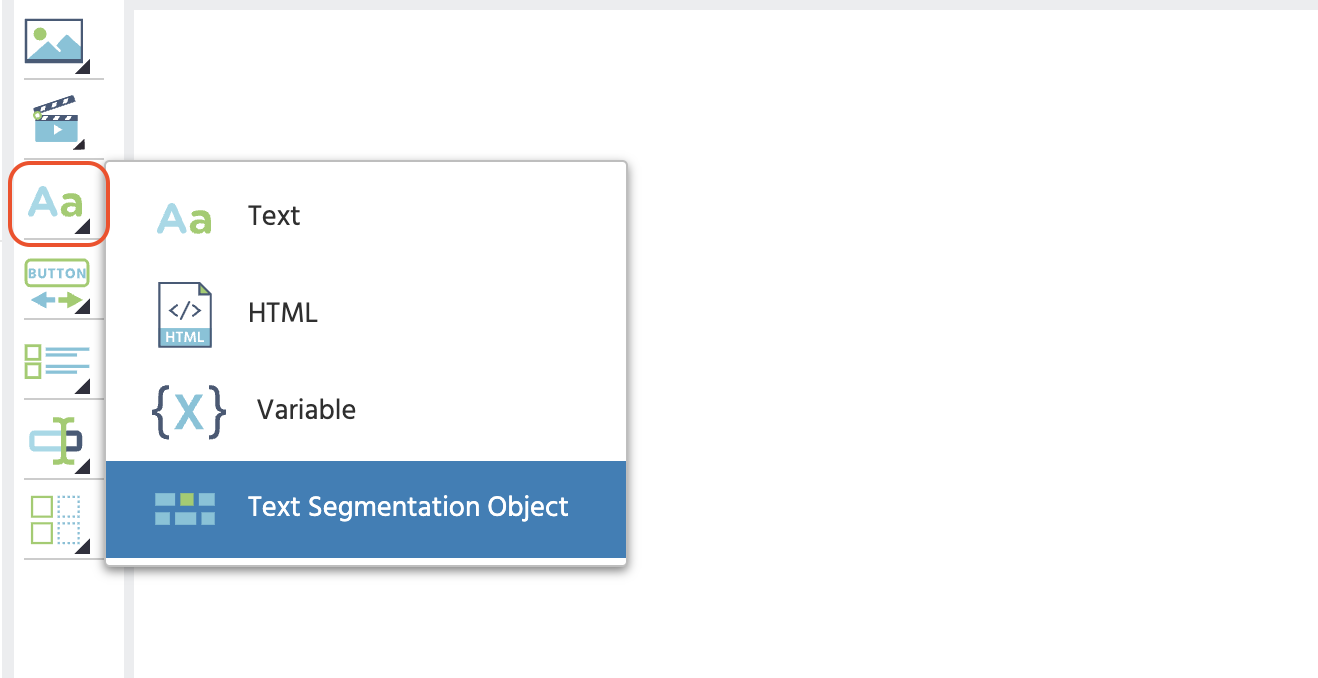
Text Segmentation Setup Wizard
Adding the object opens a setup wizard with two screens: the first sets the text source, the second asks how the row is selected and what to record.
First screen: set the text source. Choose one of three options:
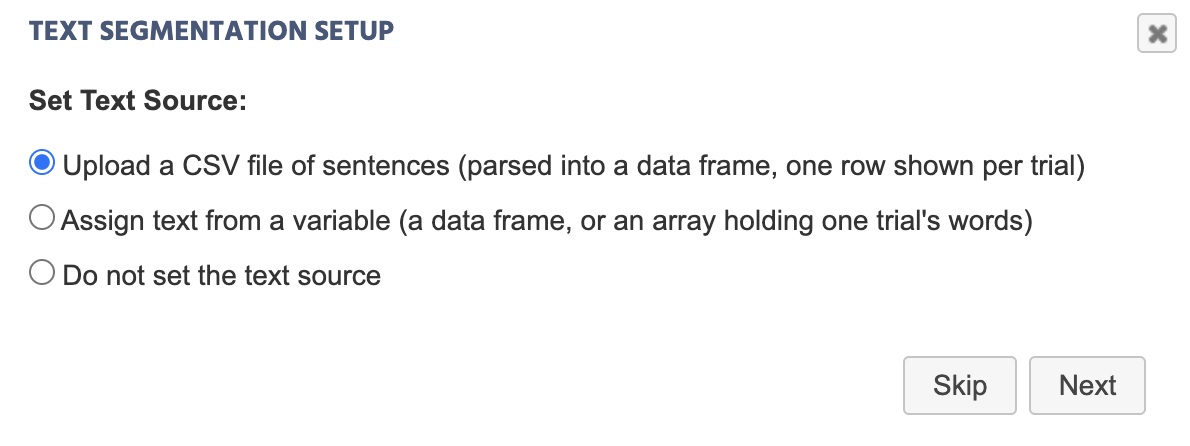
| Option | What it does |
|---|---|
Upload a CSV file of sentences | Parses the file into a new data frame, one row shown per trial. |
Assign text from a variable | Links an existing data frame, or an array holding one trial's words. |
Do not set the text source | Closes the wizard without linking anything; set one later via Set Text Source… in Object Properties. |
Selecting a file for the CSV option opens an Additional Options dialog with three checkboxes, all unchecked by default: Map strings to files (irrelevant here, since the cells hold plain text rather than filenames), Use first row as header (check this only if the first row names the columns instead of holding the first sentence), and Transpose data (check this if sentences run across columns instead of down rows).
Second screen: row index and recording. This screen opens once a source is linked, confirming it under Text is read from:. For a data frame source, it also asks how the row (sentence) is selected per trial:
| Option | Behavior |
|---|---|
Use Trial_Id as row index | Randomized order, determined by the experiment's randomization. |
Use Trial_Nr as row index | Fixed order, matching the trial sequence. |
| Select a variable as row index | Use any custom variable to control which row shows. |
An array source skips this question entirely, since an array already holds one trial's words directly. The screen then asks what to record. See Events Integration for what each checkbox creates and a preview of the resulting data.
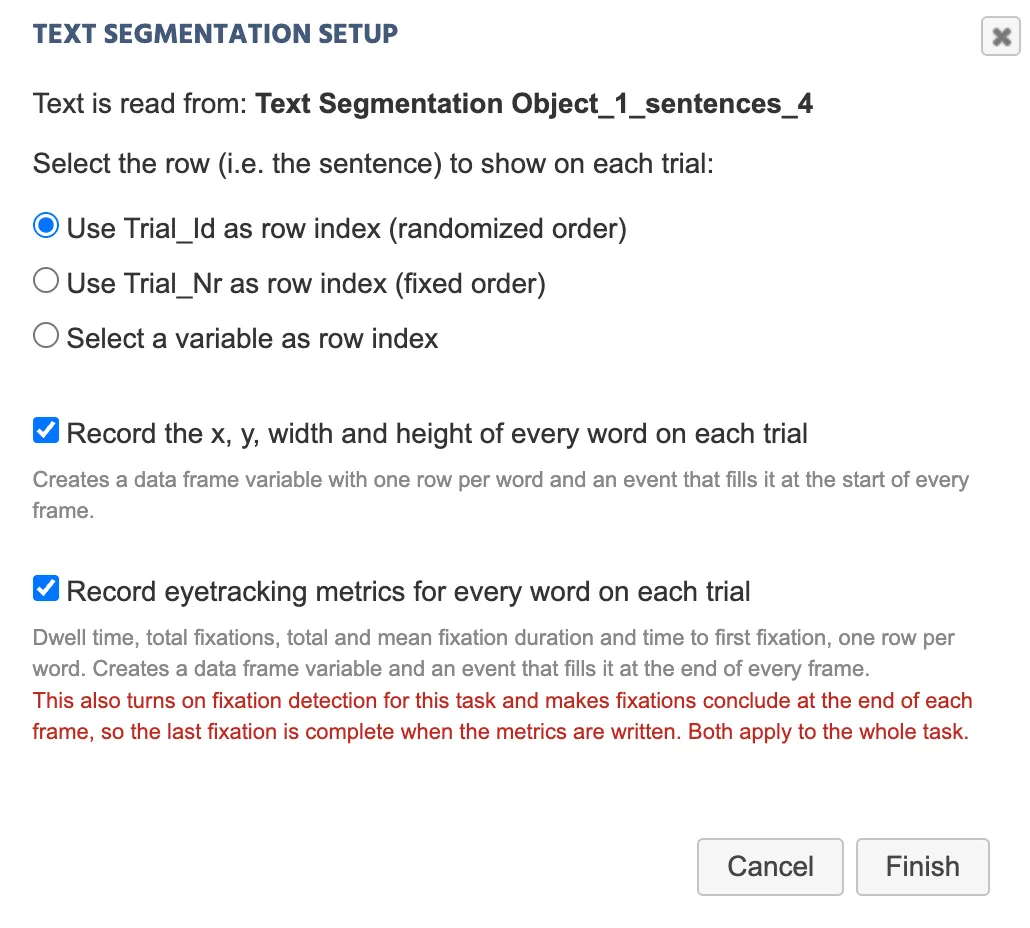
| Checkbox | Default | What it creates |
|---|---|---|
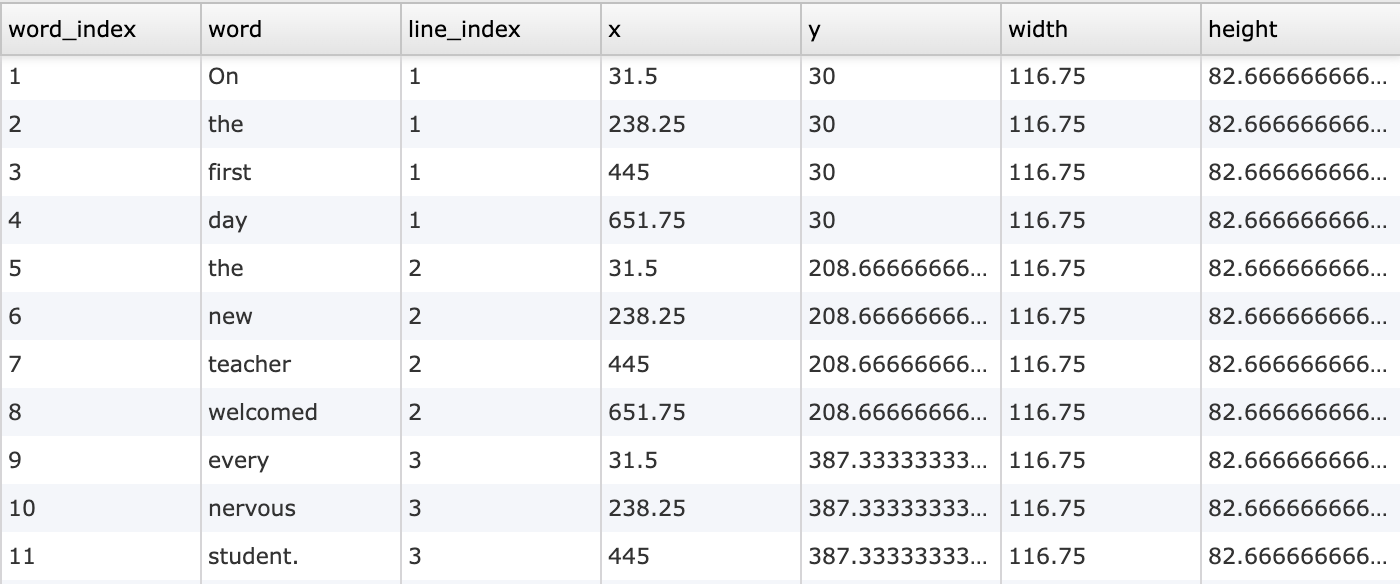
Record the x, y, width and height of every word on each trial | Checked | A data frame variable and an event that writes the AOI geometry at the start of every frame. |
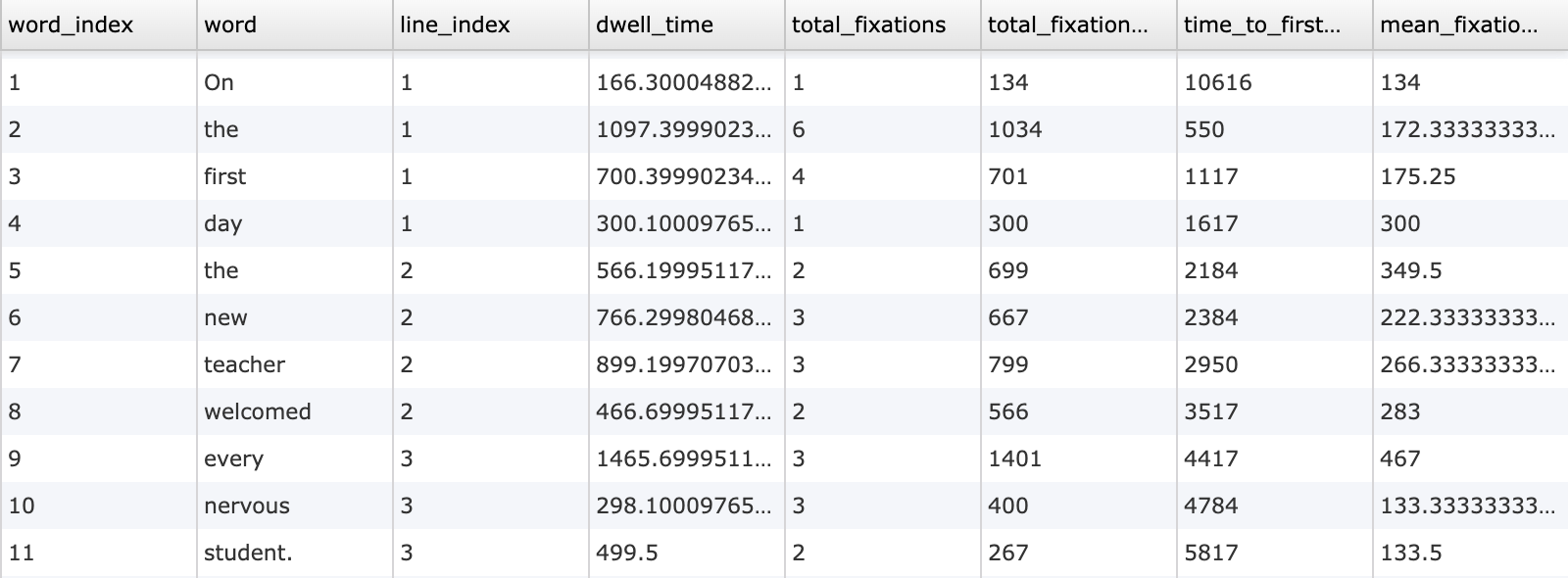
Record eyetracking metrics for every word on each trial | Unchecked | A data frame variable and an event that writes dwell time, fixation counts, and timing at the end of every frame. |
Note
Checking Record eyetracking metrics for every word on each trial also turns on fixation detection for the whole task and sets fixations to conclude at frame end, so the last fixation on a word is complete by the time the metrics are written. Both changes apply task-wide, not just to this object, and the wizard states this before you opt in.
Once set up, the object renders one word per cell and starts recording automatically:
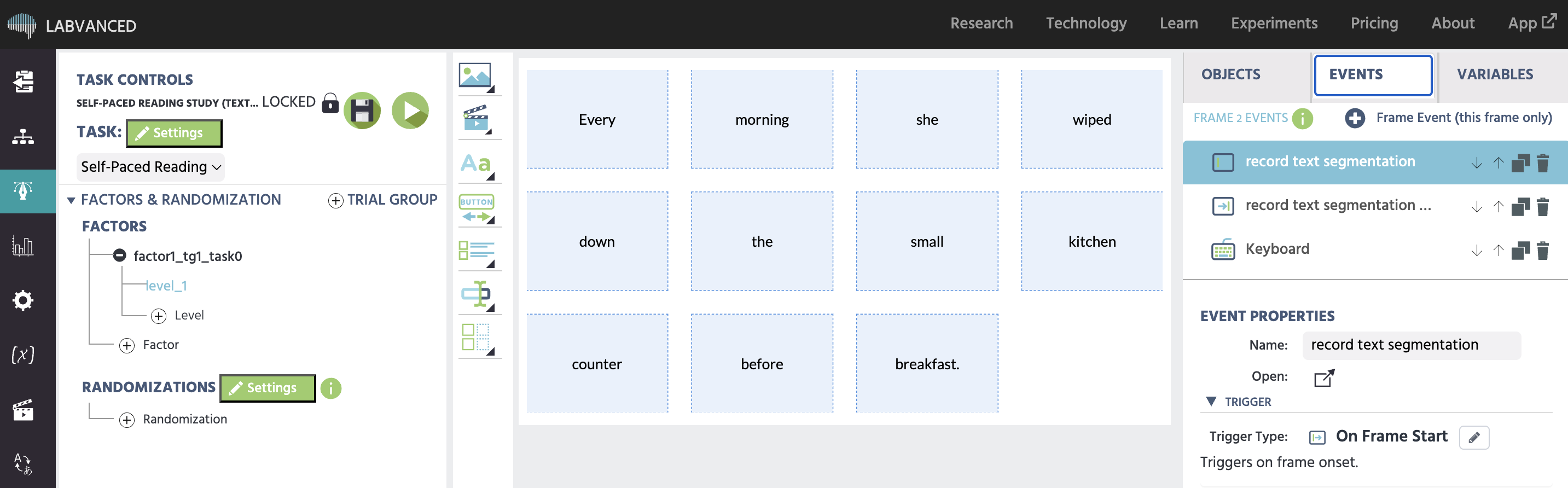
Object Properties
All settings below are found in the Object Properties panel when the Text Segmentation Object is selected.
| Property | Description |
|---|---|
Text Source | The linked CSV, data frame, or array variable. Click Set Text Source… to relink it. |
Row Index | The variable controlling which row (sentence) displays on the current trial. |
Row Index Offset | Added to the row index value. Row numbers are 1-based in Labvanced, so the default of -1 maps the first trial to the first row. Only change this if your row variable is counted differently. |
Preview Row | Data frame sources only. Which sentence to draw on the canvas while editing; does not affect what participants see, since that depends on randomization. |
Recorded Into | The data frame variable receiving the object's own linked data. |
Split cells on whitespace | Off by default when the spreadsheet already holds one word per column. Turn on to split each cell's text into separate words automatically. |
Layout | Flow wraps words at the element's width and records each word's own glyph box. Grid places words into equal-width columns and records the whole cell, so AOIs tile the element with no gaps or overlaps. |
Max Rows | The maximum number of wrapped lines the element allows before showing a warning in the editor. |
Columns | Grid layout only. Words per row. 0 uses as few columns as fit the text within Max Rows. |
Word Alignment | Grid layout only. Horizontal and vertical alignment of each word's glyphs inside its cell. Does not change the recorded AOI, which is always the full cell. |
Gap Between Cells / Margin Between Words | X and Y spacing, in frame units. Labeled Gap Between Cells in grid layout, Margin Between Words in flow layout. |
AOI Padding | Flow layout only. Grows each word's recorded box beyond its glyphs, in frame units per side. Not available in grid layout, where growing the box would overlap the next word's cell. |
Font | Font family, size, and color for the rendered words. |
Sentence Alignment | Flow layout only. Horizontal and vertical alignment of the whole sentence within the element. |
Show AOI boxes in player | When checked, draws each word's AOI box on screen during the study, useful for checking coverage while building. |
Stimulus Info | Free-text field for notes about the current stimulus, not shown to participants. |
Linking a Text Source
The CSV-to-data-frame path is the fastest way to bring an existing stimulus set in, whether through the setup wizard's first step or later through Set Text Source… in Object Properties: a spreadsheet with one sentence per row and, with Split cells on whitespace off, one word per column imports with ragged row lengths supported, shorter rows simply have fewer words measured. A trailing punctuation mark can stay attached to the sentence's last word as its own cell.
Linking an existing data frame works the same way once the data frame already exists in the experiment, useful when the same stimulus set feeds multiple objects. An array variable is the simplest option for a single-sentence study, since it skips the data frame step entirely.
Events Integration
Two dedicated actions record the object's data. Both need a Target (the frame element holding the Text Segmentation Object) and a Variable (the data frame receiving the table). Both actions are created automatically if you check the corresponding box in the setup wizard.
| Action | What it records | When to fire it |
|---|---|---|
Record Text Segment AOIs | Word, line, and position/size geometry, one row per word. | Typically at frame start, re-measures the rendered words so the table matches what was on screen. |
Record Text Segment Eyetracking Metrics | Dwell time, total fixations, total fixation duration, time to first fixation, and mean fixation duration, one row per word. | At frame end, once the frame's fixations are final. Requires webcam eye tracking enabled. |
A word that was never fixated keeps its row in the metrics table with zeros across every column, rather than a blank cell. Filter on total_fixations > 0 before averaging a time column, since a zero does not distinguish "never looked at" from "fixated at exactly frame onset."
An example of the events added around a reading study using the Text Segmentation Object with webcam eye tracking, to progress between trials, can be seen in Step 5: Set Up Trial Progression of the companion walkthrough.
Data Preview
The following images represent the data captured from these two automated events.
Open Materials and Study Examples
See the Text Segmentation Object in a real study: ten sentences, one per trial, with per-word AOI geometry and eye tracking metrics recorded automatically.
The full task setup, recorded variables, and research applications of this study are described on the Self-Paced Reading Task page.