Requirement Action (If... Then... Else If)
The Requirement Action is Labvanced's conditional logic block: it evaluates an if-then statement and executes a series of actions only when that statement is true. It is the mechanism behind any behavior that should differ depending on a variable's value, a participant's role, their previous response, or any other condition your study needs to check.
How it works
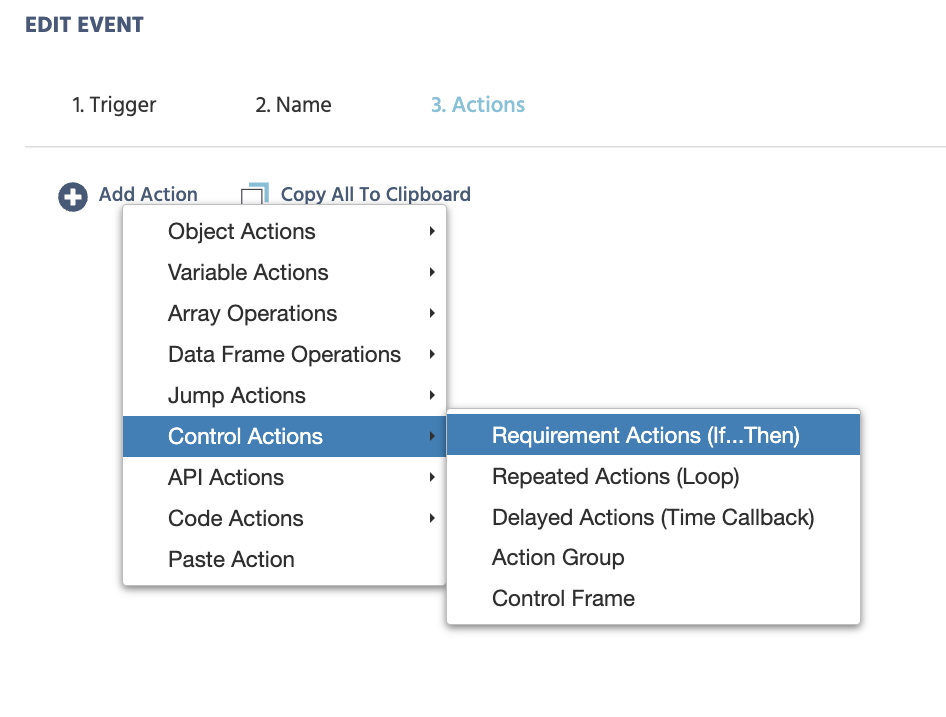
A Requirement Action is added like any other action: click Add Action, then Control Actions → Requirement Actions (If...Then).
A Requirement Action is built from a few parts:
- Add Requirement: adds a comparison to the statement. A value-select menu appears on both sides, letting you compare a variable, a constant, or another value, with a comparison operator between them (equal, smaller than, unequal, and so on).
- Add AND Group: all requirements within an AND group must be true for the whole group to be true. Use this when several conditions must all be met at once.
- Add OR Group: only one requirement within an OR group needs to be true for the whole group to be true. Use this when the same action should run for several different cases.
- Action Sequence: the list of actions under
Then, executed only when the If statement's requirements are satisfied. Add a new action via theAdd Actionicon. - Add Else-If Case: a Requirement Action can hold several If/Else-If statements in sequence. Only one is ever executed, the first one whose requirements evaluate true; the rest, including any later Else-If cases, are skipped once a match is found.
- Add Else Case: a fallback. If none of the If/Else-If statements evaluate true, the actions defined in the Else case run instead.
A worked example: branching by Role_Id
The most common use of a Requirement Action in a multi-user study is branching behavior by participant. A minimal example:
- Add Requirement: left side selects the variable
Role_Id; comparison is set toequal; right side is a constant number,1. - Then: the actions that apply to that participant, for example a
Set Object Propertyaction showing a target image. - Add Else Case: the actions that apply to every other participant.
See Role_Id for the full explanation of what Role_Id is and why this pattern is the basis of every asymmetric multi-user design.
A worked example: scoring correctness in a Flanker-style task
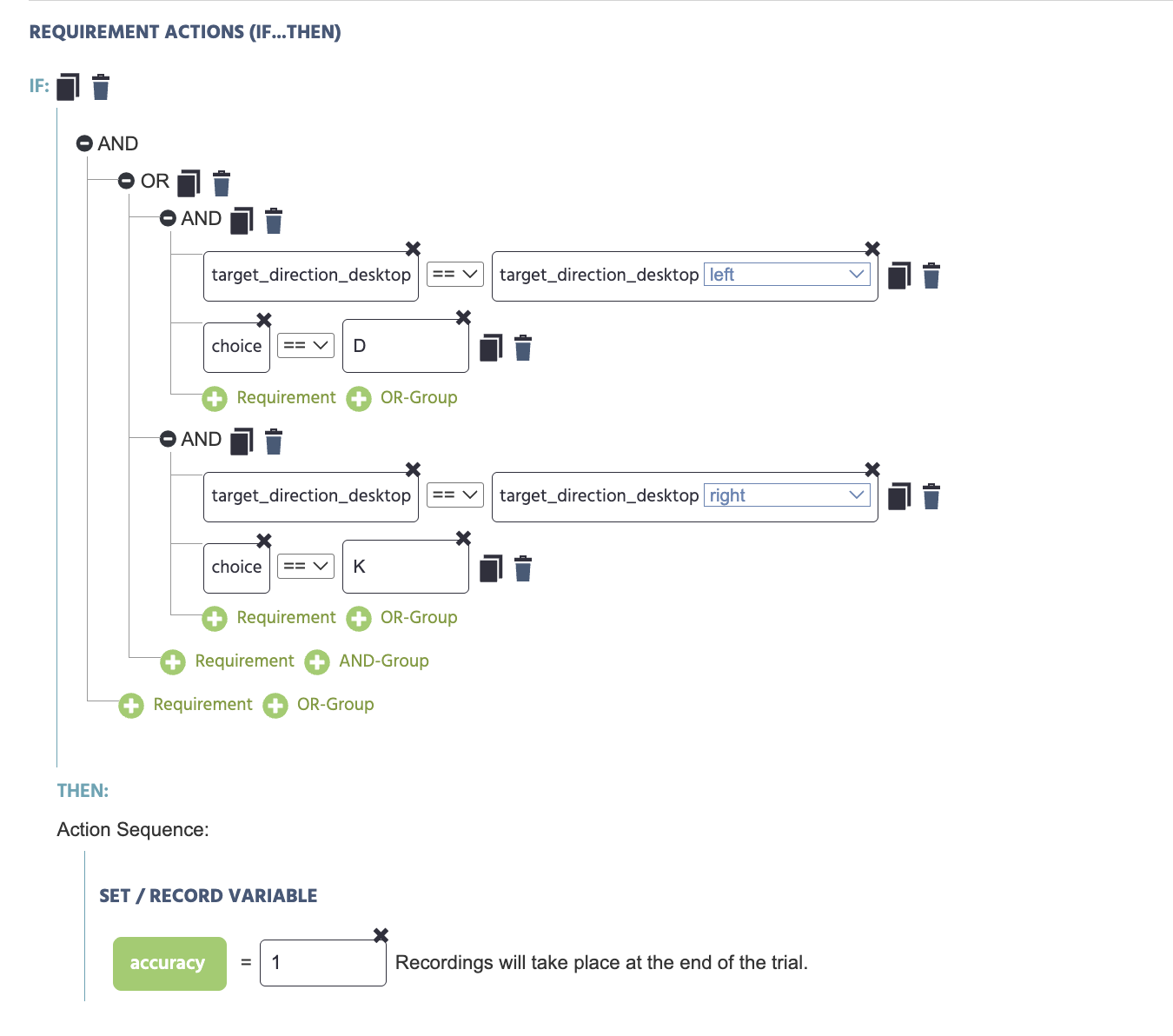
Nested AND/OR groups make it possible to score a response as correct under more than one valid combination at once. A real example from the Flanker Task's Main_task_desktop_Flanker, on Frame 3 (Response Window), inside the Response Recording & Progression event (triggered by a keypress):
- If, within an OR group: (
target_direction_desktopequalsleftANDchoiceequalsD), OR (target_direction_desktopequalsrightANDchoiceequalsK). - Then:
Set / Record Variablesetsaccuracyto1.
Either combination, left target with a D press or right target with a K press, counts as correct, so the two AND groups are combined under a shared OR group rather than written as separate Requirement Actions.
Further Reading

Event System
The full reference for every trigger and action in Labvanced, including Requirement Action's complete parameter list.
Role_Id
The system variable most commonly checked inside a Requirement Action in multi-user studies.

Building a Multi-user Study
A step-by-step walkthrough using a Requirement Action to assign different content per participant.