labvanced logoLabVanced
  • Research
    • Publications
    • Researcher Interviews
    • Use Cases
      • Developmental Psychology
      • Linguistics
      • Clinical & Digital Health
      • Educational Psychology
      • Cognitive & Neuro
      • Social & Personality
      • Arts Research
      • Sports & Movement
      • Marketing & Consumer Behavior
      • Economics
      • HCI / UX
      • Commercial / Industry Use
    • Labvanced Blog
    • Services
  • Technology
    • Feature Overview
    • Code-Free Study Building
    • Eye Tracking
    • Mouse Tracking
    • Generative AI Integration
    • Multi User Studies
    • More ...
      • Reaction Time/Precise Timing
      • Text Transcription
      • Heart Rate Detection (rPPG)
      • Emotion Detection
      • Questionnaires/Surveys
      • Experimental Control
      • Data Privacy & Security
      • Desktop App
      • Mobile App
  • Learn
    • Guide
    • Videos
    • Walkthroughs
    • FAQ
    • Release Notes
    • Documents
    • Classroom
  • Experiments
    • Cognitive Tests
    • Sample Studies
    • Public Experiment Library
  • Pricing
    • Licenses
    • Top-Up Recordings
    • Subject Recruitment
    • Study Building
    • Dedicated Support
    • Checkout
  • About
    • About Us
    • Contact
    • Downloads
    • Careers
    • Impressum
    • Disclaimer
    • Privacy & Security
    • Terms & Conditions
    • Third-Party Licenses
  • Appgo to app icon
  • Logingo to app icon
Learn
Guide
Videos
Walkthroughs
FAQ
Newsletter Archive
Documents
Classroom
  • 中國人
  • Deutsch
  • Français
  • Español
  • English
  • 日本語
Guide
Videos
Walkthroughs
FAQ
Newsletter Archive
Documents
Classroom
  • 中國人
  • Deutsch
  • Français
  • Español
  • English
  • 日本語
  • Guide
    • GETTING STARTED

      • Task Editor
      • Frames
        • Canvas Frame
        • Page Frame
        • Website Frame
      • Trial Timeline
      • Stimulus Presentation
      • Correctness of Response
      • Objects
      • Events
      • Variables
      • Task Wizard
      • Trial System
      • Experiment Design
        • Creating a Study
        • Data Frame Patterns
        • Multi-user Experiment Design
    • FEATURED TOPICS

      • Randomization & Balance
      • Eye Tracking
        • Presenting Stimuli in an Eye Tracking Task
        • How to Choose Eye Tracking Calibration Settings
        • Setting Up Eye Tracking in a Task
        • Recording and Exporting Gaze Data
        • Using Shapes as Areas of Interest (AOI) for Eye Tracking
        • The Participant Calibration Experience
      • Web Bridge
        • Selecting Website AOIs | Anchor, Adjust, and Verify AOI Tracking
        • Tracking Mouse Behavior on a Website AOI | Web Bridge Guide
      • Questionnaires
      • Desktop App
      • Sample Studies
      • Participant Recruitment
      • API Access
        • REST API
        • Webhook API
        • WebSocket API
      • Other Topics

        • Precise Stimulus Timings
        • Multi User Studies
        • Head Tracking in Labvanced | Guide
    • MAIN APP TABS

      • Overview: Main Tabs
      • Dashboard
      • My Studies
      • Shared Studies
      • My Files
      • Experiment Library
      • My Account
      • License & Services
    • STUDY TABS

      • Overview: Study-Specific Tabs
      • Study Design
        • Tasks
        • Blocks
        • Sessions
        • Groups
      • Task Editor
        • Task Controls
        • The Trial System
        • Frame Types
        • Objects
        • Object Property Tables
        • Variables
        • System Variables Tables
        • The Event System
        • Text Editor Functions
        • Eye Tracking Options in the Task Editor
        • Head Tracking in a Task
        • Multi-User Studies
      • Settings
      • Variables
      • Media
      • Texts & Translate
      • Launch & Participate
      • Subject Management
      • Dataview and Export
        • Dataview and Variable & Task Selection (OLD Version)
        • Accessing Recordings (OLD Version)
  • Videos
    • Video Overview
    • Getting Started in Labvanced
    • Creating Tasks
    • Element Videos
    • Events & Variables
    • Advanced Topics
  • Walkthroughs
    • Introduction
    • Stroop Task
    • Lexical Decision Task
    • Posner Gaze Cueing Task
    • Change Blindness Flicker Paradigm
    • Eye-tracking Sample Study
    • Infant Eye-tracking Study
    • Attentional Capture Study with Mouse Tracking
    • Rapid Serial Visual Presentation
    • ChatGPT Study
    • Eye Tracking Demo: SVGs as AOIs
    • Multi-User Demo: Show Subjects' Cursors
    • Gamepad / Joystick Controller- Basic Set Up
    • Desktop App Study with EEG Integration
    • Between-subjects Group Balancing and Variable Setup
    • Building a Multi-user Study
    • Website Frame Eye Tracking Walkthrough
    • Conditional Webcam Eye Tracking
  • FAQ
    • Features
    • Support Policy & Guidelines
    • Security & Data Privacy
    • Licensing
    • Precision of Labvanced
    • Programmatic Use & API
    • Using Labvanced Offline
    • Troubleshooting
    • Study Creation Questions
  • Newsletter Archive
  • Documents
  • Classroom

Role_Id

Role_Id is a numeric system variable that identifies each participant in a multi-user study. It exists only once a study has been transformed into a multi-participant study (see Multi User Study in Settings); a standard single-participant study has no use for it.

Purpose

A multi-user study can involve two or more participants in the same running session, but by default every participant's experiment runs as an identical, undifferentiated copy of the others. Nothing distinguishes one participant from another until something explicitly does. Role_Id is that distinction: it gives every participant in the session a stable identity that event logic can act on, without collecting anything personal. It carries no name, no browser fingerprint, and no other identifying detail, only a number.

How it's assigned

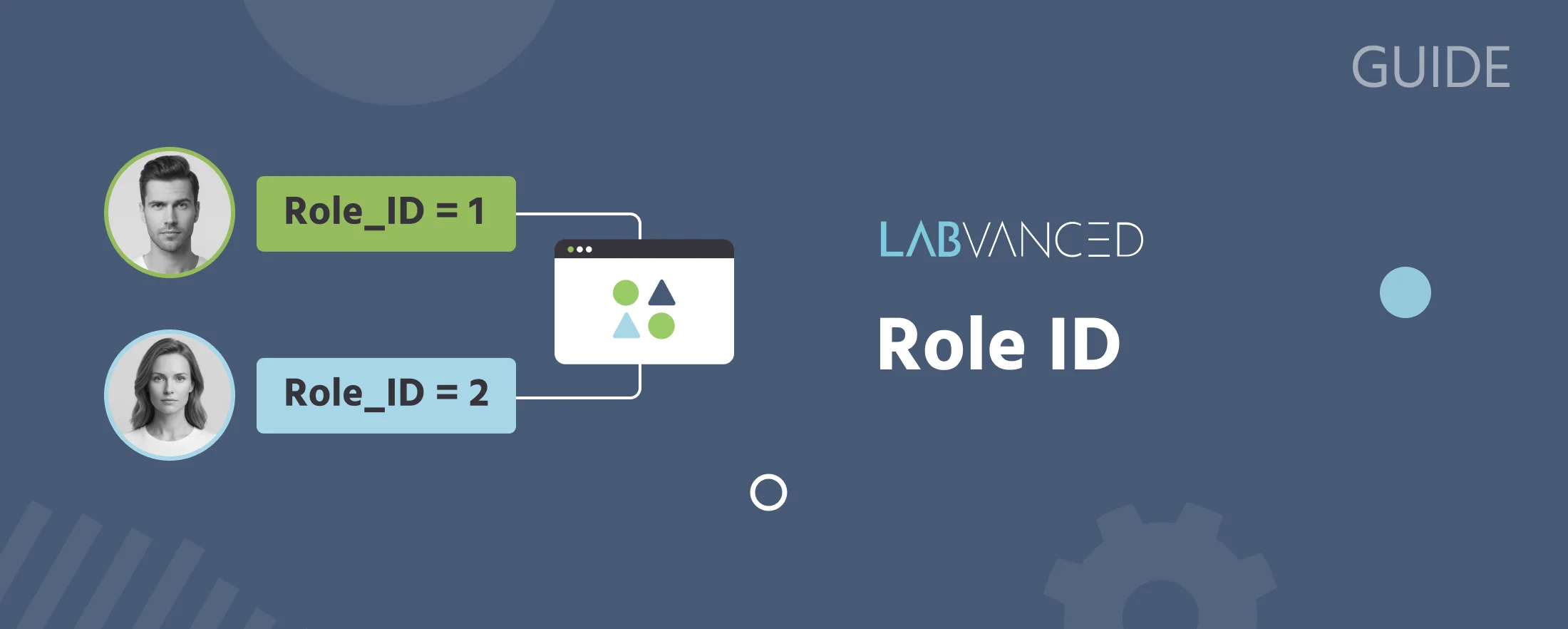
As participants join a multi-user session, each one without a predefined role receives a Role_Id in ascending order, starting at 1, in the order they connect. A predefined link can also pin a specific Role_Id to that link, in which case assignment is fixed by which link a participant used rather than by connection order.

How it's used

Role_Id is read inside a Requirement Action, the same If/Then conditional logic used throughout the event system, to branch behavior by participant. A common pattern:

  • If Role_Id equals 1, show one set of content, for example a target image and a text input.
  • If Role_Id equals 2 (or, using an Else Case, anything other than 1), show a different set, for example a set of candidate images and no target.

This is the mechanism behind multi-user designs where each participant plays a different part in the interaction, one participant proposing and another responding, one describing and another guessing, or any study where roles need to differ. Which Role_Id maps to which role is decided when the study is built; the underlying study logic works the same regardless of which number ends up assigned to which role.

Role_Id only distinguishes participants. It does not, by itself, move any information between them, that is the job of the Distribute Variable action. See Building a Multi-user Study for a full walkthrough combining Role_Id with Distribute Variable and frame synchronization into working multi-user patterns.

FAQ

Does Role_Id stay the same across the study?

Yes. Role_Id is a session-scoped variable: it is assigned once, when a participant is matched into a session, and is never reassigned for the rest of that session.

Can a participant's role change partway through a study?

Not directly, there is no mechanism to reassign Role_Id once it's set. If a design needs a role to appear to change over time, for example alternating who proposes in a turn-based game, track that separately with your own variable (a counter, or a value read from a data frame), and combine it with Role_Id in your Requirement Action conditions, rather than expecting Role_Id itself to change.

Further Reading

Multi-user Experiment Design

When to use a multi-user design, best practices, and a gallery of existing examples built in Labvanced.

Building a Multi-user Study

A step-by-step walkthrough using Role_Id inside a Requirement Action to assign different content per participant.

System Variables

What system variables are as a category, Role_Id among them, and where the full reference table lives.