labvanced logoLabVanced
Contact
    • Remote Physiological Measurements
    • Eye Tracking
    • Head & Face-Tracking
    • Emotion Detection
    • Heart Rate Detection (rPPG)
    • Generative AI
    • Audio Transcription
    • EEG & Hardware Integrations
    • Decision Making
    • Reaction Times
    • Keyboard Inputs
    • Mouse Tracking
    • Mobile / Touch
    • Questionnaires
    • Gamepad / Joystick Integration
    • Audio Recordings
    • Audio Transcription
    • Video Recordings
    • Screen Recordings
    • Photos / Snapshots
    • Video Conferencing
    • Canvas Drawings
    • Build with AI
    • Build with Spreadsheets
    • Using the Experiment Editor
    • Coding
    • Creating Questionnaires
    • Balancing & Randomization
    • UX & Website Testing
    • Single Session Studies
    • Factorial Designs
    • Longitudinal & Multi-session Studies
    • Individual & Case Studies
    • Real-time Multi-user Studies
    • Interviews & Video Calls
    • Surveys & Questionnaires
    • Experience Sampling & Diaries
    • Classroom & Group Testing
    • Interventions & Clinical Trials
    • In the Browser
    • Mobile App
    • Desktop App
    • WebBridge Chrome Extension
    • Stroop Test
    • Flanker Task
    • N-back Task
    • Implicit Association Test
    • Trail Making Test
    • Digit Span
    • Corsi Block Tapping
    • Tower of London
    • Balloon Analog Risk Task
    • Preferential Looking
    • Browse more →
    • DASS-21
    • GAD-7
    • Rosenberg Self-Esteem Scale
    • PHQ-9
    • Ten-Item Personality Inventory
    • Big Five Personality Test
    • Adult ADHD Self-Report Scale
    • Browse more →
    • Building a Multi-user Study
    • Webcam Eye Tracking with AOIs
    • Website Frame Eye Tracking
    • Conditional Eye Tracking Opt-in
    • ChatGPT Study
    • Desktop App Study with EEG
    • Between-subjects Group Balancing
    • Building a Reading Study
    • Stroop Task
    • Lexical Decision Task
    • Browse more →
    Public Experiment Library
    • Arts Research
    • Clinical Psychology & Neuropsychology Medicine
    • Cognitive Psychology
    • Developmental Psychology
    • Behavioral Economics & Decision Science
    • Educational Research & Psychology
    • HCI & Human Factors
    • Linguistics & Language Sciences
    • Consumer & Marketing Research
    • Social & Personality Psychology
    • Sport & Movement Science
    • UX & Website Testing
    • Executive Functions
    • Language & Reading
    • Decision-Making & Reasoning
    • Attention
    • Overview
    • HCI & Human Factors
    • UX & Website Testing
    • Consumer & Marketing Research
    • White-Label App
    • PageGazer
    • Webcam vs. Lab Eye Tracking in InfantsAnna Banki & Gabriela Markova
    • Eye Tracking for Influencer MarketingDr. Alexander Edeling
    • Eye Tracking Infant Word ComprehensionDr. Giulia Calignano
    • Sentence Reading and Grammar JudgmentsDr. Jonathan Mirault
    • Regulating Emotions with MusicDr. Katrin Starcke
    • Game-Based Grammar Learning in ChildrenDr. Mireia Marimon
    • Gaze Cueing and AutismMax Soares Miehstein
    • Personality and Hearing in NoiseDr. Malte Wöstmann
    • All interviews →
    • Lab Notes
    • How to Cite Labvanced
    • Labvanced Platform Paper (2017)
    • Webcam Eye Tracking Validation (2024)
    • Webcam Eye Tracking Studies
    • Cognitive Psychology Studies
    • Developmental Psychology Studies
    • Linguistics Studies
    • See all publications →
    • Getting Started
    • Guide
    • Video Tutorials
    • Walkthroughs
    • Live Chat
    • Webinars & Onboarding Calls
    • AI Assistant
    • FAQ
    • Importing Templates Guide
    • Test Templates
    • Live Eye Tracking Metrics
    • Mouse Tracking Demo
    • ChatGPT Demo
    • Audio Recording Object Demo
    • Adding Image Stimuli Demo
    • Score & Feedback Demo
    • Browse all technical demos →
    • Timing Precision
    • Stimuli Presentation
    • Headphone Checks
    • Bot Checks
    • Participant Management
    • Comparisons
    • Research Blog
    • Prolific Integration
    • CloudResearch Integration
    • Sona Systems Integration
    • BeSample Integration
    • Panelabs Integration
    • Clickworker Integration
    • Labvanced Webhook API
    • Labvanced REST API
    • About Us
    • Newsletter Archive
    • Terms & Conditions
    • Data Security & Data Privacy
    • Technical & Organisational Measures
    • Accessibility
    • W-8BEN-E Form
    • Data Processing Agreement Template
    LinkedInYouTubeDiscord
    • Individual
    • Lab
    • Department / Consortium
    • Teaching
    • Campus
    • Commercial
    • Browse recording top-ups →
    • Browse AI token top-ups →
    • Overview
    • Study Building
    • Subject Recruitment
    • Dedicated Support
    Checkout
  • Contact
    • EN
      • 中國人
      • Deutsch
      • Français
      • Español
      • English
      • 日本語
    • Logout
    • Loginlogin icon
    Platform
    Labvanced makes it easy to implement the most advanced study design and reliably collect your data.
    Biosignals & AI
    Remote Physiological MeasurementsEye TrackingHead & Face-TrackingEmotion DetectionHeart Rate Detection (rPPG)Generative AIAudio TranscriptionEEG & Hardware Integrations
    Behavioral Recordings
    Decision MakingReaction TimesKeyboard InputsMouse TrackingMobile / TouchQuestionnairesGamepad / Joystick Integration
    Media Recordings
    Audio RecordingsAudio TranscriptionVideo RecordingsScreen RecordingsPhotos / SnapshotsVideo ConferencingCanvas Drawings
    Implementation Techniques
    Build with AIBuild with SpreadsheetsUsing the Experiment EditorCodingCreating QuestionnairesBalancing & RandomizationUX & Website Testing
    Study Formats

    Your study can take whatever format your research needs. Here are a few popular examples.

    Single Session StudiesFactorial DesignsLongitudinal & Multi-session StudiesIndividual & Case StudiesReal-time Multi-user StudiesInterviews & Video CallsSurveys & QuestionnairesExperience Sampling & DiariesClassroom & Group TestingInterventions & Clinical Trials
    Where Studies Run

    Run your study online in the browser, on mobile or tablet with the mobile app, or in-lab with the desktop app.

    In the BrowserMobile AppDesktop AppWebBridge Chrome Extension
    Tests
    Explore cognitive tests, questionnaires, walkthroughs, and our public experiment library: a starting point for your next study.
    Popular Cognitive Tests
    Stroop TestFlanker TaskN-back TaskImplicit Association TestTrail Making TestDigit SpanCorsi Block TappingTower of LondonBalloon Analog Risk TaskPreferential Looking
    Browse more →
    Questionnaires & Scales
    DASS-21GAD-7Rosenberg Self-Esteem ScalePHQ-9Ten-Item Personality InventoryBig Five Personality TestAdult ADHD Self-Report Scale
    Browse more →
    Public Experiment Library

    Take a look at what other researchers in the community are doing through our extensive, open catalog of shared studies.

    Open the public library →
    Walkthroughs

    Step-by-step builds of complete studies, from a blank project to a running experiment, that you can follow along or adapt.

    Building a Multi-user StudyWebcam Eye Tracking with AOIsWebsite Frame Eye TrackingConditional Eye Tracking Opt-inChatGPT StudyDesktop App Study with EEGBetween-subjects Group BalancingBuilding a Reading StudyStroop TaskLexical Decision Task
    Browse more →
    Research
    One platform for students, academics, and industry researchers studying human behavior.
    Harvard UniversityStanford UniversityCambridge UniversityUCLNYUMax Planck InstituteUCLATU Munich

    Trusted by researchers at 1,500+ universities worldwide

    Academic Research
    Arts ResearchClinical Psychology & Neuropsychology MedicineCognitive PsychologyDevelopmental PsychologyBehavioral Economics & Decision ScienceEducational Research & PsychologyHCI & Human FactorsLinguistics & Language SciencesConsumer & Marketing ResearchSocial & Personality PsychologySport & Movement ScienceUX & Website Testing
    Research Areas
    Executive FunctionsLanguage & ReadingDecision-Making & ReasoningAttention
    Industry / Commercial
    OverviewHCI & Human FactorsUX & Website TestingConsumer & Marketing ResearchWhite-Label AppPageGazer
    Researcher Interviews

    Conversations with researchers about the studies they ran with Labvanced, what worked, and what they learned.

    Webcam vs. Lab Eye Tracking in InfantsAnna Banki & Gabriela MarkovaEye Tracking for Influencer MarketingDr. Alexander EdelingEye Tracking Infant Word ComprehensionDr. Giulia CalignanoSentence Reading and Grammar JudgmentsDr. Jonathan MiraultRegulating Emotions with MusicDr. Katrin StarckeGame-Based Grammar Learning in ChildrenDr. Mireia MarimonGaze Cueing and AutismMax Soares MiehsteinPersonality and Hearing in NoiseDr. Malte Wöstmann
    All interviews →
    Our Research
    Lab NotesHow to Cite Labvanced
    Peer Reviewed Studies

    A selection of peer-reviewed work built on Labvanced: our own platform and validation papers, and studies by the research community grouped by area. Hundreds more are listed on the full publications page.

    Labvanced Platform Paper (2017)Webcam Eye Tracking Validation (2024)Webcam Eye Tracking StudiesCognitive Psychology StudiesDevelopmental Psychology StudiesLinguistics Studies
    See all publications →
    Resources
    Valuable resources to help you learn the platform, stay updated, and more.
    Documentation
    Getting StartedGuideVideo TutorialsWalkthroughs
    Support
    Live ChatWebinars & Onboarding CallsAI AssistantFAQ
    Templates & Demos

    These are a few popular examples. Browse our guide and a selection of technical demos to get started with implementation.

    Importing Templates GuideTest TemplatesLive Eye Tracking MetricsMouse Tracking DemoChatGPT DemoAudio Recording Object DemoAdding Image Stimuli DemoScore & Feedback Demo
    Browse all technical demos →
    Methodology
    Timing PrecisionStimuli PresentationHeadphone ChecksBot ChecksParticipant ManagementComparisonsResearch Blog
    Integrations & APIs
    Prolific IntegrationCloudResearch IntegrationSona Systems IntegrationBeSample IntegrationPanelabs IntegrationClickworker IntegrationLabvanced Webhook APILabvanced REST API
    Company & Legal
    About UsNewsletter ArchiveTerms & ConditionsData Security & Data PrivacyTechnical & Organisational MeasuresAccessibilityW-8BEN-E FormData Processing Agreement Template
    LinkedInYouTubeDiscord
    Pricing
    Our licenses and additional services at a glance.
    Licenses
    IndividualLabDepartment / ConsortiumTeachingCampusCommercial
    Top-Ups

    Need more recordings for your lab or your own research? Simply use one of these recording top-up packages.

    Browse recording top-ups →

    Need more AI tokens for the AI assistant and study translations? Simply use one of these AI token top-up packages.

    Browse AI token top-ups →
    Additional Services

    Hire Labvanced’s expert team to quickly bring your project to the level of rigor it needs.

    OverviewStudy BuildingSubject RecruitmentDedicated Support
    Checkout

    Ready to purchase a license or top-up? Head straight to checkout.

    Go to checkout →
    • 中國人
    • Deutsch
    • Français
    • Español
    • English
    • 日本語
    • Getting Started
    • Guide
      • GETTING STARTED

        • Task Editor
        • Frames
          • Canvas Frame
          • Page Frame
          • Website Frame
          • Overlays & Dialogs | Labvanced
        • Trial Timeline
        • Stimulus Presentation
        • Correctness of Response
        • Objects
        • Events
        • Variables
        • Task Wizard
        • AI Assistant
        • Trial System
        • Experiment Design
          • Creating a Study
          • Importing Templates in Labvanced
          • Data Frame Patterns
          • Multi-user Experiment Design
          • Longitudinal Experiment Design
      • FEATURED TOPICS

        • Randomization & Balance
        • Eye Tracking
          • Presenting Stimuli in an Eye Tracking Task
          • How to Choose Eye Tracking Calibration Settings
          • Setting Up Eye Tracking in a Task
          • Recording and Exporting Gaze Data
          • Using Shapes as Areas of Interest (AOI) for Eye Tracking
          • The Participant Calibration Experience
        • Web Bridge
          • Selecting Website AOIs | Anchor, Adjust, and Verify AOI Tracking
          • Tracking Mouse Behavior on a Website AOI | Web Bridge Guide
        • Questionnaires
        • Desktop App
        • Sample Studies
        • Participant Recruitment
        • API Access
          • REST API
          • Webhook API
          • WebSocket API
        • Other Topics

          • Precise Stimulus Timings
          • Multi User Studies
          • Head Tracking in Labvanced | Guide
      • MAIN APP TABS

        • Overview: Main Tabs
        • Dashboard
        • My Studies
        • Shared Studies
        • My Files
        • Experiment Library
        • My Account
        • License & Services
      • STUDY TABS

        • Overview: Study-Specific Tabs
        • Study Design
          • Tasks
          • Blocks
          • Sessions
          • Groups
        • Task Editor
          • Task Controls
          • The Trial System
          • Frame Types
          • Objects
          • Object Property Tables
          • Variables
          • System Variables Table
          • The Event System
          • Text Editor Functions
          • Eye Tracking Options in the Task Editor
          • Head Tracking in a Task
          • Multi-User Studies
        • Settings
        • Variables
        • Media
        • Texts & Translate
        • Launch & Participate
        • Subject Management
        • Dataview and Export
    • Video Tutorials
      • Video Overview
      • Getting Started in Labvanced
      • Creating Tasks
      • Element Videos
      • Events & Variables
      • Advanced Topics
    • Walkthroughs
      • Introduction
      • Stroop Task
      • Lexical Decision Task
      • Posner Gaze Cueing Task
      • Change Blindness Flicker Paradigm
      • Eye-tracking Sample Study
      • Infant Eye-tracking Study
      • Attentional Capture Study with Mouse Tracking
      • Rapid Serial Visual Presentation
      • ChatGPT Study
      • Eye Tracking Demo: SVGs as AOIs
      • Multi-User Demo: Show Subjects' Cursors
      • Gamepad / Joystick Controller- Basic Set Up
      • Desktop App Study with EEG Integration
      • Between-subjects Group Balancing and Variable Setup
      • Building a Multi-user Study
      • Website Frame Eye Tracking Walkthrough
      • Conditional Webcam Eye Tracking
      • Text Segmentation Study Building
      • Building a Study with AI
    • FAQ
      • Features
      • Support Policy & Guidelines
      • Security & Data Privacy
      • Licensing
      • Precision of Labvanced
      • Programmatic Use & API
      • Using Labvanced Offline
      • Troubleshooting
      • Study Creation Questions
    Groups organizing sessions in the Labvanced Study Design tab

    Description of Groups

    A group is the topmost instance in the hierarchical experiment structure. A study must have at least one group, but can consist of arbitrarily many groups. Each group can be made up of as many sessions as necessary, as long as each group has at least one assigned session. By assigning multiple sessions to one group, you can create longitudinal studies (repeated measures experiments). The properties panel of each group can also be used to restrict / differentiate subject participation based on demographic variables such as age, gender, first language, and location.

    Usage

    Creation

    A new group can be added via the "New Group" icon, renamed using the "pen" icon, and deleted with the "delete" icon.

    Assignment

    Users can assign a session to a group via the "Add Session" icon. The order of sessions within a group can be changed by drag & drop. Typically, only longitudinal studies will have more than one session per group.

    Demographic Criteria & Group Selection

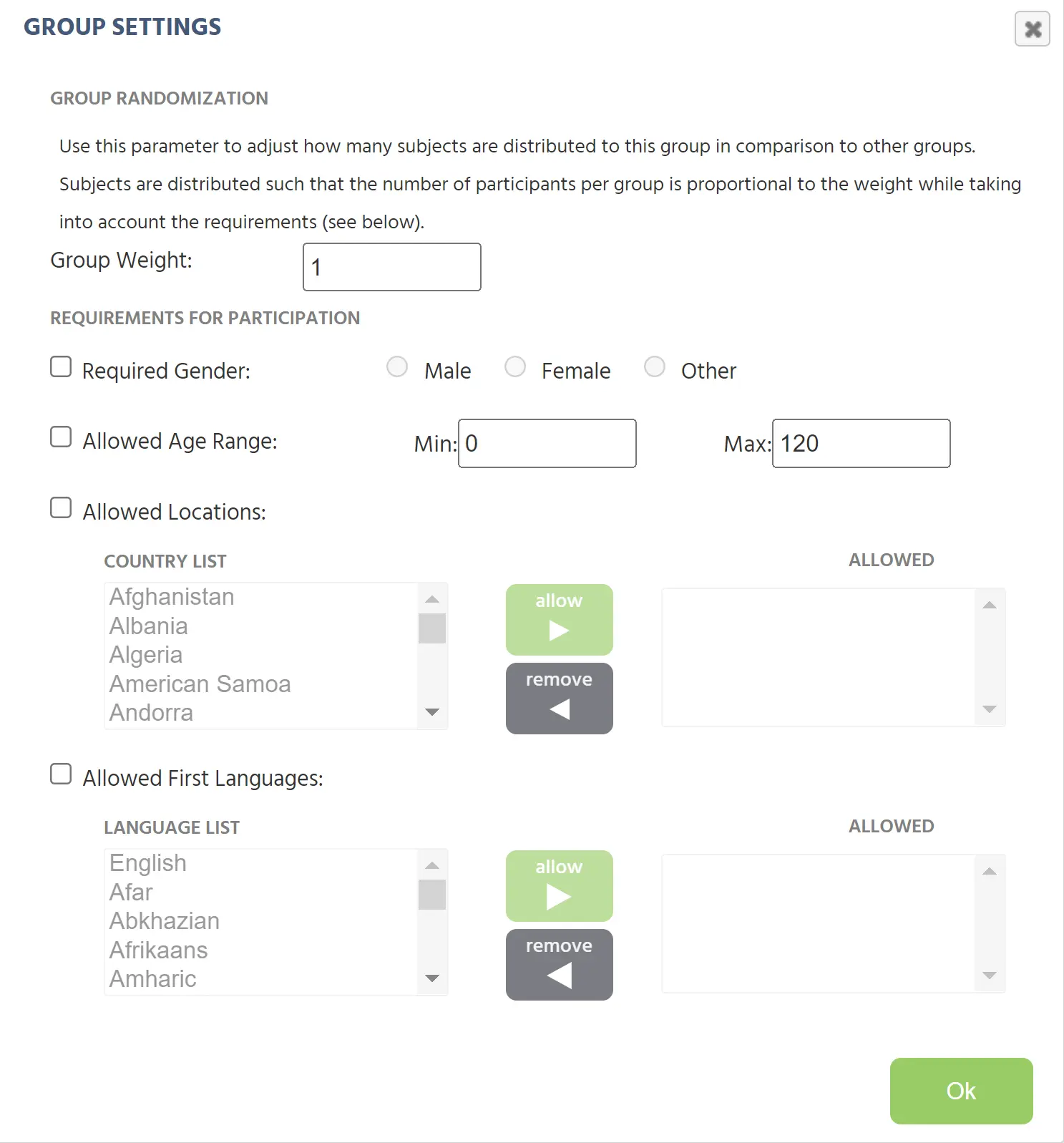
    The group settings panel can be opened and be used to define demographic participation requirements individually for each group. The following criteria are possible:

    • Group Randomization This parameter can be used to create "weights," or ratios of the number of subjects that should be distributed to a group compared to the other groups in the study. The weight is applied while taking into account the other specified parameters. Weight is an integer that is set as 1 by default. For example, a group with a weight of 2 would end up with twice as many participants as a group with a weight of 1.

    • Gender: (male, female, other)

      • The option to include "other" is enabled by default for newly created studies, but must be manually added to older studies via the Study Settings menu.
    • Age: minimum and maximum (1 to 120)

    • Allowed Location / Country (IP based location or participant selected location)

    • Allowed First Language (selection of all languages)

    • Custom Requirement (text string which has to be approved by the subject)
    group menu

    Based on the participant's responses (and IP localization), they will be matched to a group for which they fulfill the participation requirements. IP address will not be stored, only used for localization. If no requirements are used or a participant meets the participation requirements for several groups, the subject will be assigned to the group with the fewest participants at that time. This guarantees an equal number of participants in each of the different groups (balancing of subjects groups). If a participant does not meet the participation criteria for any of the groups, the subject will not be allowed to participate in the study.

    Groups for Between Subject Balancing

    Groups can be used for between subject balancing in two ways. First, to precisely counterbalance the order of tasks or blocks, and second to present slightly different versions of tasks to different subject groups. In both cases users can create different groups and add different sessions with various blocks and tasks. The automatic balancing of subjects groups will guarantee that there are the same number of subjects in each group.

    Longitudinal Studies & Session Order

    If several sessions are defined within a group, the session execution order for each participant is strictly chronological. Each participants will first do session 1, then session 2, then session 3, and so on. To ensure this, new participants will always start with the first session. When the first session is finished, a participant will receive an email which explains when the next session will be due, as well a reminder email once the next session can be started. Within these emails, there will be a link that directs each subject to the correct session to continue the experiment. In order to send out these reminder emails, Labvanced will ask for the participants' emails in longitudinal studies. This information will only be stored internally, not given to the experimenter or any other person, and simply used for reminding the participants of the next session of the experiment.

    You can also manually invite participants and add them to your study using the ‘Participants’ tab, as well as customize the emails that are sent out through there. Please note that these two features (manually adding subjects and customizing emails) are only available to Lab license holders.

    Reminders for Longitudinal Studies

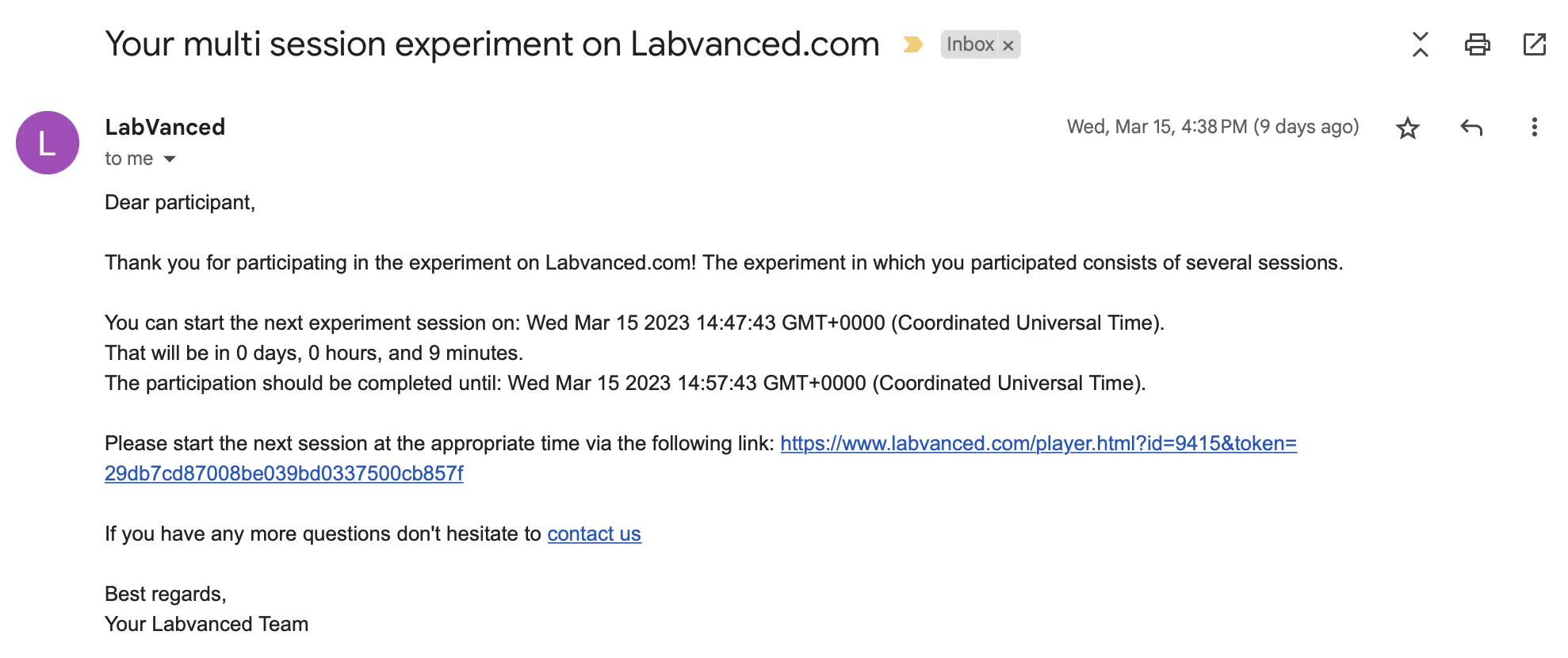
    Subjects in longitudinal sessions will receive 3 emails per session. This helps keep attrition rates down and to remind them as to when the next window of participation will start or end. The 3 emails per session are as follows:

    • Email 1: At the completion of the former session
    • Email 2: At the allowed start time of the new session
    • Email 3: Four hours before the new session is timed out

    In the case where two sessions end/begin within 6 hours of each other, only two reminders are sent out.

    Below is an example of what these automated email reminders look like when the participant receives them in their inbox:
    session email example

    Participation Time Settings

    For each assigned session within a group, it is possible to determine when the session can be started / executed by the subject. If this set participation time has not yet come or is already over, participants will see (upon website visit) a message and/or a countdown to when the session will be available. This is mostly useful for longitudinal studies, but can also be applied for single session studies (e.g if the study should run only at a specific time point).

    To access this feature, you simply click on this clock icon next to the groups found on your Study Design tab: session icon
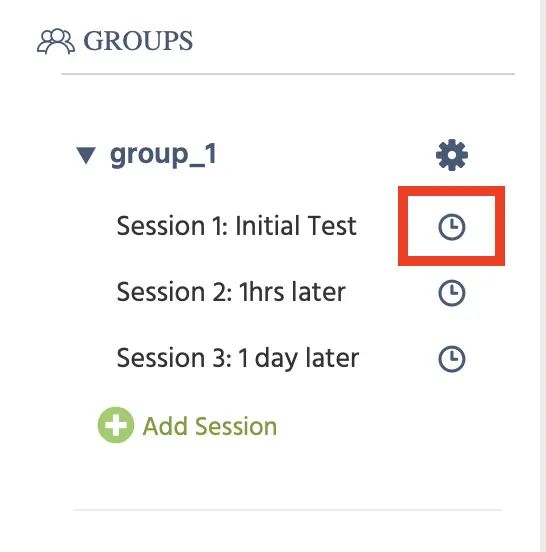
    After clicking it, a dialog box will open with the following settings for you to choose from for each assigned session:

    • Participation always allowed / anytime (default value)

    • One specific starting point:

      • earliest starting point (date, time)
      • latest starting point (date, time)
    • Repeated starting point:

      • earliest starting point (date, time)
      • latest starting point (date, time)
      • restart interval: daily/weekly/monthly
    • Depending on former session:

      • earliest starting point (days, hours, minutes after completion of the former session)
      • latest starting point (days, hours, minutes after completion of the former session)

    In the image below, you can see how this dialog box looks like, specifically if you have 'Depending on former session' selected.
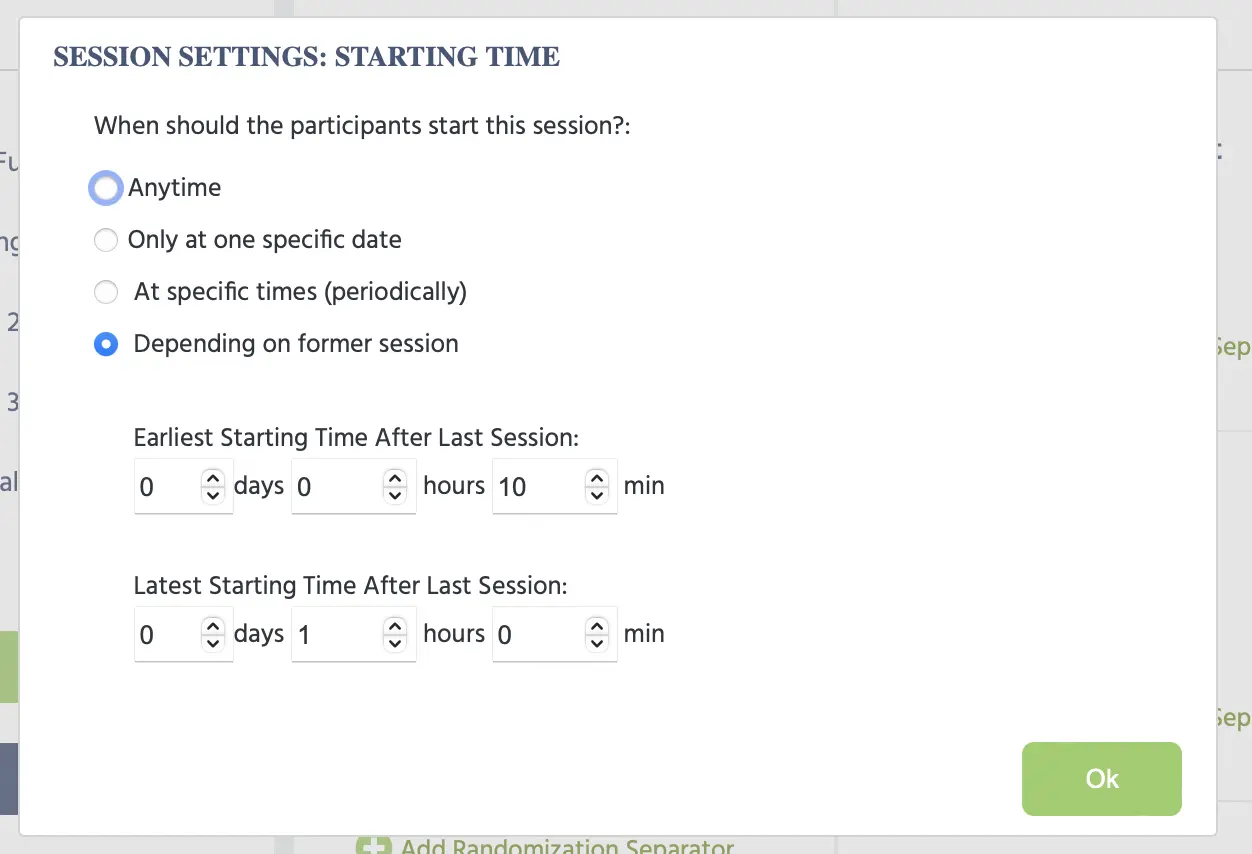
    session settings example

    With these options, you can control exactly when your experimental sessions will begin and become available for your study participants to access.

    Prev
    Sessions