Eyetracking Fixation Trigger
Table of Contents
Overview
The Eyetracking Fixation trigger fires when a participant's gaze settles on a location for a sustained period, rather than firing on every individual gaze sample the way the Eyetracking Gaze trigger does.
Note: All processing occurs client-side, ensuring GDPR compliance and guaranteeing that no facial data is ever transmitted or stored externally.
Which fixations get detected, and how quickly, depends on the Fixation Detection mode configured for the task: Real-Time Fixations (faster, more short-duration fixations) or Lagged Optimized Fixations (higher accuracy, better for longer fixations). See Setting Up Eye Tracking in a Task for the full set of Fixation Detection options, including what happens to a fixation still being calculated when a frame or trial ends.
Enabling / Activating Fixation Detection
Fixation Detection needs two things: eye tracking active for the task, and the task's Fixation Algorithm set to something other than No Fixation Detection. See the Eyetracking Gaze Trigger page for the three ways eye tracking itself gets turned on, study settings, task settings, or adding a trigger, the same three ways apply here.
Selecting the Trigger in the Event Wizard
The most direct way is to just add this trigger: clicking the Eyetracking Fixation trigger tile turns on both eye tracking (for that task and, if needed, for the study) and the task's Fixation Algorithm, in one click, even if neither was active yet.
- Click the
Eyetracking Fixationtrigger tile. If this is the study's first time using eye tracking, theSet up eye trackingwizard opens right here, before you can continue. If the task's Fixation Algorithm was set toNo Fixation Detection, it switches toLagged Optimized Fixationsautomatically. - If applicable, select targets to limit the trigger to specific stimulus objects.
- Name the event.
- The automated
Eyetracking Fixation Event Setupdialog appears.
Task Settings - Configure the Fixation Algorithm
Fixation Detection's algorithm choice is set per task, but on Physiology Toolbox Version 2.0 a task can either follow the study's own Task Defaults (set in the Settings tab) or customize its own, see Using Custom Settings for a Task for how that choice works. On 1.3 and earlier, there's no study-level default, each task always configures its own Fixation Algorithm directly. Either way, it's set in the task editor: open Task Controls, go to the Physiological Signals tab, with Enable Eye-Tracking: already checked:
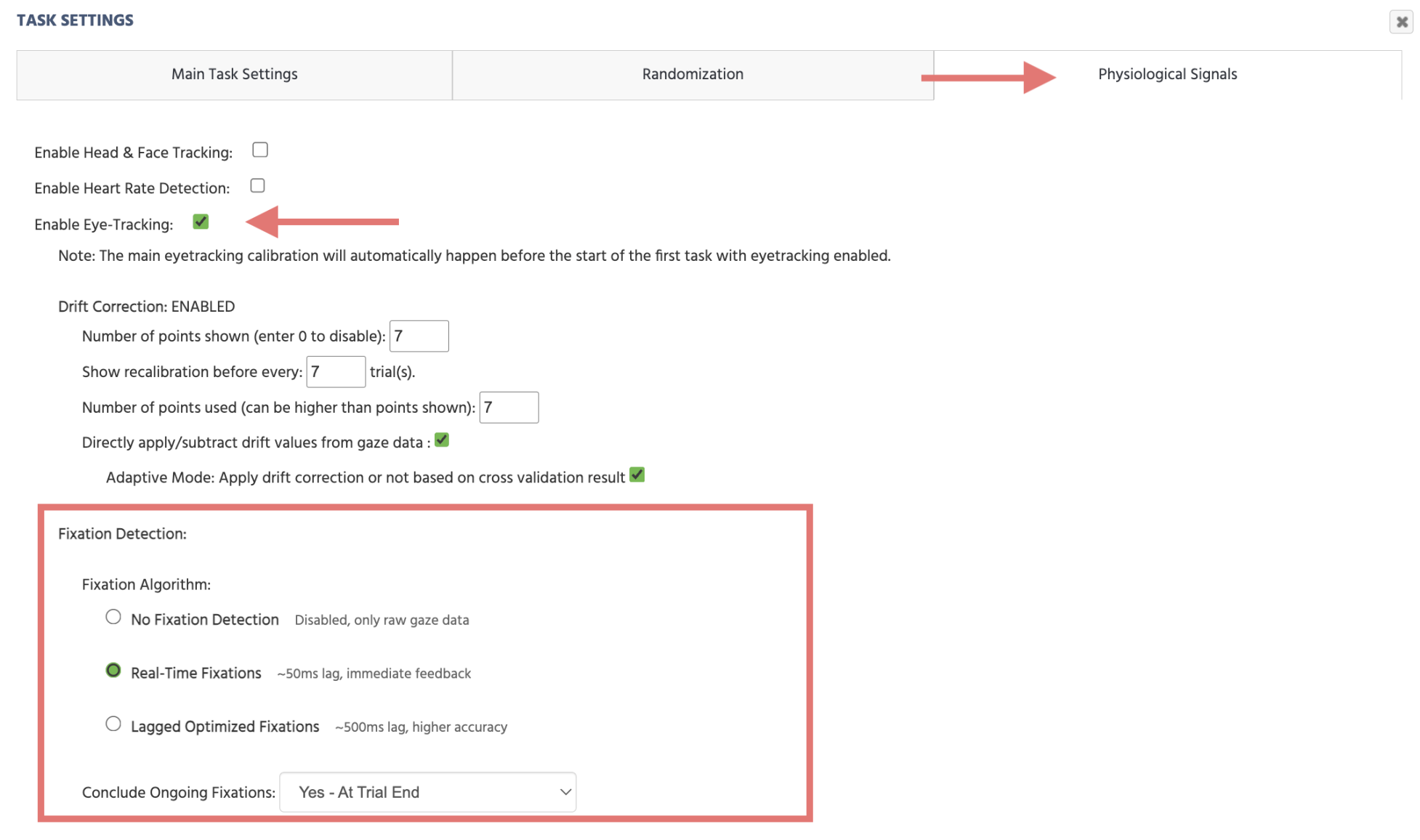
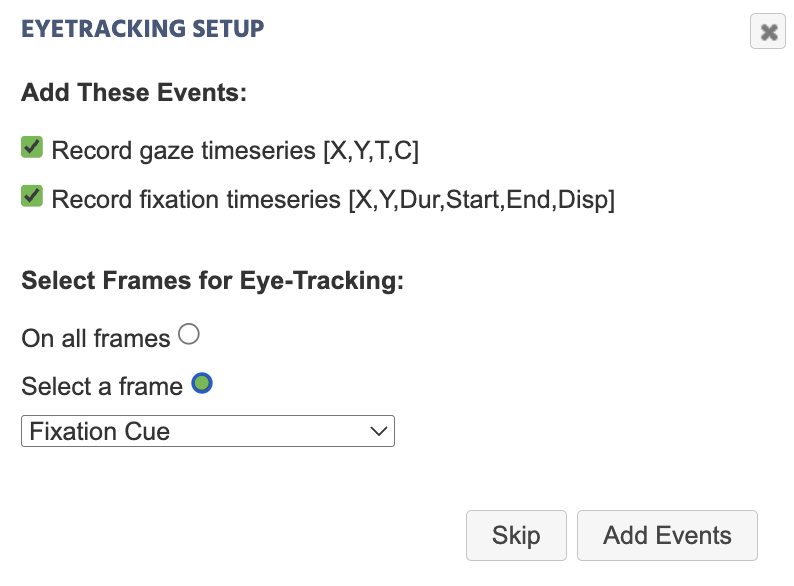
Physiology Toolbox Version to be v1.2 or higher.Checking Enable Eye-Tracking: also triggers a dialog box prompting you to auto-create recording events for both gaze and fixation together, along with which frames the recording should occur on:
Recording Fixation Data
The Eyetracking Fixation Event Setup dialog, the one that appears when you add the trigger directly, lets you pick which values to auto-record:
Accepting Record fixation timeseries [X,Y,Dur,Start,End,Disp] (checked by default) creates a Set / Record Variable action using the [X, Y, Dur, Start, End, Disp] trigger-specific value described below.
Trigger-specific Values for Fixation
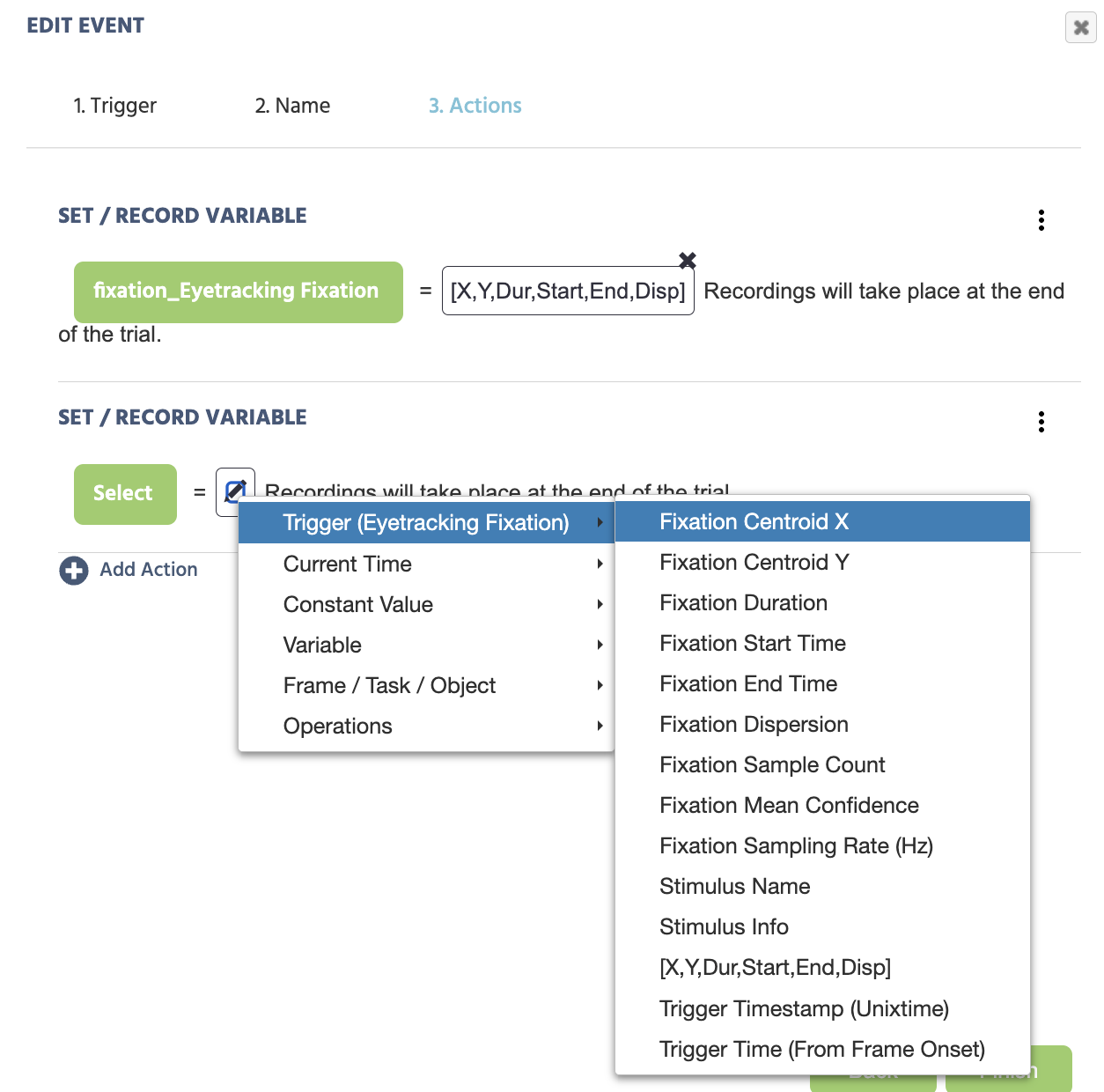
Upon selecting the Eyetracking Fixation trigger, the following options are available in the Value-Select Menu:
| Trigger (Eyetracking Fixation) Options | Description |
|---|---|
Fixation Centroid X | The center point of the fixation as an X value. |
Fixation Centroid Y | The center point of the fixation as an Y value. |
Fixation Duration | The duration of the detected fixation. |
Fixation Start Time | The start time of the detected fixation. |
Fixation End Time | The end time of the detected fixation. |
Fixation Dispersion | How dispersed the gaze values are within a detected fixation. |
Fixation Sample Count | The number of gaze samples that went into the detected fixation. Only available from Physiology Toolbox Version 2.0, null on earlier versions. |
Fixation Mean Confidence | The average gaze confidence across all samples in the fixation. Only available from Physiology Toolbox Version 2.0, null on earlier versions. |
Fixation Sampling Rate (Hz) | The rate at which gaze samples were captured during the fixation. Only available from Physiology Toolbox Version 2.0, null on earlier versions. |
Stimulus Name | The name of the stimulus object which triggered the event. |
Stimulus Info | The stimulus info of the object which triggered the event. |
[X, Y, Dur, Start, End, Disp] | An array of the fixation's centroid X/Y, duration, start time, end time, and dispersion value. This is what the automated event setup above creates by default. |
Trigger Timestamp (Unixtime) | The timestamp of when the fixation trigger occurred, in Unix time with milliseconds. |
Trigger Time (From Frame Onset) | The elapsed time in milliseconds from the frame onset to when the fixation trigger occurred. |
Practical Examples Featuring the Eyetracking Fixation Trigger
Walkthrough - Study Building
For a worked example that counts fixations on specific AOIs, see the Webcam Eye Tracking Demo: SVGs as AOIs walkthrough, which uses a Polygon shape as a fixation-counting trigger.
This study measures visual preference and attentional bias using gaze tracking. Participants view social and non-social stimuli while fixation behavior, head movement, and video recordings are captured for analysis.
This study measures cognitive control and stimulus-response compatibility using the Simon Task. Participants respond to stimulus color while ignoring spatial position, allowing measurement of the Simon effect through reaction time and accuracy.
Further Reading
Eyetracking Gaze Trigger
The sibling trigger that fires on every individual gaze sample, rather than detected fixations.
Setting Up Eye Tracking in a Task
The full set of Fixation Detection modes and how they affect this trigger.
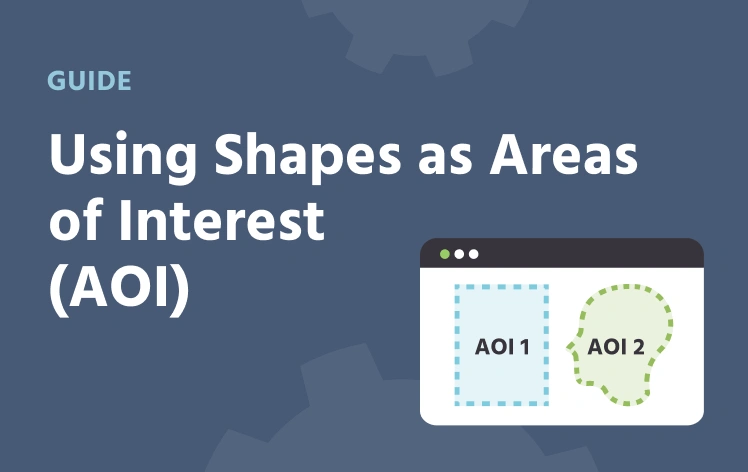
Using Shapes as Areas of Interest (AOI)
Restricting this trigger to specific stimulus objects using Polygon and SVG masks.