Eyetracking Gaze Trigger
Table of Contents
Overview
The Eyetracking Gaze trigger fires every time Labvanced's webcam eye tracking predicts a new gaze location for a participant, whether or not eye tracking is restricted to a specific frame or object.
Note: All processing occurs client-side, ensuring GDPR compliance and guaranteeing that no facial data is ever transmitted or stored externally.
Triggers on:
- Overall: this trigger applies whenever eye tracking has been enabled for the task.
- Only when looking at specific elements: restrict the trigger to fire only when the participant's gaze lands on stimulus objects you have added as targets.
Enabling / Activating Eye Tracking
For the Eyetracking Gaze trigger to actually record data, eye tracking has to be switched on twice: once for the study as a whole, and again for the specific task you're building. There are three places this can happen: adding this trigger to an event, the Settings tab, or a task's Physiological Signals tab. Whichever one you do first, Labvanced opens the Set up eye tracking wizard: a short series of questions asking for a calibration tier and, for tiers that support it, a screening level. See Choosing a Tier for what each choice means. Both are editable later from the study's Settings tab, and since the wizard is a pop-up dialog, you need to get through it before you can do anything else.
Selecting the Trigger in the Event Wizard
The most direct way to turn eye tracking on is to just add this trigger: clicking the Eyetracking Gaze trigger tile turns eye tracking on for that task and, if needed, for the study, immediately, no separate checkbox required.
- Click the
Eyetracking Gazetrigger tile. If this is the study's first time using eye tracking, the setup wizard mentioned above opens right here, before you can continue. - If applicable, select targets to limit the trigger to specific stimulus objects.
- Name the event.
- The automated
Eyetracking Gaze Event Setupdialog appears.
Study Settings - Enable Eye Tracking
Eye tracking can also be turned on ahead of time, independent of any specific event. In the Settings tab, go to Physiology → Eye-Tracking and check the box. This switches eye tracking on for the study, but not for any individual task, you still need to turn it on separately for each task where you want to record gaze data, either by adding this trigger (above) or via Task Controls below.
Task Settings - Enable Eye Tracking
In the task editor, open Task Controls, go to the Physiological Signals tab, and check Enable Eye-Tracking:. This works the same way as adding the trigger above: it turns eye tracking on for that task, and if the study doesn't have it on yet, this one checkbox turns it on at the study level too, no separate trip to Settings needed. Recalibration, drift correction, and Fixation Detection are also configured in this tab, and the available options differ between Eye Tracking 2.0 and 1.3 and earlier, see Setting Up Eye Tracking in a Task for the version-specific reference.
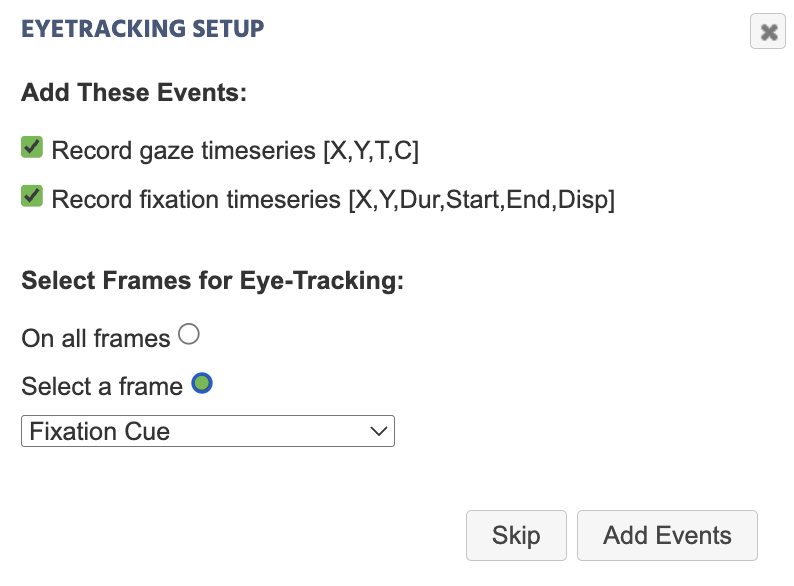
Checking Enable Eye-Tracking: also opens a dialog offering to automatically create the gaze and fixation recording events for you, across all frames or just one:
Recording Gaze Data
The Eyetracking Gaze Event Setup dialog, the one that appears when you add the trigger directly, lets you pick which values to auto-record:
Accepting Record gaze timeseries [X,Y,T,C] (checked by default) creates a Set / Record Variable action using the Coord. + Time + Confidence [X,Y,T,C] Array trigger-specific value described below, with Record Type set to All changes / time series so every gaze update is captured rather than just the final value per trial. A second option, Record per-eye gaze + confidence [Lx,Ly,Lc,Rx,Ry,Rc,T] Array (unchecked by default), instead records the left and right eye's coordinates and confidence separately, using the trigger-specific value of the same name described below.
Preview of Gaze Data Collected in Labvanced
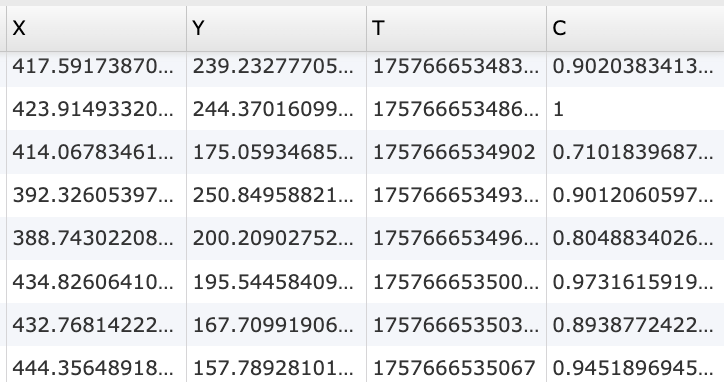
X: X-coordinate of gaze; Y: Y-coordinate of gaze; T: Timestamp; C: Confidence Interval
Trigger-specific Values for Gaze
Upon selecting the Eyetracking Gaze trigger, the following options are available in the Value-Select Menu:
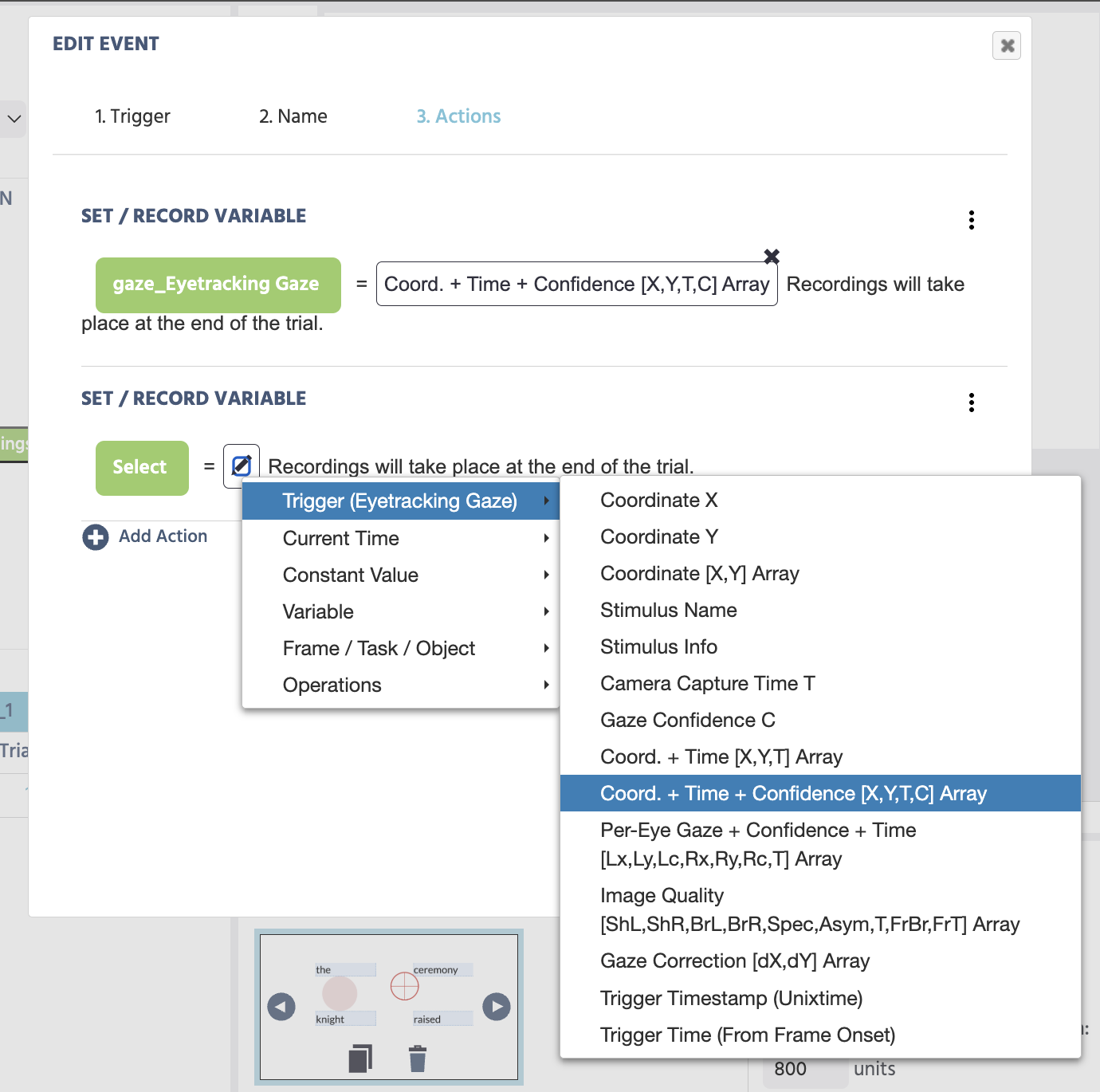
| Trigger (Eyetracking Gaze) Options | Description |
|---|---|
Coordinate X | The value of the gaze's X coordinate. |
Coordinate Y | The value of the gaze's Y coordinate. |
Coordinate [X,Y] Array | The gaze coordinates X,Y in an array format. |
Stimulus Name | The name of the stimulus that initiated the gaze trigger. |
Stimulus Info | The stimulus information behind the stimulus that initiated the gaze trigger. |
Camera Capture Time T | The adjusted timestamp of when the camera actually captured the image. In Labvanced's eye tracking pipeline, a camera snapshot happens before the algorithm performs gaze calculations, so Camera Capture Time T is the more accurate timestamp to use than a trigger or recording timestamp. |
Gaze Confidence C | Ranges from 0 to 1; the confidence and probability that there is an open eye in the image snapshot, serving as a blink detector. See Kaduk et al., 2024 for more detail. |
Coord. + Time [X,Y,T] Array | An array containing the gaze coordinates and the camera capture time. |
Coord. + Time + Confidence [X,Y,T,C] Array | An array containing the gaze coordinates, camera capture time, and gaze confidence. This is the recommended value for most studies, and what the automated event setup above creates by default. |
Per-Eye Gaze + Confidence + Time [Lx,Ly,Lc,Rx,Ry,Rc,T] Array | An array containing the left and right eye's coordinates and confidence separately (Lx,Ly,Lc,Rx,Ry,Rc), plus the shared camera capture time. Only populated on eye tracking models that report both eyes independently; records as an empty array on older eye tracking versions, single-output models, or during momentary face loss. |
Image Quality [ShL,ShR,BrL,BrR,Spec,Asym,T,FrBr,FrT] Array | Per-sample image diagnostics from Eye Tracking 2.0: left/right eye sharpness (ShL,ShR) and brightness (BrL,BrR), the worse of the two eyes' specular reflections (Spec), the signed left/right brightness asymmetry (Asym), the sample's own capture time (T), and whole-frame ambient brightness and its timestamp (FrBr,FrT), sampled at about 3 Hz and carried forward between samples. An internal data-quality instrument, useful for diagnosing poor tracking (uneven lighting, a reflection, a blurry camera) rather than for behavioral analysis. |
Gaze Correction [dX,dY] Array | The offset, in percent of the screen diagonal, that Eye Tracking 2.0's live correction subtracted from this sample: the head-pose term plus the gaze-check term combined. The raw, uncorrected gaze position is this value added back to the recorded gaze coordinates. Empty when both corrections are off or on a pre-2.0 study. |
Trigger Timestamp (Unixtime) | The timestamp of when the gaze trigger occurred, in Unix time with milliseconds. |
Trigger Time (From Frame Onset) | The elapsed time in milliseconds from the frame onset to when the gaze trigger occurred. |
Practical Examples Featuring the Eyetracking Gaze Trigger
Walkthrough - Study Building
For worked examples that use this trigger, see the Eyetracking Walkthrough or Webcam Eye Tracking Demo: SVGs as AOIs, which restricts the trigger to specific stimulus objects using Polygon and SVG masks.
See the Text Segmentation Object in a real study: ten sentences, one per trial, with per-word AOI geometry and eye tracking metrics recorded automatically.
This study measures visual preference and attentional bias using gaze tracking. Participants view social and non-social stimuli while fixation behavior, head movement, and video recordings are captured for analysis.
This study measures cognitive control and stimulus-response compatibility using the Simon Task. Participants respond to stimulus color while ignoring spatial position, allowing measurement of the Simon effect through reaction time and accuracy.
Further Reading
Recording and Exporting Gaze Data
Building this trigger into a full recording setup, and reading the resulting data export.
Eyetracking Fixation Trigger
The sibling trigger for when a participant's gaze settles on a location, rather than every gaze sample.
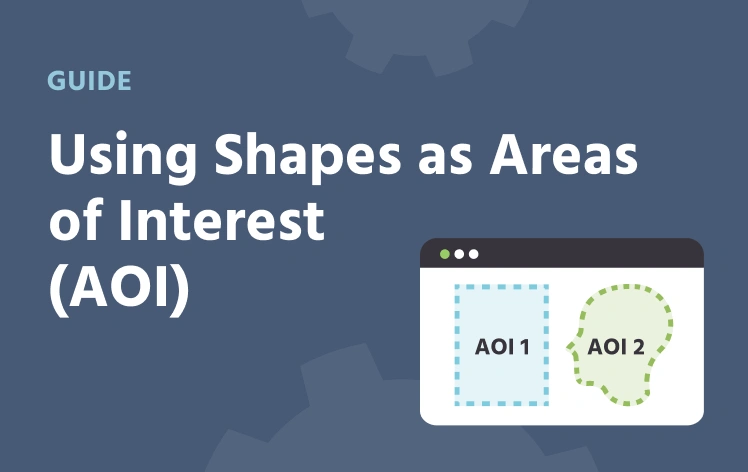
Using Shapes as Areas of Interest (AOI)
Restricting this trigger to specific stimulus objects using Polygon and SVG masks.