labvanced logoLabVanced
  • Research
    • Publications
    • Researcher Interviews
    • Use Cases
      • Developmental Psychology
      • Linguistics
      • Clinical & Digital Health
      • Educational Psychology
      • Cognitive & Neuro
      • Social & Personality
      • Arts Research
      • Sports & Movement
      • Marketing & Consumer Behavior
      • Economics
      • HCI / UX
      • Commercial / Industry Use
    • Labvanced Blog
    • Services
  • Technology
    • Feature Overview
    • Code-Free Study Building
    • Eye Tracking
    • Mouse Tracking
    • Generative AI Integration
    • Multi User Studies
    • More ...
      • Reaction Time/Precise Timing
      • Text Transcription
      • Heart Rate Detection (rPPG)
      • Emotion Detection
      • Questionnaires/Surveys
      • Experimental Control
      • Data Privacy & Security
      • Desktop App
      • Mobile App
  • Learn
    • Guide
    • Videos
    • Walkthroughs
    • FAQ
    • Release Notes
    • Documents
    • Classroom
  • Experiments
    • Cognitive Tests
    • Sample Studies
    • Public Experiment Library
  • Pricing
    • Licenses
    • Top-Up Recordings
    • Subject Recruitment
    • Study Building
    • Dedicated Support
    • Checkout
  • About
    • About Us
    • Contact
    • Downloads
    • Careers
    • Impressum
    • Disclaimer
    • Privacy & Security
    • Terms & Conditions
    • Third-Party Licenses
  • Appgo to app icon
  • Logingo to app icon
Learn
Guide
Videos
Walkthroughs
FAQ
Newsletter Archive
Documents
Classroom
  • 中國人
  • Deutsch
  • Français
  • Español
  • English
  • 日本語
Guide
Videos
Walkthroughs
FAQ
Newsletter Archive
Documents
Classroom
  • 中國人
  • Deutsch
  • Français
  • Español
  • English
  • 日本語
  • Guide
    • GETTING STARTED

      • Task Editor
      • Frames
        • Canvas Frame
        • Page Frame
        • Website Frame
      • Trial Timeline
      • Stimulus Presentation
      • Correctness of Response
      • Objects
      • Events
      • Variables
      • Task Wizard
      • Trial System
      • Experiment Design
        • Creating a Study
        • Data Frame Patterns
        • Multi-user Experiment Design
        • Longitudinal Experiment Design
    • FEATURED TOPICS

      • Randomization & Balance
      • Eye Tracking
        • Presenting Stimuli in an Eye Tracking Task
        • How to Choose Eye Tracking Calibration Settings
        • Setting Up Eye Tracking in a Task
        • Recording and Exporting Gaze Data
        • Using Shapes as Areas of Interest (AOI) for Eye Tracking
        • The Participant Calibration Experience
      • Web Bridge
        • Selecting Website AOIs | Anchor, Adjust, and Verify AOI Tracking
        • Tracking Mouse Behavior on a Website AOI | Web Bridge Guide
      • Questionnaires
      • Desktop App
      • Sample Studies
      • Participant Recruitment
      • API Access
        • REST API
        • Webhook API
        • WebSocket API
      • Other Topics

        • Precise Stimulus Timings
        • Multi User Studies
        • Head Tracking in Labvanced | Guide
    • MAIN APP TABS

      • Overview: Main Tabs
      • Dashboard
      • My Studies
      • Shared Studies
      • My Files
      • Experiment Library
      • My Account
      • License & Services
    • STUDY TABS

      • Overview: Study-Specific Tabs
      • Study Design
        • Tasks
        • Blocks
        • Sessions
        • Groups
      • Task Editor
        • Task Controls
        • The Trial System
        • Frame Types
        • Objects
        • Object Property Tables
        • Variables
        • System Variables Table
        • The Event System
        • Text Editor Functions
        • Eye Tracking Options in the Task Editor
        • Head Tracking in a Task
        • Multi-User Studies
      • Settings
      • Variables
      • Media
      • Texts & Translate
      • Launch & Participate
      • Subject Management
      • Dataview and Export
        • Dataview and Variable & Task Selection (OLD Version)
        • Accessing Recordings (OLD Version)
  • Videos
    • Video Overview
    • Getting Started in Labvanced
    • Creating Tasks
    • Element Videos
    • Events & Variables
    • Advanced Topics
  • Walkthroughs
    • Introduction
    • Stroop Task
    • Lexical Decision Task
    • Posner Gaze Cueing Task
    • Change Blindness Flicker Paradigm
    • Eye-tracking Sample Study
    • Infant Eye-tracking Study
    • Attentional Capture Study with Mouse Tracking
    • Rapid Serial Visual Presentation
    • ChatGPT Study
    • Eye Tracking Demo: SVGs as AOIs
    • Multi-User Demo: Show Subjects' Cursors
    • Gamepad / Joystick Controller- Basic Set Up
    • Desktop App Study with EEG Integration
    • Between-subjects Group Balancing and Variable Setup
    • Building a Multi-user Study
    • Website Frame Eye Tracking Walkthrough
    • Conditional Webcam Eye Tracking
    • Text Segmentation Study Building
  • FAQ
    • Features
    • Support Policy & Guidelines
    • Security & Data Privacy
    • Licensing
    • Precision of Labvanced
    • Programmatic Use & API
    • Using Labvanced Offline
    • Troubleshooting
    • Study Creation Questions
  • Newsletter Archive
  • Documents
  • Classroom
Get URL Parameter action reading a value from a participant's URL into a Labvanced variable

Get URL Parameter Action

The Get URL Parameter action reads one named parameter off the participant's URL and writes it directly into a variable you choose. It sits in the Variable Actions category of the event system.

Table of Contents

  • Overview
  • How It Works
  • Get URL Parameter Action vs. URL_Search_Params System Variable
  • Workflow Tips
  • Studies & Example Scenarios
  • Further Reading

Overview

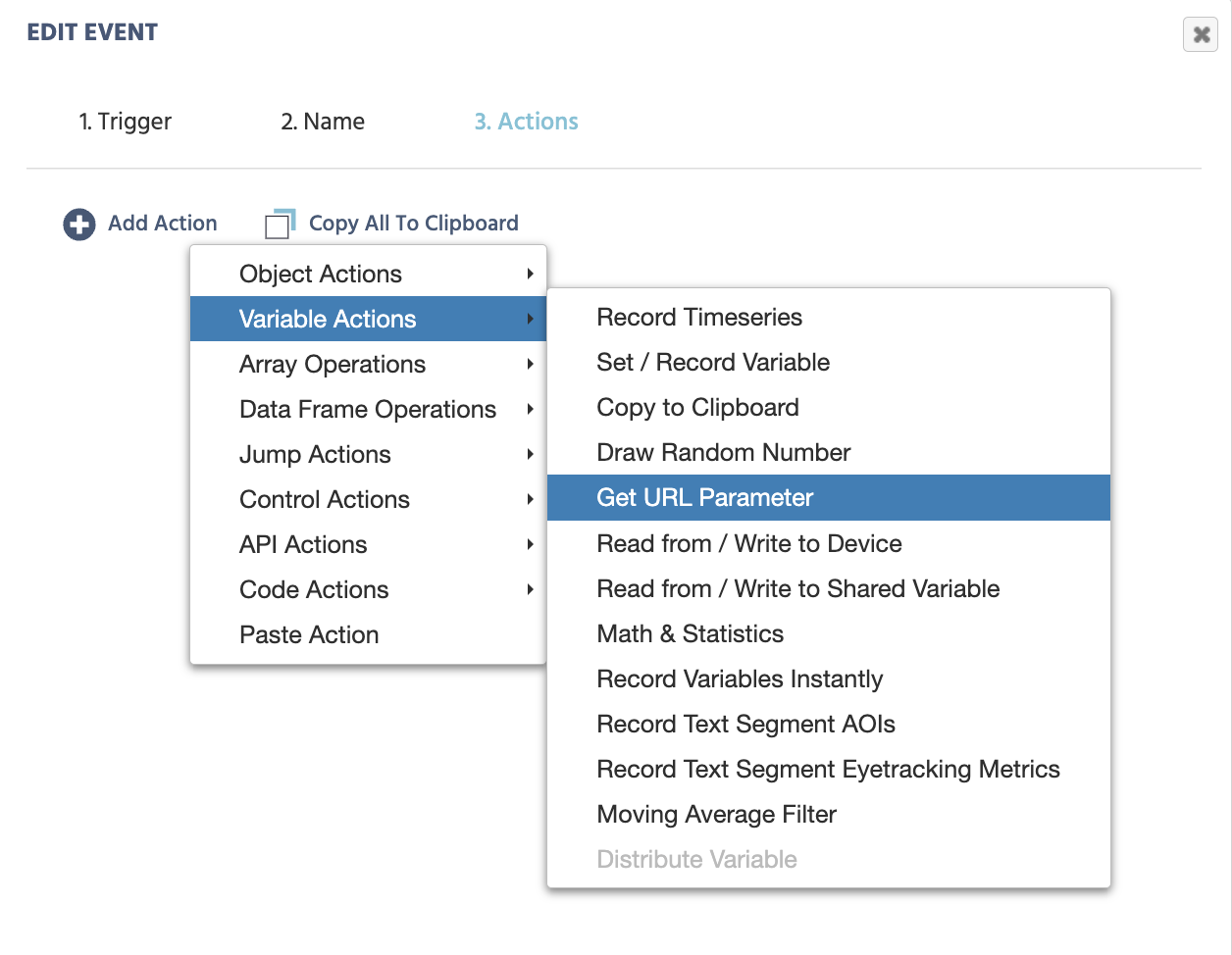
Location of the Get URL Parameter action in the Labvanced events menu

Locating Get URL Parameter under Variable Actions in the events menu.

A participation link can carry information beyond what Labvanced reads automatically on its own, a crowdsourcing platform's own targeting parameter, or a value passed in from another study. Get URL Parameter is how you pull one specific, named parameter off that link and store it directly in a variable.

Common Use Cases

  • Reading a crowdsourcing platform's own parameter (for example Besample's tc) directly into a variable, to branch study logic on it.
  • Passing a static value from a parent study into an embedded Sub Study, via the Sub Study Object's Query Parameters field.
  • Building your own custom participation link with extra parameters attached (see Custom URL Parameters), and reading one of them back into a variable.

How It Works

To access Get URL Parameter, open the Event System in the Task Editor and create a new event. Choose a trigger first, for example On Frame Start or a button click, whatever should kick off the read. Then under Add Action → Variable Actions, select Get URL Parameter.

OptionDescription
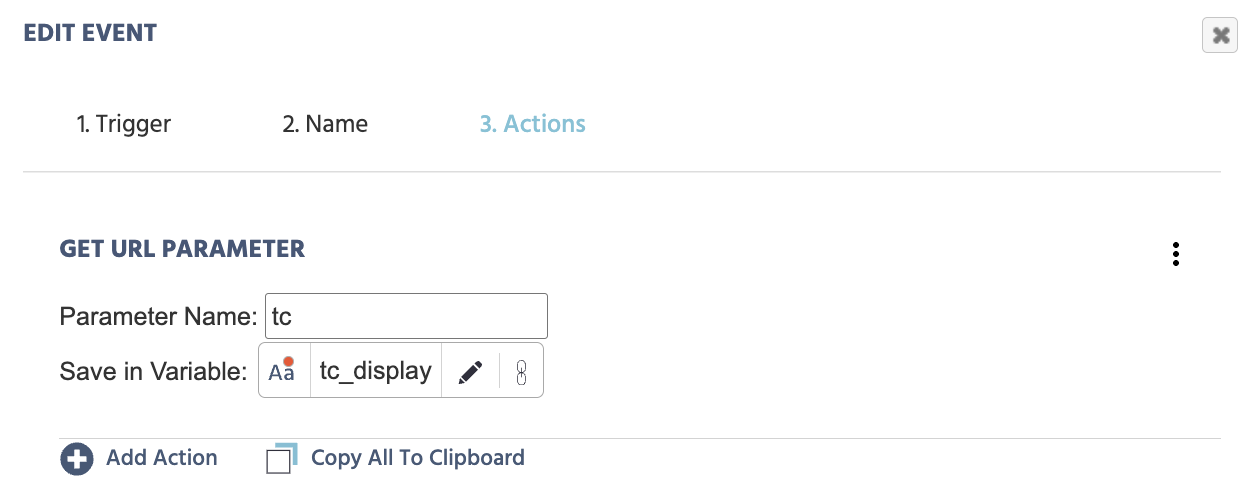
Parameter nameThe exact name of the parameter as it appears on the URL, written without the & or = (for example tc, not &tc=). Matching is case-sensitive.
Save in VariableThe variable that receives the value. Any variable works here and shows up normally in the usual variable-selection menu.

Note: a string variable is the natural default, since URL values are always text; use numeric only if the value is strictly numeric and you anticipate running further operations on it.

Get URL Parameter action configured with Parameter Name set to tc and Save in Variable set to tc_display

Get URL Parameter configured to read tc into a variable named tc_display.

The action reads the value once, the moment the event containing it fires. It is not a live binding, so trigger it early enough that the value is ready before anything else in the study needs to read it. If the named parameter isn't present on the URL, the result depends on the variable's data type: a string variable is set to an empty string, while a numeric variable is set to 0 (the empty string the action reads gets converted to a number).

Parameter values are always strings in principle, since everything on a URL is text. A string variable is the natural match for that, but a numeric variable works too when the value is strictly numeric, like tc's country code, and is actually the better choice if your study needs to run further mathematical operations on it afterward.

Get URL Parameter Action vs. URL_Search_Params System Variable

It's not strictly either/or. URL_Search_Params records everything on the link automatically, with nothing to set up. Get URL Parameter is the simpler choice when you just need one specific, already-named value: one action, no JSON, no code. It is also possible to combine URL_Search_Params with a Run JavaScript Action, if the experimental design calls for it.

See both methods side by side in a working example: Fetch Custom URL from Global Variable, a library study that reads the same URL parameter both ways so you can compare the results directly. That library link opens the study's own intro screen, which then hands you a link to copy. The URL below is that same player-mode link with tc already attached, so you can skip straight to the comparison.

Copy this URL into your browser and try it out for yourself:

https://www.labvanced.com/player.html?id=88576&tc=276

Workflow Tips

  • Match the parameter name exactly. Matching is case-sensitive, so tc and TC are treated as different parameters.
  • Write the bare name, not the full query fragment. The field takes tc, not &tc= or tc=; the action builds the rest of the match internally.
  • Account for the missing-parameter default. A Requirement Action checking this variable should test for an empty string (string variables) or 0 (numeric variables), not null, when the parameter might be missing.
  • Trigger it before the value is needed. Since the read happens once when the event fires, place it on a trigger that runs early enough, before any frame that displays or branches on the value.

Studies & Example Scenarios

Reading a crowdsourcing platform's own parameter

Any crowdsourcing platform can append its own parameters to a participation link, beyond the ones Labvanced already reads automatically. As long as you know the parameter's name, Get URL Parameter reads it directly, no matter which platform sent it. For example, a Besample study can append tc (target country): add Get URL Parameter with Parameter name set to tc and Save in Variable set to a custom variable (for example Target_Country), and the value is ready to branch logic on immediately. See Integrating Besample for that specific setup.

Passing values into a Sub Study

The Sub Study Object uses Get URL Parameter to let a child study read static values a parent study appended to its participation link through the object's Query Parameters field, for example carrying a participation code or a point value between two linked studies.

Further Reading

Event System

Event System

The full reference for every trigger and action in Labvanced.

URL_Search_Params

URL_Search_Params

The catch-all system variable for every URL parameter, for when you don't know in advance which ones will appear.
Run JavaScript Action

Run JavaScript Action

How to read and set Labvanced variables with custom JavaScript, the action behind the URL_Search_Params example.