Get URL Parameter Action
The Get URL Parameter action reads one named parameter off the participant's URL and writes it directly into a variable you choose. It sits in the Variable Actions category of the event system.
Table of Contents
Overview
A participation link can carry information beyond what Labvanced reads automatically on its own, a crowdsourcing platform's own targeting parameter, or a value passed in from another study. Get URL Parameter is how you pull one specific, named parameter off that link and store it directly in a variable.
Common Use Cases
- Reading a crowdsourcing platform's own parameter (for example Besample's
tc) directly into a variable, to branch study logic on it. - Passing a static value from a parent study into an embedded Sub Study, via the Sub Study Object's
Query Parametersfield. - Building your own custom participation link with extra parameters attached (see Custom URL Parameters), and reading one of them back into a variable.
How It Works
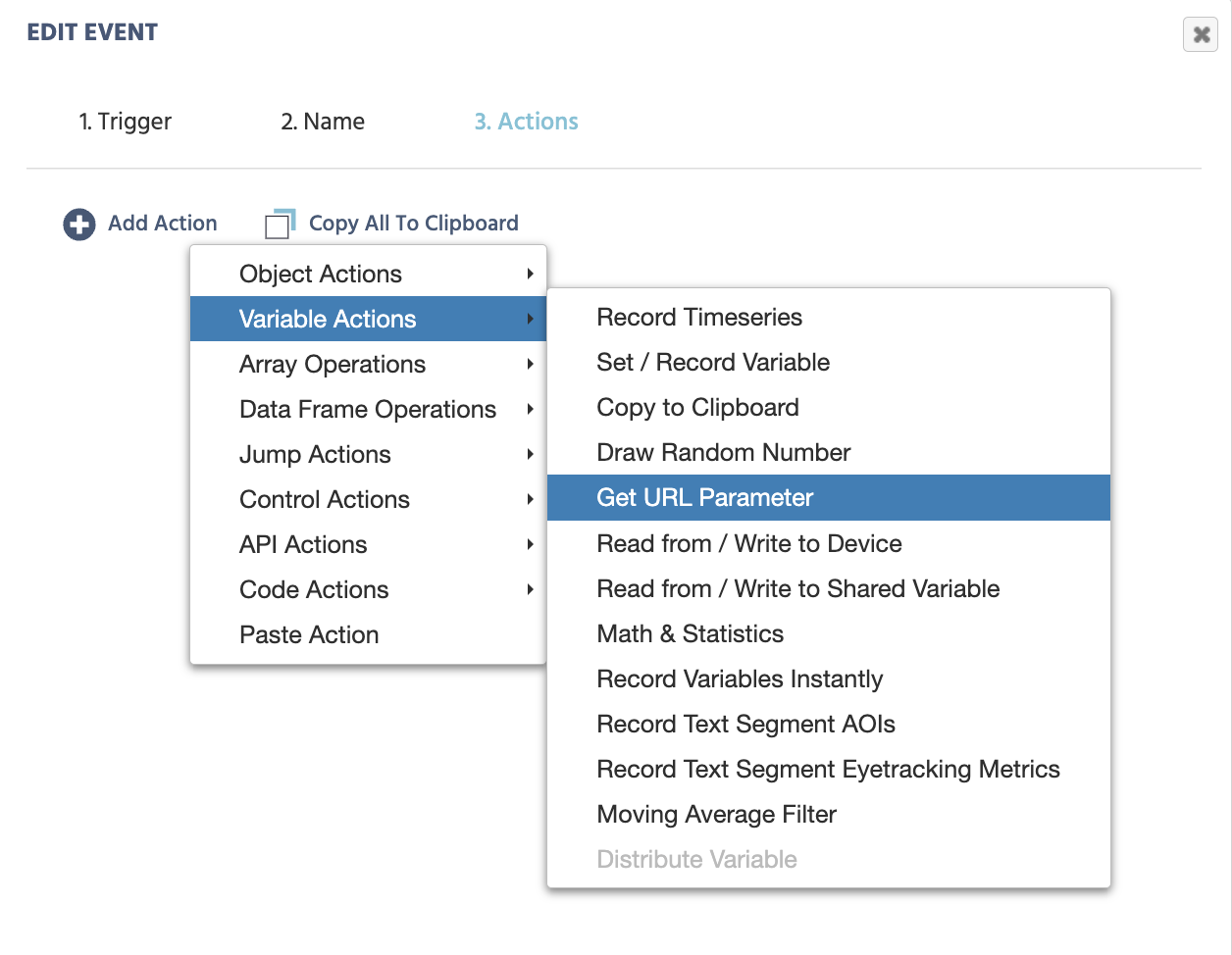
To access Get URL Parameter, open the Event System in the Task Editor and create a new event. Choose a trigger first, for example On Frame Start or a button click, whatever should kick off the read. Then under Add Action → Variable Actions, select Get URL Parameter.
| Option | Description |
|---|---|
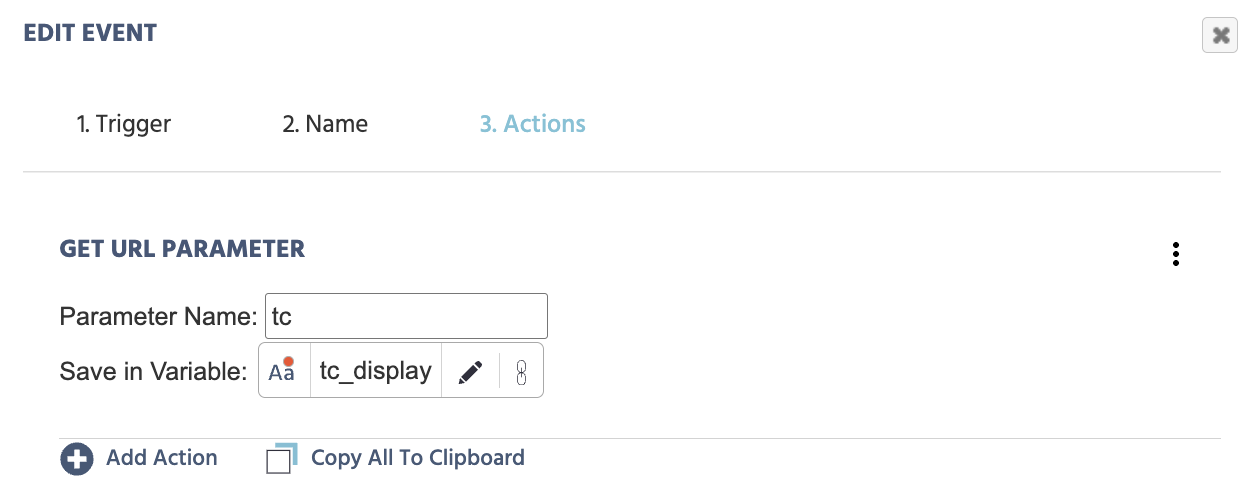
Parameter name | The exact name of the parameter as it appears on the URL, written without the & or = (for example tc, not &tc=). Matching is case-sensitive. |
Save in Variable | The variable that receives the value. Any variable works here and shows up normally in the usual variable-selection menu. Note: a string variable is the natural default, since URL values are always text; use numeric only if the value is strictly numeric and you anticipate running further operations on it. |
The action reads the value once, the moment the event containing it fires. It is not a live binding, so trigger it early enough that the value is ready before anything else in the study needs to read it. If the named parameter isn't present on the URL, the result depends on the variable's data type: a string variable is set to an empty string, while a numeric variable is set to 0 (the empty string the action reads gets converted to a number).
Parameter values are always strings in principle, since everything on a URL is text. A string variable is the natural match for that, but a numeric variable works too when the value is strictly numeric, like tc's country code, and is actually the better choice if your study needs to run further mathematical operations on it afterward.
Get URL Parameter Action vs. URL_Search_Params System Variable
It's not strictly either/or. URL_Search_Params records everything on the link automatically, with nothing to set up. Get URL Parameter is the simpler choice when you just need one specific, already-named value: one action, no JSON, no code. It is also possible to combine URL_Search_Params with a Run JavaScript Action, if the experimental design calls for it.
See both methods side by side in a working example: Fetch Custom URL from Global Variable, a library study that reads the same URL parameter both ways so you can compare the results directly. That library link opens the study's own intro screen, which then hands you a link to copy. The URL below is that same player-mode link with tc already attached, so you can skip straight to the comparison.
Copy this URL into your browser and try it out for yourself:
https://www.labvanced.com/player.html?id=88576&tc=276
Workflow Tips
- Match the parameter name exactly. Matching is case-sensitive, so
tcandTCare treated as different parameters. - Write the bare name, not the full query fragment. The field takes
tc, not&tc=ortc=; the action builds the rest of the match internally. - Account for the missing-parameter default. A
Requirement Actionchecking this variable should test for an empty string (string variables) or0(numeric variables), notnull, when the parameter might be missing. - Trigger it before the value is needed. Since the read happens once when the event fires, place it on a trigger that runs early enough, before any frame that displays or branches on the value.
Studies & Example Scenarios
Reading a crowdsourcing platform's own parameter
Any crowdsourcing platform can append its own parameters to a participation link, beyond the ones Labvanced already reads automatically. As long as you know the parameter's name, Get URL Parameter reads it directly, no matter which platform sent it. For example, a Besample study can append tc (target country): add Get URL Parameter with Parameter name set to tc and Save in Variable set to a custom variable (for example Target_Country), and the value is ready to branch logic on immediately. See Integrating Besample for that specific setup.
Passing values into a Sub Study
The Sub Study Object uses Get URL Parameter to let a child study read static values a parent study appended to its participation link through the object's Query Parameters field, for example carrying a participation code or a point value between two linked studies.
Further Reading

Event System
The full reference for every trigger and action in Labvanced.

URL_Search_Params
The catch-all system variable for every URL parameter, for when you don't know in advance which ones will appear.
Run JavaScript Action
How to read and set Labvanced variables with custom JavaScript, the action behind the URL_Search_Params example.