My Account
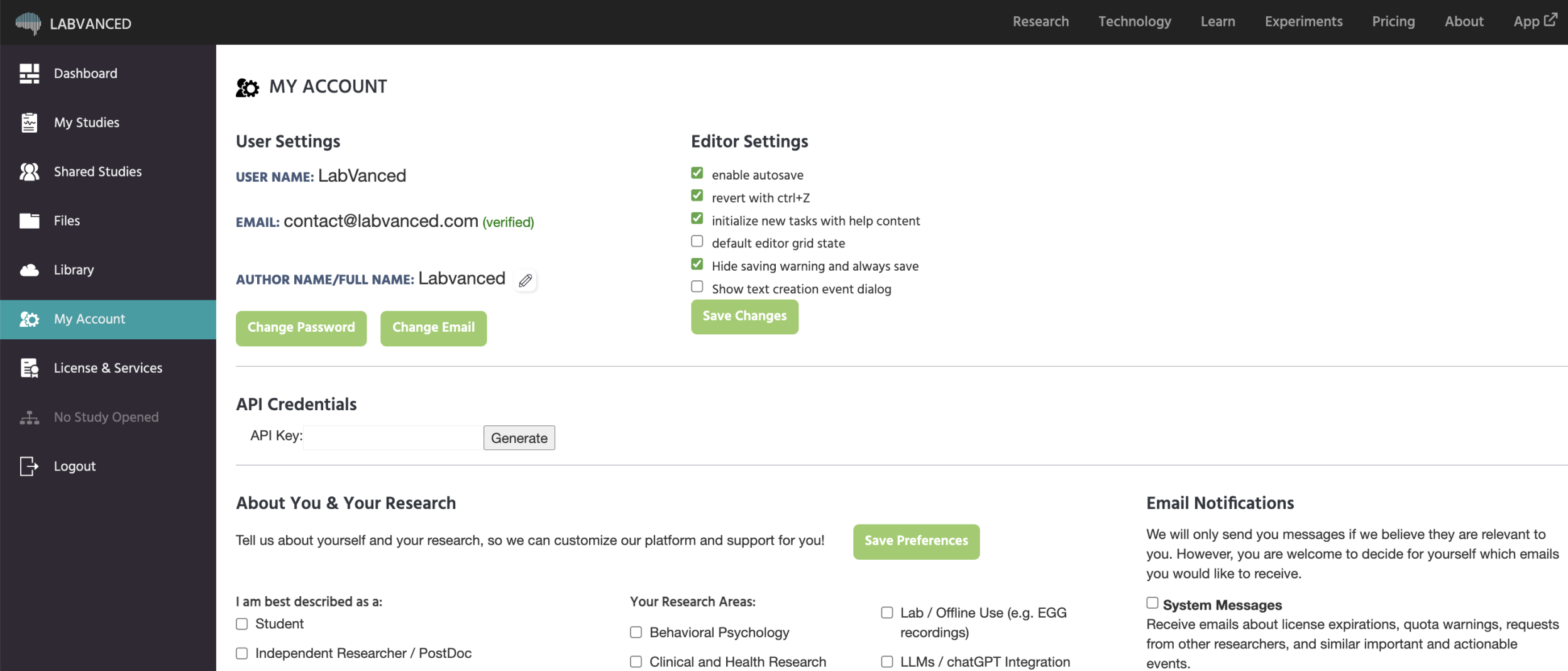
The My Account is your personal control center in Labvanced. It gives you a single place to manage everything related to your profile, your editor preferences, and how Labvanced communicates with you. You can reach it from the main navigation menu at any time.
User Settings
This section displays and manages your core identity on the platform.
User Name:Your login name, shown here for reference. This cannot be changed directly.Email:Your registered email address. A green (verified) badge confirms your email has been validated. If it hasn't been verified yet, a red (not-verified) badge appears and a Resend Verification Email button lets you trigger a new confirmation message.Author Name / Full Name:The display name attached to your experiments and publications. Click the edit icon next to it to update your name, then confirm or cancel the change.Change Password:Redirects you to the password reset flow so you can update your login credentials.Change Email:Opens a dialog to update the email address on your account.
Editor Settings
These checkboxes control how the experiment editor behaves when you work on studies. Changes take effect after clicking Save Changes.
| Setting | Functionality |
|---|---|
Enable autosave | Automatically saves your work as you make changes, so nothing is lost if you close the tab. |
Revert with Ctrl+Z | Allows you to undo recent changes using the standard keyboard shortcut. |
Initialize new tasks with help content | New tasks start with example content and guidance to help you get started quickly. |
Default editor grid state | Turns the alignment grid on by default in the frame editor. |
Hide saving warning and always save | Suppresses the confirmation prompt that appears before a forced save, and saves automatically instead. |
Show text creation event dialog | Displays a helper dialog when you create a new text event, useful when you are still learning the event system. |
API Credentials
If you need to interact with Labvanced programmatically (for example, through a custom integration or data pipeline) this section shows your personal API Key. Click Generate to create or rotate your key. Keep this value private; it grants access to your account via the API.
About You & Your Research
This section lets you tell Labvanced a bit about your background and research interests. The information you provide here helps the team tailor platform support, tutorials, and feature recommendations to your specific field. Click Save Preferences to store your selections.
Email Notifications
You are in full control of which emails Labvanced sends you. Three categories are available:
System Messages:Important and actionable notifications such as license expirations, quota warnings, and requests from other researchers. It is recommended to keep this enabled. System messages appear on the right-side panel of theDashboardtab or as dialog boxes.Support and Educational Content:Helpful emails about your research area and how to get the most out of Labvanced features.Quarterly Updates:A newsletter sent four times a year summarizing new platform features and developments. Sent infrequently to stay relevant. To see the archive of our previous newsletters and quarterly updates, refer to this page.
Toggle each category on or off according to your preference. Preferences are saved together with your research interests when you click Save Preferences in the section above.
How can I sign up for the newsletter?
Navigate to the My Account tab. Under Email Notifications enable the Quarterly Updates option.
Delete Account
To permanently delete your account, click the Delete Account button in the User Settings section.
The
Delete Accountbutton is visible to individual account holders. Group license administrators must contact support to delete or transfer a group license.
Clicking the button opens a confirmation dialog. You are asked to enter your current password before the deletion is processed. You can click Cancel at any time to close the dialog without making changes.
Once you click Delete Account in the dialog and the request is confirmed, your account and all associated data are permanently removed. This action cannot be undone.