labvanced logoLabVanced
Contact
    • Remote Physiological Measurements
    • Eye Tracking
    • Head & Face-Tracking
    • Emotion Detection
    • Heart Rate Detection (rPPG)
    • Generative AI
    • Audio Transcription
    • EEG & Hardware Integrations
    • Decision Making
    • Reaction Times
    • Keyboard Inputs
    • Mouse Tracking
    • Mobile / Touch
    • Questionnaires
    • Gamepad / Joystick Integration
    • Audio Recordings
    • Audio Transcription
    • Video Recordings
    • Screen Recordings
    • Photos / Snapshots
    • Video Conferencing
    • Canvas Drawings
    • Build with AI
    • Build with Spreadsheets
    • Using the Experiment Editor
    • Coding
    • Creating Questionnaires
    • Balancing & Randomization
    • UX & Website Testing
    • Single Session Studies
    • Factorial Designs
    • Longitudinal & Multi-session Studies
    • Individual & Case Studies
    • Real-time Multi-user Studies
    • Interviews & Video Calls
    • Surveys & Questionnaires
    • Experience Sampling & Diaries
    • Classroom & Group Testing
    • Interventions & Clinical Trials
    • In the Browser
    • Mobile App
    • Desktop App
    • WebBridge Chrome Extension
    • Stroop Test
    • Flanker Task
    • N-back Task
    • Implicit Association Test
    • Trail Making Test
    • Digit Span
    • Corsi Block Tapping
    • Tower of London
    • Balloon Analog Risk Task
    • Preferential Looking
    • Browse more →
    • DASS-21
    • GAD-7
    • Rosenberg Self-Esteem Scale
    • PHQ-9
    • Ten-Item Personality Inventory
    • Big Five Personality Test
    • Adult ADHD Self-Report Scale
    • Browse more →
    • Building a Multi-user Study
    • Webcam Eye Tracking with AOIs
    • Website Frame Eye Tracking
    • Conditional Eye Tracking Opt-in
    • ChatGPT Study
    • Desktop App Study with EEG
    • Between-subjects Group Balancing
    • Building a Reading Study
    • Stroop Task
    • Lexical Decision Task
    • Browse more →
    Public Experiment Library
    • Arts Research
    • Clinical Psychology & Neuropsychology Medicine
    • Cognitive Psychology
    • Developmental Psychology
    • Behavioral Economics & Decision Science
    • Educational Research & Psychology
    • HCI & Human Factors
    • Linguistics & Language Sciences
    • Consumer & Marketing Research
    • Social & Personality Psychology
    • Sport & Movement Science
    • UX & Website Testing
    • Executive Functions
    • Language & Reading
    • Decision-Making & Reasoning
    • Attention
    • Overview
    • HCI & Human Factors
    • UX & Website Testing
    • Consumer & Marketing Research
    • White-Label App
    • PageGazer
    • Webcam vs. Lab Eye Tracking in InfantsAnna Banki & Gabriela Markova
    • Eye Tracking for Influencer MarketingDr. Alexander Edeling
    • Eye Tracking Infant Word ComprehensionDr. Giulia Calignano
    • Sentence Reading and Grammar JudgmentsDr. Jonathan Mirault
    • Regulating Emotions with MusicDr. Katrin Starcke
    • Game-Based Grammar Learning in ChildrenDr. Mireia Marimon
    • Gaze Cueing and AutismMax Soares Miehstein
    • Personality and Hearing in NoiseDr. Malte Wöstmann
    • All interviews →
    • Lab Notes
    • How to Cite Labvanced
    • Labvanced Platform Paper (2017)
    • Webcam Eye Tracking Validation (2024)
    • Webcam Eye Tracking Studies
    • Cognitive Psychology Studies
    • Developmental Psychology Studies
    • Linguistics Studies
    • See all publications →
    • Getting Started
    • Guide
    • Video Tutorials
    • Walkthroughs
    • Live Chat
    • Webinars & Onboarding Calls
    • AI Assistant
    • FAQ
    • Importing Templates Guide
    • Test Templates
    • Live Eye Tracking Metrics
    • Mouse Tracking Demo
    • ChatGPT Demo
    • Audio Recording Object Demo
    • Adding Image Stimuli Demo
    • Score & Feedback Demo
    • Browse all technical demos →
    • Timing Precision
    • Stimuli Presentation
    • Headphone Checks
    • Bot Checks
    • Participant Management
    • Comparisons
    • Research Blog
    • Prolific Integration
    • CloudResearch Integration
    • Sona Systems Integration
    • BeSample Integration
    • Panelabs Integration
    • Clickworker Integration
    • Labvanced Webhook API
    • Labvanced REST API
    • About Us
    • Newsletter Archive
    • Terms & Conditions
    • Data Security & Data Privacy
    • Technical & Organisational Measures
    • Accessibility
    • W-8BEN-E Form
    • Data Processing Agreement Template
    LinkedInYouTubeDiscord
    • Individual
    • Lab
    • Department / Consortium
    • Teaching
    • Campus
    • Commercial
    • Browse recording top-ups →
    • Browse AI token top-ups →
    • Overview
    • Study Building
    • Subject Recruitment
    • Dedicated Support
    Checkout
  • Contact
    • EN
      • 中國人
      • Deutsch
      • Français
      • Español
      • English
      • 日本語
    • Logout
    • Loginlogin icon
    Platform
    Labvanced makes it easy to implement the most advanced study design and reliably collect your data.
    Biosignals & AI
    Remote Physiological MeasurementsEye TrackingHead & Face-TrackingEmotion DetectionHeart Rate Detection (rPPG)Generative AIAudio TranscriptionEEG & Hardware Integrations
    Behavioral Recordings
    Decision MakingReaction TimesKeyboard InputsMouse TrackingMobile / TouchQuestionnairesGamepad / Joystick Integration
    Media Recordings
    Audio RecordingsAudio TranscriptionVideo RecordingsScreen RecordingsPhotos / SnapshotsVideo ConferencingCanvas Drawings
    Implementation Techniques
    Build with AIBuild with SpreadsheetsUsing the Experiment EditorCodingCreating QuestionnairesBalancing & RandomizationUX & Website Testing
    Study Formats

    Your study can take whatever format your research needs. Here are a few popular examples.

    Single Session StudiesFactorial DesignsLongitudinal & Multi-session StudiesIndividual & Case StudiesReal-time Multi-user StudiesInterviews & Video CallsSurveys & QuestionnairesExperience Sampling & DiariesClassroom & Group TestingInterventions & Clinical Trials
    Where Studies Run

    Run your study online in the browser, on mobile or tablet with the mobile app, or in-lab with the desktop app.

    In the BrowserMobile AppDesktop AppWebBridge Chrome Extension
    Tests
    Explore cognitive tests, questionnaires, walkthroughs, and our public experiment library: a starting point for your next study.
    Popular Cognitive Tests
    Stroop TestFlanker TaskN-back TaskImplicit Association TestTrail Making TestDigit SpanCorsi Block TappingTower of LondonBalloon Analog Risk TaskPreferential Looking
    Browse more →
    Questionnaires & Scales
    DASS-21GAD-7Rosenberg Self-Esteem ScalePHQ-9Ten-Item Personality InventoryBig Five Personality TestAdult ADHD Self-Report Scale
    Browse more →
    Public Experiment Library

    Take a look at what other researchers in the community are doing through our extensive, open catalog of shared studies.

    Open the public library →
    Walkthroughs

    Step-by-step builds of complete studies, from a blank project to a running experiment, that you can follow along or adapt.

    Building a Multi-user StudyWebcam Eye Tracking with AOIsWebsite Frame Eye TrackingConditional Eye Tracking Opt-inChatGPT StudyDesktop App Study with EEGBetween-subjects Group BalancingBuilding a Reading StudyStroop TaskLexical Decision Task
    Browse more →
    Research
    One platform for students, academics, and industry researchers studying human behavior.
    Harvard UniversityStanford UniversityCambridge UniversityUCLNYUMax Planck InstituteUCLATU Munich

    Trusted by researchers at 1,500+ universities worldwide

    Academic Research
    Arts ResearchClinical Psychology & Neuropsychology MedicineCognitive PsychologyDevelopmental PsychologyBehavioral Economics & Decision ScienceEducational Research & PsychologyHCI & Human FactorsLinguistics & Language SciencesConsumer & Marketing ResearchSocial & Personality PsychologySport & Movement ScienceUX & Website Testing
    Research Areas
    Executive FunctionsLanguage & ReadingDecision-Making & ReasoningAttention
    Industry / Commercial
    OverviewHCI & Human FactorsUX & Website TestingConsumer & Marketing ResearchWhite-Label AppPageGazer
    Researcher Interviews

    Conversations with researchers about the studies they ran with Labvanced, what worked, and what they learned.

    Webcam vs. Lab Eye Tracking in InfantsAnna Banki & Gabriela MarkovaEye Tracking for Influencer MarketingDr. Alexander EdelingEye Tracking Infant Word ComprehensionDr. Giulia CalignanoSentence Reading and Grammar JudgmentsDr. Jonathan MiraultRegulating Emotions with MusicDr. Katrin StarckeGame-Based Grammar Learning in ChildrenDr. Mireia MarimonGaze Cueing and AutismMax Soares MiehsteinPersonality and Hearing in NoiseDr. Malte Wöstmann
    All interviews →
    Our Research
    Lab NotesHow to Cite Labvanced
    Peer Reviewed Studies

    A selection of peer-reviewed work built on Labvanced: our own platform and validation papers, and studies by the research community grouped by area. Hundreds more are listed on the full publications page.

    Labvanced Platform Paper (2017)Webcam Eye Tracking Validation (2024)Webcam Eye Tracking StudiesCognitive Psychology StudiesDevelopmental Psychology StudiesLinguistics Studies
    See all publications →
    Resources
    Valuable resources to help you learn the platform, stay updated, and more.
    Documentation
    Getting StartedGuideVideo TutorialsWalkthroughs
    Support
    Live ChatWebinars & Onboarding CallsAI AssistantFAQ
    Templates & Demos

    These are a few popular examples. Browse our guide and a selection of technical demos to get started with implementation.

    Importing Templates GuideTest TemplatesLive Eye Tracking MetricsMouse Tracking DemoChatGPT DemoAudio Recording Object DemoAdding Image Stimuli DemoScore & Feedback Demo
    Browse all technical demos →
    Methodology
    Timing PrecisionStimuli PresentationHeadphone ChecksBot ChecksParticipant ManagementComparisonsResearch Blog
    Integrations & APIs
    Prolific IntegrationCloudResearch IntegrationSona Systems IntegrationBeSample IntegrationPanelabs IntegrationClickworker IntegrationLabvanced Webhook APILabvanced REST API
    Company & Legal
    About UsNewsletter ArchiveTerms & ConditionsData Security & Data PrivacyTechnical & Organisational MeasuresAccessibilityW-8BEN-E FormData Processing Agreement Template
    LinkedInYouTubeDiscord
    Pricing
    Our licenses and additional services at a glance.
    Licenses
    IndividualLabDepartment / ConsortiumTeachingCampusCommercial
    Top-Ups

    Need more recordings for your lab or your own research? Simply use one of these recording top-up packages.

    Browse recording top-ups →

    Need more AI tokens for the AI assistant and study translations? Simply use one of these AI token top-up packages.

    Browse AI token top-ups →
    Additional Services

    Hire Labvanced’s expert team to quickly bring your project to the level of rigor it needs.

    OverviewStudy BuildingSubject RecruitmentDedicated Support
    Checkout

    Ready to purchase a license or top-up? Head straight to checkout.

    Go to checkout →
    • 中國人
    • Deutsch
    • Français
    • Español
    • English
    • 日本語
    • Getting Started
    • Guide
      • GETTING STARTED

        • Task Editor
        • Frames
          • Canvas Frame
          • Page Frame
          • Website Frame
          • Overlays & Dialogs | Labvanced
        • Trial Timeline
        • Stimulus Presentation
        • Correctness of Response
        • Objects
        • Events
        • Variables
        • Task Wizard
        • AI Assistant
        • Trial System
        • Experiment Design
          • Creating a Study
          • Importing Templates in Labvanced
          • Data Frame Patterns
          • Multi-user Experiment Design
          • Longitudinal Experiment Design
      • FEATURED TOPICS

        • Randomization & Balance
        • Eye Tracking
          • Presenting Stimuli in an Eye Tracking Task
          • How to Choose Eye Tracking Calibration Settings
          • Setting Up Eye Tracking in a Task
          • Recording and Exporting Gaze Data
          • Using Shapes as Areas of Interest (AOI) for Eye Tracking
          • The Participant Calibration Experience
        • Web Bridge
          • Selecting Website AOIs | Anchor, Adjust, and Verify AOI Tracking
          • Tracking Mouse Behavior on a Website AOI | Web Bridge Guide
        • Questionnaires
        • Desktop App
        • Sample Studies
        • Participant Recruitment
        • API Access
          • REST API
          • Webhook API
          • WebSocket API
        • Other Topics

          • Precise Stimulus Timings
          • Multi User Studies
          • Head Tracking in Labvanced | Guide
      • MAIN APP TABS

        • Overview: Main Tabs
        • Dashboard
        • My Studies
        • Shared Studies
        • My Files
        • Experiment Library
        • My Account
        • License & Services
      • STUDY TABS

        • Overview: Study-Specific Tabs
        • Study Design
          • Tasks
          • Blocks
          • Sessions
          • Groups
        • Task Editor
          • Task Controls
          • The Trial System
          • Frame Types
          • Objects
          • Object Property Tables
          • Variables
          • System Variables Table
          • The Event System
          • Text Editor Functions
          • Eye Tracking Options in the Task Editor
          • Head Tracking in a Task
          • Multi-User Studies
        • Settings
        • Variables
        • Media
        • Texts & Translate
        • Launch & Participate
        • Subject Management
        • Dataview and Export
    • Video Tutorials
      • Video Overview
      • Getting Started in Labvanced
      • Creating Tasks
      • Element Videos
      • Events & Variables
      • Advanced Topics
    • Walkthroughs
      • Introduction
      • Stroop Task
      • Lexical Decision Task
      • Posner Gaze Cueing Task
      • Change Blindness Flicker Paradigm
      • Eye-tracking Sample Study
      • Infant Eye-tracking Study
      • Attentional Capture Study with Mouse Tracking
      • Rapid Serial Visual Presentation
      • ChatGPT Study
      • Eye Tracking Demo: SVGs as AOIs
      • Multi-User Demo: Show Subjects' Cursors
      • Gamepad / Joystick Controller- Basic Set Up
      • Desktop App Study with EEG Integration
      • Between-subjects Group Balancing and Variable Setup
      • Building a Multi-user Study
      • Website Frame Eye Tracking Walkthrough
      • Conditional Webcam Eye Tracking
      • Text Segmentation Study Building
      • Building a Study with AI
    • FAQ
      • Features
      • Support Policy & Guidelines
      • Security & Data Privacy
      • Licensing
      • Precision of Labvanced
      • Programmatic Use & API
      • Using Labvanced Offline
      • Troubleshooting
      • Study Creation Questions
    Adding image stimuli to online experiments via the image object.

    Image Object

    The Image Object is one of the most commonly used objects in Labvanced, allowing researchers to present still images or pictures to participants during an experiment. It is commonly used in cognitive, social, and behavioral research to display stimuli such as objects, scenes, or faces. The Image Object is highly flexible and can be customized with various properties and settings to align with the experimental design. Researchers can control aspects like image size, position, rotation, and opacity to ensure precise stimulus presentation. Additionally, the Image Object can be dynamically manipulated through events, enabling advanced logical interactions.

    The Image Object in Experimental Design

    To work with an Image Object, it’s important to know how you can handle it during experimental design. Below, we will discuss several options of how you can add your images via this object, as well as how you can control it via customization, or using more dynamic approaches like data frames and events. Labvanced provides multiple ways to control the presentation and behavior of the Image Object within an experiment. These can be done using:

    • Object Properties Panel
    • Task Wizard
    • Trial System
    • Events
    • Randomization

    Let’s move on to say how an image can be added to the editor before diving into the topics mentioned above.

    Adding an Image Object

    To integrate an Image Object into your experiment, open the Images & Drawing group in the task editor toolbar and select Image.
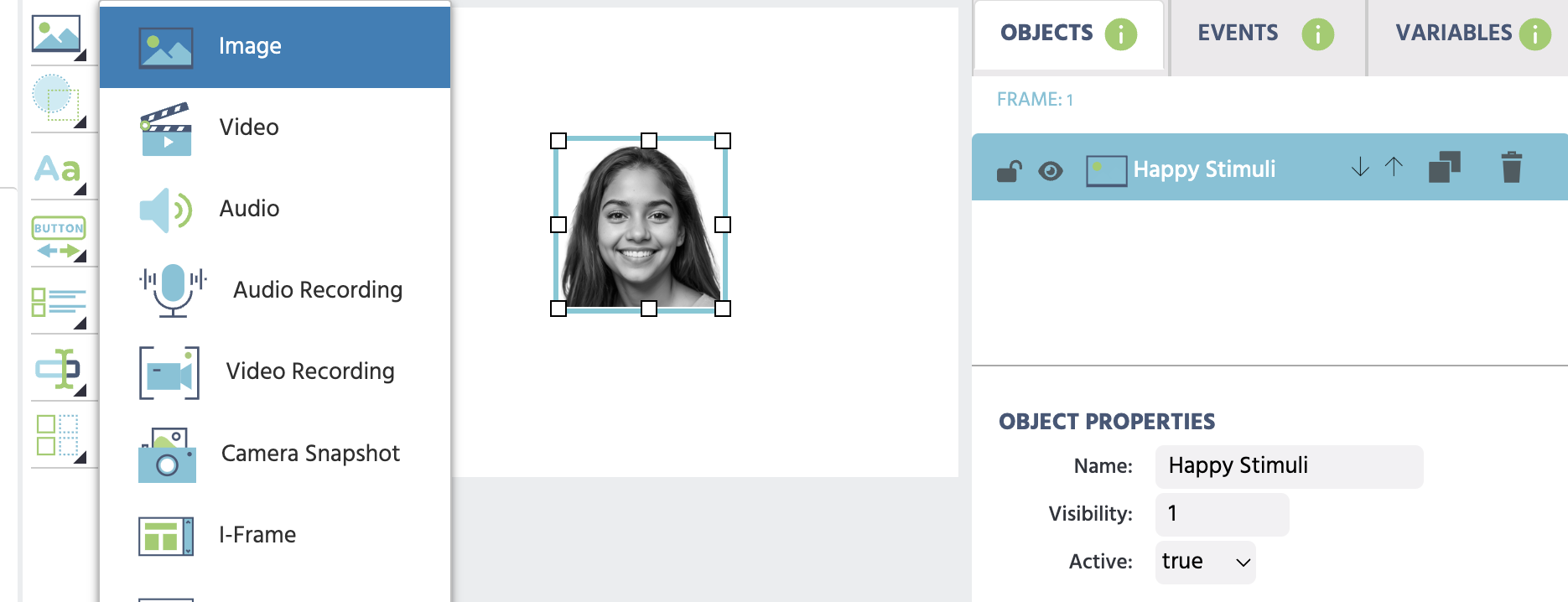
    Adding an image object to the editor in Labvanced can be done with just a few clicks.

    Workflow Tip: Prepare and organize your stimuli in advance.


    Object Properties Panel for Image Objects

    The Object Properties panel, located on the right side of the screen during editing mode, provides you with several options for editing all properties of the image object, including options to upload image stimuli. As shown in the image below, there are several options on the right side-panel where you can control the settings of the image with just a few clicks. We renamed this image so that it’s called “Target Image”.
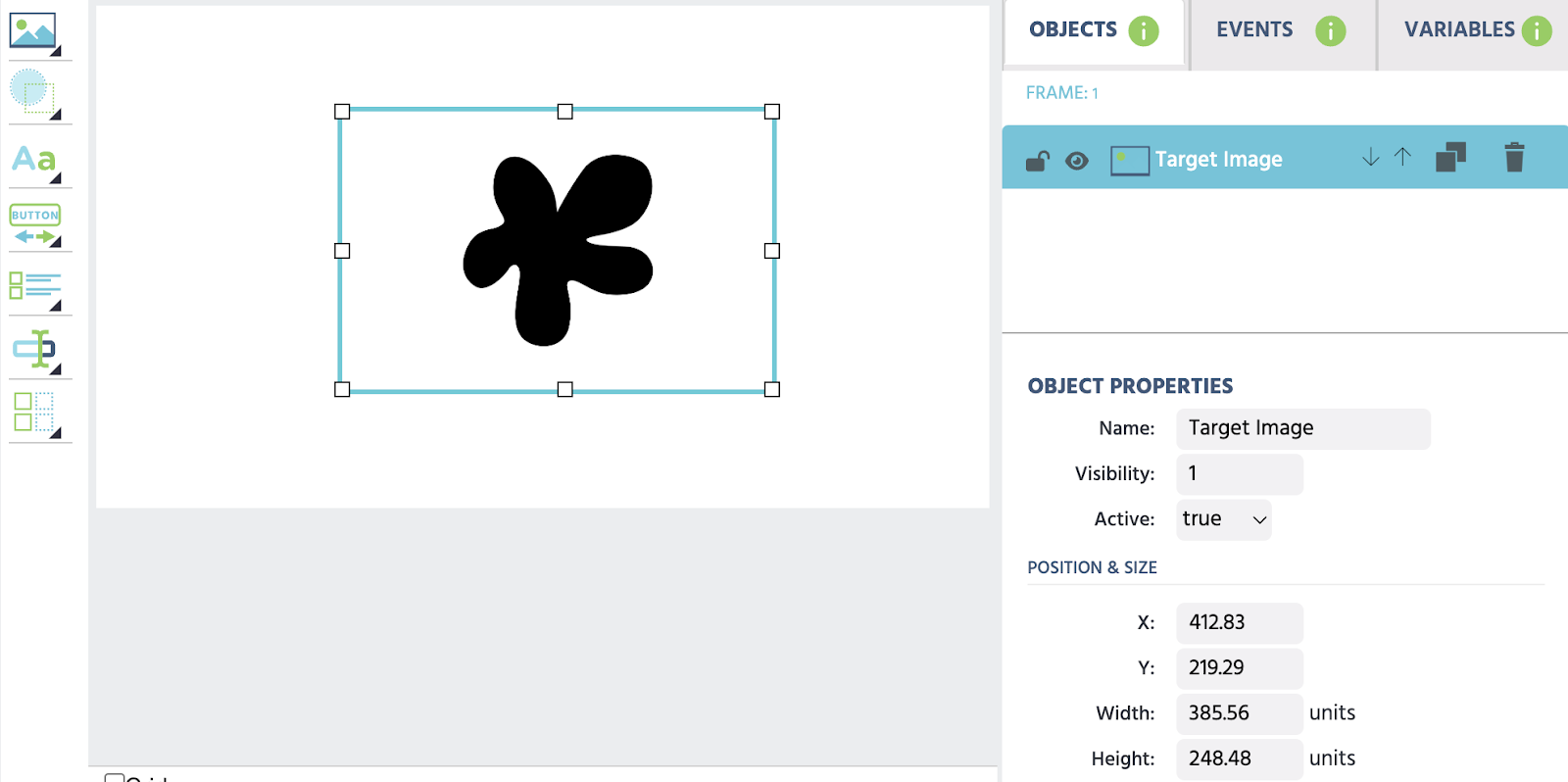
    The Object Properties panel is shown on the right, revealing image-specific values for the selected object.

    For a full explanation of these options, refer to this section at the bottom of the page where all the properties are listed in a table-format.

    Note: Keep in mind that all of these properties are also accessible via Events. So if you want to have a custom action, like a button click, to change the property, that’s totally possible!


    It’s very common to set a default property using this panel and then use an event to dynamically update it to a new value. For example, you can use an event and specify that upon image click (trigger), the image shifts to the right by 5 units.

    Task Wizard for Adding Image Objects

    If you like to set up your experimental task using spreadsheets / CSV data, the Task Wizard can be used to add your image stimuli.

    In the example below, Columns B & C represent image stimuli which will then automatically be added to image objects for you, upon utilizing the Task Wizard in Labvanced.
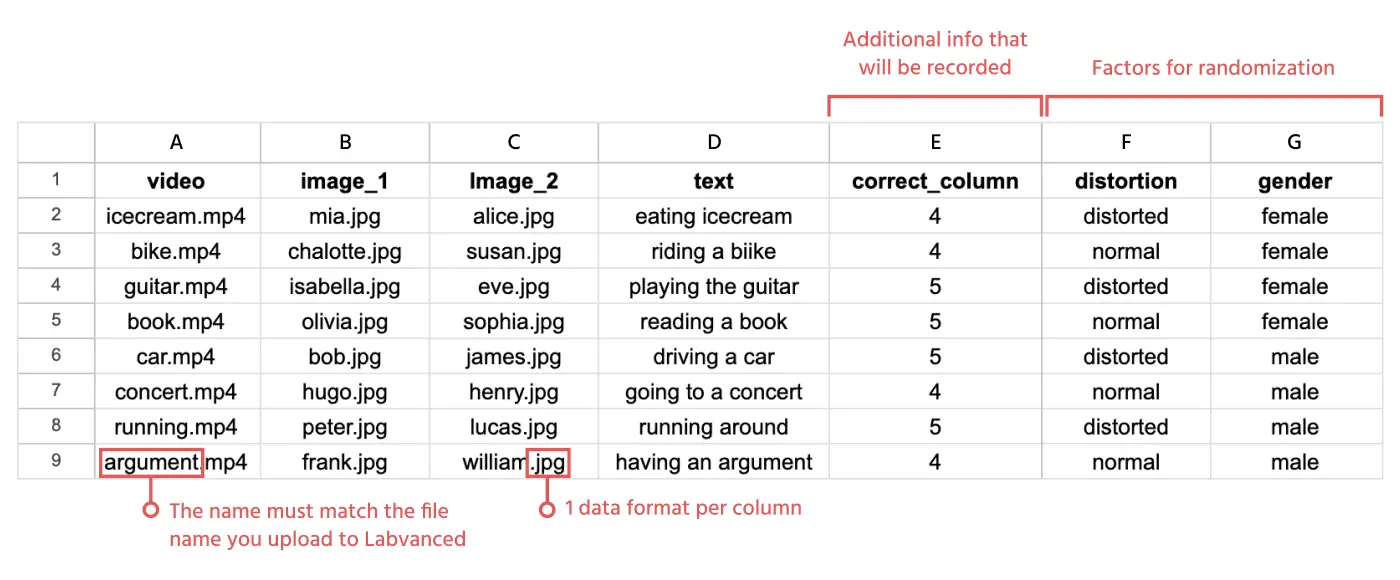
    In the example below, Columns B & C represent image stimuli which will then automatically be added to image objects for you, upon utilizing the Task Wizard in Labvanced.

    Example of a spreadsheet with image stimuli names (Columns B&C) that will be uploaded to create a task via the Task Wizard in Labvanced.

    Using this wizard, you can create your entire experimental task structure, including stimuli, events, variables, factors, conditions, randomization and data recordings from a single CSV file plus stimulus files.

    Trial System and Image Objects

    Once an image object is added to the frame, the Trial System can be collectively used to create different trials (several unique repetitions of the task) based on your experimental hypothesis.

    Suppose you are studying emotion and want to categorize your trials and design based on emotion types. You can add two image objects to a frame, one with stimuli of happy emotions and another with sad emotions. Then, you could add a factor named ‘Emotion’ with two levels- ‘happy’ and 'sad’ before proceeding to upload the image stimuli under the relevant conditions.

    📌 Hands-On Example: Uploading stimuli to specific levels and objects: In the video below we develop the experiment design by uploading image stimuli to the relevant condition.

    For more information, please visit our Trial System documentation.

    Events System and Image Objects

    The Events System is a dynamic way to:

    • Control how an image behaves
    • Record specific properties of the object:
    • Present image stimuli via data frames

    We will discuss these points in greater detail now.

    Controlling Image Behavior

    Any behavior or appearance of the image can be modified using events.

    In the example below we set up a mouse click (trigger) over the image object named ‘Target Image’ and specify that the Target Image’s x-coordinate (which is a property) should increase by +5. This essentially translates to each click will increase the x-coordinate by +5, shifting the image to the right.
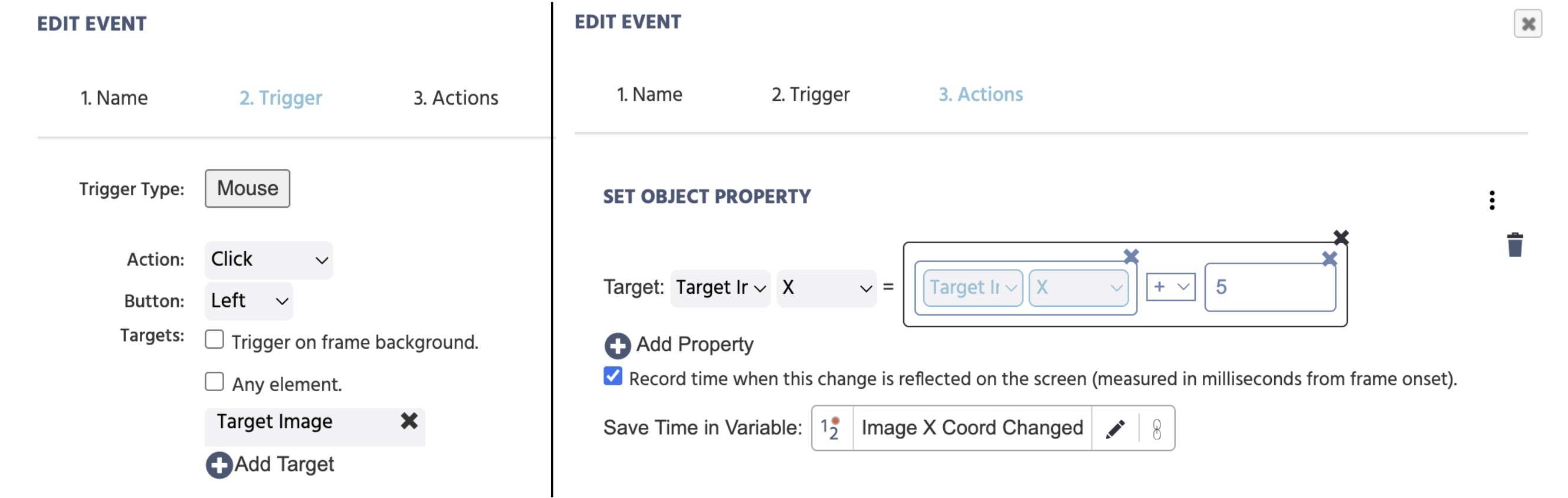
    Example of how an event can be set up to dynamically change an image's coordniates in an interactive experiment design.

    Note: You can record and save in a variable the exact time in milliseconds that the object property change was updated on the screen!


    Data and Recordings from the Image Object

    To record values associated with the Image Object, you can use the Set/Record Variable action and specify what data you want to record.

    Recording File Names

    In some cases, you may want to record the exact names of the images that were presented in a trial during the experiment. That’s absolutely possible and easy to set up!

    In the example below, we will store the image names for the correct image and the incorrect image. There are two variables– 'correct image name’ and ‘incorrect image name’, both which store ‘string’ data since the name of the file is in string format.

    To point to the object, you simply click on the pencil icon and then select the Frame / Task / Object category and choose Object Property. For the first field, you select the target object and for the second field you select Filename. Similarly, for the 'incorrect image name' variable, we point to the filename of the stimulus by linking to the 'incorrect' image object.
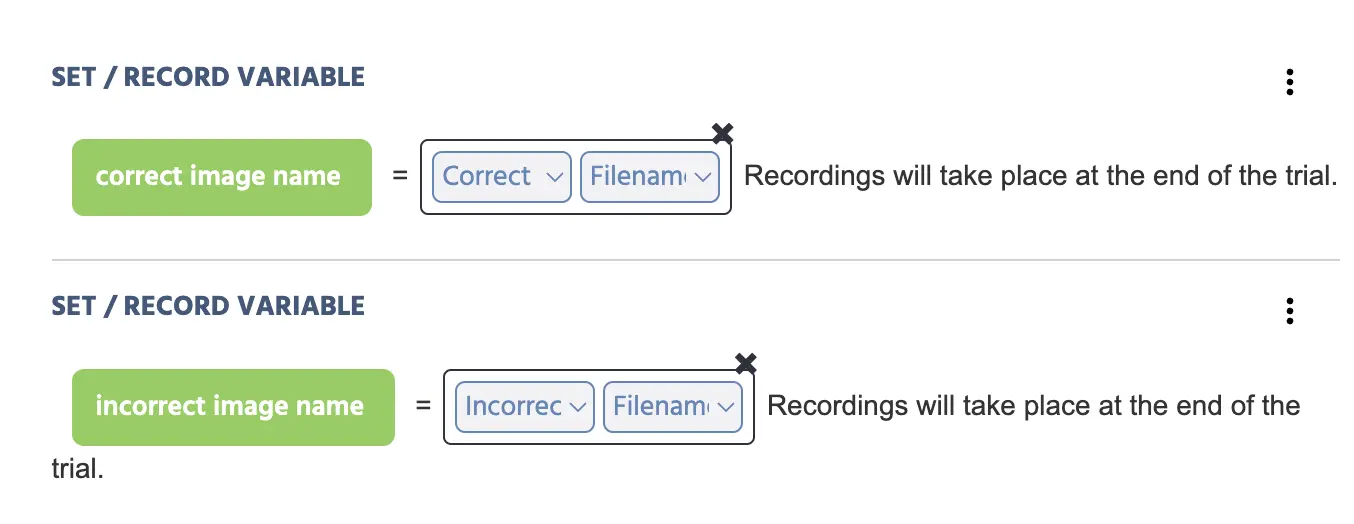
    Recording Variables from Image objects

    As a result of the above, the specific file names of the images are listed per trial as shown in the image below.
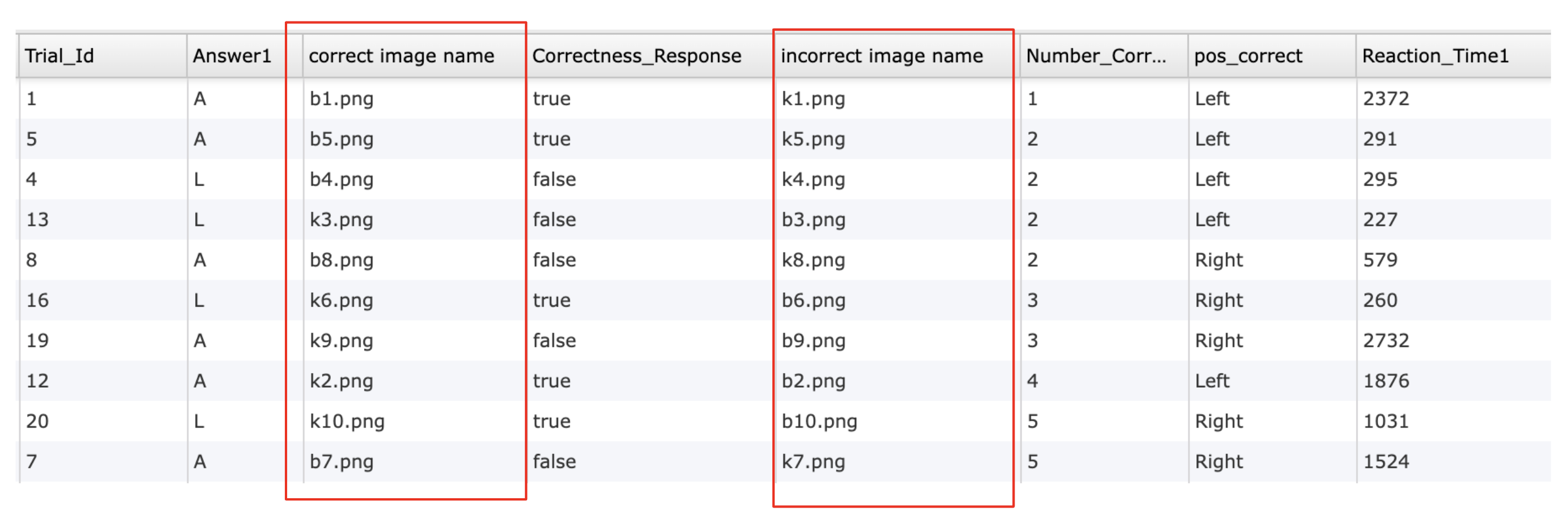
    How image data is recorded and stored in the data view to reveal what image stimuli were presented in a trial.

    The example above is taken from this sample study on the Bouba-Kiki effect which you can import to your account.

    Randomization and Image Objects

    Randomization is another key topic related to image presentation. There are many ways to discuss randomization in this context as randomization heavily relies on the particular experiment at hand.

    With regards to the Image Objects, randomization typically involves changing the location of the target image or selecting a random image from a set.

    For more information about randomization and balancing in Labvanced, refer to this page.

    Research Spotlight: The Image Object in action

    The Image Object plays a crucial role in experimental research, especially in studies involving visual perception, memory, and attention. Labvanced has enabled researchers across various domains to conduct their studies using Labvanced's Image Object.

    Visual Attention Dynamics: An Eye Tracking Study

    The study (Calignano et al., 2024) explored how semantic processing, i.e., the meanings of words and objects influence where and how we direct our visual focus. It was hypothesised that real words and familiar objects would bias attentional engagement and target detection more effectively than pseudo-words or pseudo-objects.

    Participants were presented with primes (initial cues that might affect our attention and perception of later targets). The researchers carried out two web-based eye-tracking experiments using Labvanced:

    • Experiment 1: Participants were presented with words (either real words or pseudo-words) as primes
    • Experiment 2: Involved presenting images (real objects or pseudo-objects) as primes.
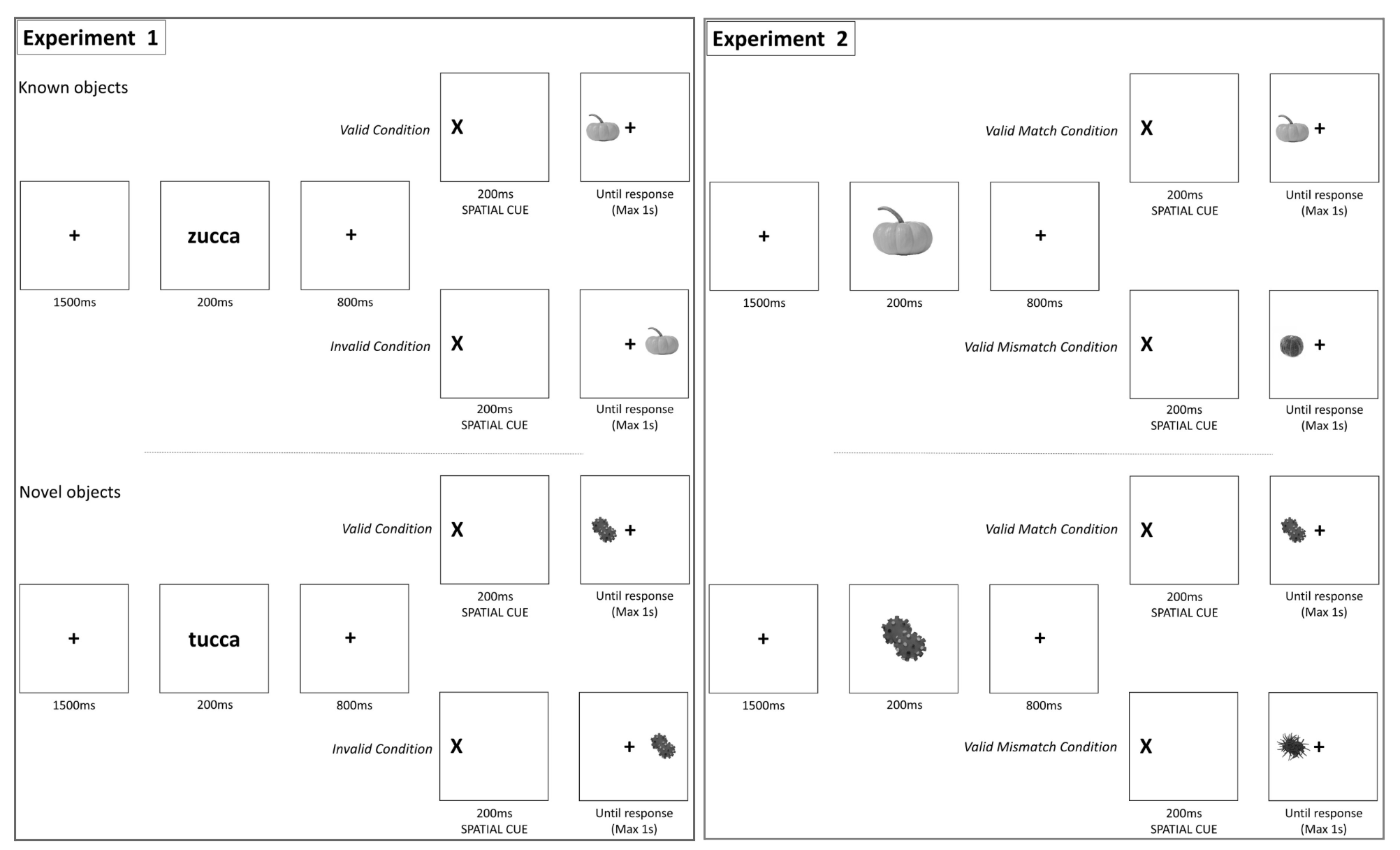
    Schematic of two expeirments incorporating Lbaavnced's image objects and eye tracking Experimental paradigms with Words (experiment 1) and Images (experiment 2); Calignano et al. (2024).

    After viewing the prime, they saw a spatial cue (either valid or invalid) indicating where to look for the target. A valid spatial cue appears at the same location as the target, while an invalid cue appears at a different location from the target. Participants had to identify targets and respond by pressing a key when they locate the target.

    The data collected included response times (milliseconds) for target detection, accuracy rates for task performance and eye-tracking data for attentional analysis.

    Findings showed that words and recognized objects can enhance target detection through top-down processes even when their presentation is not directly related to the task.

    Image Object Properties Table

    As with any object in Labvanced, there are general but also object-specific properties that appear on the right side panel when working with the object. Below are the specification and descriptions associated with the Image Object options:

    Main Properties of the Image Object

    Property NameData TypeModifiable, HowFrame TypeDescription
    NameStringYes, text boxCanvas & PageThe name of the object. The name is used many times as reference to the object (i.e. within events), so it should be unique.
    VisibilityNumeric (0-1)Yes, checkboxCanvasThe transparency value of the object. With a value of 0 the object will the completely invisible; a value of 1 is completely visible.
    ActiveBoolean (true / false)Yes, checkboxCanvas & PageDetermines whether the object is active and can be changed during the experiment execution. If set to false, the object will not elicit any actions.

    Position & Size Properties of the Image Object

    Property NameData TypeModifiable, HowFrame TypeDescription
    XNumeric (0- width of frame)Yes, text or arrowsCanvasThe X position of the object.
    YNumeric (0-height of frame)Yes, text or arrowsCanvasThe Y position of the object.
    WidthNumeric (0-width of frame)Yes, text or arrowsCanvasThe width of the object.
    HeightNumeric (0-width of frame)Yes, text or arrowsCanvasThe height of the object.
    AnchorCategorical (1-9)Yes, select optionCanvasThe anchor sets the "position reference point" of the object. By default, this is the top left corner.

    Scale & Rotation Properties of the Image Object

    Property NameData TypeModifiable, HowFrame TypeDescription
    ScalingNumeric (0-Inf)Yes, text or arrowsCanvasChanges the scale / zoom of the element. Larger values will zoom-in the element.
    RotationNumeric (0-359)Yes, text or arrowsCanvasChanges the object's rotation. 0 is the default upright position.
    Keep aspect ratioBoolean (true / false)Yes, checkboxCanvasDetermines whether the object's aspect ratio is kept when the object is rescaled.

    Style of the Image Object

    Property NameData TypeModifiable, HowFrame TypeDescription
    Border-SizeNumeric (0-INF)Yes, text or arrowsCanvasChanges the object's border size. 0 will show no border.
    Border-ColorHex String (Color)Yes, select optionCanvasChanges the object's border color.
    Background (BG)-ColorHex String (Color)Yes, select optionCanvasChanges the object's background color. By default there will be no color / transparent.
    RoundnessNumeric (0-1)Yes, text or arrowsCanvasChanges the object's roundness. 1 is a completly round object, 0 is a completely square object.
    Overflow-XCategorical (Hidden,Auto,Visible)Yes, select optionCanvasDetermines whether the object will have a visible scrollbar in the X dimension.
    Overflow-YCategorical (Hidden,Auto,Visible)Yes, select optionCanvasDetermines whether the object will have a visible scrollbar in the Y dimension.
    Scroll MarginNumericYes, text or arrowsCanvasDetermines the margin of the scroll bar in percent.
    Change CSS PropertiesCSS codeYes, checkbox and text boxCanvasChanges an aspect of the object's appearance using CSS code.

    Mouse Interaction in Player

    Property NameData TypeModifiable, HowFrame TypeDescription
    SelectableBoolean (true / false)Yes, checkboxCanvasDetermines whether the object can be selected / highlighted during the experiment execution.
    Highlight on SelectBoolean (true / false)Yes, checkboxCanvasDetermines whether there object that has been selected visually appears selected (ie. with a border).
    DraggableBoolean (true / false)Yes, checkboxCanvasDetermines whether the object can be dragged during the experiment execution.
    ResizableBoolean (true / false)Yes, checkboxCanvasDetermines whether the object can be rescaled during the experiment execution.
    Track ScrollBoolean (true / false)Yes, checkbox and numeric values if activated (ScrollPositionX, ScrollPositionY)CanvasEnables tracking the scroll if an object is presented with scroll bars.

    Image Properties

    Property NameData TypeModifiable, HowDescription
    FilenameStringYes, text boxThe given name of the file.
    Select File (Folder Icon)FunctionYes, click on iconA click on the folder icon opens the file manager to choose an existing file or upload and select a new file.
    Stimulus InfoStringYes, text boxA modifiable property that can be used to store dynamic stimulus information during the experiment execution.
    Stretch to Fit Bounding BoxBoolean (true / false)Yes, checkboxWhen activated, stretches the image to completely fill the bounding box.
    Bounding Box FitFunctionYes, click on iconUpon clicking "Fit," the bounding box will be cropped to the dimensions of the image.
    Auto Fit Bounding Box with ImageFunctionYes, checkboxWhen activated, the bounding box will automatically be changes to match the image.