The Value Select Menu
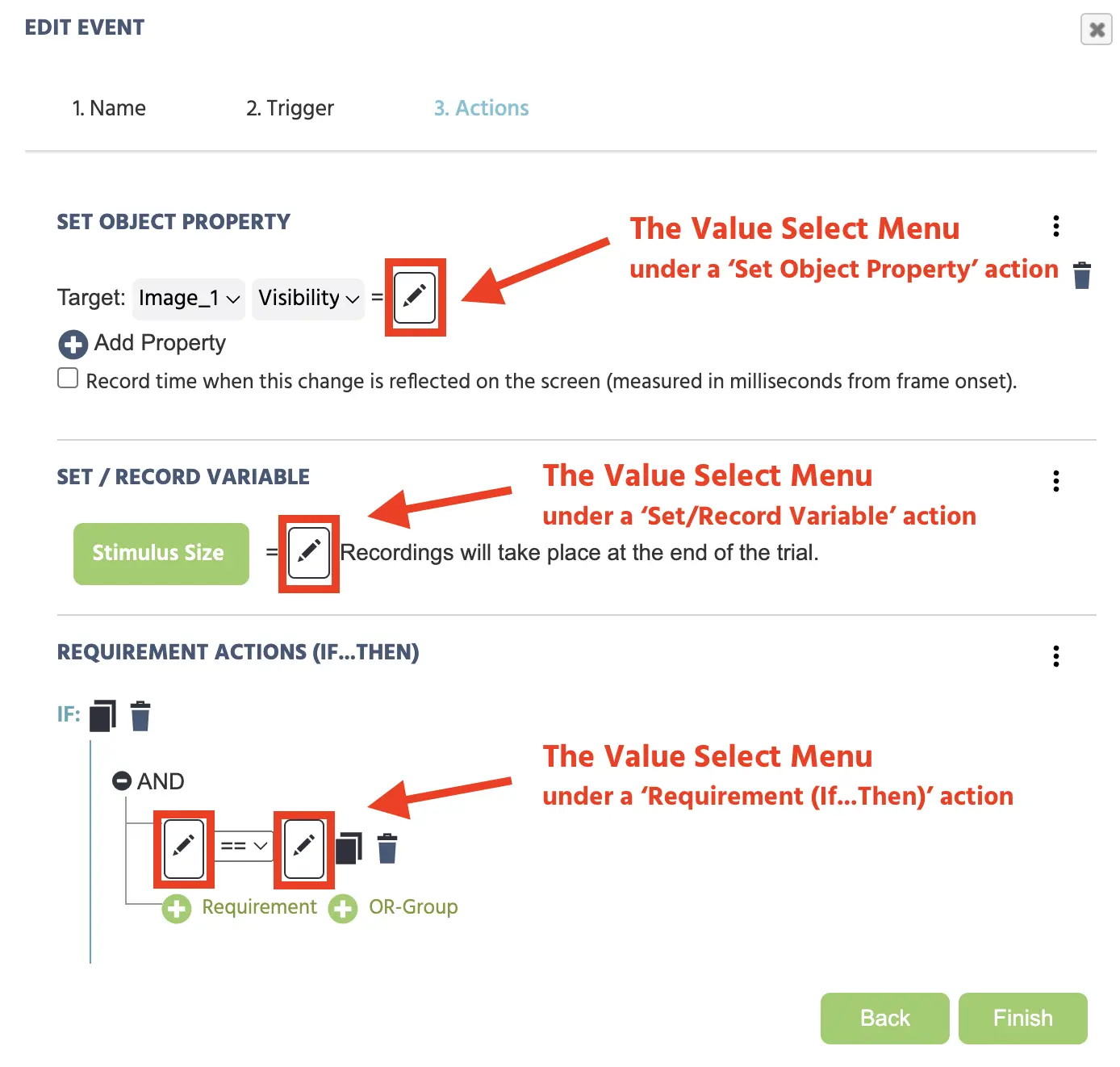
 When working with certain events, you will notice a pen icon appear. This is called the Value Select Menu because it allows you to select and instruct what kind of values are to be recorded or should be tracked. It’s a very powerful and important option that you are bound to use for your experimental design and set up.
This pen icon / Value Select Menu appears in various locations for certain actions in the event system, such as the Set / Record Variable action , the Set Object Property action, and the Requirement (If... Then) action, as shown below.
Clicking the pen icon leads to a drop down menu where you specify the value that is to be read out or written. The drop down menu will always start by listing a trigger-specific value option and then continue to the other 5 categories (Current Time, Constant Value, Variable, Frame / Task / Option, and Operations), all of which have their own options. These will be described futher below.
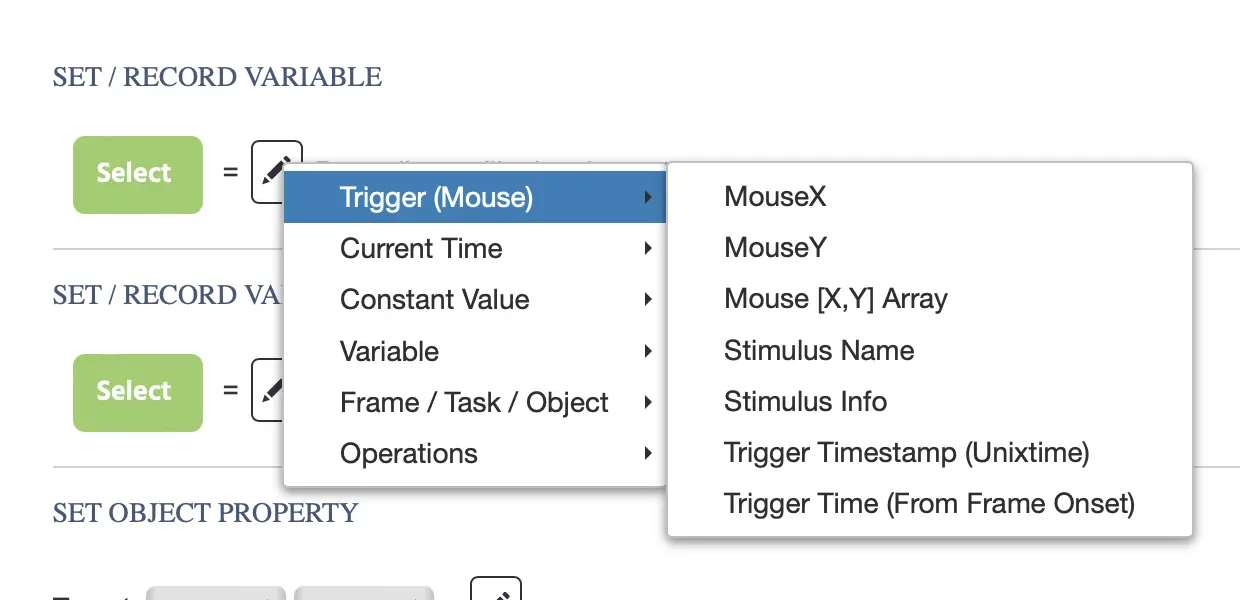
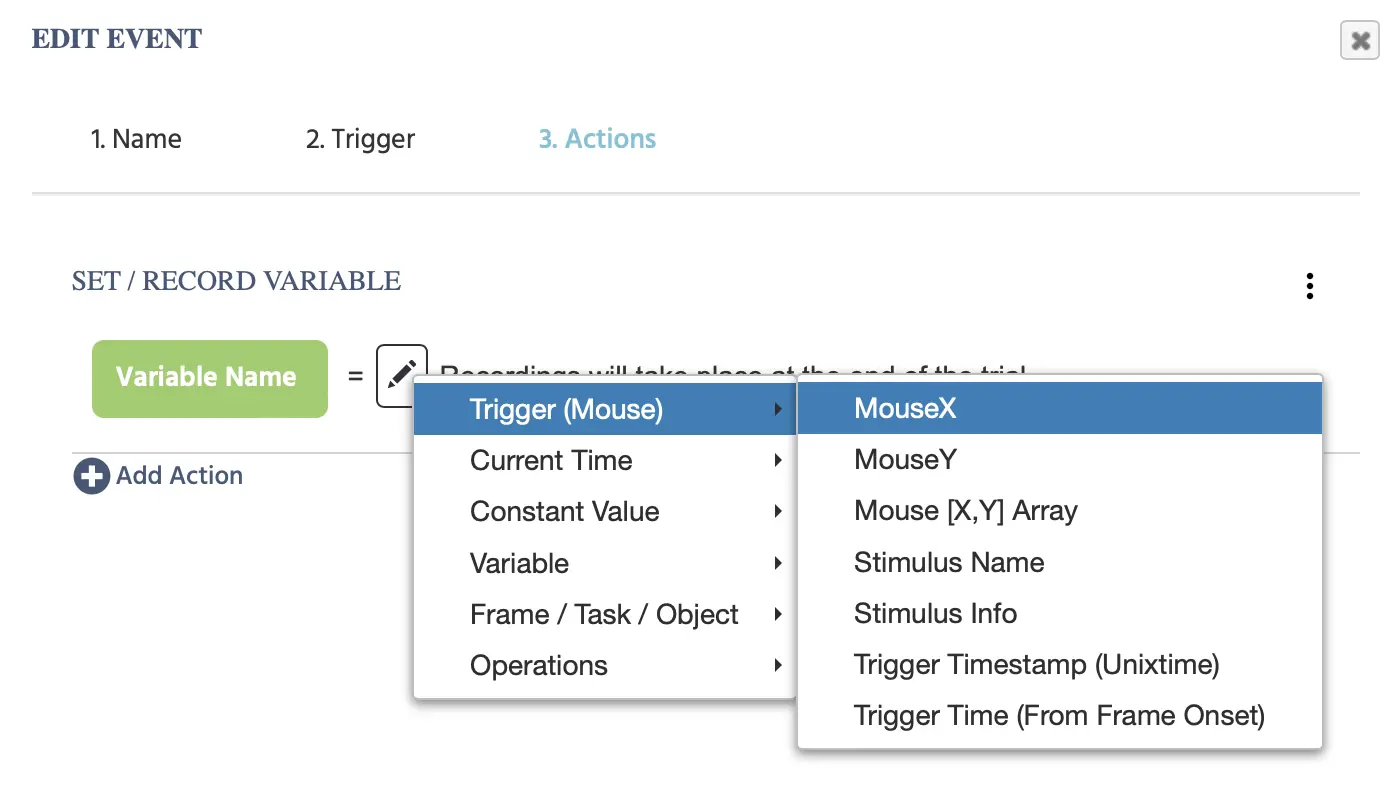
The image above shows what the Value Select Menu looks like when there is a Mouse Trigger being used. As you can see, the first menu item on the left begins with a trigger-specific category then moves on to the other 5 categories (Current Time, etc).
Menu Options
The table below further explains the categories and options:
| Category | Options | Description |
|---|---|---|
Trigger-specific | Depends on the trigger type you have previously selected for the event. | Based on the trigger you have selected for an event, you will have a specific list of options appear at the top of the value select menu to chose from. Please refer to the section on Trigger-specific values to see a full list of option and descriptions. |
Current Time | Measure and call on time values. | |
Constant Value |
| Assign constant values based on the type of variable you need, like string or numeric. These are sometimes used in combination with other options like Arithmetic to create counters. |
Variable |
| Specify or refer to a variable or select a value from an array or data frame. |
Frame / Task / Object |
| Allows you to fetch values associated with object properties, the frame, eye tracking (if it’s activated), and the device (screen refresh rate). |
Operations |
| Use operations to perform specified changes to your variables such as combining variable values, transforming strings so they are all lower case, or running mathematical operations. |
Current Time Values
With the ‘Current Time’ option you can record or refer to values with regards to time.
The following options are available:
Current Time: UNIX Timestamp
This value captures a timestamp in UNIX format in milliseconds.
Current Time: Time From Frame Onset
This value captures the amount of time that has elapsed from the frame onset. Most often, this is equivalent to the reaction time.
Constant Values
Assign constant values based on the type of variable you need, like string or numeric. These are sometimes used in combination with other options like Arithmetic to create counters.
The following options are available:
Constant: String
Assigns a string / text value.
Constant: Numeric
Assigns a numeric / number value.
Constant: Boolean
Assigns a value of true or false.
Constant: Categorical
Assigns a level value (mostly for factors).
Constant: Date
Assigns a date value.
Constant: Time
Assigns a time value.
Constant: Color
Assigns a color (hex-string) value.
Variable Values
Specify or refer to a variable or select a value from an array or data frame. The following options are available:
Select Variable
Allows you to select and point to a Variable.
Select Value from Array
Allows you to select a value from an array.
Select Value from Data Frame
Allows you to select a value from a data frame you have created.
Frame / Task / Object Values
Allows you to fetch values associated with object properties, the frame, eye tracking (if it’s activated), and the device (screen refresh rate).
Object Property
Reads out an object property.
Frame
| Frame Value Options | Description |
|---|---|
Last cached Mouse X Position | The last X coordinate value of the participant's mouse. |
Last cached Mouse Y Position | The last Y coordinate value of the participant's mouse. |
Last cached Mouse [X,Y] Array | The last [X,Y] coordinate value of the participant's mouse in an array format. |
Frame Name | The name of the frame. |
Eye Tracking
| Eye Tracking Value Options | Description |
|---|---|
Last cached Coordinate X | The last X coordinate value of the participant's gaze. |
Last cached Coordinate Y | The last Y coordinate value of the participant's gaze. |
Last cached Coordinate [X,Y] Array | The last [X,Y] coordinate value of the participant's gaze in an array format. |
Last cached Coordinate + Time [X,Y,T] Array | The last [X,Y] coordinate value of the participant's gaze, plus the Camera Capture T value in an array format. |
Device
- Refresh Rate: The refresh rate value of the participant's device.
Operations
Use operations to perform specified changes to your variables such as combining variable values, transforming strings so they are all lower case, or running mathematical operations.
The following options are available:
Arithmetic
Arithmetic operations are useful for many different purposes, including combining strings and even modifying object properties. Two common applications of arithmetic are creating numeric values on the spot, such as a counter that increments with each trial, and creating and combining strings of text, such as building a formatted message out of several variables. Both examples are covered below.
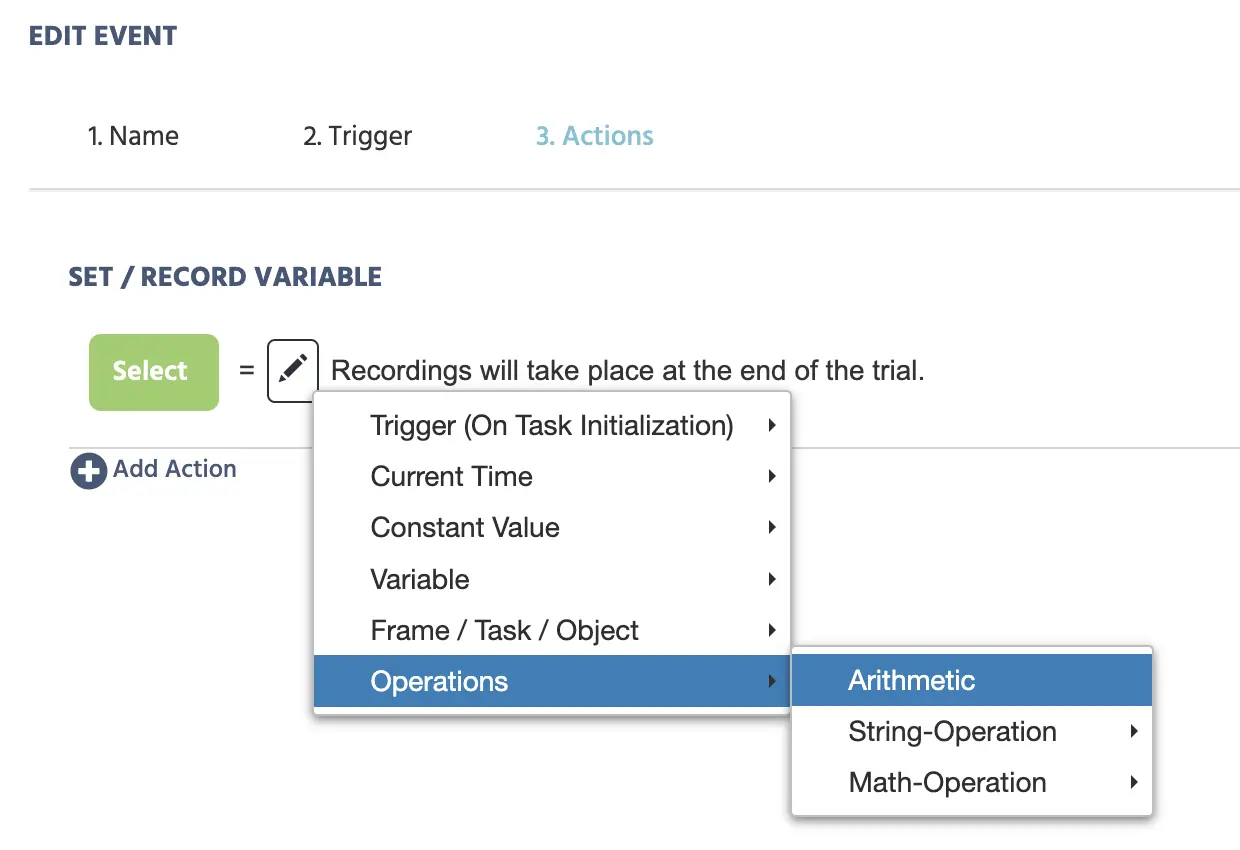
Essentially, the artithmetic operation allows you to perform operations on multiple values.
Upon selecting this option, the following an additional pen icon (ie. Value Select Menu) will appear, as well as a list of operations, such as addition.
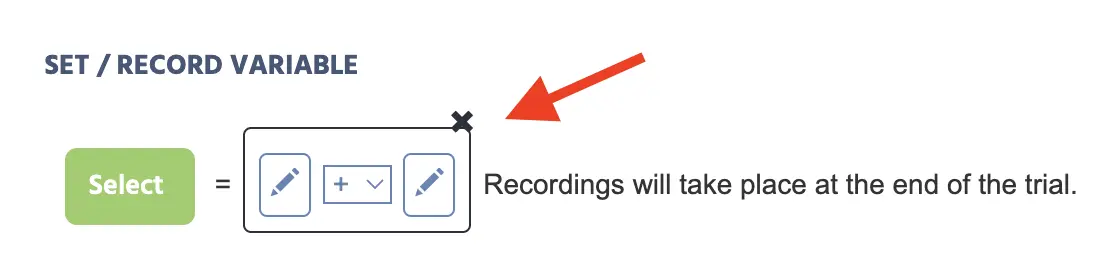
The values can be manipulated by using these 5 different operations:
- (+) addition
- (-) subtraction
- (/) division
- (*) multiplication
- (%) modulo
Example 1: creating a numeric value, a counter. A counter variable is one that is set to its own current value plus one, each time a trigger fires. It's built entirely with Arithmetic, no special variable type required.
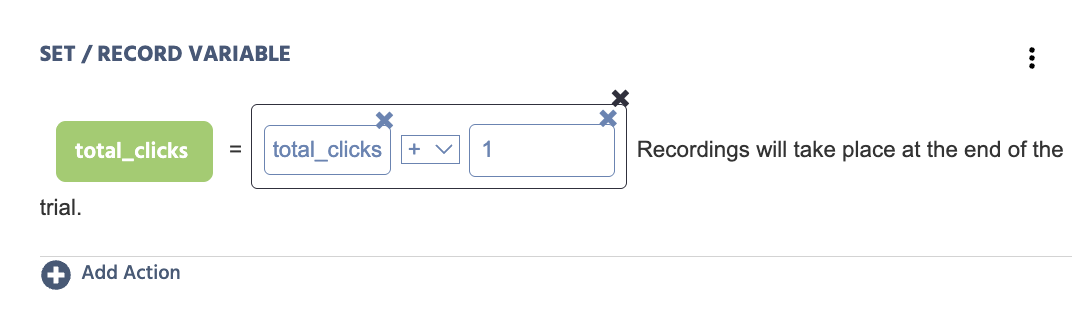
To set this up:
- In the
Set / Record Variableaction, clickSelectand choose (or create) the numeric variable that will act as your counter, for exampletotal_clicks. - Click the pen icon to open the Value Select Menu for the new value, on the right of the equals sign.
- Under
Operations, selectArithmetic. - Add the first operand: click its pen icon, choose
Select Variable, and pick the same variable,total_clicks, again. This reads the variable's current value. - Add a second operand: choose
Constant Value→Numeric, and enter1. - Set the operation between the two operands to
(+) addition. - Save the action. Each time the event containing it fires,
total_clicksis set to its own current value plus one.
Example 2: creating and combining a string. The example below shows how to utilize arithmetic operations in order to create a new string variable (in the green button), called 'intermediateVar'.
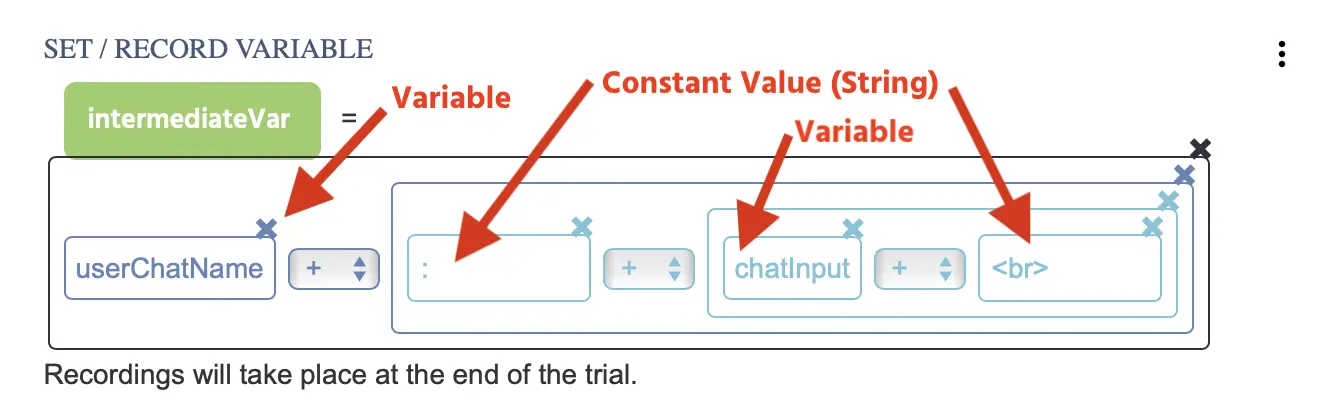
The new variable value (of 'intermediateVar') is defined by using several arithmetic operations together with a combination of previously created variables (ie. 'userChatName' and 'chatInput'), along with constant string values, ie. the semicolon : and the breaking space <br>. This action creates the effect of a user chat that can be used in a multi user study.
String-Operation
| String-Operation Options | Description |
|---|---|
To Lowercase | Changes all the letters in a string variable into small letters. → Ex: (AAABBB) transforms to (aaabbb) |
To Uppercase | Changes all the letters in string variable into capital letters. → Ex: (aaabbb) transforms to (AAABBB) |
To Link | Transforms the string in a variable into a URL that opens in another window |
Remove Whitespaces | Removes any spaces between the letters in a string variable. → Ex: (aaa bbbb cccc) transforms to (aaabbbbccc) |
Trim Whitespaces | Removes the spaces at the beginning of a string variable. → Ex: ( aaabbbcccc) transforms to (aaabbbcccc) |
Replace Substring Regexp | Replaces certain letters in a string value variable. → Ex: (aaabbbccc) replaces bbb with xxx which transforms the value to be (aaaxxxccc) |
Math-Operation
Performs a math operation on a scalar value.
| Math-Operation Options | Description |
|---|---|
abs | Returns the absolute number of a value. |
sqrt | Returns the Square-Root of a value. |
round | Returns the rounded value with 0 to 3 decimal places. |
floor | Returns the floored value. |
ceil | Returns the ceiled value. |
cos | Returns the cosine value. |
sin | Returns the sine value. |
tan | Returns the tangent value. |
Trigger-Specific Values
Trigger-specific values refer to values that are associated with the trigger defined within a particular event. For example, if your event uses a mouse trigger, then, under certain areas where the action is specified (such as while using a Set / Record Variable action or a Set Object Property action), you can reference mouse trigger-specific values in the value select menu.
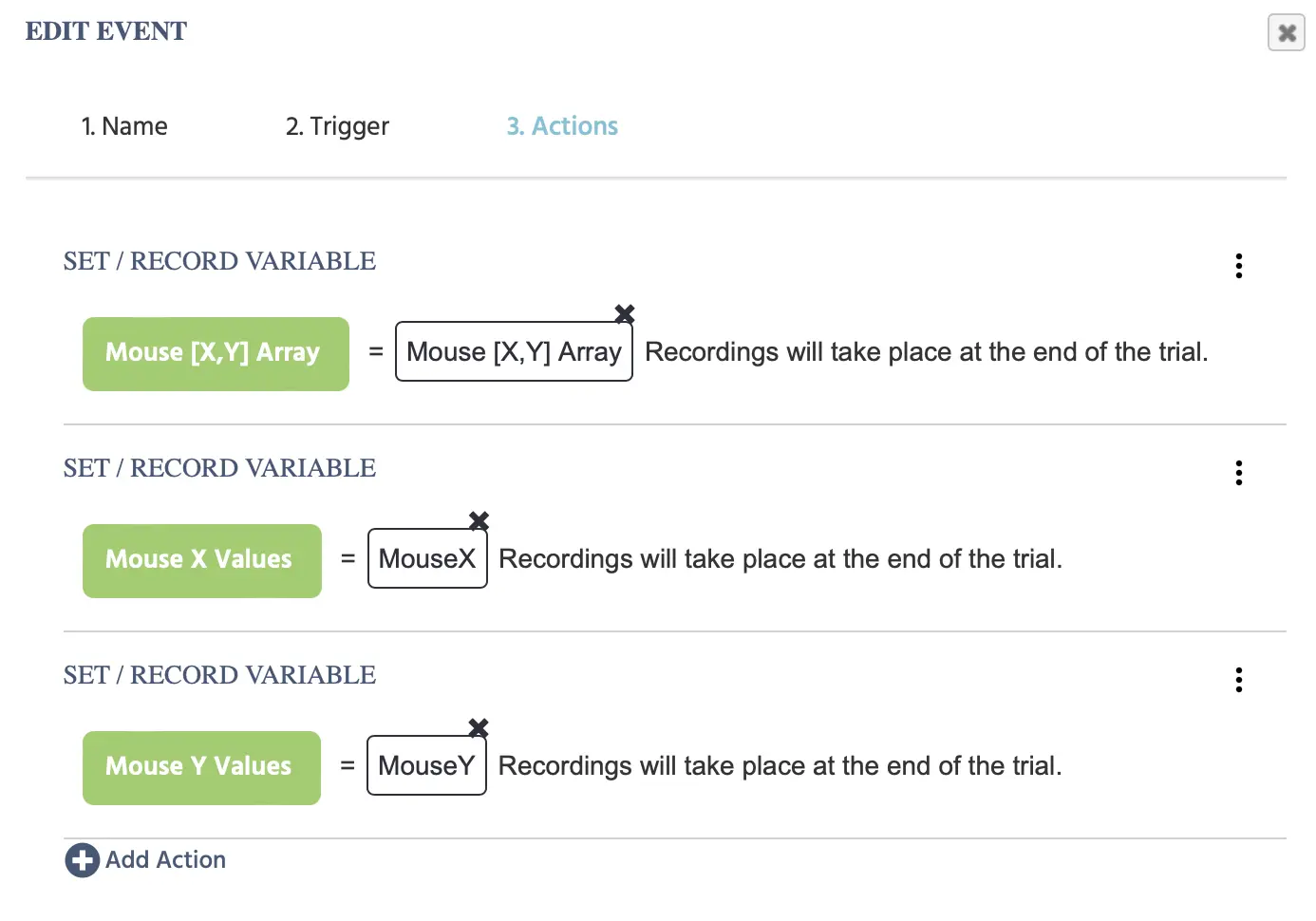
In the example below, trigger-specific values for a mouse trigger are used to record x- and y-values and an [X,Y] array using a Set / Record Variable action.
Below is a table of all the types of trigger-specific values that can be found in Labvanced, followed by an in-depth explanation of each option.
| Name | Value Options - Overview |
|---|---|
Trigger (Mouse) |
|
Trigger (Keyboard) |
|
Trigger (Button Bar) |
|
Trigger (Enter On Input) |
|
Trigger (Scroll) |
|
Trigger (Gamepad/ Joystick) |
|
Trigger (Eyetracking Gaze) |
|
Trigger (Eyetracking Fixation) |
|
Trigger (Head Tracking) |
|
Trigger (Emotion Detection) |
|
Trigger (On Task Initialization) |
|
Trigger (On Frame Init) |
|
Trigger (on Frame Start) |
|
Trigger (On Frame End) |
|
Trigger (Variable Value Changed) |
|
Trigger (Media Object Trigger) |
|
Trigger (Websocket Trigger) |
|
Trigger (OpenAI Trigger) |
|
Trigger (Global Experiment Event) |
|
Trigger (User Leaves Experiment) |
|
Trigger (Mouse) Values
When a mouse trigger is used, the following trigger-specific values can be called on when working with certain actions:
| Trigger (Mouse) Options | Description |
|---|---|
Mouse X | Returns the current Mouse X position in frame coordinates. |
Mouse Y | Returns the current Mouse Y position in frame coordinates. |
Mouse [X,Y] Array | The mouse [X,Y] coordinates in an array format. |
Stimulus Name | The name of the object which triggered the event (e.g which image was clicked). |
Stimulus Info | The stimulus info of the object which triggered the event. |
Trigger Timestamp (Unixtime) | The timestamp of when the trigger occurred in Unix Time format with milliseconds. |
Trigger Time (From Frame Onset) | The elapsed time in milliseconds as measured from the beginning of the frame onset to when the trigger occurred. |
Trigger (Keyboard) Values
When a keyboard trigger is used, the following trigger-specific values can be called on when working with certain actions:
| Trigger (Keyboard) Options | Description |
|---|---|
Id of Key | The ID value of the key that was pressed as the trigger. |
Trigger Timestamp (Unixtime) | The timestamp of when the trigger occurred in Unix Time format with milliseconds. |
Trigger Time (From Frame Onset) | The elapsed time in milliseconds as measured from the beginning of the frame onset to when the trigger occurred. |
Trigger (Button Bar) Values
When a button-click trigger is used, the following trigger-specific values can be called on when working with certain actions:
| Trigger (Button Bar) Options | Description |
|---|---|
Stimulus Name | The name of the button object which triggered the event. |
Stimulus Info | The stimulus info of the button object which triggered the event. |
Trigger Timestamp (Unixtime) | The timestamp of when the trigger occurred in Unix Time format with milliseconds. |
Trigger Time (From Frame Onset) | The elapsed time in milliseconds as measured from the beginning of the frame onset to when the trigger occurred. |
Trigger (Enter on Input) Values
When an Enter on Input trigger is used, the following trigger-specific values can be called on when working with certain actions:
| Trigger (Enter on Input) Options | Description |
|---|---|
Id of Key | The ID value of the key that was pressed as the trigger. |
Trigger Timestamp (Unixtime) | The timestamp of when the trigger occurred in Unix Time format with milliseconds. |
Trigger Time (From Frame Onset) | The elapsed time in milliseconds as measured from the beginning of the frame onset to when the trigger occurred. |
Trigger (Scroll) Values
When a Scroll trigger is used, the following trigger-specific values can be called on when working with certain actions:
| Trigger (Scroll) Options | Description |
|---|---|
Stimulus Name | The name of the button object which triggered the event. |
Stimulus Info | The stimulus info of the button object which triggered the event. |
Scroll Position X | The scroll position in X of the mouse when the event was triggered. |
Scroll Position Y | The scroll position in Y of the mouse when the event was triggered. |
Trigger Timestamp (Unixtime) | The timestamp of when the scroll trigger occurred in Unix Time format with milliseconds. |
Trigger Time (From Frame Onset) | The elapsed time in milliseconds as measured from the beginning of the frame onset to when the scroll trigger occurred. |
Trigger (Gamepad/ Joystick) Values
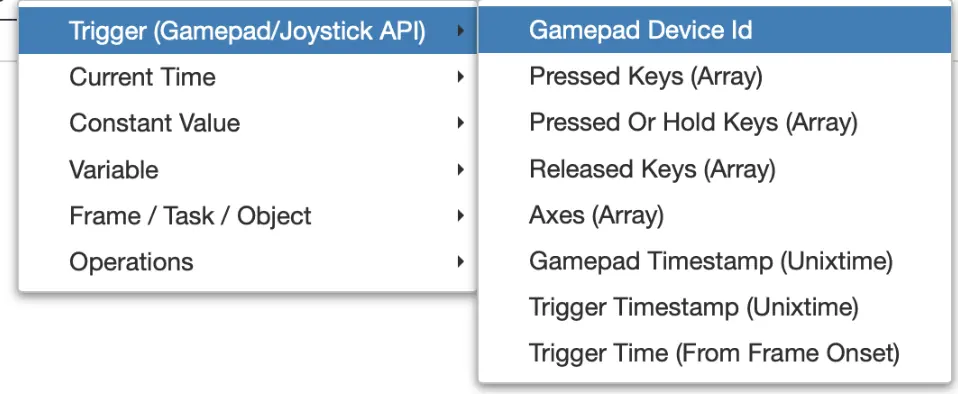
When a Gamepad/Joystick trigger is used, the following trigger-specific values can be called on when working with certain actions:
| Trigger (Gamepad/ Joystick) Options | Description |
|---|---|
Gamepad Device Id | The ID or name of the gamepad that was connected. |
Pressed Keys Once (Array) | The keys that were pressed. A held key is not counted again until it has been released. |
Pressed Or Hold Keys (Array) | The keys that were pressed or held. |
Released Keys (Array) | The keys that were released. |
Axes (Array) | The axes values. |
Gamepad Timestamp (Unixtime) | The gamepad timestamp in Unixtime. |
Trigger Timestamp (Unixtime) | Timestamp of when the trigger occurs in Unixtime. |
Trigger Time (From Frame Onset) | Timestamp in Unixtime of when the trigger occurs with relation to the onset of the frame. |
Trigger (Eyetracking Gaze) Values
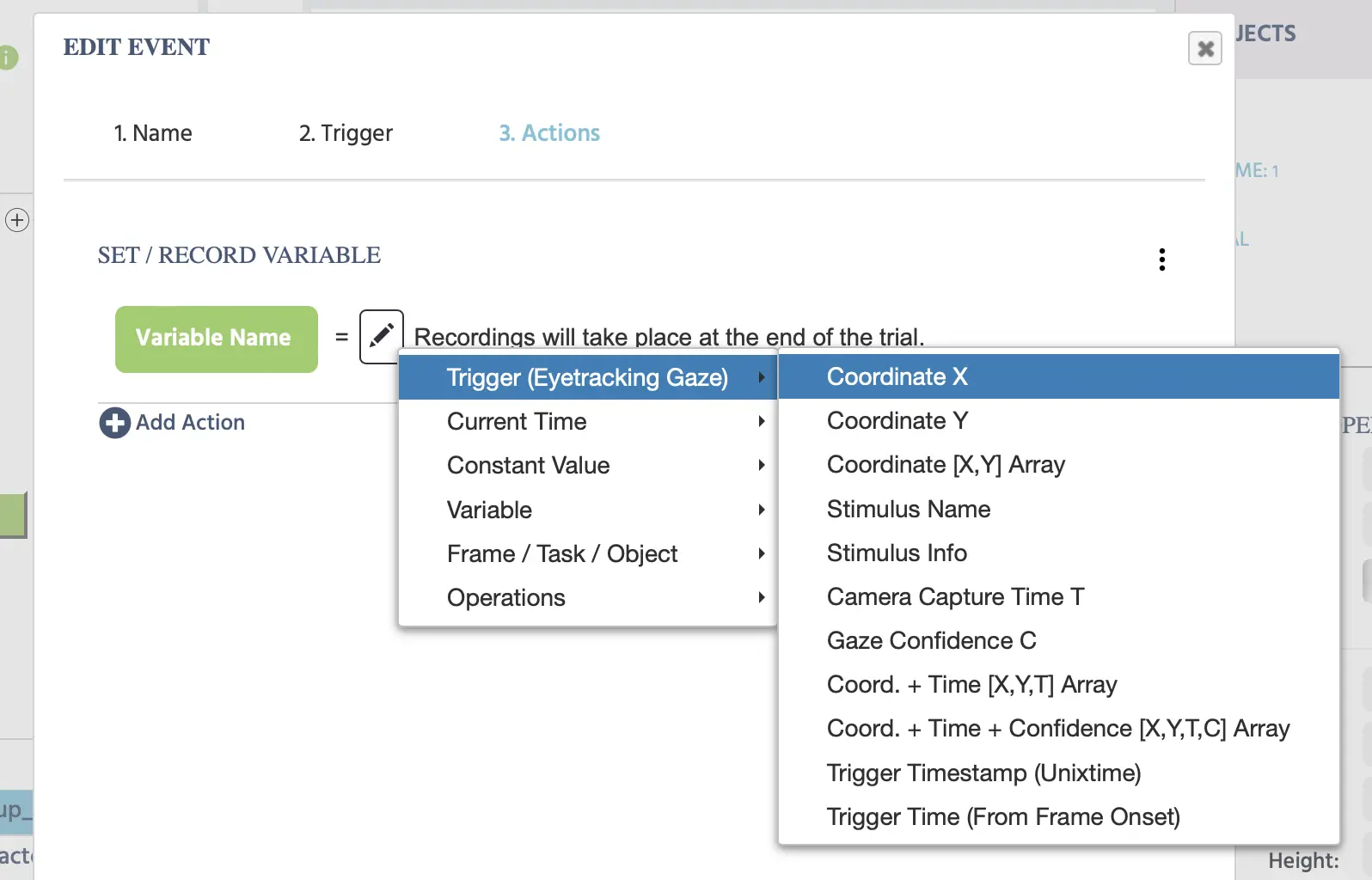
When an Eye tracking gaze trigger is used, the following trigger-specific values can be called on when working with certain actions:
| Trigger (Eyetracking Gaze) Options | Description |
|---|---|
Coordinate X | The value of the gaze's X coordinate. |
Coordinate Y | The value of the gaze's Y coordinate. |
Coordinate [X,Y] Array | The gaze coordinates X,Y in an array format. |
Stimulus Name | The name of the stimulus that initiated the gaze trigger. |
Stimulus Info | The stimulus information behind the stimulus that initiated the gaze trigger. |
Camera Capture Time T | The exact time when the snapshot occurred. In the Labvanced eye tracking pipeline, a camera snapshot happens first before the algorithm and neural network perform gaze calculations. Thus, the Camera Capture Time T is a UNIX Timestamp of when the initial snapshot occurred. For more information regarding the technology behind our webcam-based eye tracking please refer to our ET technology page. |
Gaze Confidence C | This value ranges from 0 to 1 and refers to the confidence and probability that there is an open eye in the image snapshot and essentially serves as a ‘blink detector.’ Please refer to our published peer-reviewed paper for more details. |
Coord. + Time [X,Y,T] Array | An array containing the x/y coordinates of the gaze and the timestamp of the camera capture time (T) as described above. |
Coord. + Time + Confidence [X,Y, T,C] Array | An array containing the x/y coordinates of the gaze and the timestamp of the camera capture time (T) and gaze confidence (C) as described above. |
Trigger Timestamp (Unixtime) | The timestamp of when the gaze trigger occurred in Unix Time format with milliseconds. |
Trigger Time (From Frame Onset) | The elapsed time in milliseconds as measured from the beginning of the frame onset to when the gaze trigger occurred. |
Learn more: See the dedicated Eyetracking Gaze Trigger page for enabling eye tracking, recording gaze data, and practical examples.
Trigger(Eyetracking Fixation) Values
When an Eye Tracking Fixation trigger is used, the following trigger-specific values can be called on when working with certain actions:
| Trigger (Eyetracking Fixation) Options | Description |
|---|---|
Fixation Centroid X | The center point of the fixation as an X value. |
Fixation Centroid Y | The center point of the fixation as an Y value. |
Fixation Duration | The duration of the detected fixation. |
Fixation Start Time | The start time of the detected fixation. |
Fixation End Time | The end time of the detected fixation. |
Fixation Dispersion | Refers to how dispersed the gaze values are within a detected fixation. |
Stimulus Name | The name of the button object which triggered the event. |
Stimulus Info | The stimulus info of the button object which triggered the event. |
[X, Y, Dur, Start, End, Disp] | An array of the following: x- and y-values of the fixation's centroid, the duration of the fixation, the start time, the end time, and the dispersion value. |
Trigger Timestamp (Unixtime) | The timestamp of when the fixation trigger occurred in Unix Time format with milliseconds. |
Trigger Time (From Frame Onset) | The elapsed time in milliseconds as measured from the beginning of the frame onset to when the fixation trigger occurred. |
Learn more: See the dedicated Eyetracking Fixation Trigger page for enabling Fixation Detection, recording fixation data, and practical examples.
Trigger (Head Tracking) Values
When a Head Tracking trigger is used, the following trigger-specific values can be called on when working with certain actions:
| Trigger (Head Tracking) Options | Description |
|---|---|
Camera Capture Time T | When the camera captured the frame, ie. a unix timestamp of when the frame capture occurred. This is the time that the image / frame was captured before any processing occurs. |
Head Turn | Head turning from left to right, this is referred to as the yaw in literature. |
Head Tilt | Head tilting from up to down, known as head pitch in the literature. |
Head Roll | Captures the movement of the head rolling from side to side. |
Head Position [X,Y, T] Array | This array captures the numerical values associated with head position, this includes the x- and y-coordinates for the center of the head along with the timestamp variable (T). |
Nose Position [X,Y, T] Array | This array captures the numerical values associated with the position of the nose specifically, this includes the x- and y-coordinates for the where the nose is located along with the timestamp variable (T) of when the measurement occurred. |
Nose Vector [X,Y, Z, T] Array | This measurement works by projecting a vector from the nose tip and is useful for testing whether the participant is attending to the screen ( this is especially important for studies where eye tracking is not enabled). Thus, if the nose points off screen (ie. the participant is not attending to the experiment) the Z value decreases from 1 and moves closer to 0. |
Trigger Timestamp (Unixtime) | Time point during the experiment when the trigger itself occurs where the head tracking was detected and accounts for when the trigger occurred in the system. Essentially, this is the time where processing the image / frame is processed and this value is largely affected by the participant’s graphics card. In theory, it should be as close as possible to the value T. |
Trigger Time from Frame Onset | This is the time value of when the trigger occurred with regards to when the frame onset happened. |
Trigger (Emotion Detection) Values
When an Emotion Detection trigger is used, the following trigger-specific values can be called on when working with certain actions:
| Trigger (Emotion Detection) Options | Description |
|---|---|
Max Emotion | The maximum emotion detected. String value with the following parameters available: angry, contempt, disgust, fear, happy, neutral, sad, surprise. |
Max Emotion Score | The score of the Max Emotion detected. |
Valence Score | The numeric score for valence detection. |
Arousal Score | The numeric score for arousal detected. |
Camera Capture Time T | The adjusted timestamp value based on when the image snapshot occurred. Note: This is a more accurate timestamp than Trigger Timestamp for when the emotion detection occurred, as the algorithm requires a few milliseconds to capture and process the image after the trigger initiates. |
[Max Emotion, Score, T] Array | An array of: Max Emotion (string label), Score (numeric), Camera Capture T (Unixtime). |
[Valence, Arousal, T] Array | An array of: Valence (numeric), Arousal (numeric), Camera Capture T (Unixtime). |
[All Emotions, T] Array | Records scores for all 8 emotions and the Camera Capture T. Note: The 8 emotion scores are relative to each other and sum to 1. |
[All Emotions, Valence, Arousal, T] Array | Records scores for all 8 emotions, Valence, Arousal, and Camera Capture T. Note: The 8 emotion scores are relative to each other and sum to 1. |
Trigger Timestamp (Unixtime) | The trigger timestamp in Unixtime. See Camera Capture Time T for a more accurate timing value. |
Trigger Time (From Frame Onset) | Time (in milliseconds) that the trigger occurred from the frame onset. |
Trigger (On Task Initialization) Values
When a Task Init Trigger is used, the following trigger-specific values can be called on when working with certain actions:
| Trigger (On Task Initialization) Options | Description |
|---|---|
Trigger Timestamp (Unixtime) | The Unix Timestamp of the trigger in milliseconds. |
Trigger Time (From Frame Onset) | The time in milliseconds of when the trigger occurred from the frame onset. |
Trigger (On Frame Init) Values
When a Frame Init Trigger is used, the following trigger-specific values can be called on when working with certain actions:
| Trigger (On Frame Init) Options | Description |
|---|---|
TrialNr | The Trial Number of when the Frame Init Trigger occurred. |
Trigger Timestamp (Unixtime) | The Unix Timestamp of the trigger in milliseconds. |
Trigger Time (From Frame Onset) | The time in milliseconds of when the trigger occurred from the frame onset. |
Trigger (on Frame Start) Values
When a Frame Start Trigger is used, the following trigger-specific values can be called on when working with certain actions:
| Trigger (on Frame Start) Options | Description |
|---|---|
Trigger Timestamp (Unixtime) | The Unix Timestamp of the trigger in milliseconds. |
Trigger Time (From Frame Onset) | The time in milliseconds of when the trigger occurred from the frame onset. |
Trigger (On Frame End) Values
When a Frame End Trigger is used, the following trigger-specific values can be called on when working with certain actions:
| Trigger (On Frame End) Options | Description |
|---|---|
Total Frame Time | The total time in milliseconds that was spent on the frame. |
Trigger Timestamp (Unixtime) | The Unix Timestamp of the trigger in milliseconds. |
Trigger Time (From Frame Onset) | The time in milliseconds of when the trigger occurred from the frame onset. |
Trigger (Variable Value Changed) Values
When a Variable Value Changed Trigger is used, the following trigger-specific values can be called on when working with certain actions:
| Trigger (Variable Value Changed) Options | Description |
|---|---|
New Value in Variable | Refers to the new value of a variable. |
Trigger Timestamp (Unixtime) | The timestamp of when the variable change trigger occurred in Unix Time format with milliseconds. |
Trigger Time (From Frame Onset) | The elapsed time in milliseconds as measured from the beginning of the frame onset to when the variable value changed occurred. |
Trigger (Media Object Trigger) Values
When a Media Object Trigger is used, the following trigger-specific values can be called on when working with certain actions:
| Trigger (Media Object Trigger) Options | Description |
|---|---|
Trigger Timestamp (Unixtime) | The timestamp of when the media object trigger occurred in Unix Time format with milliseconds. |
Trigger Time (From Frame Onset) | The elapsed time in milliseconds as measured from the beginning of the frame onset to when the media object trigger occurred. |
Trigger (Websocket Trigger) Values
When a WebsSocket Trigger is used, the following trigger-specific values can be called on when working with certain actions:
| Trigger (Websocket Trigger) Options | Description |
|---|---|
Message | A message that can be used to describe and label which allows you (on the receiving-end) to filter between different types of data. |
Data | A value that can hold different types of data, such as participant’s choices, timestamps, mouse x/y coordinates, etc. |
Trigger Timestamp (Unixtime) | The timestamp of when the Websocket trigger occurred in Unix Time format with milliseconds. |
Trigger Time (From Frame Onset) | The elapsed time in milliseconds as measured from the beginning of the frame onset to when the WebSocket trigger occurred. |
Trigger (OpenAI Trigger) Values
When an OpenAI Trigger is used, the following trigger-specific values can be called on when working with certain actions:
| Trigger (OpenAI Trigger) Options | Description |
|---|---|
Chat GPT Answer | The value of the answer from ChatGPT. |
Trigger Timestamp (Unixtime) | The timestamp of when the OpenAI trigger occurred in Unix Time format with milliseconds. |
Trigger Time (From Frame Onset) | The elapsed time in milliseconds as measured from the beginning of the frame onset to when the OpenAI trigger occurred. |
Trigger (Global Experiment Event) Values
When a Pause / Resume Experiment Trigger is used, the following trigger-specific values can be called on when working with certain actions:
| Trigger (Global Experiment Event) Options | Description |
|---|---|
Total Frame Time | Refers to the Total Frame Time that allotted prior to the Trigger. |
Reason for Global Event | A string value that states the reason of the trigger, such as participant leaving the study. |
Trigger Timestamp (Unixtime) | The timestamp of when the Global Event trigger occurred in Unix Time format with milliseconds. |
Trigger Time (From Frame Onset) | The elapsed time in milliseconds as measured from the beginning of the frame onset to when the Global Event trigger occurred. |
Trigger (User Leaves Experiment) Values
When a Participant Left Multiuser Study Trigger is used, the following trigger-specific values can be called on when working with certain actions:
| Trigger (User Leaves Experiment) Options | Description |
|---|---|
Remaining Number of Participants | The number of how many participants remain in the study. |
Trigger Timestamp (Unixtime) | The timestamp of when the User Leaves Experiment trigger occurred in Unix Time format with milliseconds. |
Trigger Time (From Frame Onset) | The elapsed time in milliseconds as measured from the beginning of the frame onset to when the User Leaves Experiment trigger occurred. |